Recurring expenses help you automatically track expenses that occur on a regular schedule (e.g., weekly fuel).
Follow the steps below to create a recurring expense:
Log in to your Markate account.
- From the top menu, click Expenses.
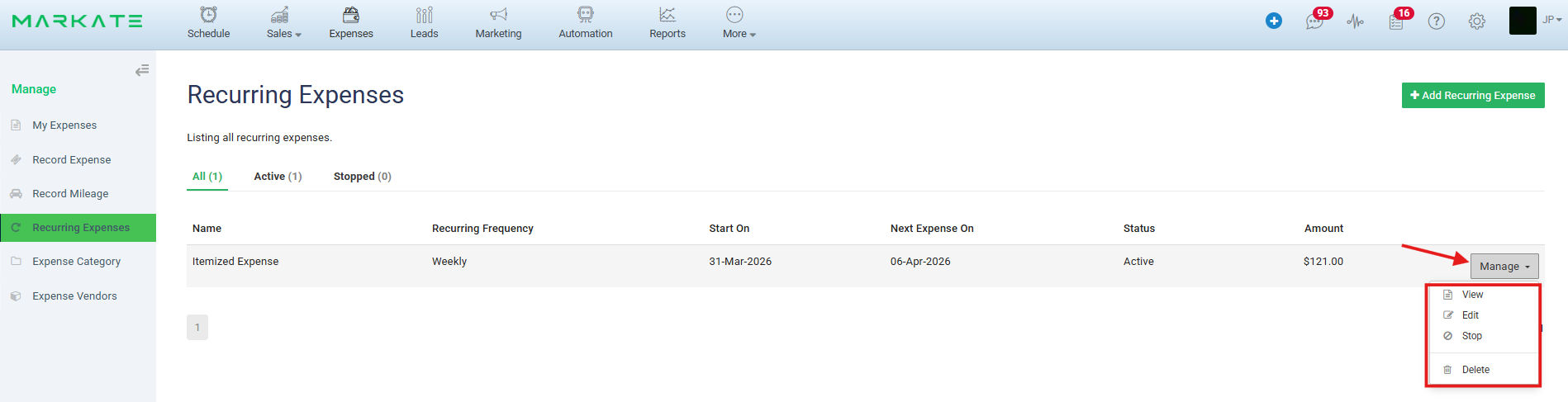
- Select Recurring Expenses from left panel.
- Click +Add Recurring Expense on top right.
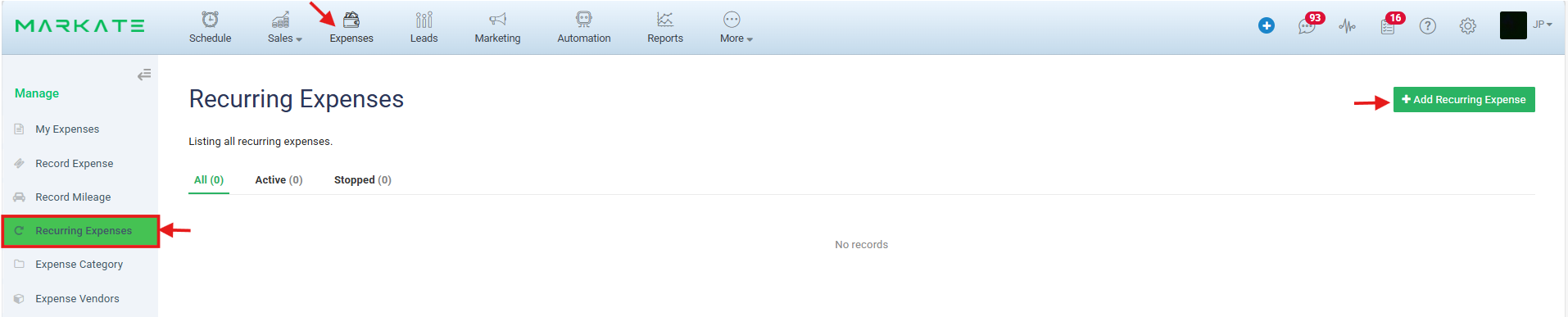
4. You will be redirected to the 'New Recurring Expense' setup screen.
5. Set Recurrence Details
- Start On: Select the date when the recurring expense should begin.
- Repeats: Choose how often the expense repeats (e.g., Weekly, Monthly).
- Repeat Every: Define the interval (e.g., every 1 week, every 2 months).
- Repeat On (for weekly schedules) Select the day(s) of the week (e.g., Monday)
- Ends: Choose when the recurrence should stop:
- Never (continues indefinitely)
- On (specific end date)
- After a number of occurrences
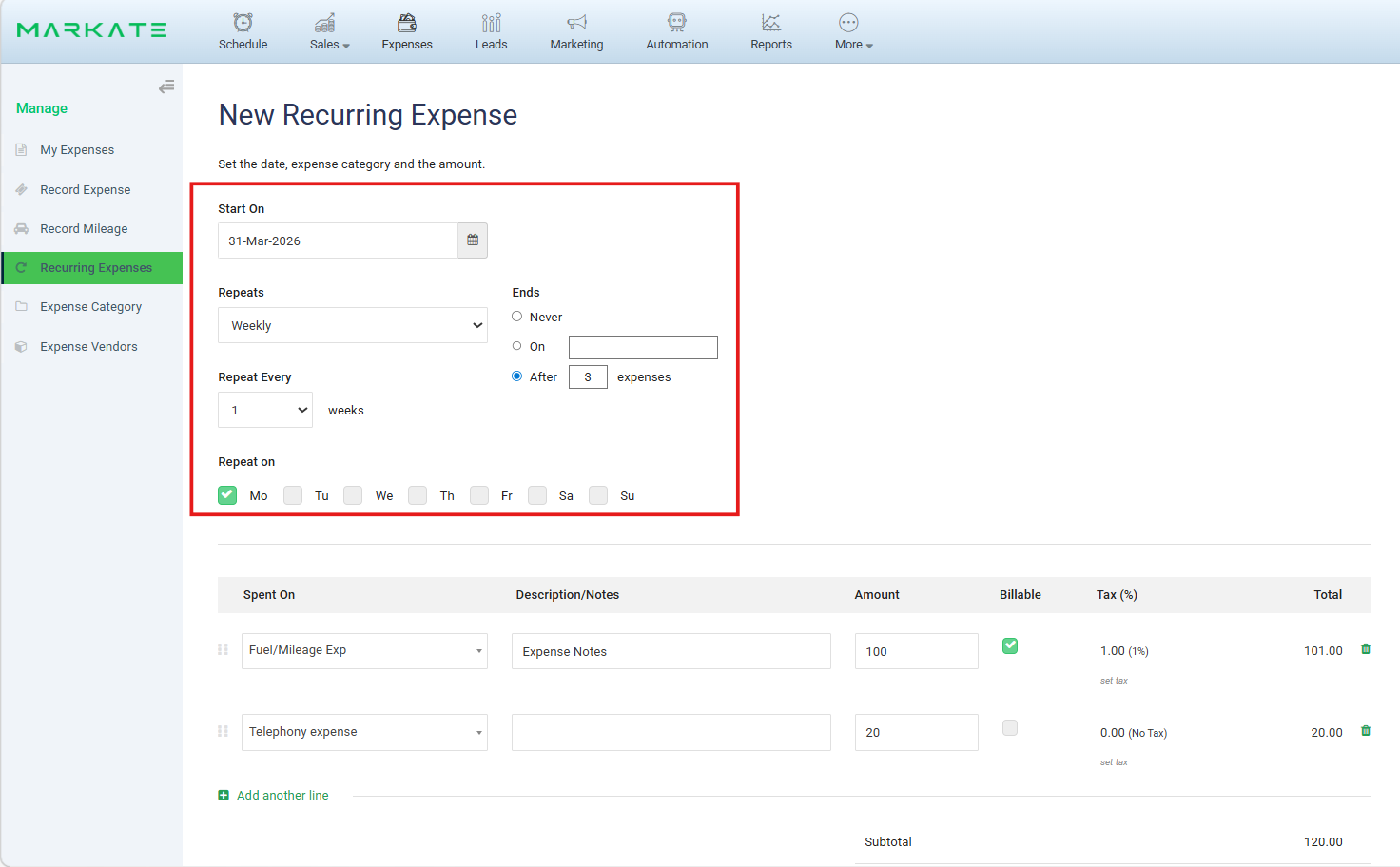
6. Add Expense Categories with Amount and other details.
Mark as Billable if applicable.
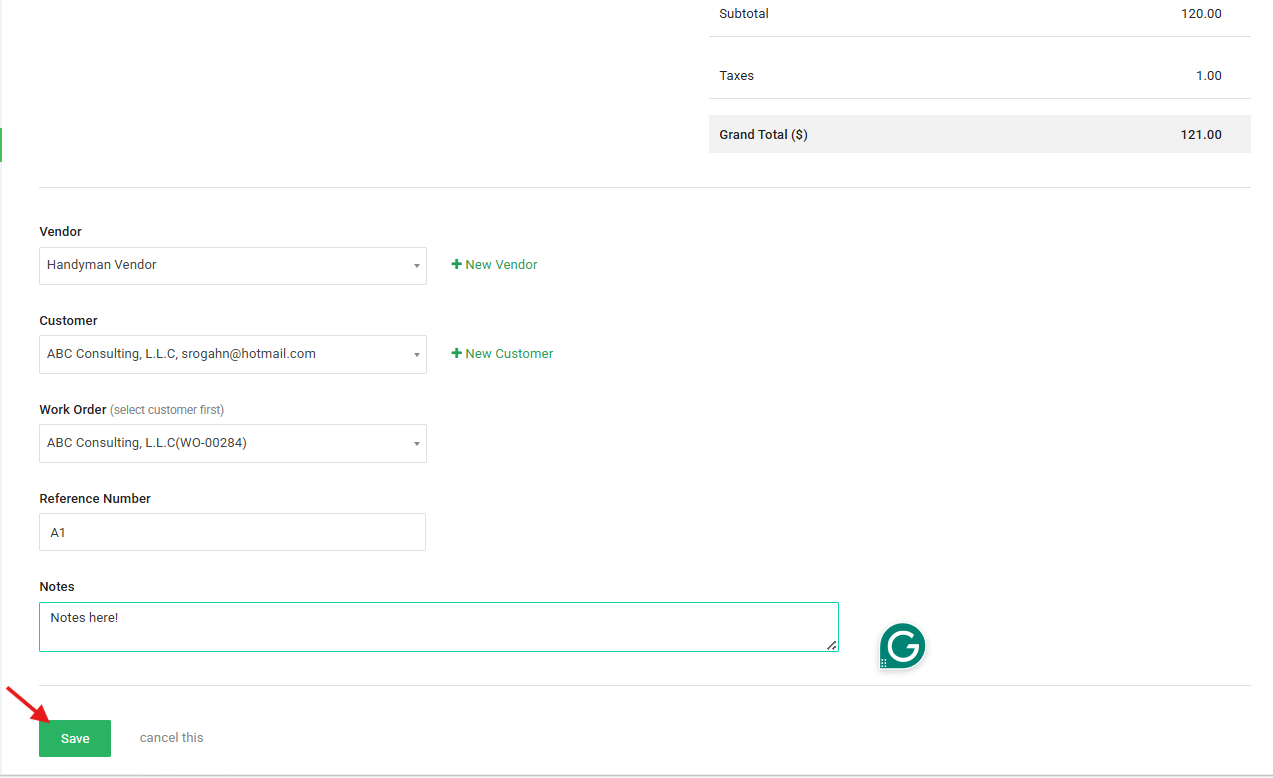
7. Assign Vendor and Customer (Optional)
8. Click Save.
9. From the recurring expense Preview page, you can:
- Click + Add Child Expense to manually create an instance.
- View all generated Child Expenses.
- Edit or update the recurring schedule as needed.
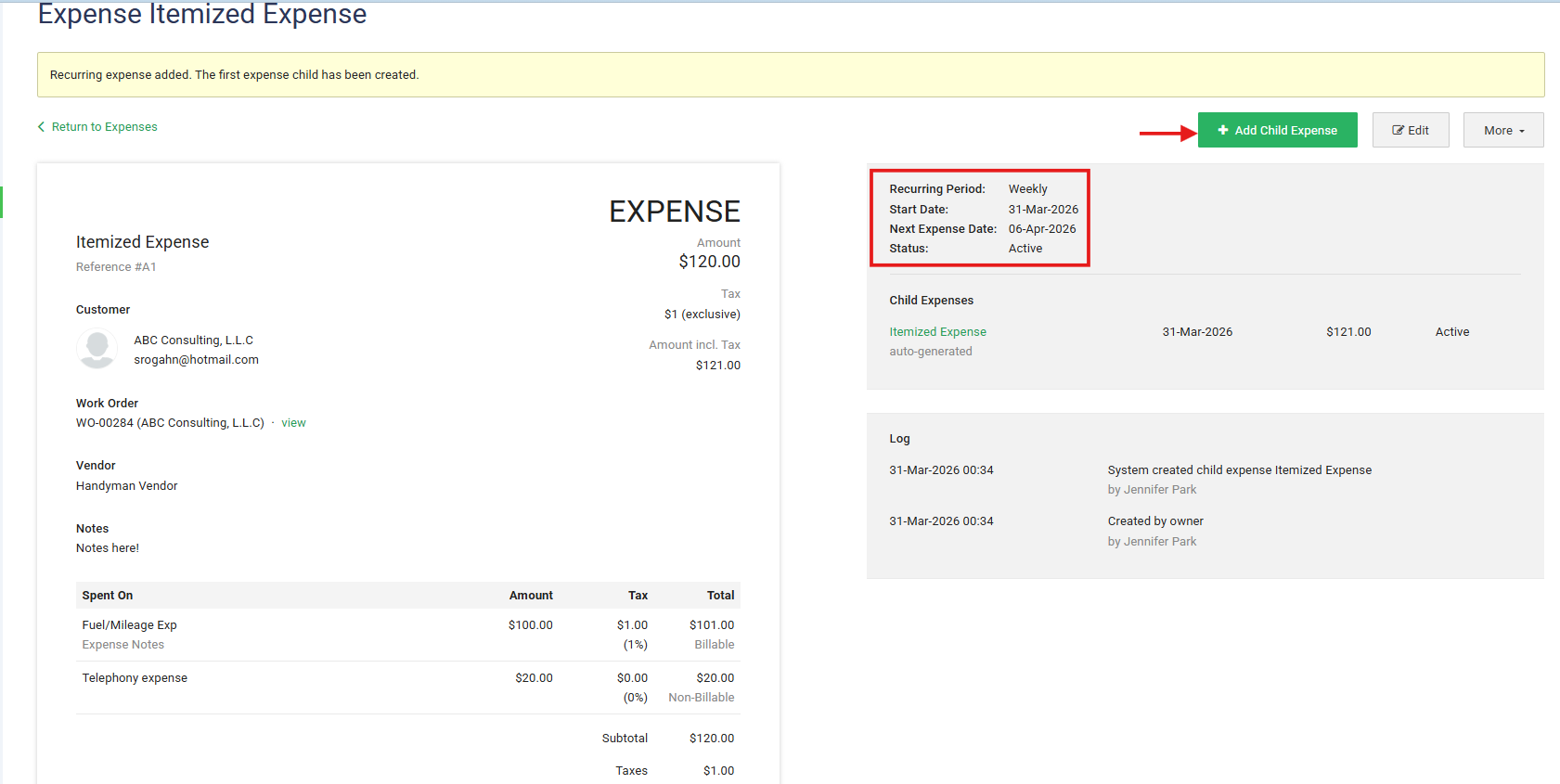
10. Manage Recurring Expenses: You can stop or edit the recurrence anytime.
Was this article helpful?
That’s Great!
Thank you for your feedback
Sorry! We couldn't be helpful
Thank you for your feedback
Feedback sent
We appreciate your effort and will try to fix the article