Record and manage expenses easily in Markate by entering details, categorizing costs, and saving them for tracking or billing. You can also log mileage (by distance or odometer) and convert billable expenses into invoices in just a few steps.
Login to Markate App
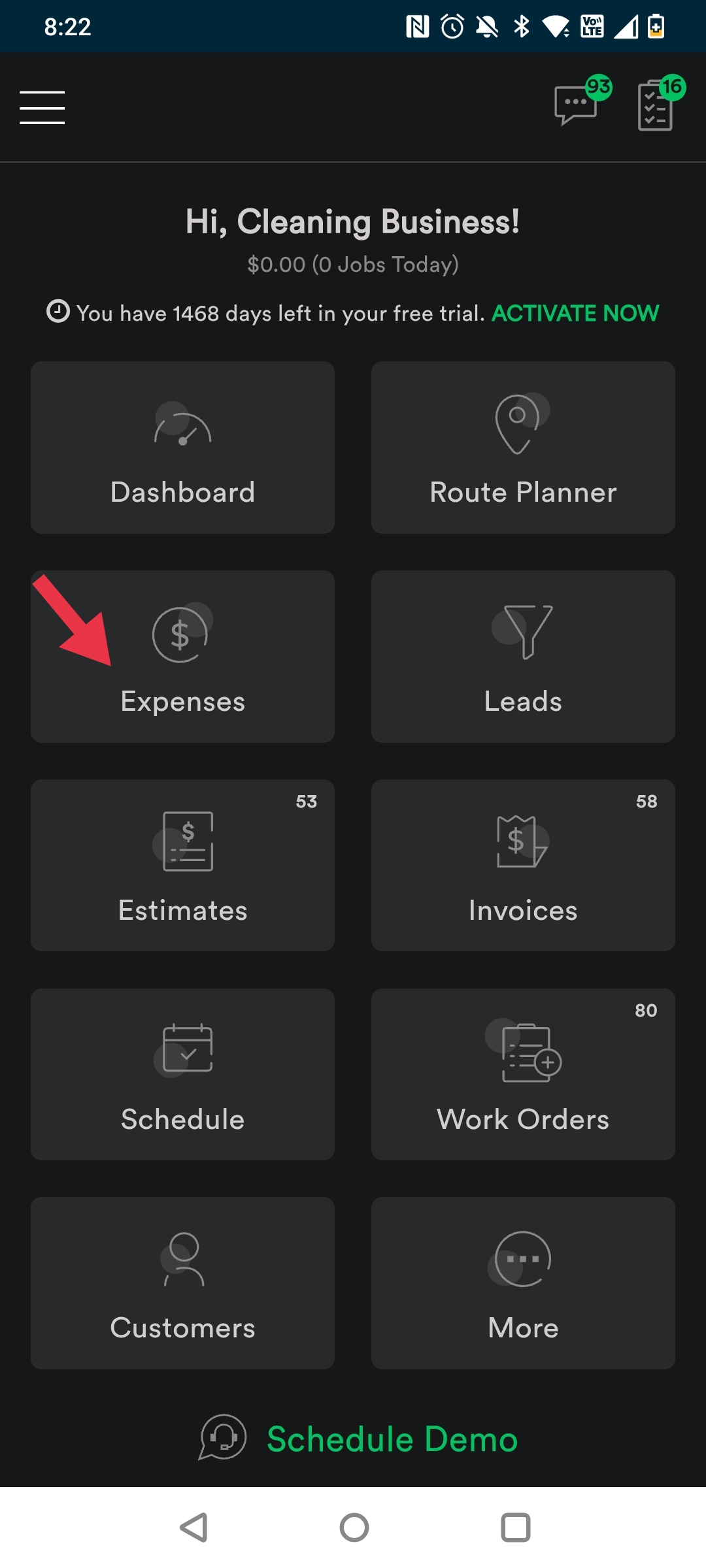
Step 1: On the Homepage, tap 'Expenses'.
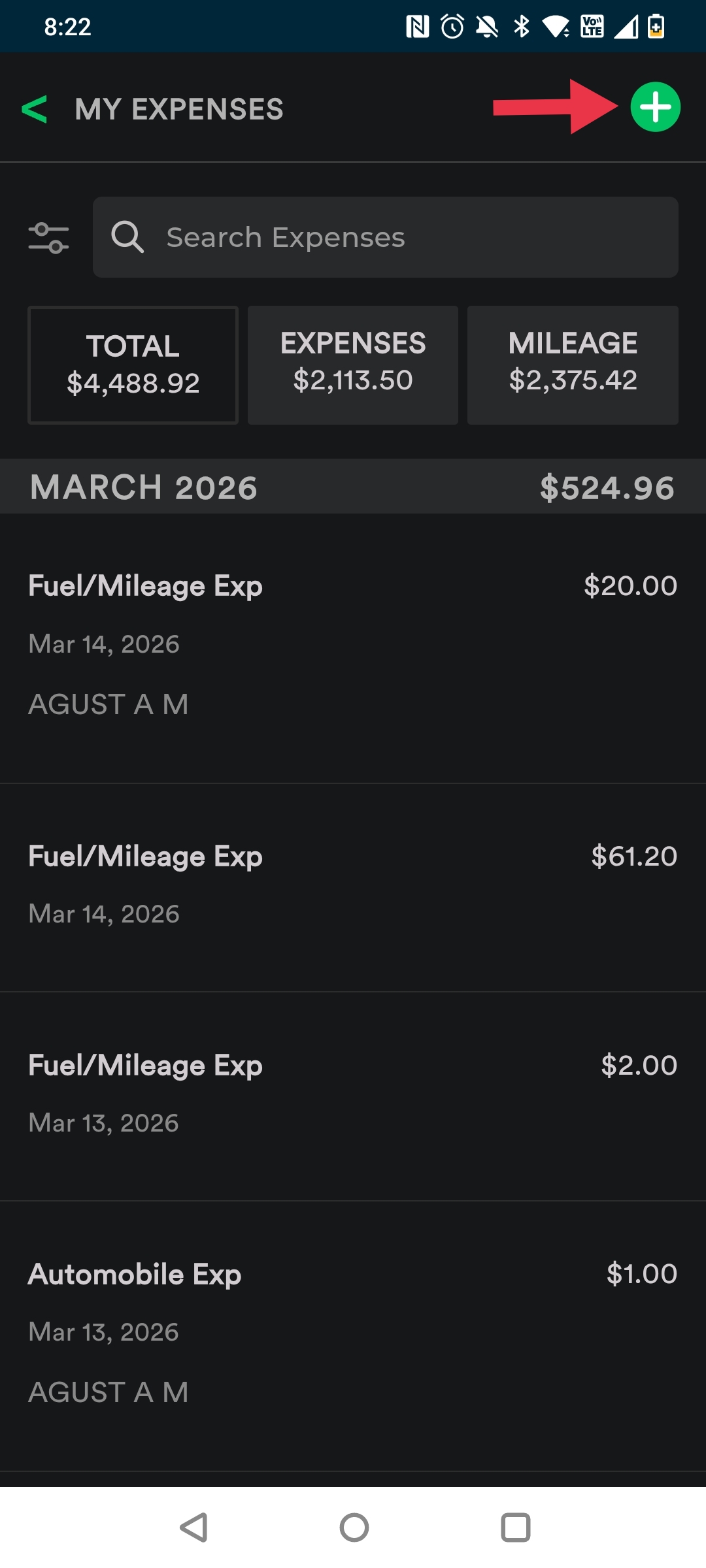
Step 2: Tap (+) button to start recording an Expense.
Record Regular Expense:
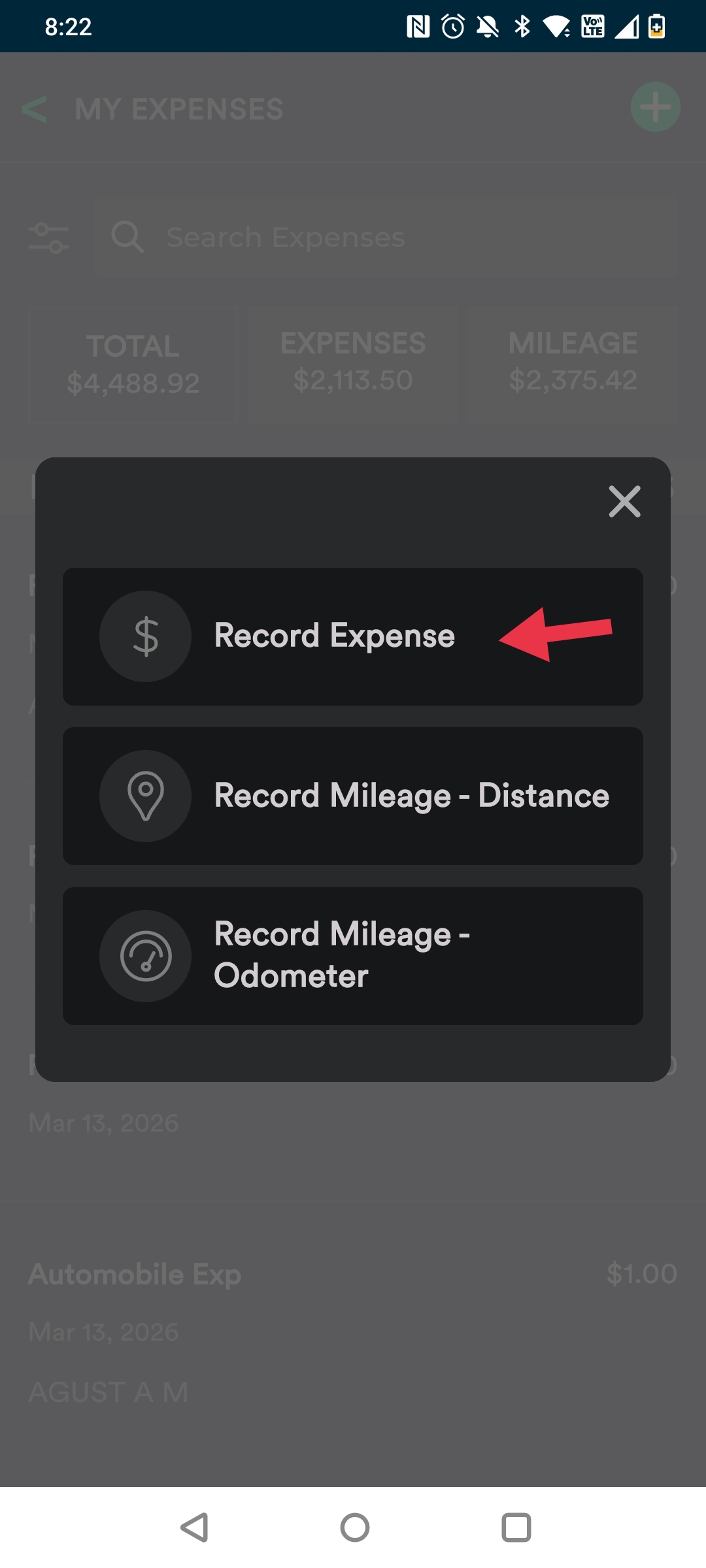
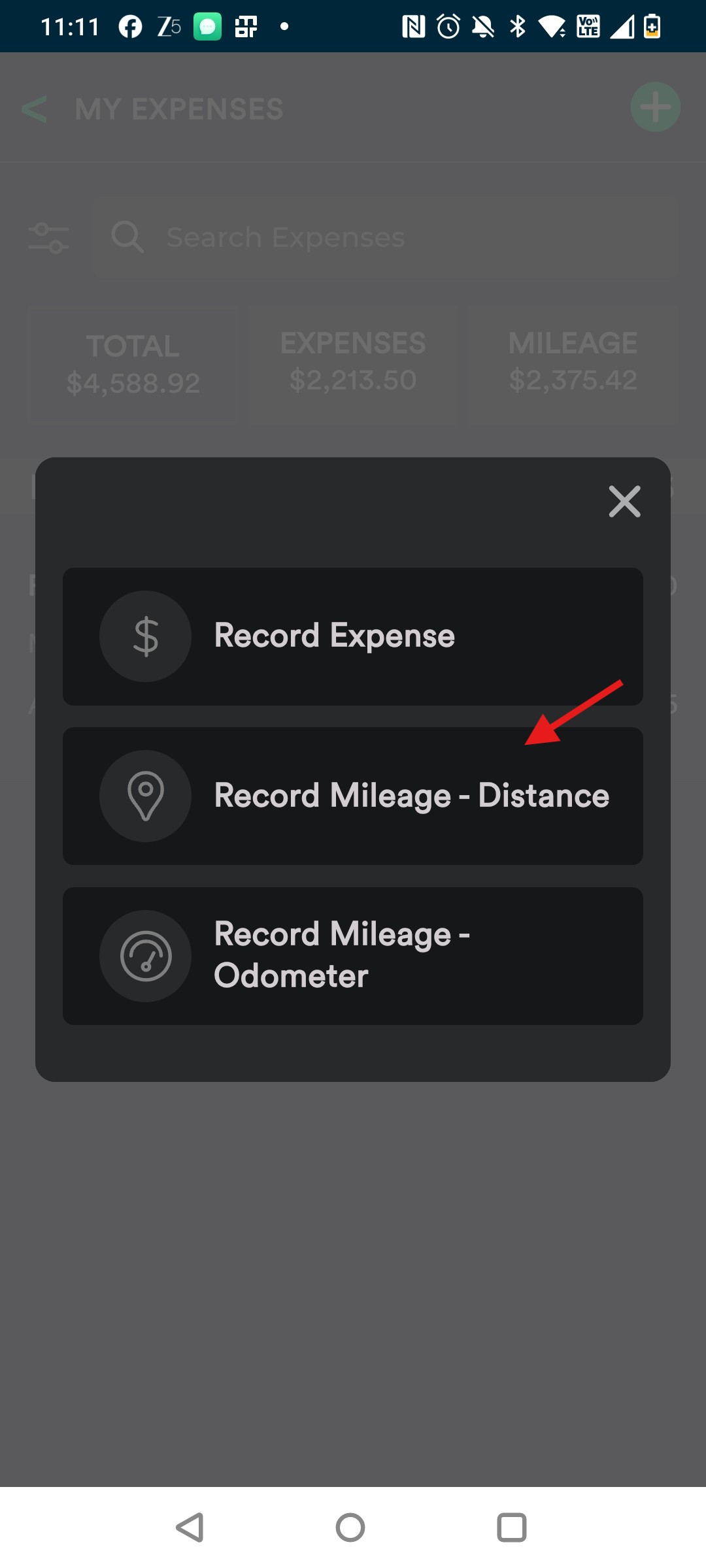
Step 3: A pop up shows up with the types to Expenses to choose from, tap 'Record Expense' to record a regular expense.
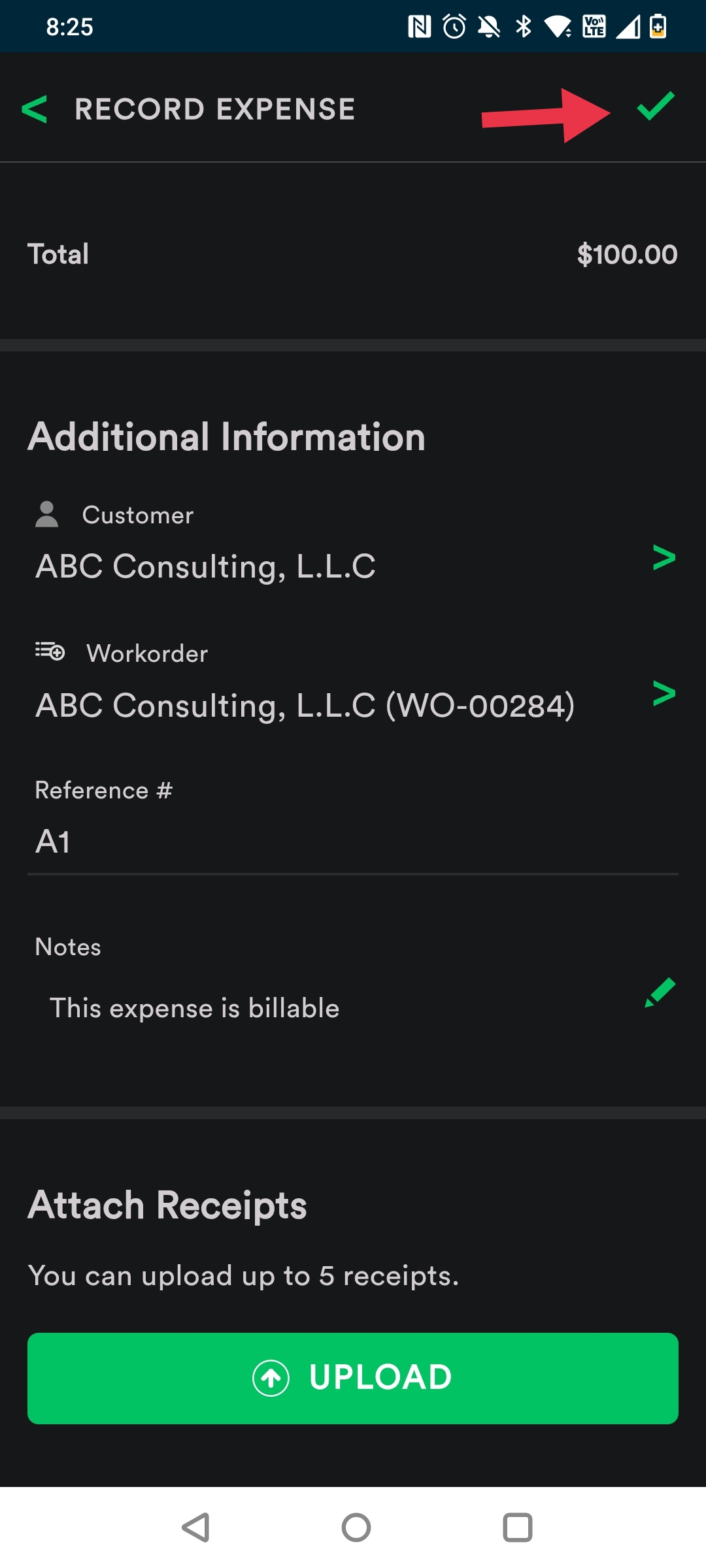
Step 4: Now, enter all the necessary details like Vendor, Expense Category and so on.
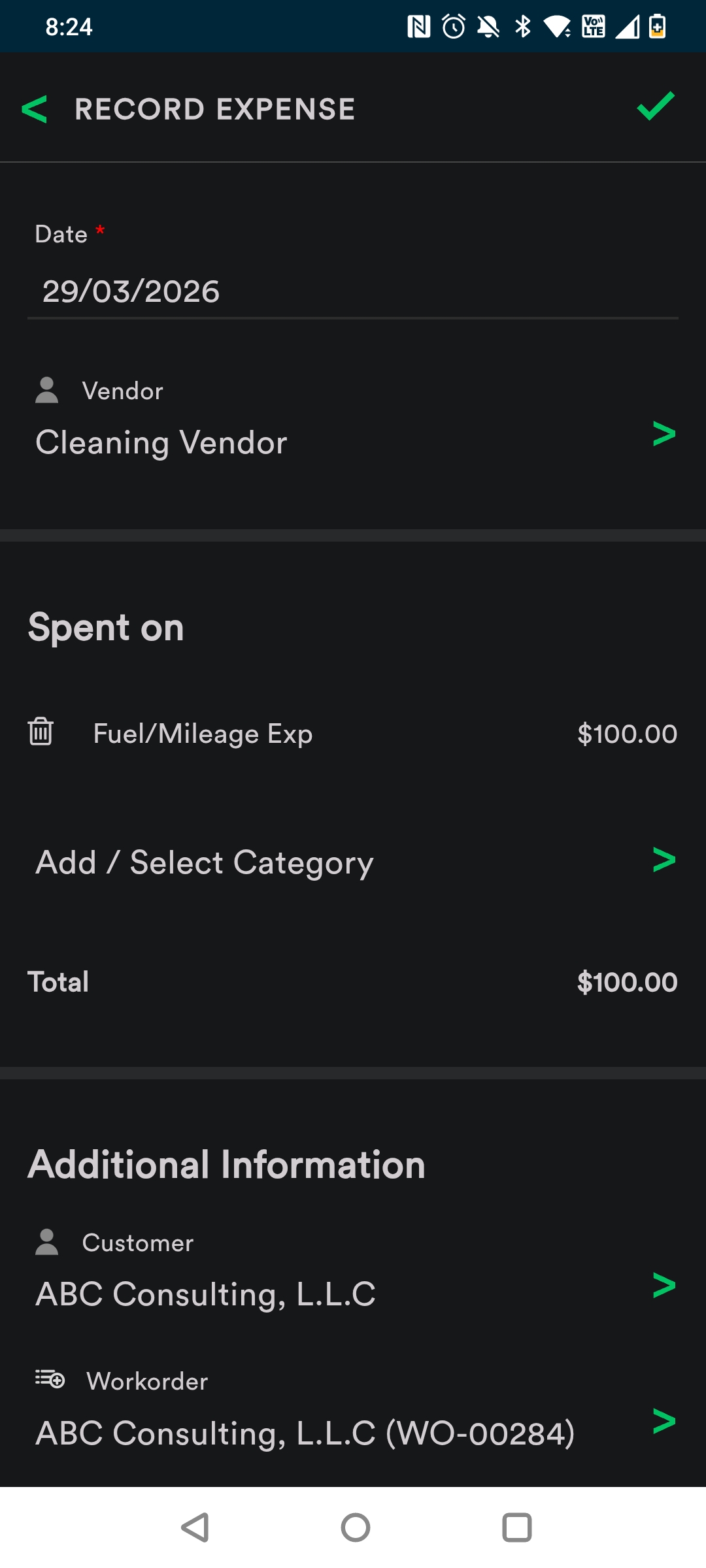
Step 5: If you Select Customer and Work Order, the expense will be reflected under respective Work Order.
Attach Receipts if any.
Tap the 'tick' icon to save the Expense.
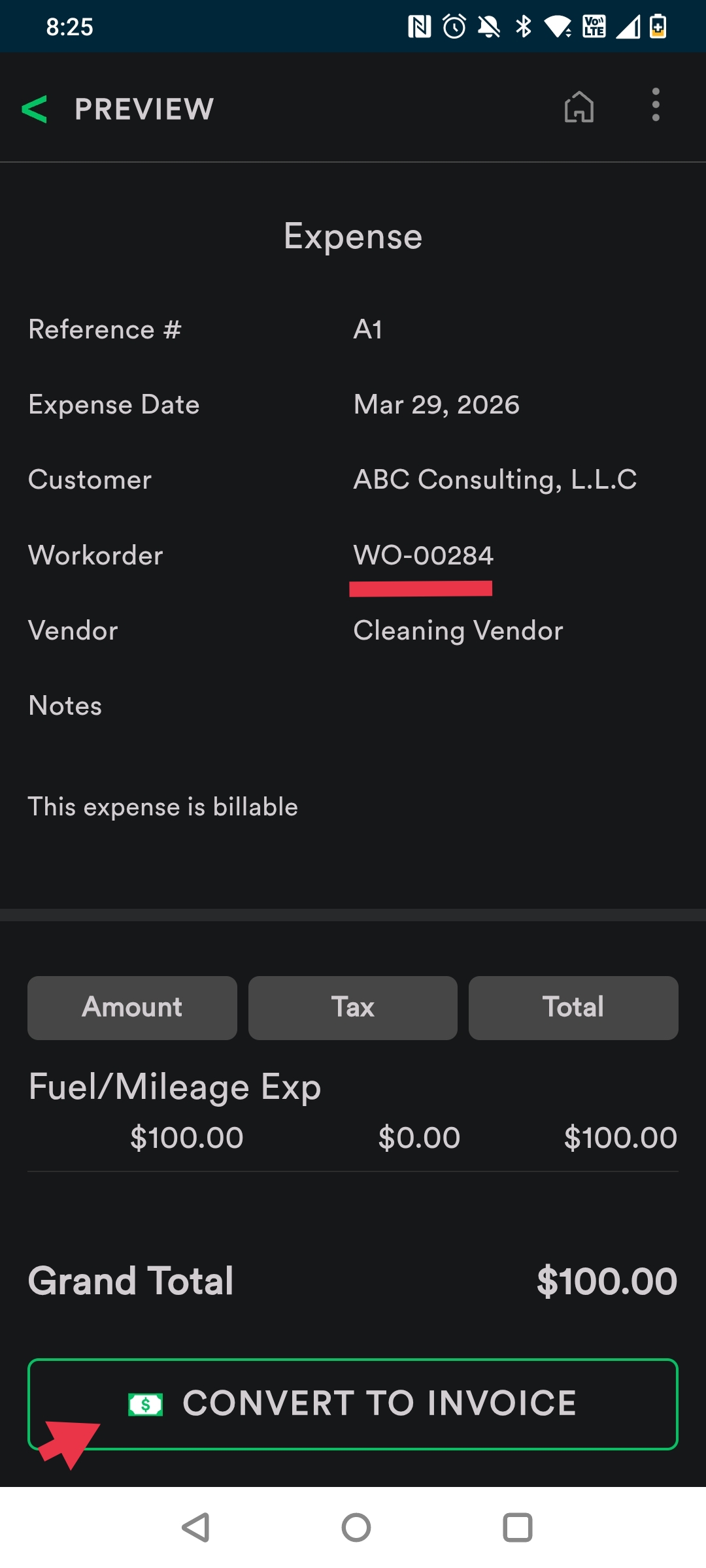
Step 6: If the Expense is billable, it can be converted to Invoice. For that, tap 'Convert to Invoice' on Expense preview screen.
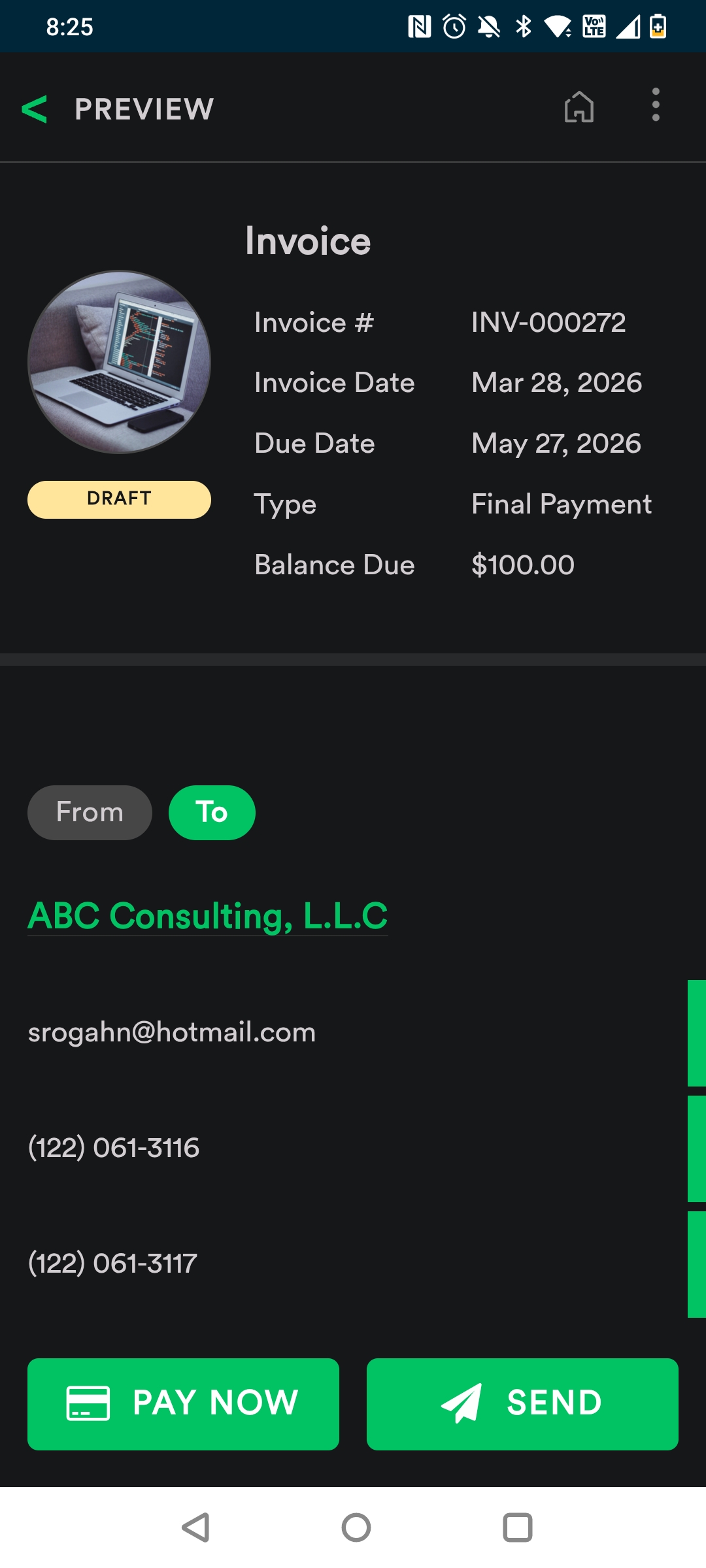
Step 7: This is how the Expense is converted to an Invoice.
Record Mileage by Distance:
Follow steps 1 and 2
Step 8: Tap 'Record Mileage- Distance' on the pop up.
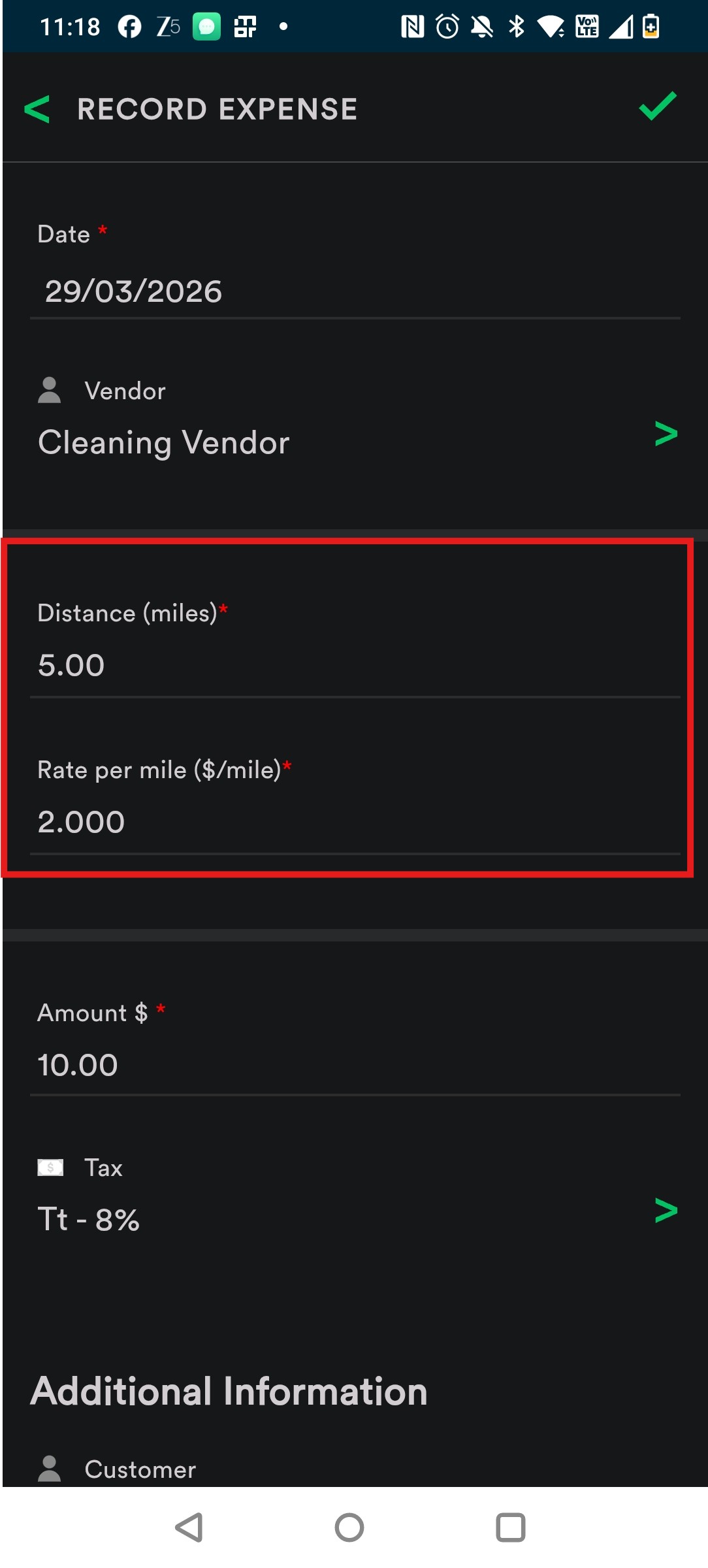
Step 9: Now, enter all necessary details. Also enter Distance, Rate per mile can be changed. Amount is automatically calculated. [Amount = Distance * Rate per mile].
Step 10: Enable 'Expense is Billable' if you want to convert it to Invoice.
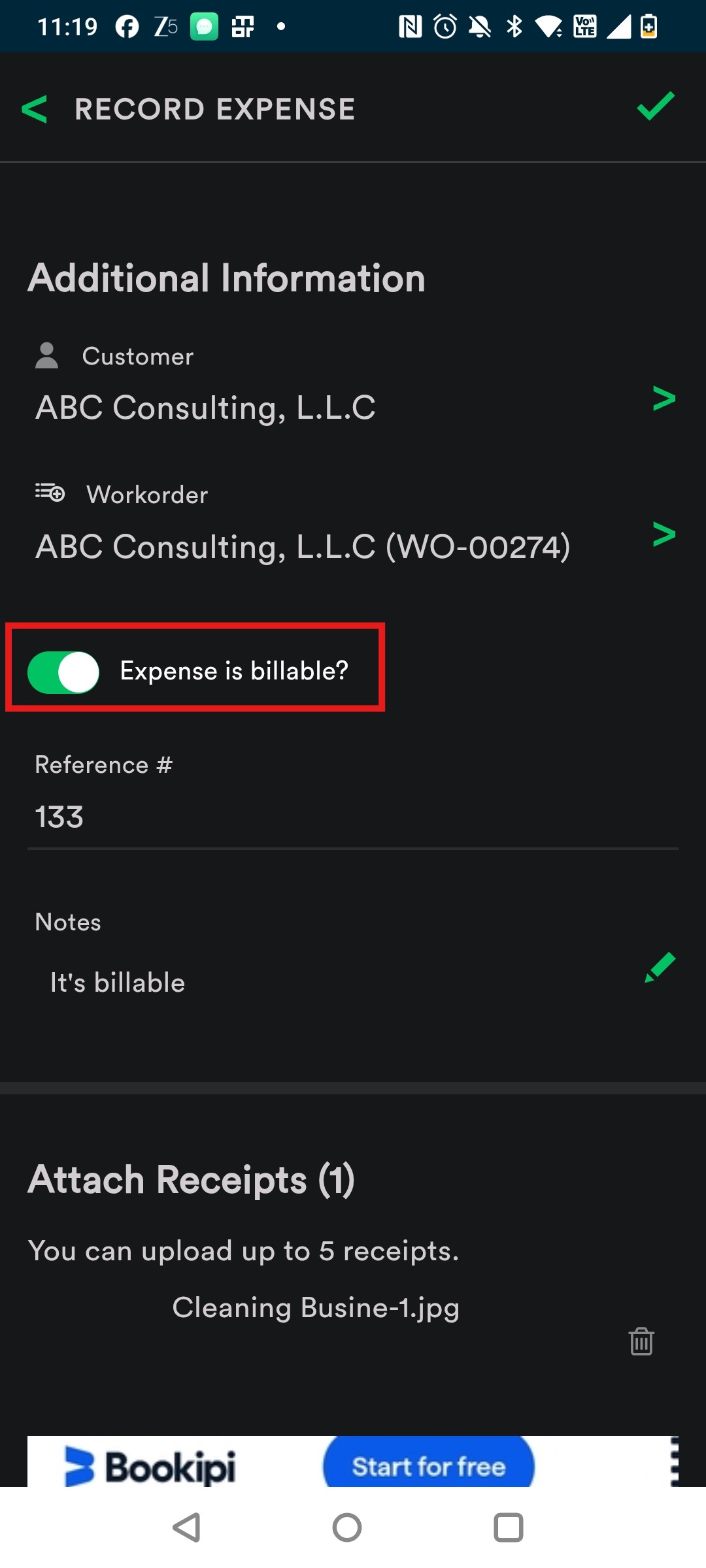
Step 11: Attach Receipts if any.
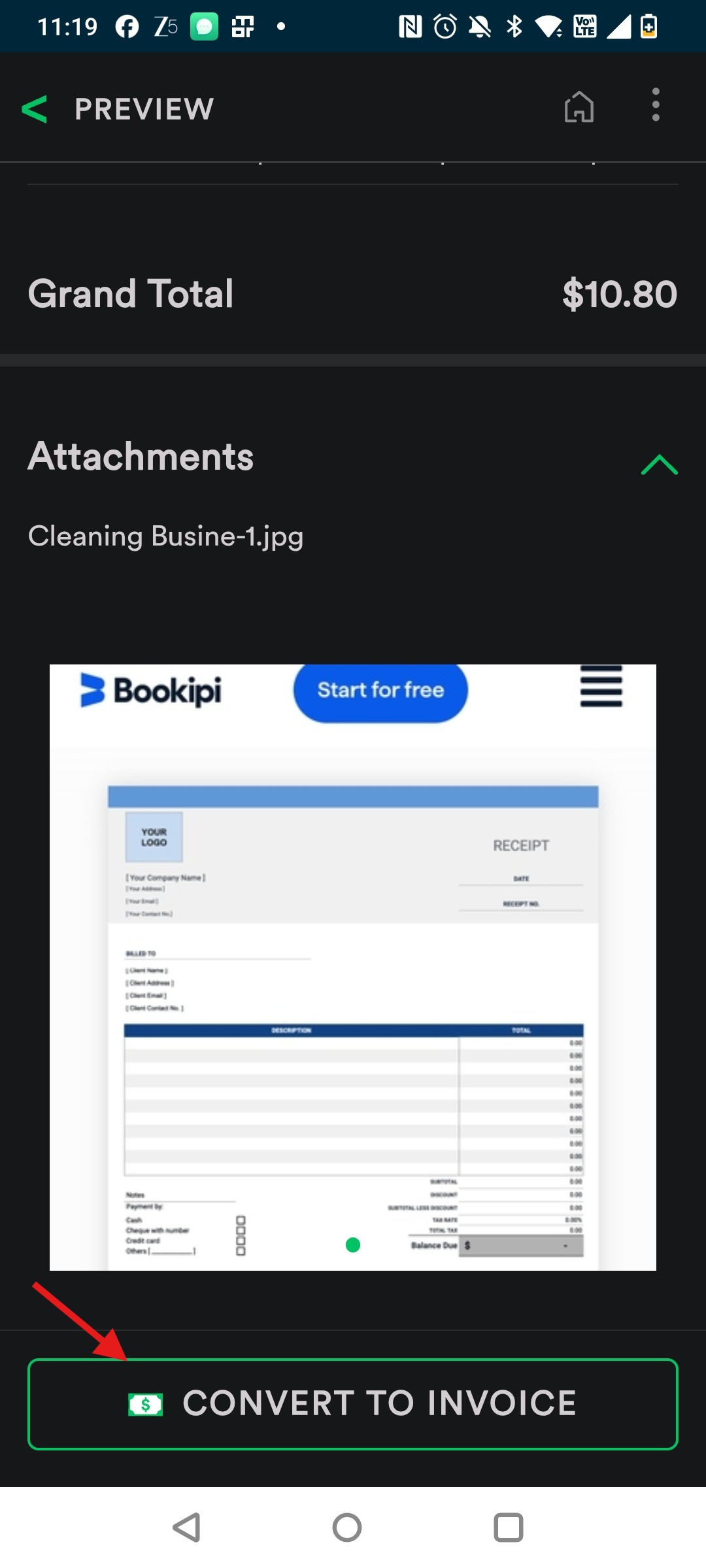
Tap 'Convert to Invoice' if Expense is billable. An Invoice draft will be generated.
Record Mileage by Odometer.
Follow steps 1 and 2
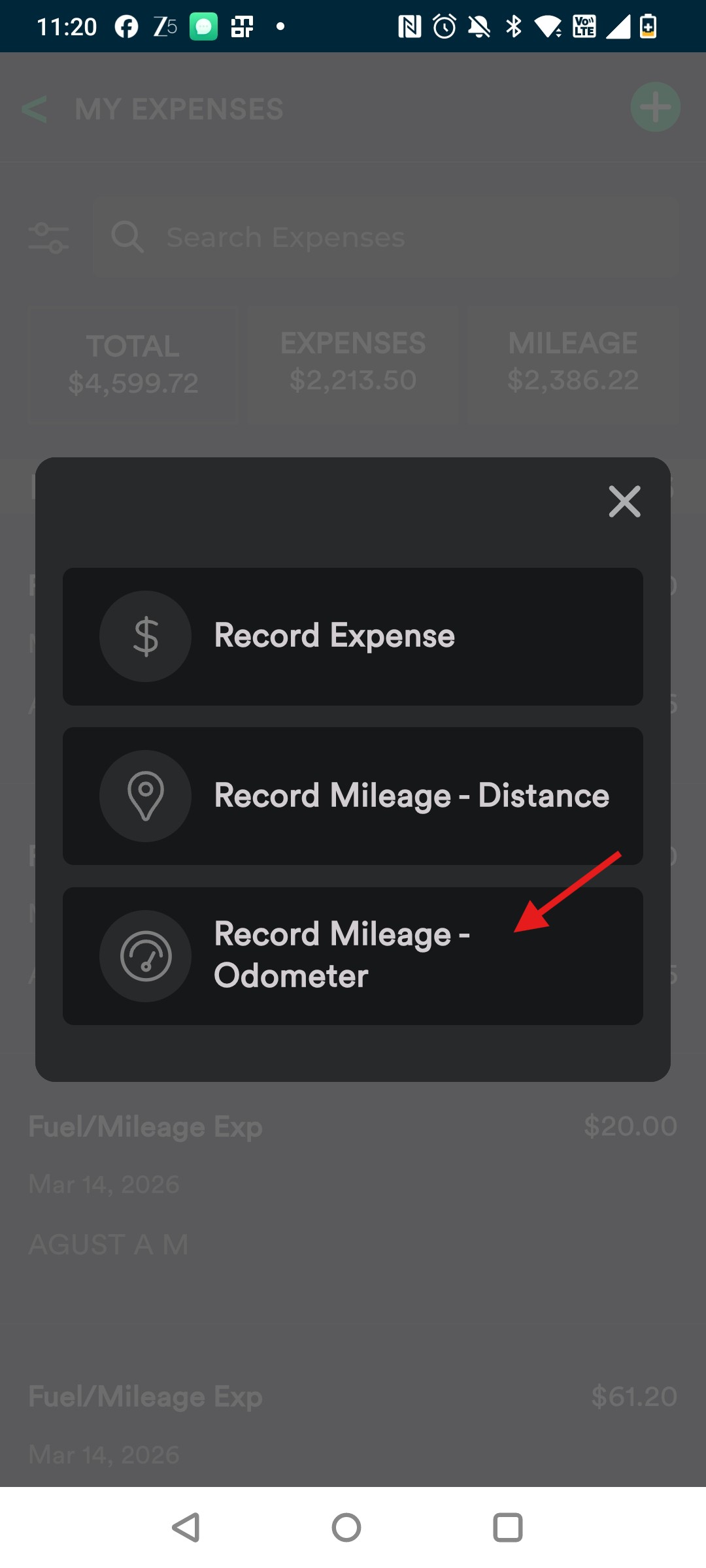
Step 12: Tap 'Record Mileage- Odometer' on the pop up.
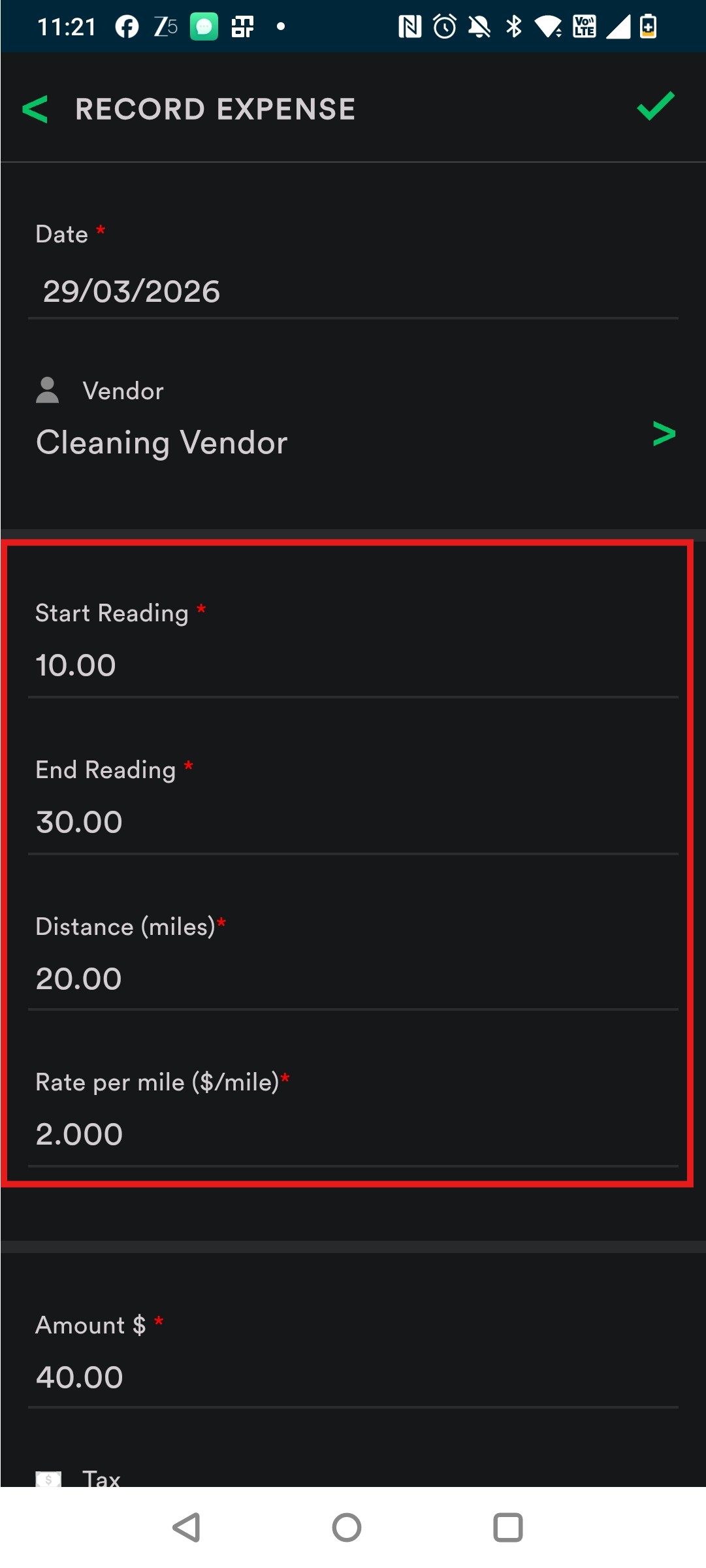
Step 13: Enter all necessary details. Also enter 'Start Reading' and 'End Reading'. Rate per Mile can be changed. Distance and Amount will be automatically calculated.
[Distance = End Reading - Start Reading AND Amount = Distance * Rate per Mile].
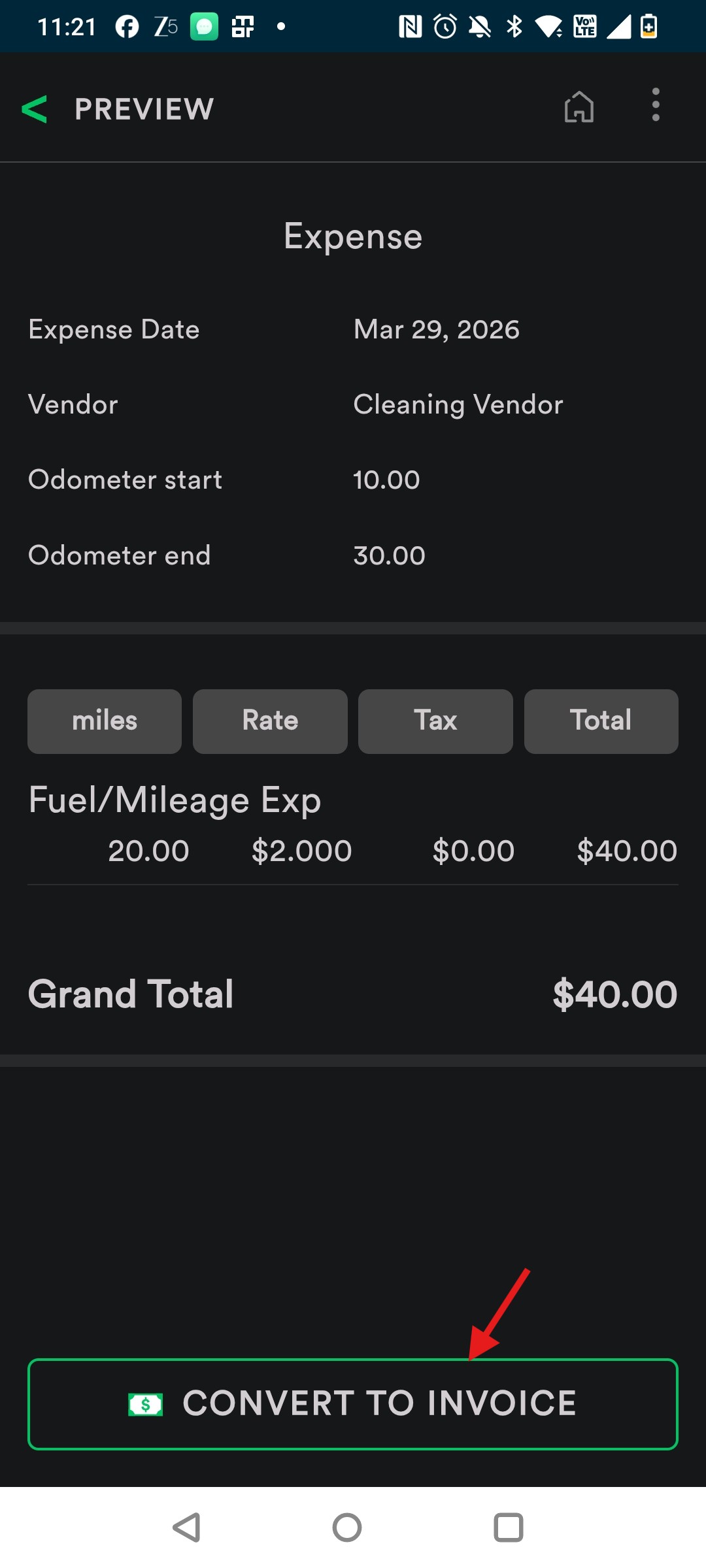
Step 14: Tap 'Convert to Invoice' if the expense is enabled as billable.
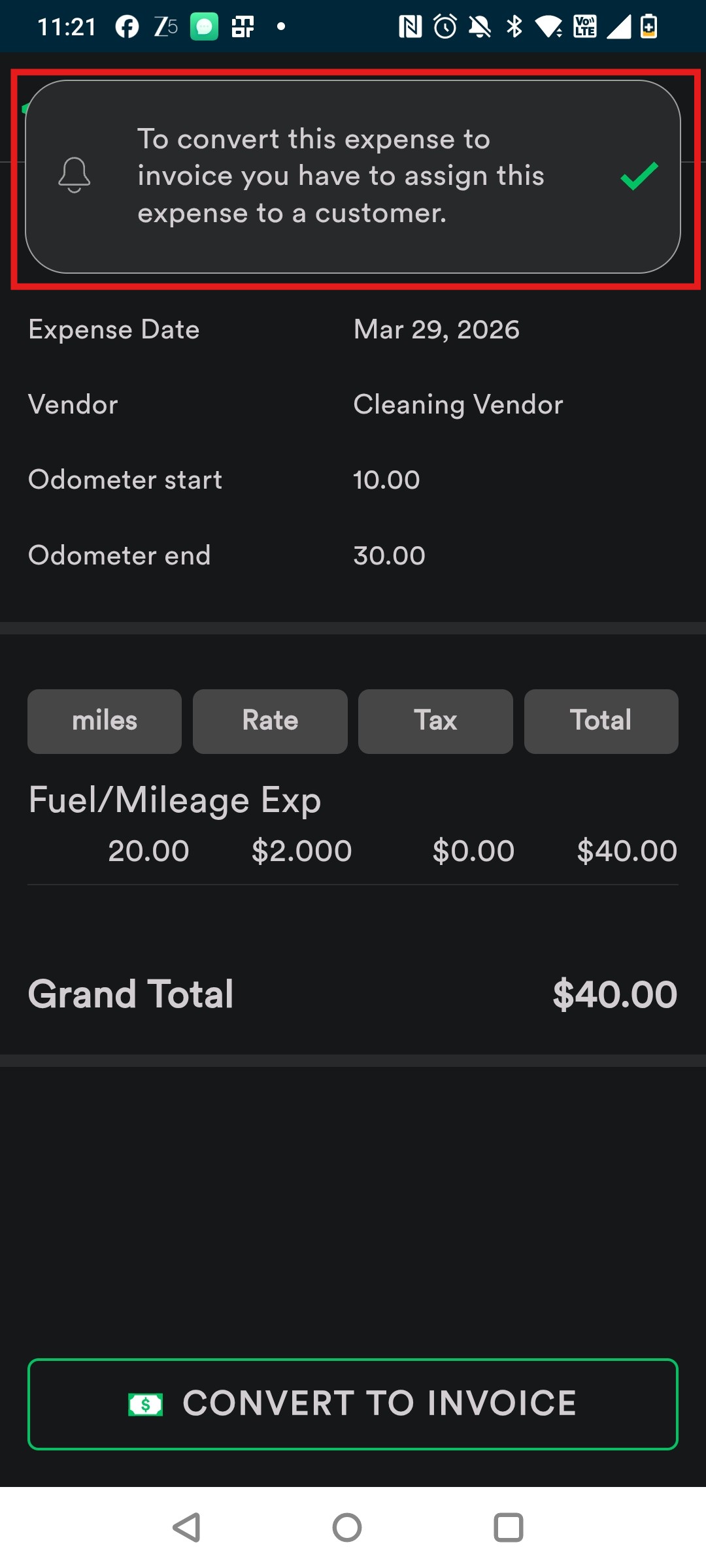
Note: The Expense will only be converted to Invoice if 'Expense is Billable' is enabled and Customer is selected. So Make sure to do that before converting to an Invoice successfully.
Here is a video showing how to do this:
Was this article helpful?
That’s Great!
Thank you for your feedback
Sorry! We couldn't be helpful
Thank you for your feedback
Feedback sent
We appreciate your effort and will try to fix the article