Track multiple employees’ time directly on a work order to monitor job duration and generate accurate profit and loss reports. (Available Only on the Mobile App)
Step-by-Step Instructions
Option 1: Regular Clock In-Out
Suppose two employees (Emp A and Emp B) are working on a single Work Order.
Let's learn step-by-step how they both can use Clock In / Out feature on a single Work Order.
1. Emp A Opens the assigned Work Order
2. Taps Arrival
3. The Arrival Notification has been sent to the Customer and Travel timer starts immediately for Emp A.
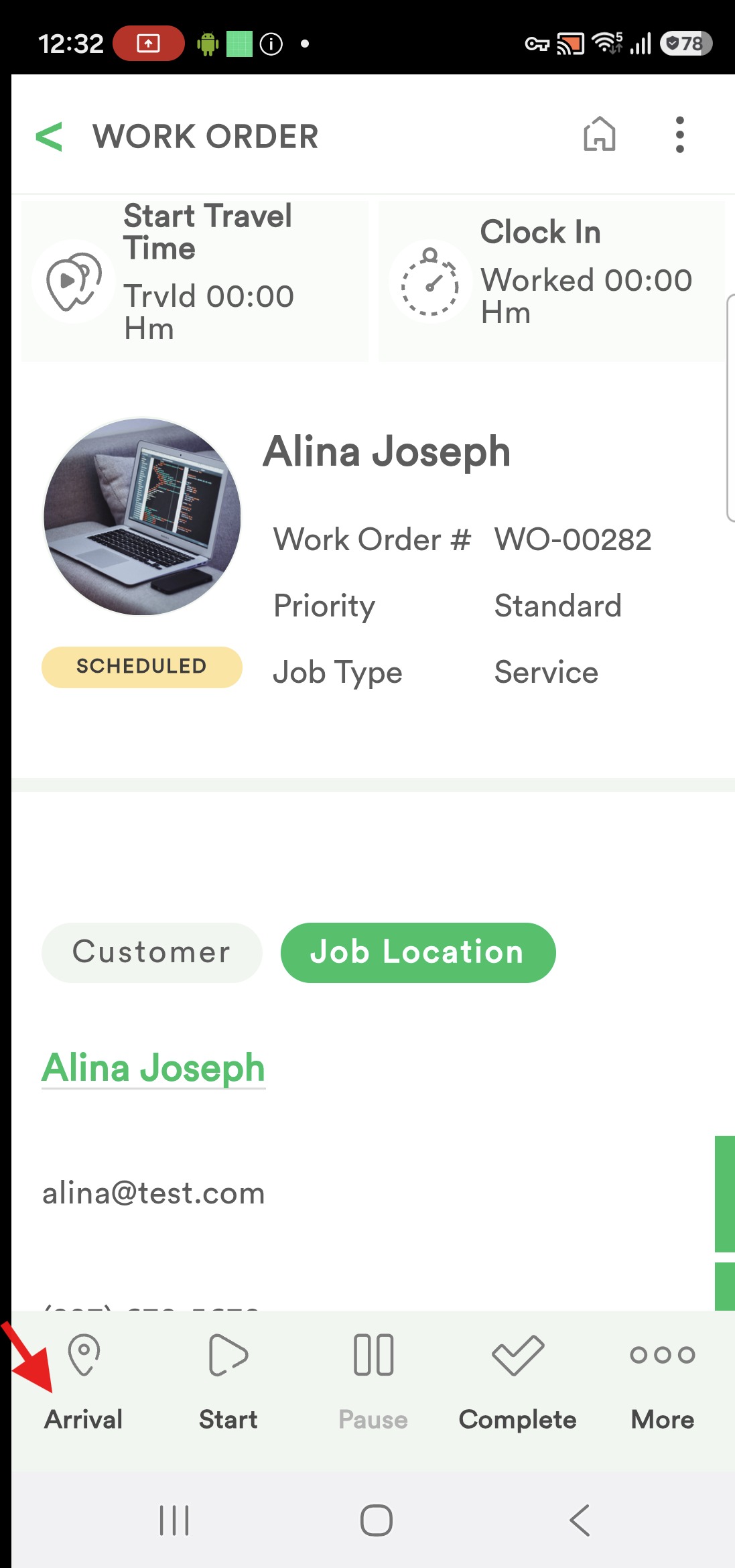
4. Emp B sees 'Arrival' As 'Notified' and can just tap "Start Travel Time" on top to start his travel time.
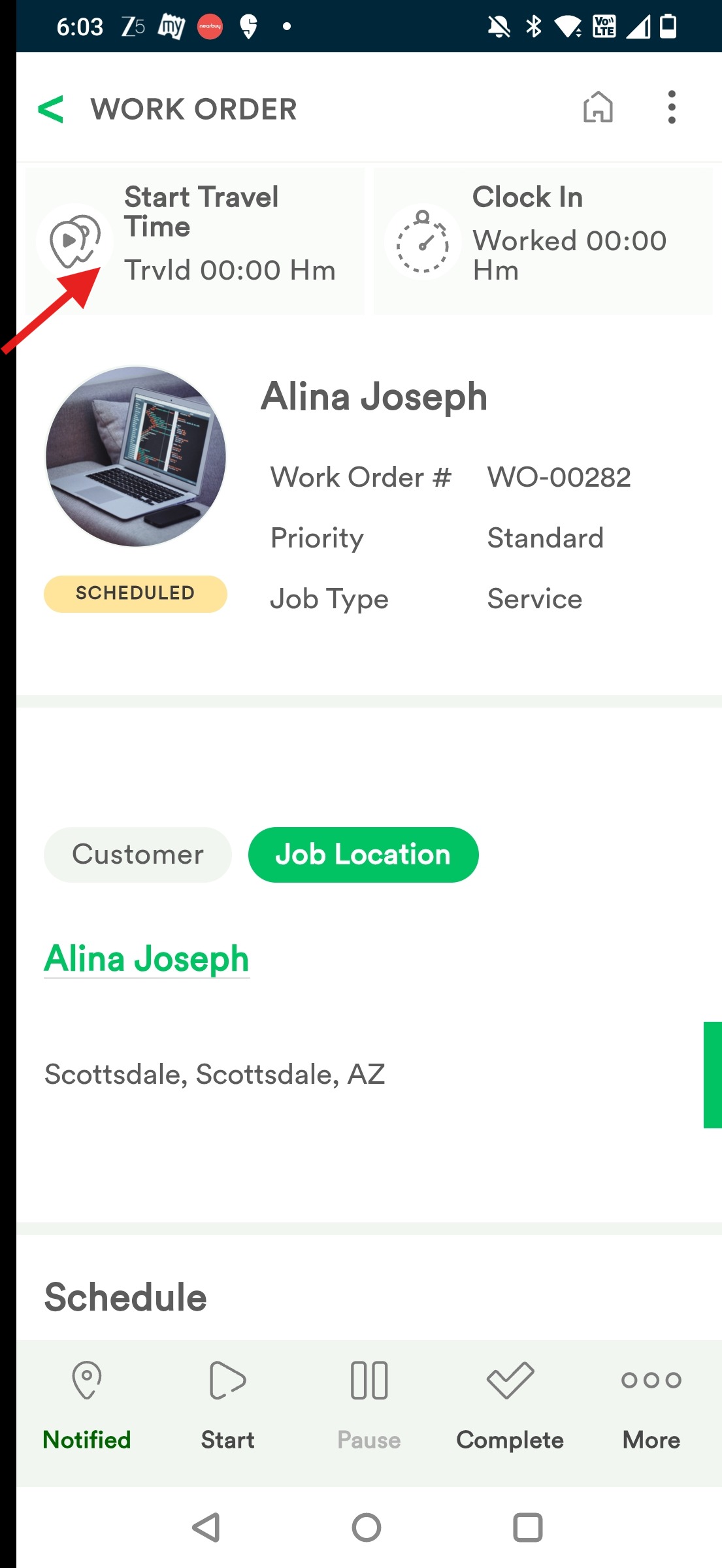
5. To stop Travel Time, simply Tap - Stop Travel Time.
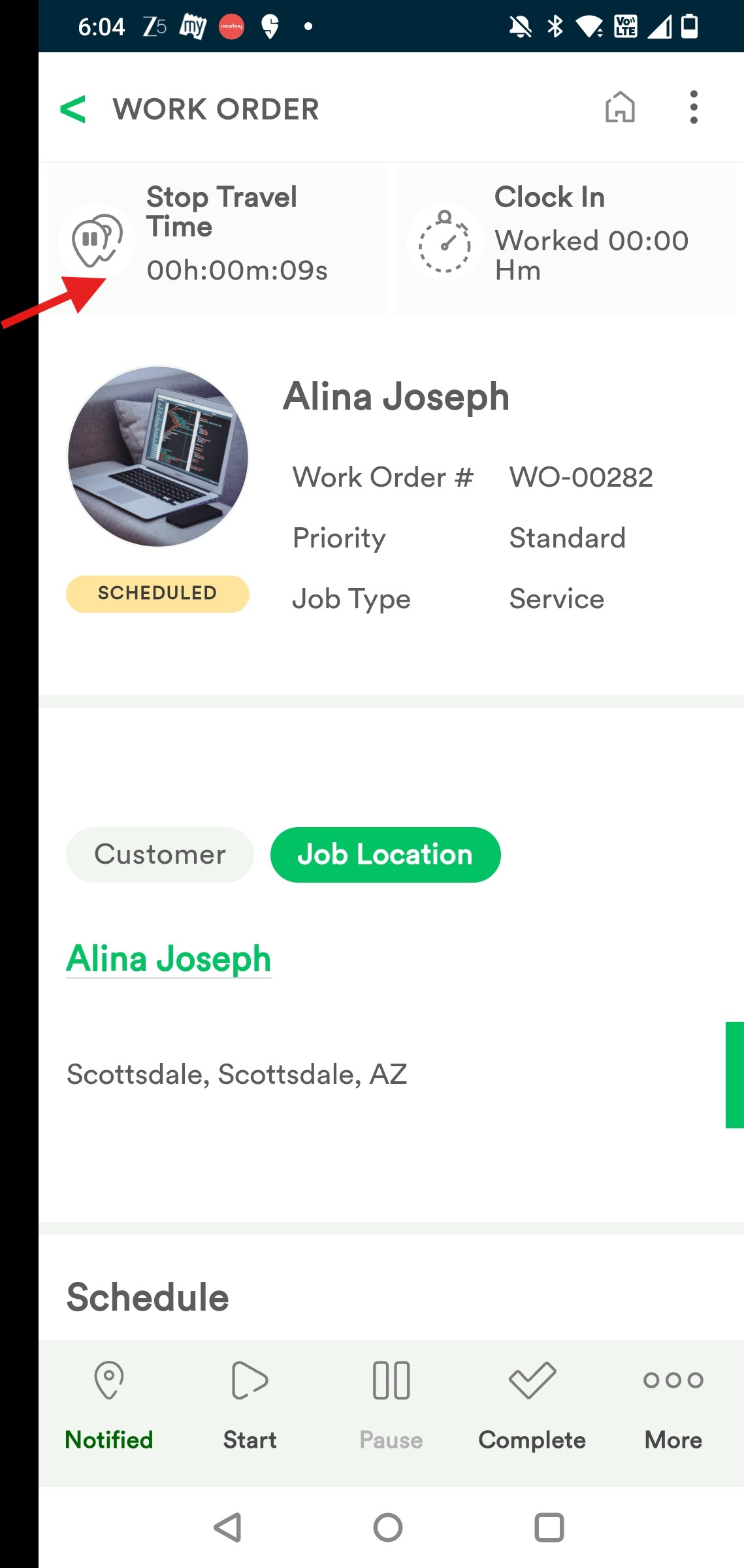
6. Employees can enter travel time notes if any. Then Tap Yes.
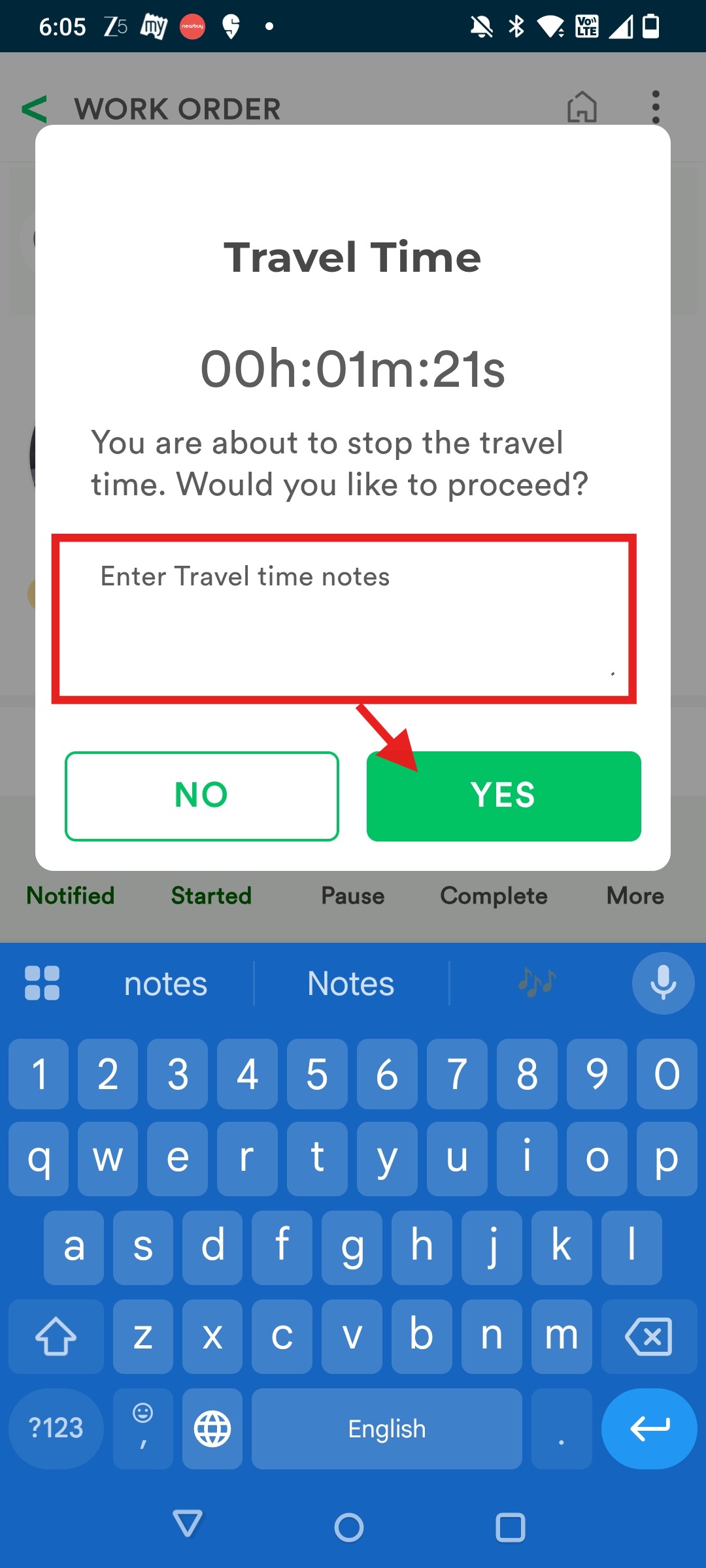
7. Emp A Taps 'Start' when the job is started. It's Clocked in automatically and timer starts.
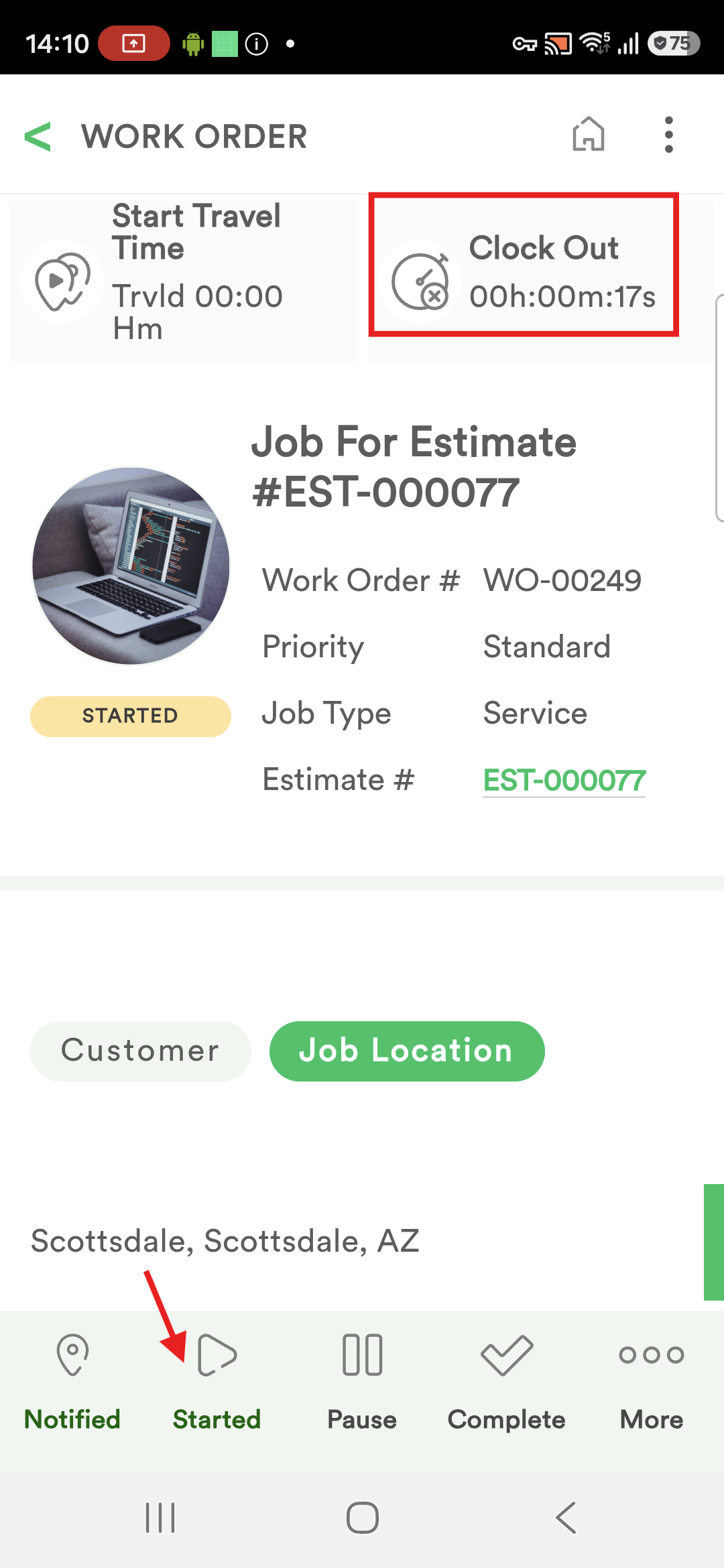
8. Emp B sees 'Started' at the bottom and simply taps Clock In on the top to start the timer when he starts the job.
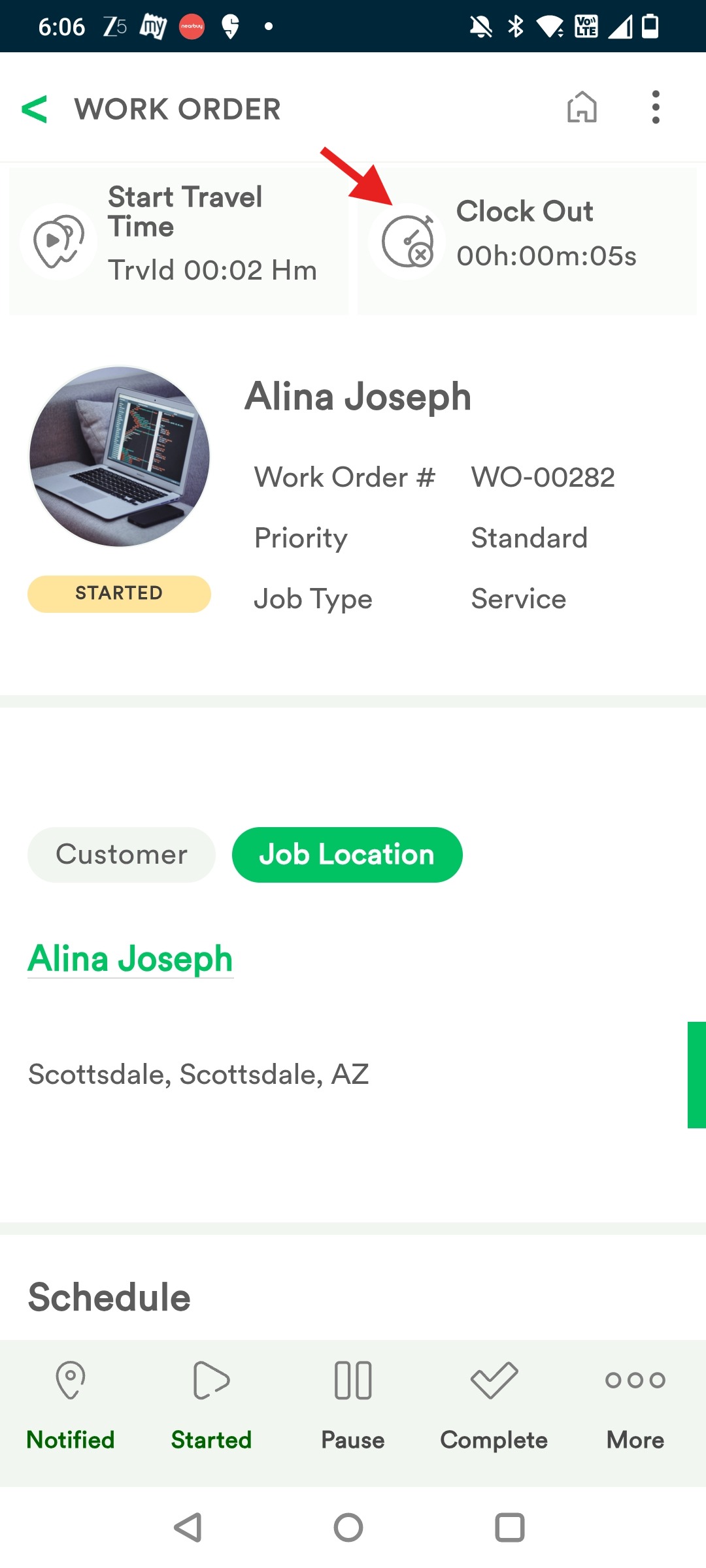
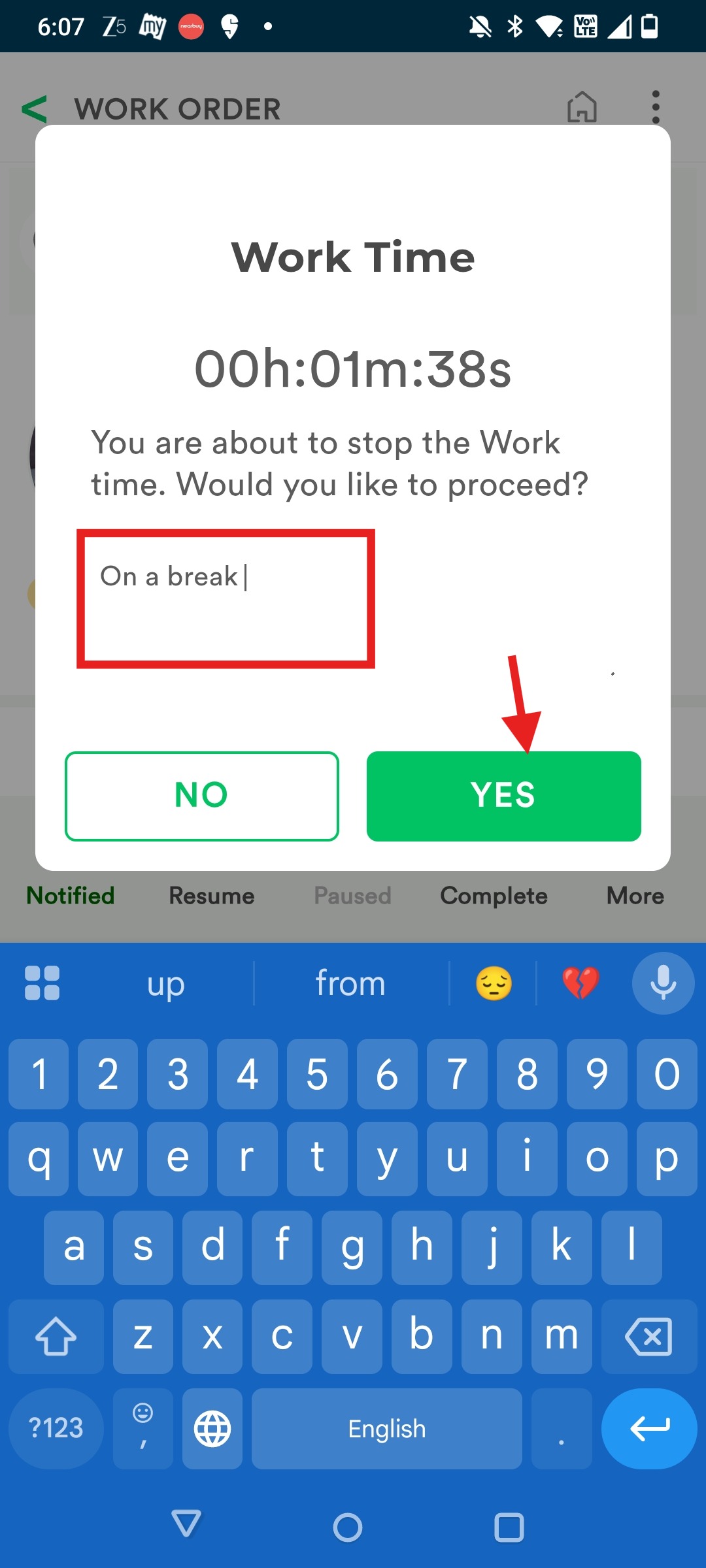
9. Employees can Clock Out to take a break by tapping Clock Out and input relevant notes.
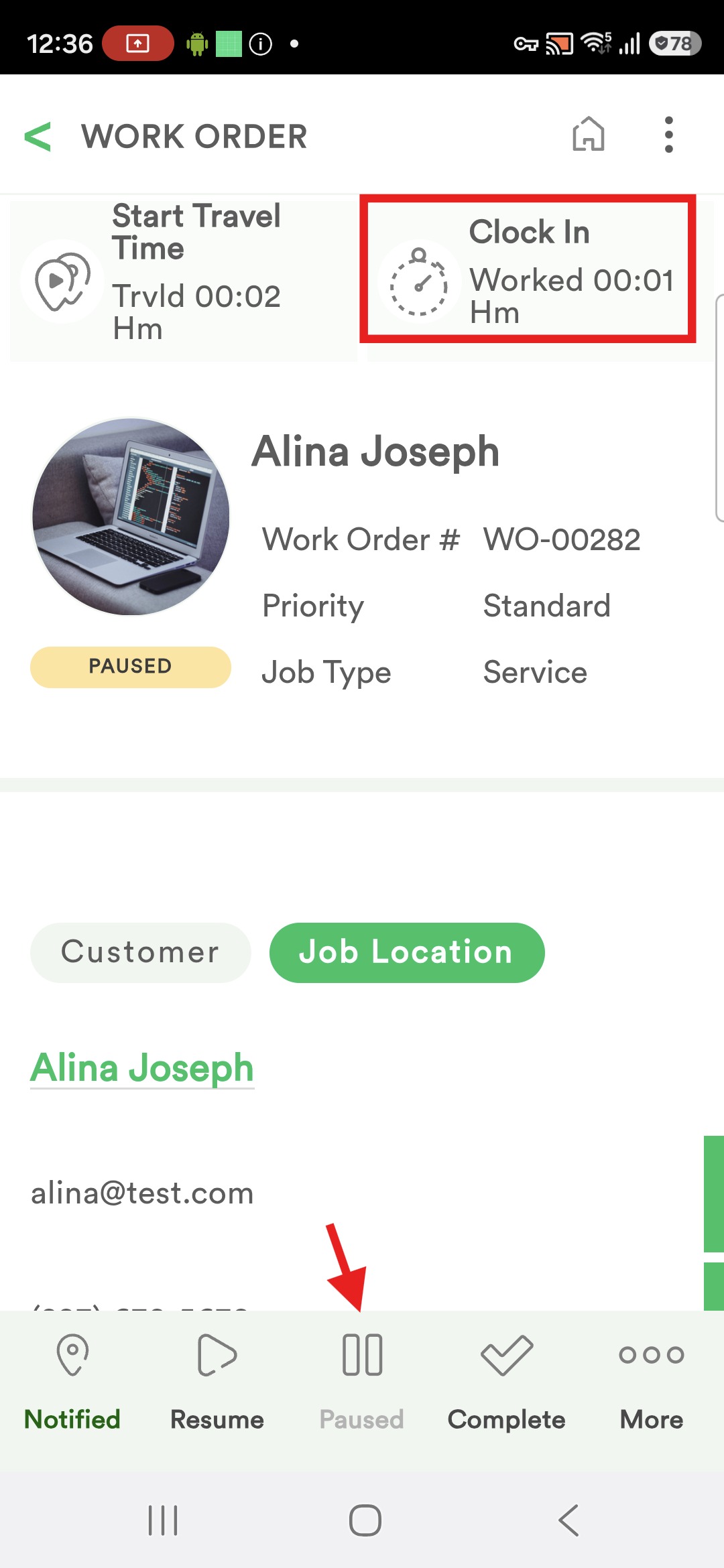
10. Emp A taps Pause when the job is paused. The Time is automatically Clocked Out when Paused for both the employees.
(Note: When any of the Employees taps Resume at the bottom, timer starts immediately automatically.)
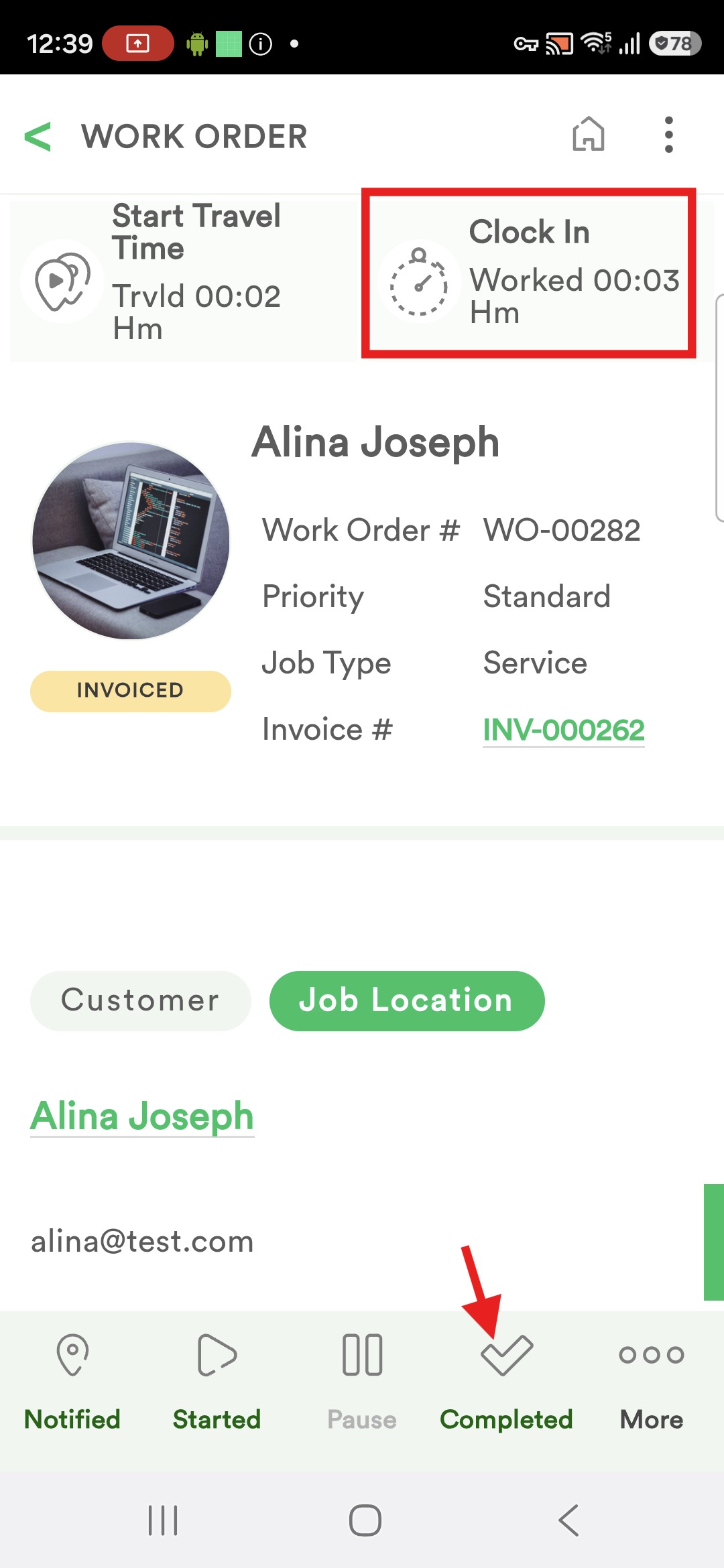
Once Work is completed, employees can move to the Next assigned Job and repeat the same process.
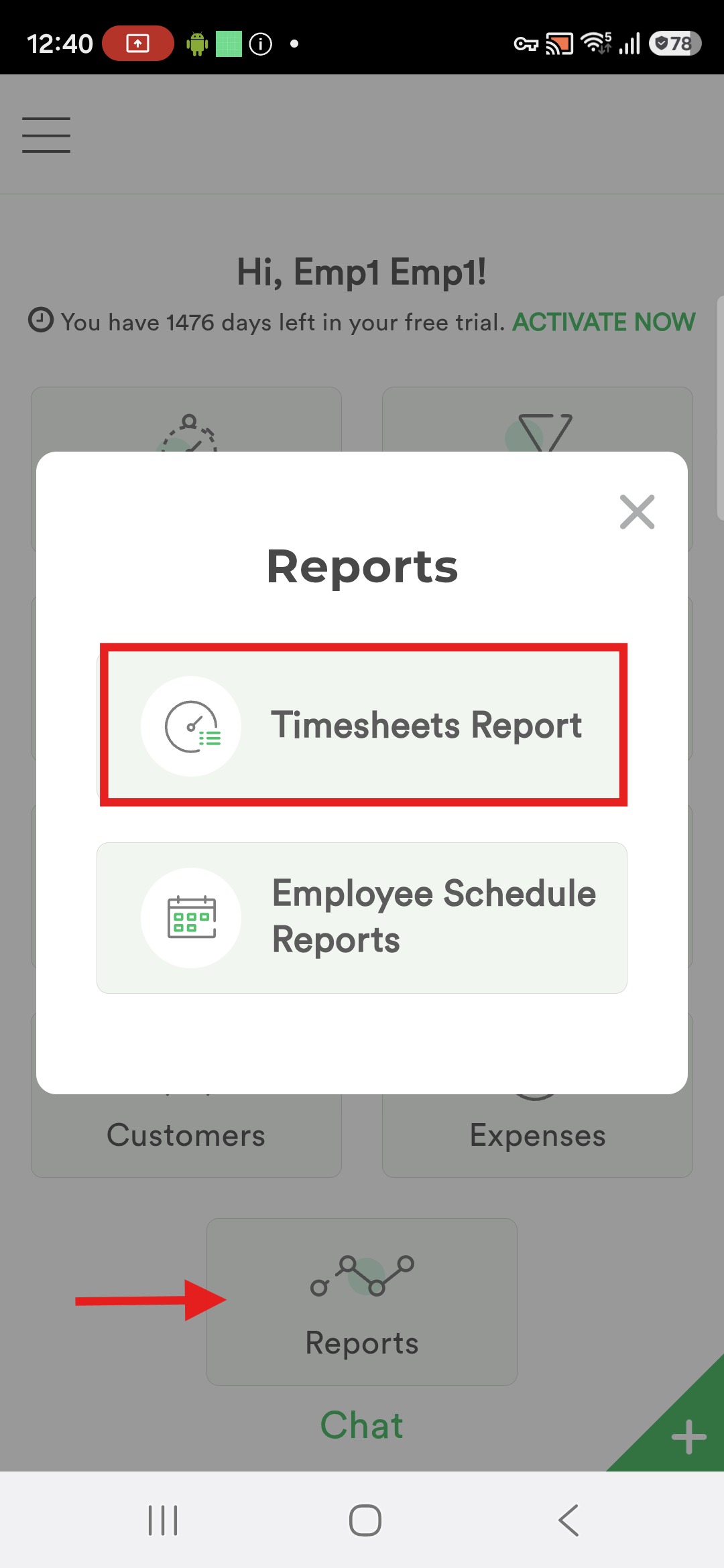
To check the Clock In/Out report, Employee can go to the App Homepage > Reports > Timesheets Report.
Note: Make Sure - 'View timesheet report ' permission is given to the Employee to view the report.
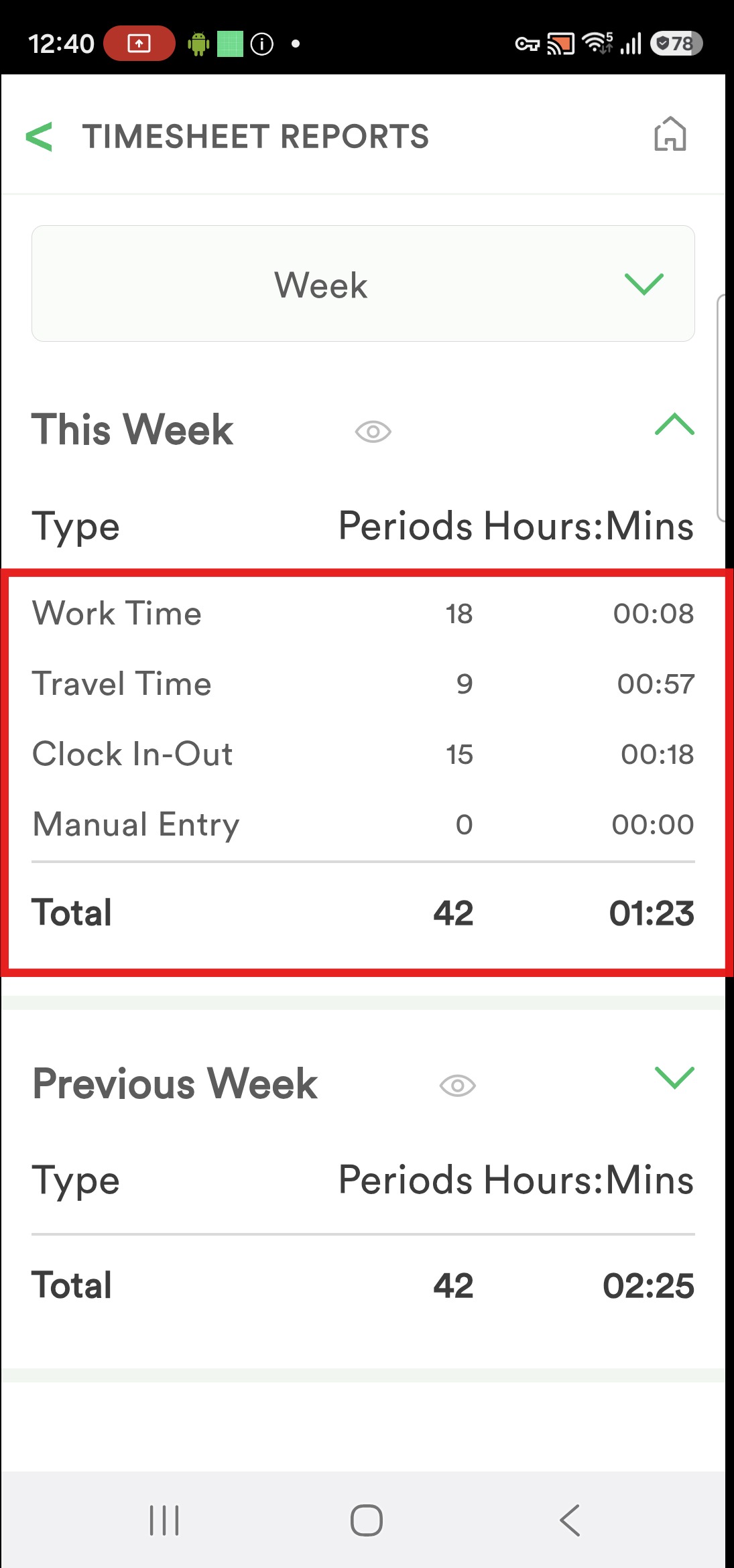
Here, employee can view the Periods and time.
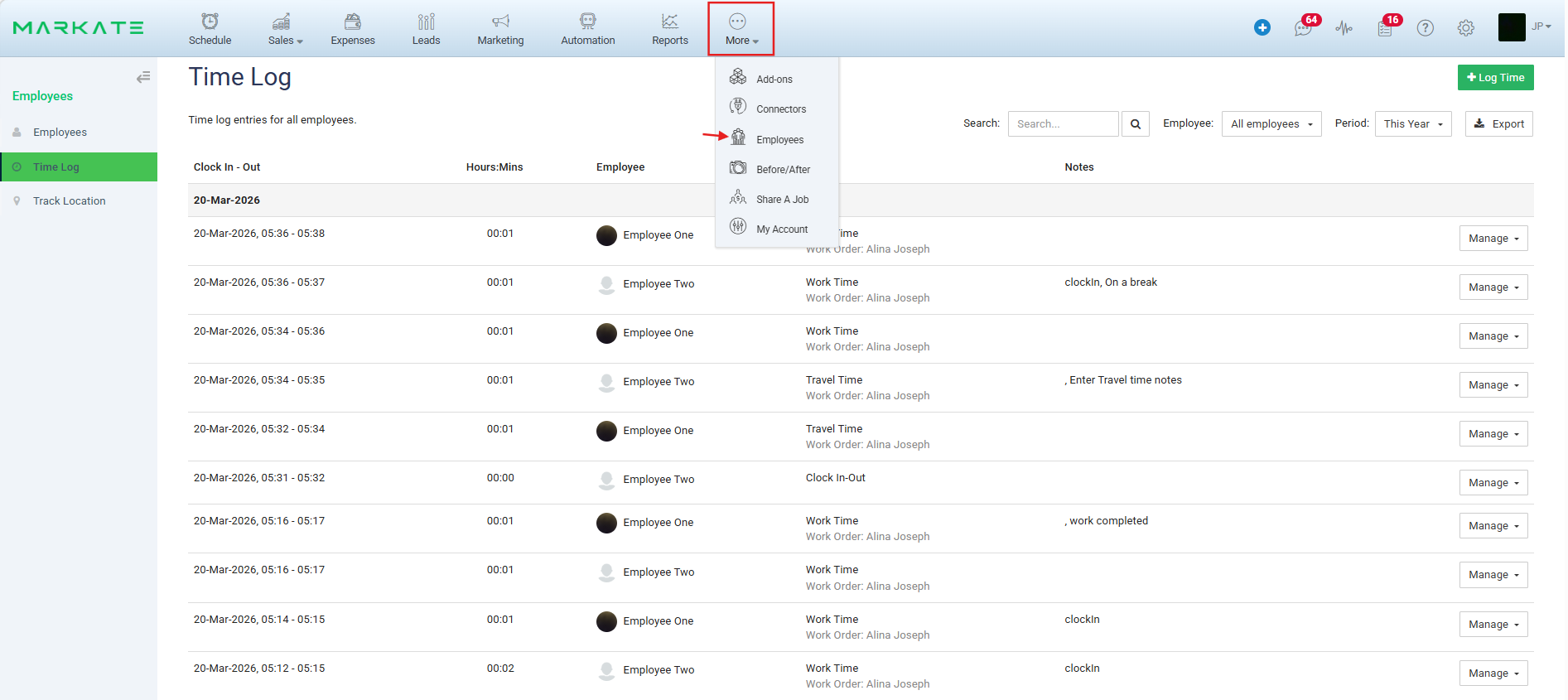
This is how the Owner can view the time Log on the website.
Option 2: Manual Clock In-Out
1. Open the Markate App
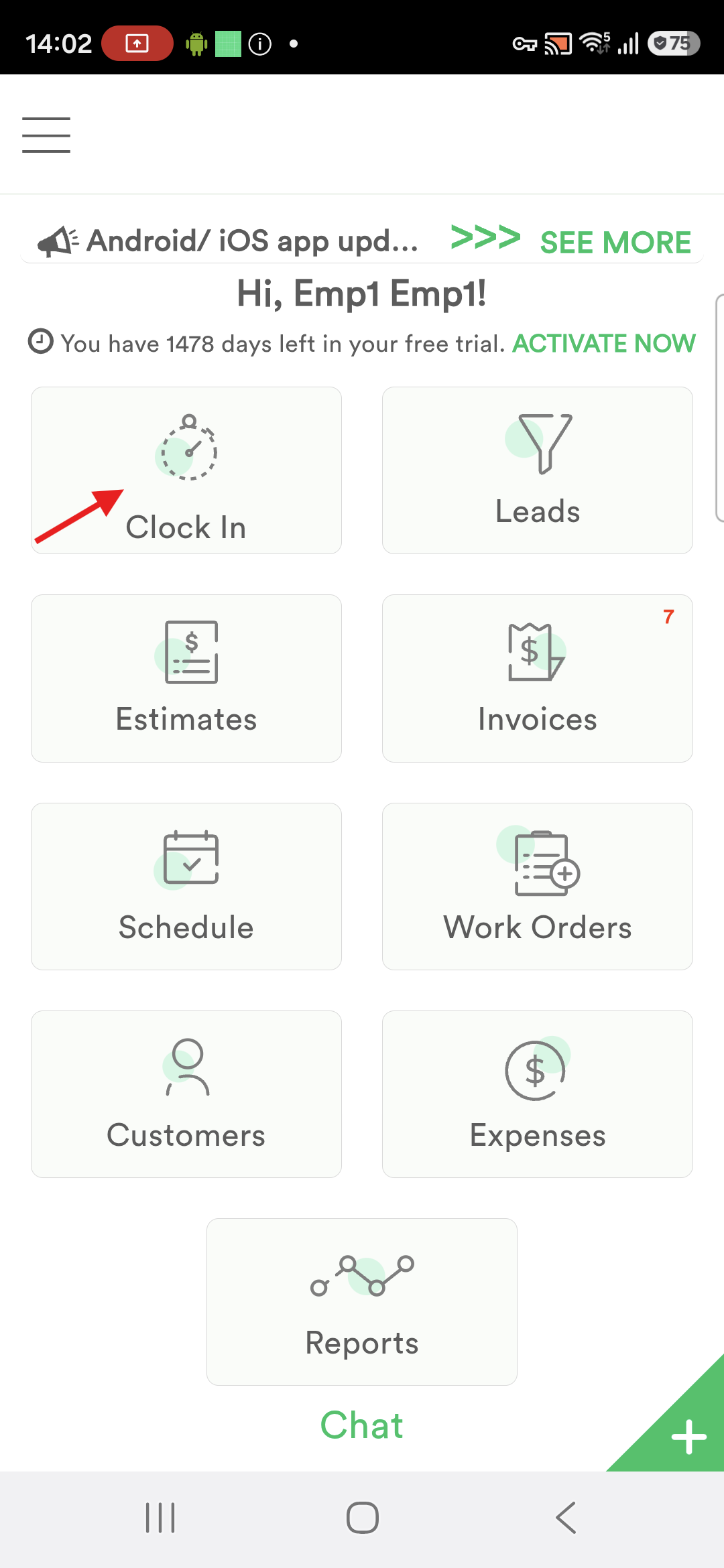
2. Tap Clock In (The timer will start immediately.)
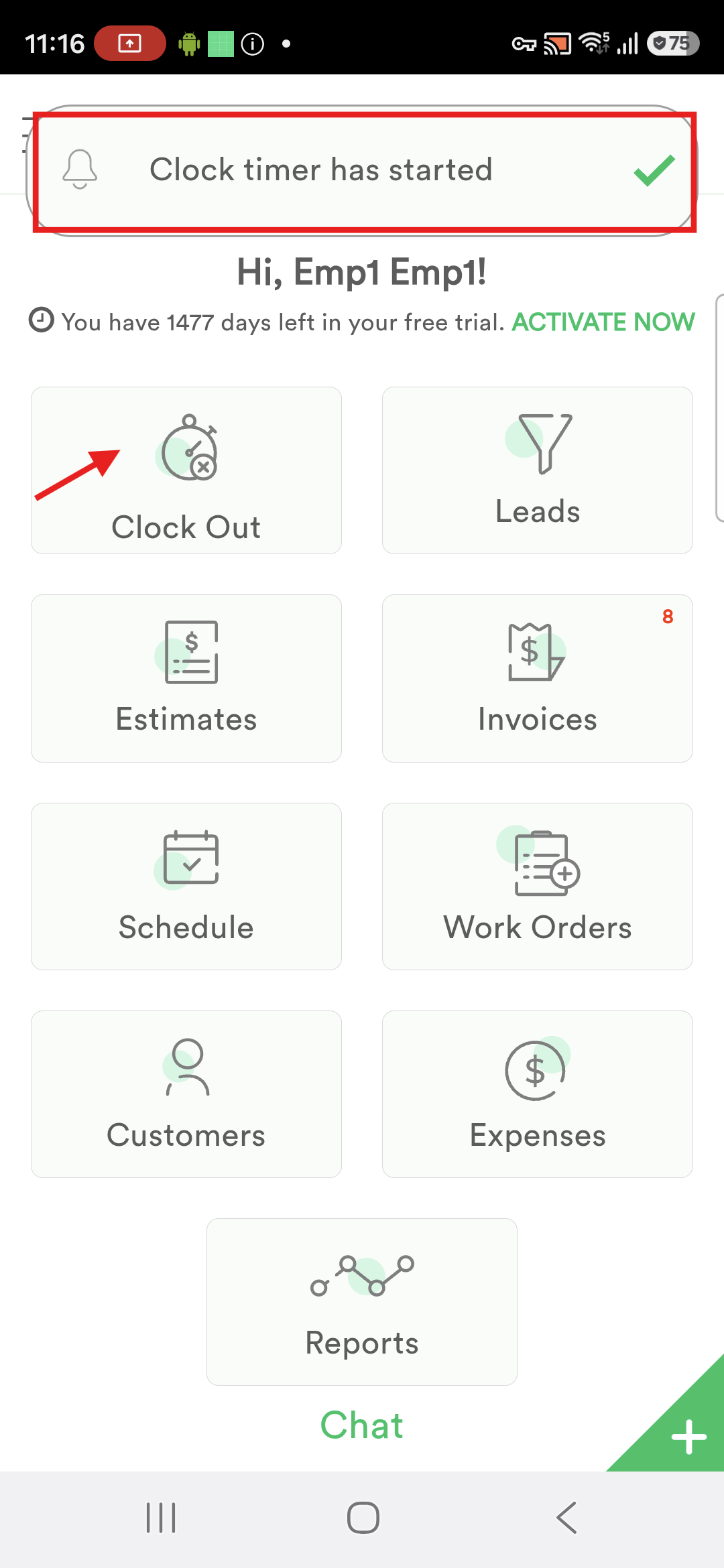
3. Tap Clock out (The timer will stop immediately.
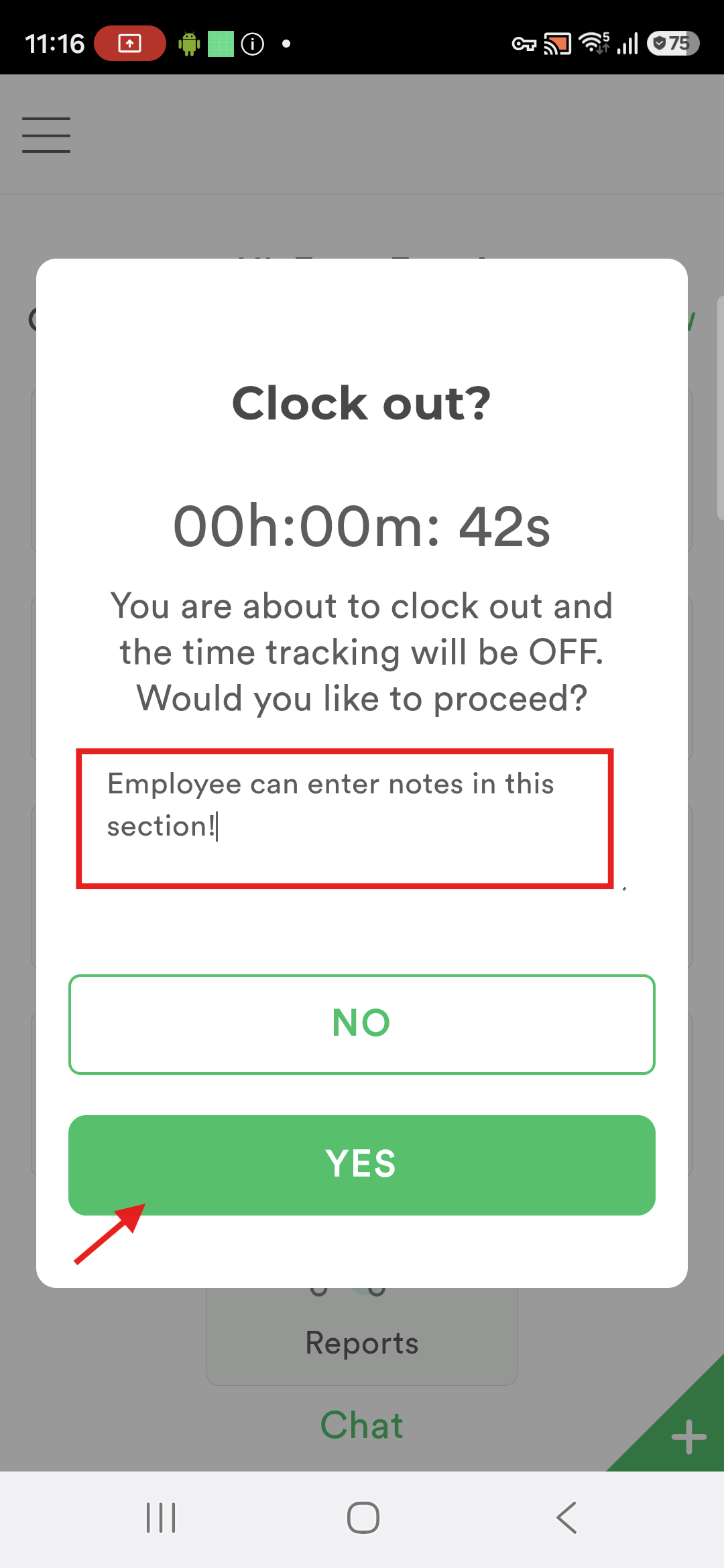
4. Employee can enter the work details or any notes on Clock out confirmation popup and tap YES button to confirm Clock Out.
Notes & Tips
Always ensure Employees are clocked into the correct Work Order
Use notes when clocking out for breaks or interruptions
Travel time tracking is optional but recommended for accurate reporting
This feature allows employees to:
Track travel time
Track on-site work time
Log breaks
Record total time spent per job
Here is a video showing the same.
Was this article helpful?
That’s Great!
Thank you for your feedback
Sorry! We couldn't be helpful
Thank you for your feedback
Feedback sent
We appreciate your effort and will try to fix the article