Here is a video showing you how to do this.
Let's learn how to clock in and out, track your work and travel time, and manage job activities directly from the app.
Step-by-step instructions:
Option 1: Manual Clock In and Clock Out
1. Login to the App
2. On Homepage, Tap 'More'.
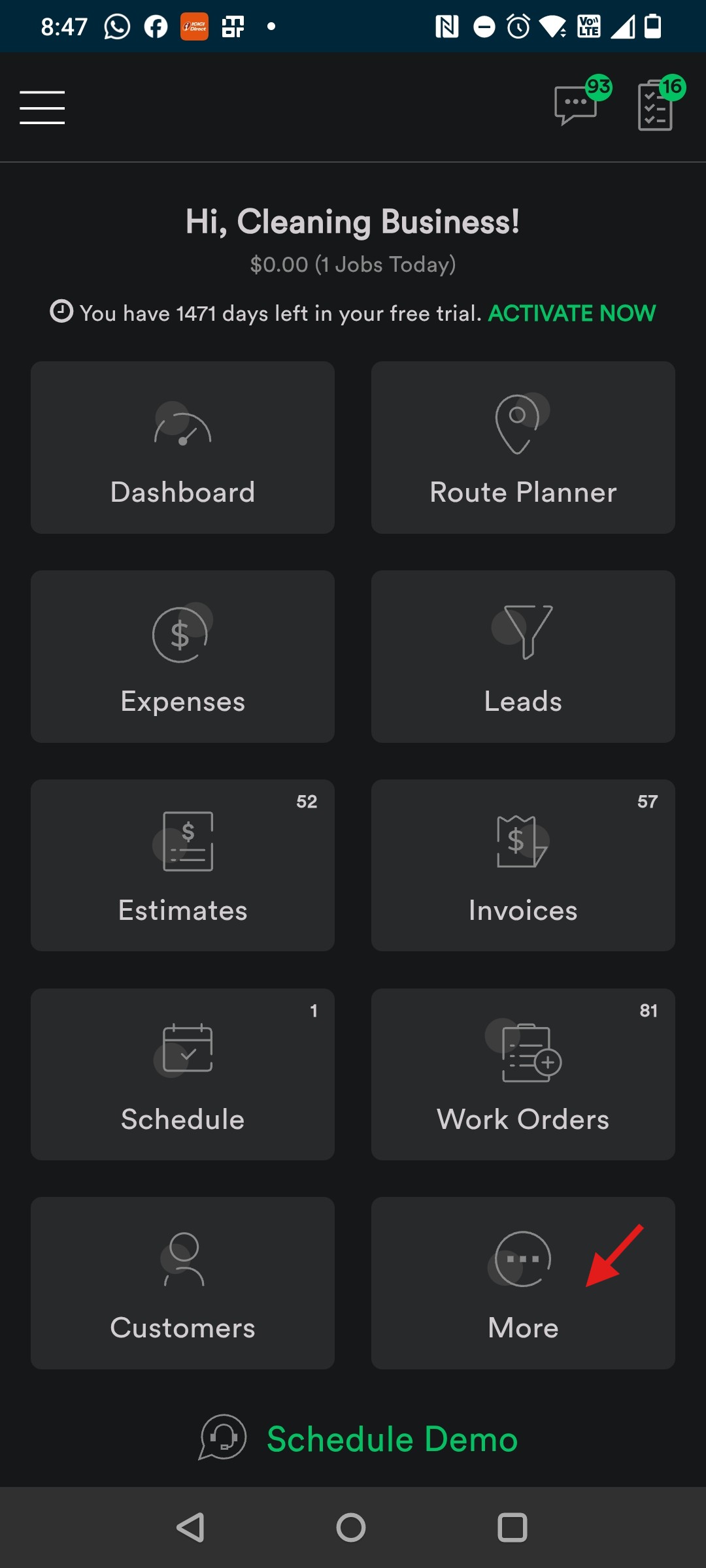
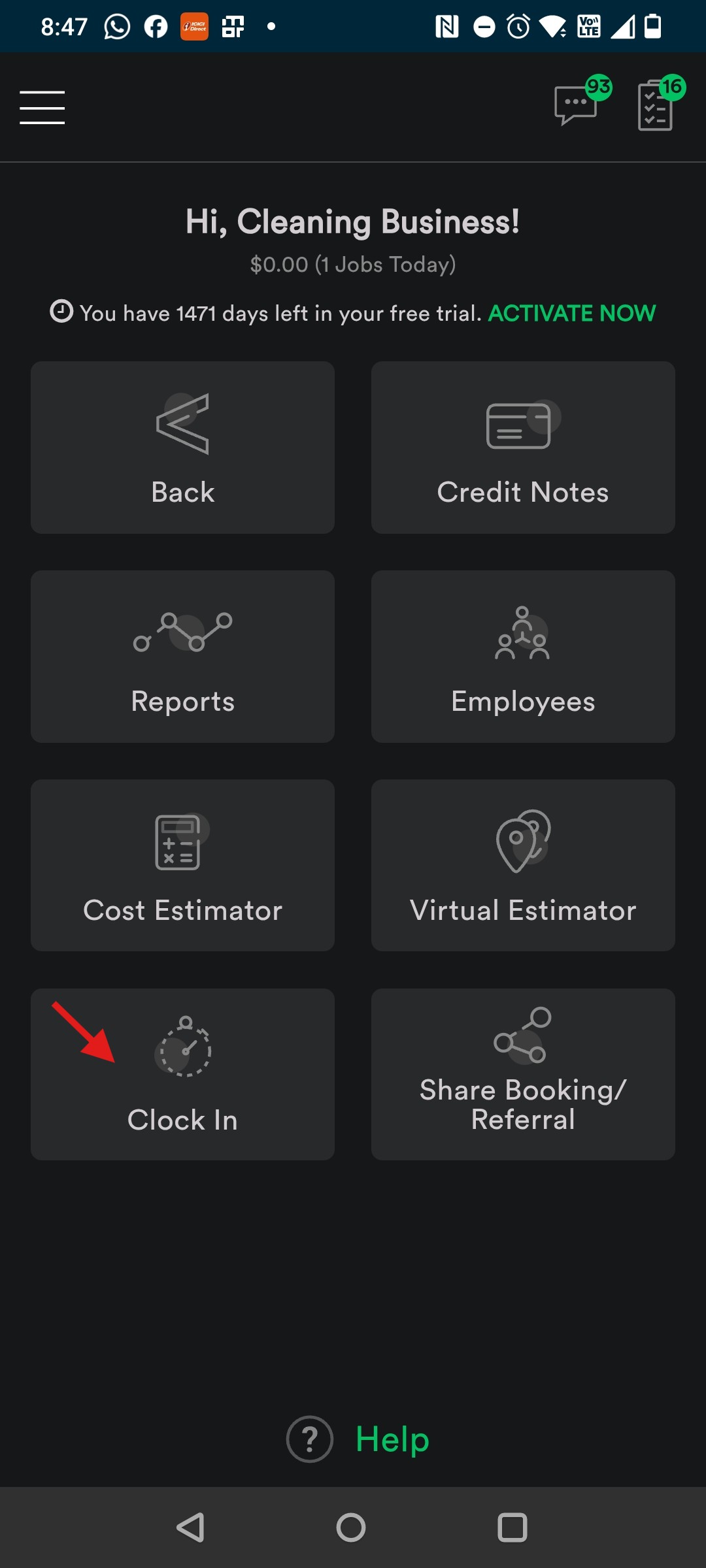
3. Tap 'Clock In' to start your day
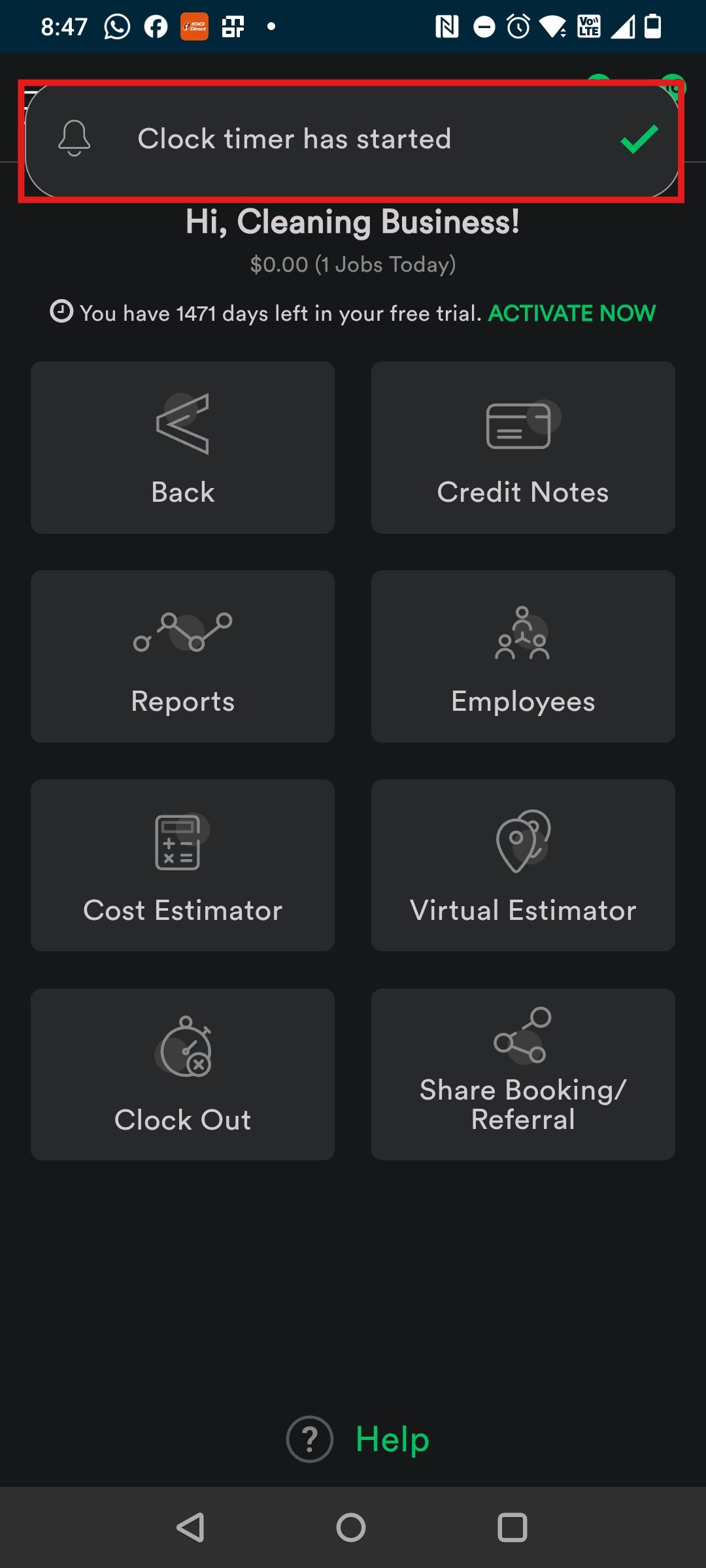
4. Confirmation message appears on top that timer has started.
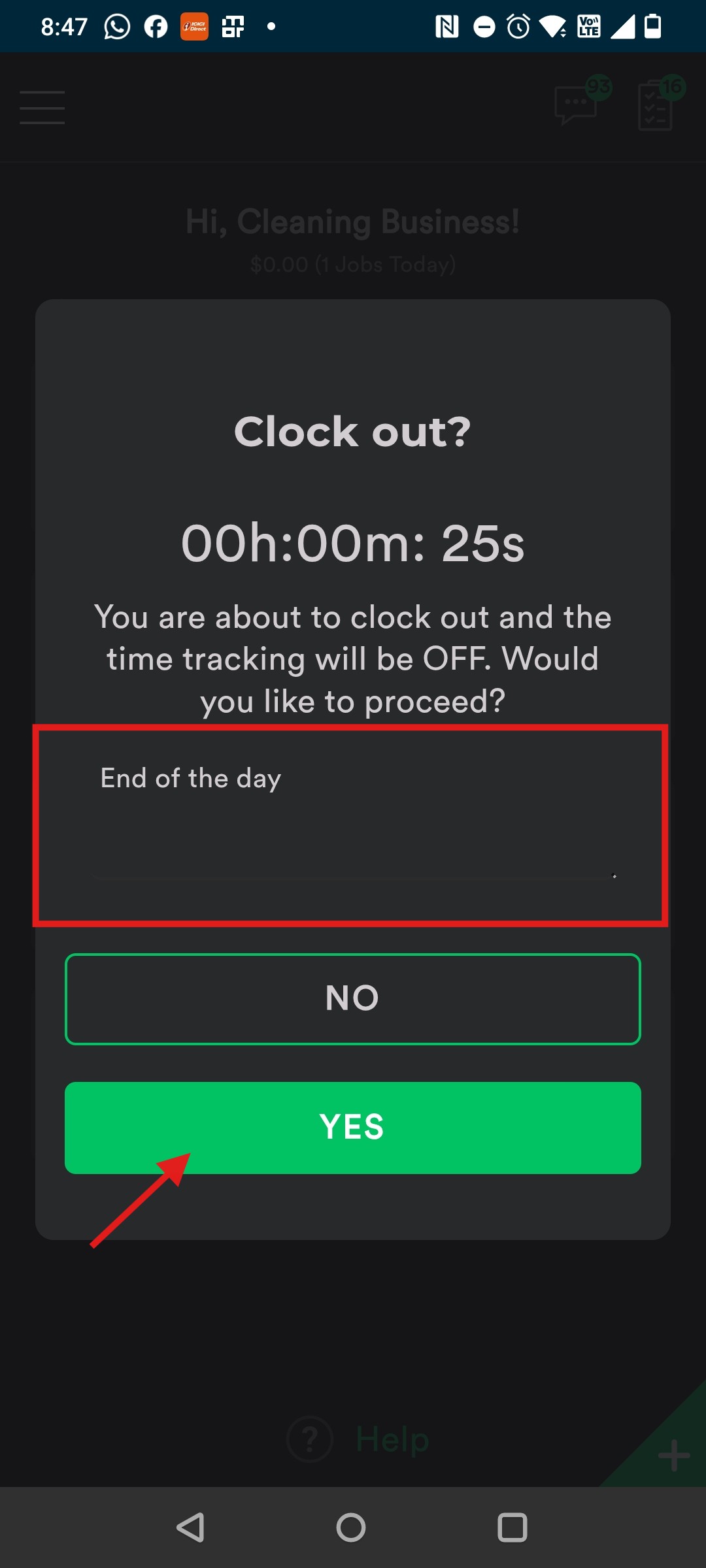
5. Tap Clock-out to end your day.
6. A Clock-out pop up shows up with the duration,
7. You can type your notes here. Tap 'Yes' to Clock-out and 'No' to continue Clock-In.
8. A confirmation message shows up that the timer has stopped and clocked-out.
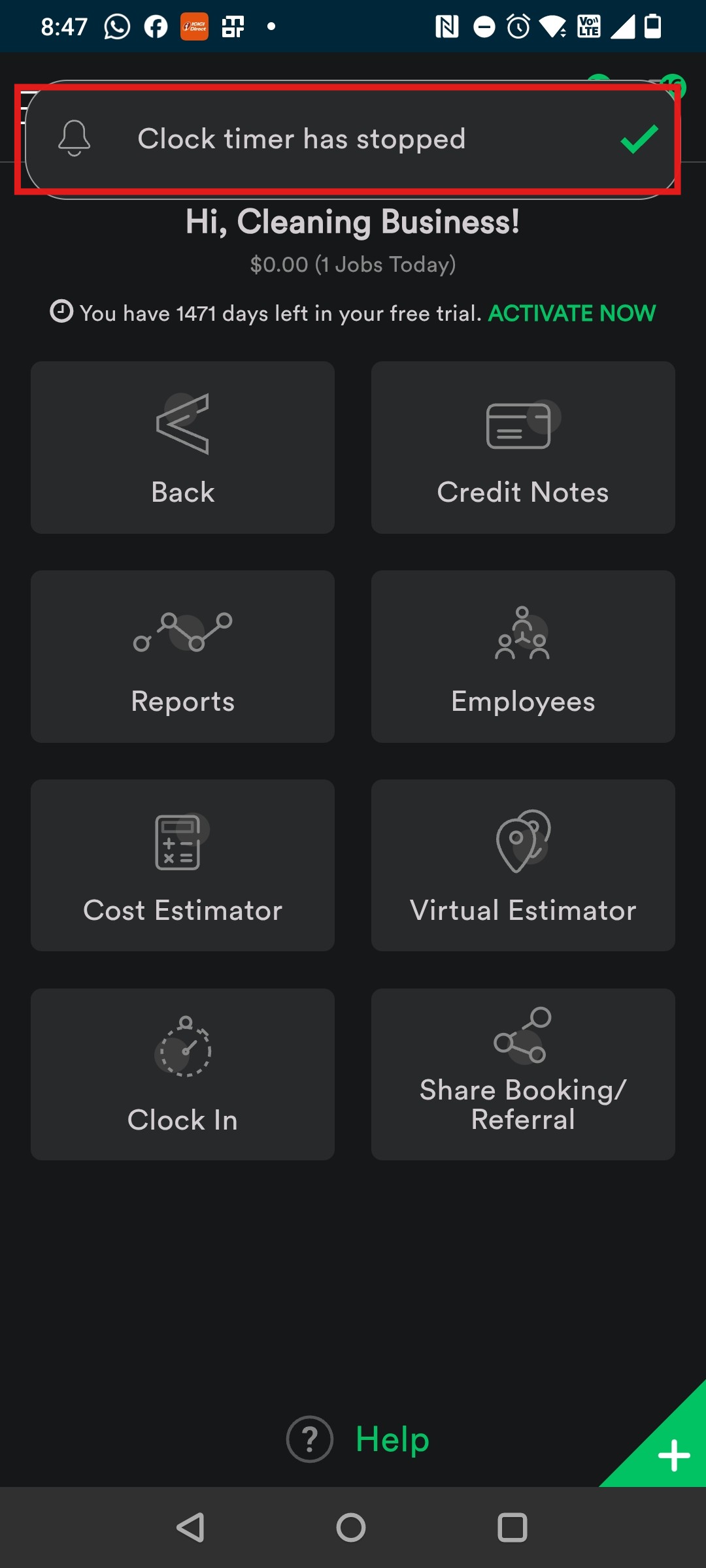
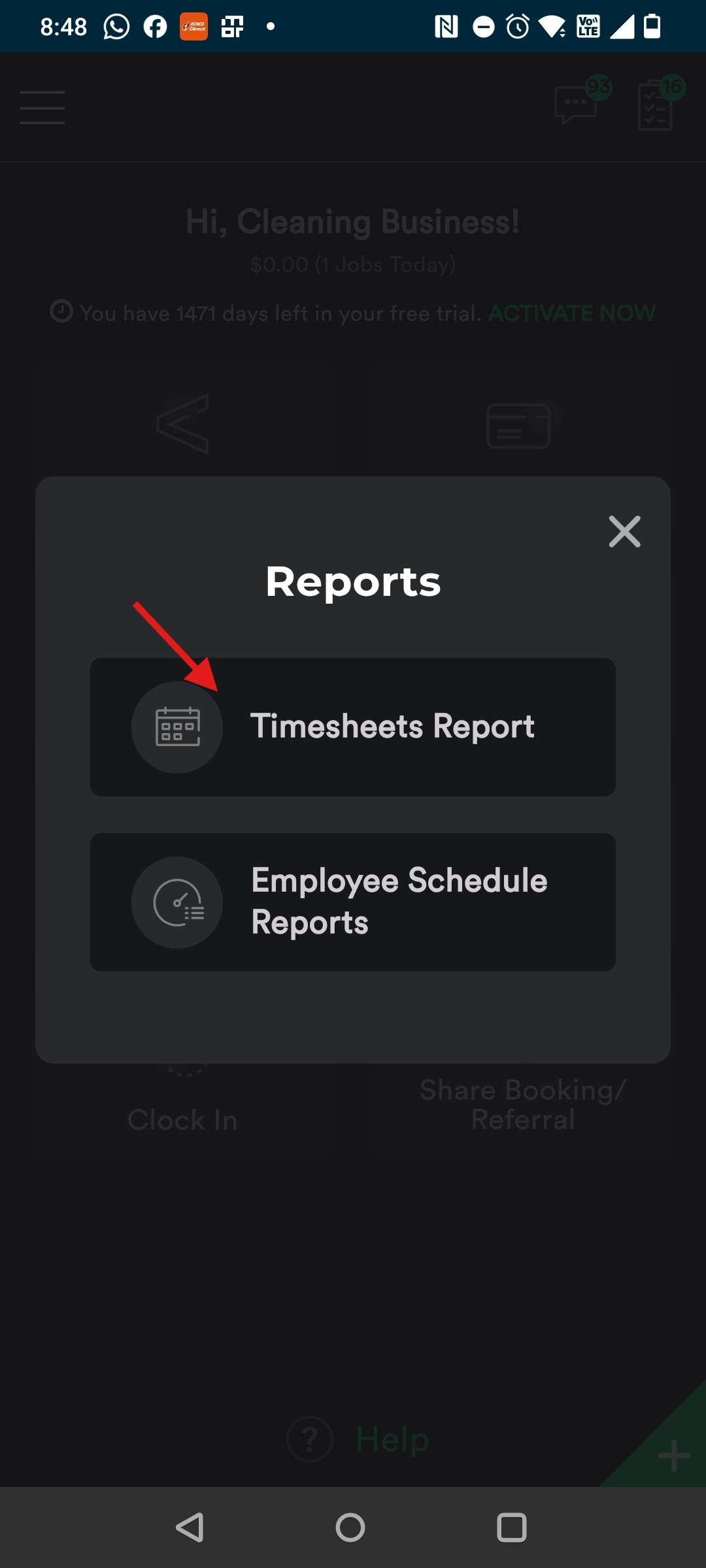
9. To check the time, tap 'Reports' menu on homepage > Tap 'Timesheets' Report.
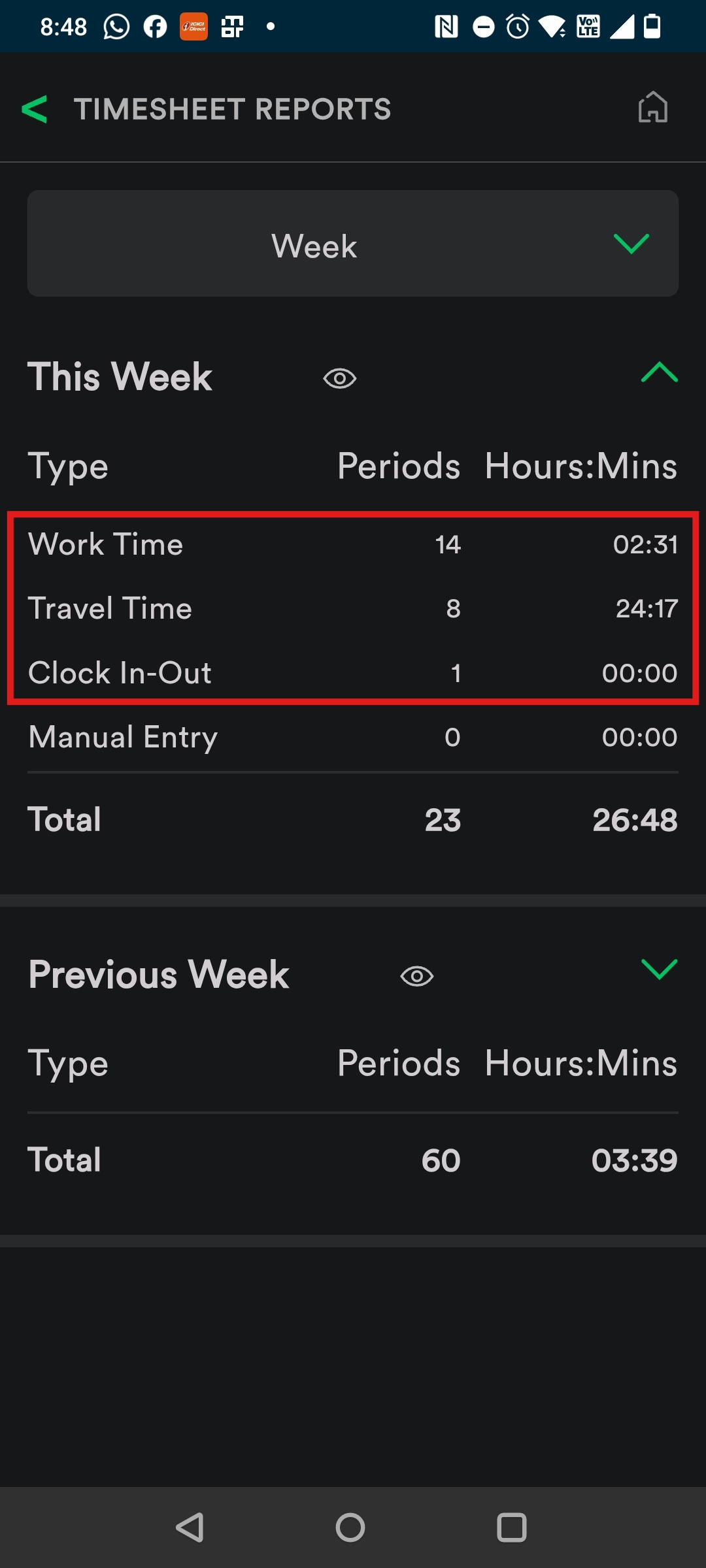
10. On Timesheet Reports screen, you can see Clock-In/Out time, Travel Time, Work Time and so on.
------------------------------------------------------------------------------------------------------------------------------------------
Option 2: Regular (Automatic) Work Order specific Clock In and Clock Out
1. Go to assigned Work Order.
2. Tap 'Arrival' which is at the bottom left.
3. It turns into 'Notified' and it's Clocked-In immediately- Travel time has started. (You can go to Homepage and check Clock in, it will show Clocked In)
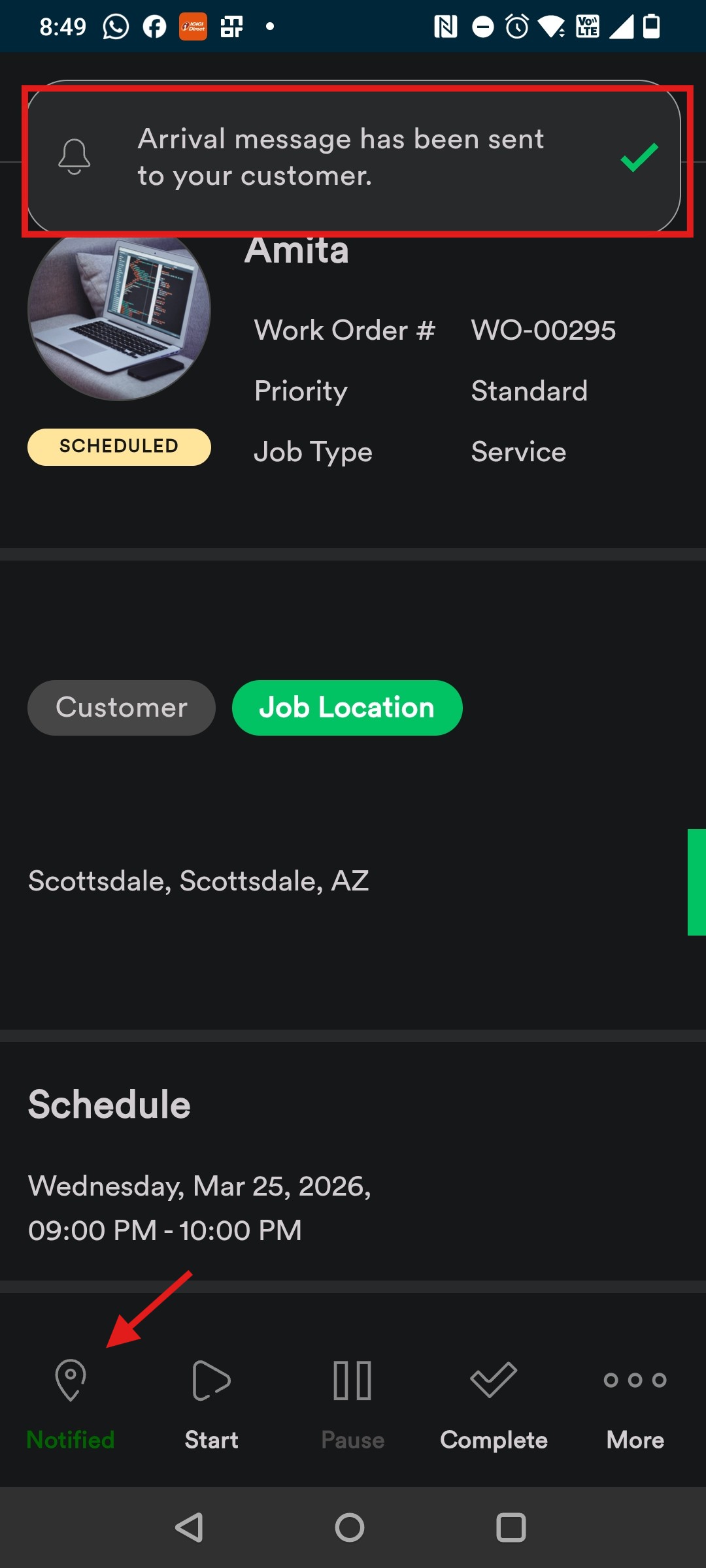
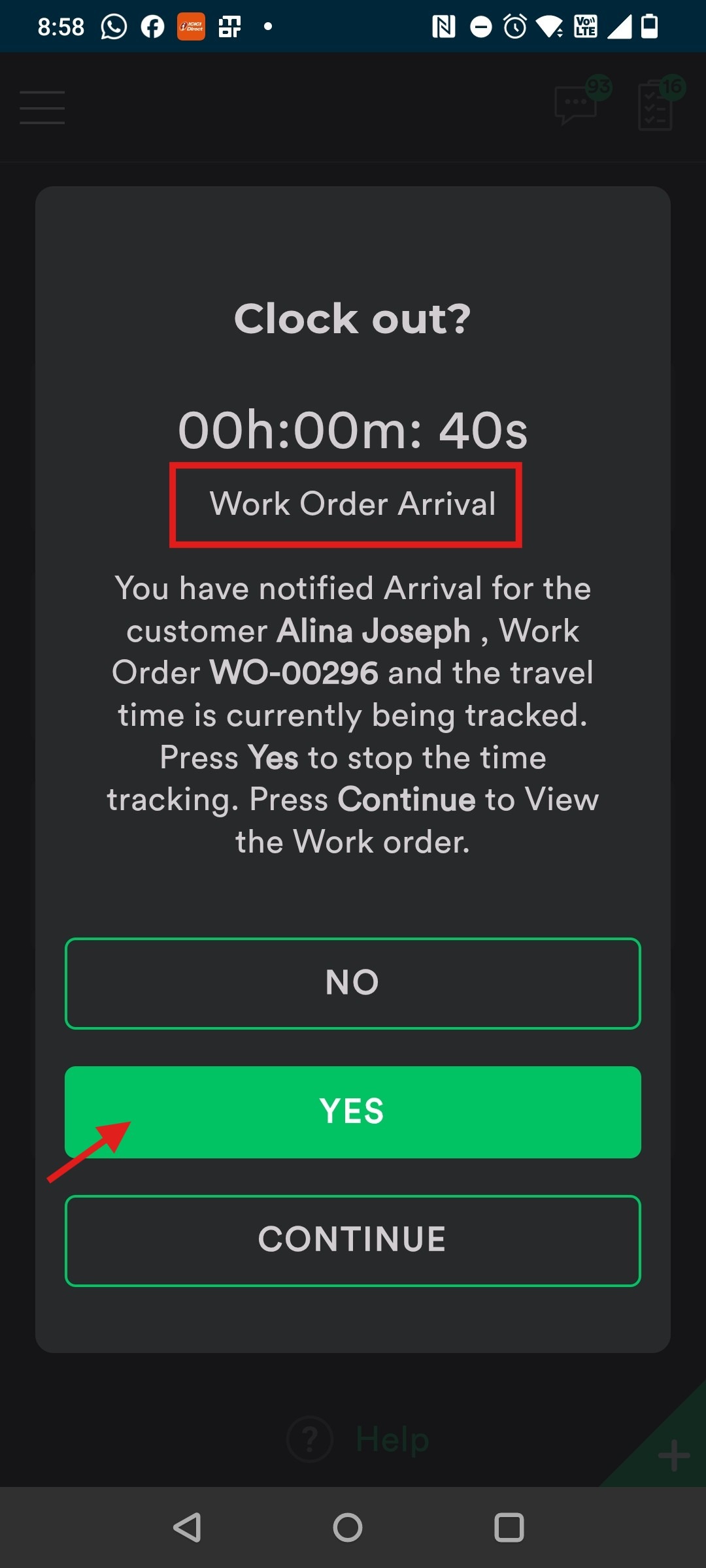
4. When Arrived at the Job Location, you can tap Start on Work Order screen or tap Clock-out on Homepage to stop travel time.
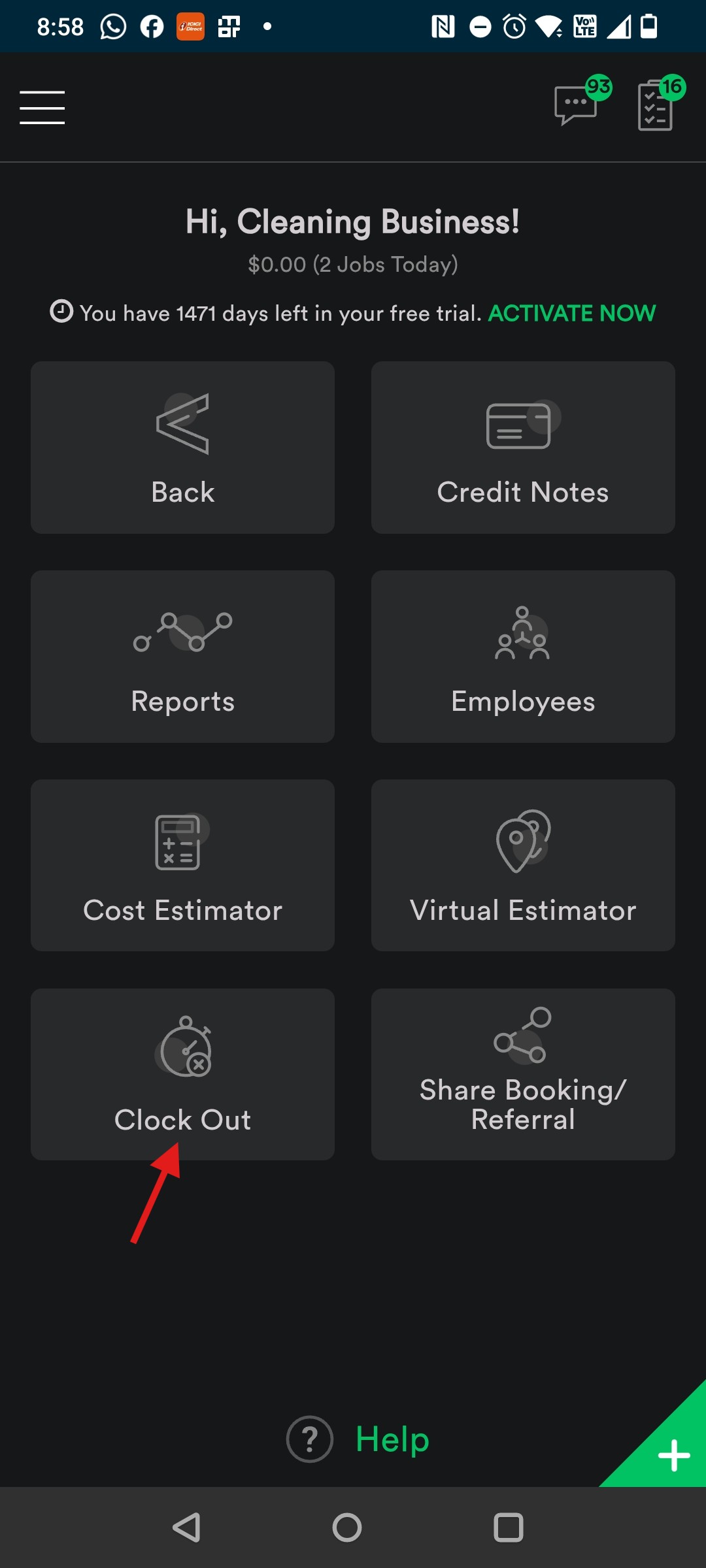
5. Tap Yes to stop Travel Timer, No if not arrived yet and Continue to navigate to the assigned Work Order page.
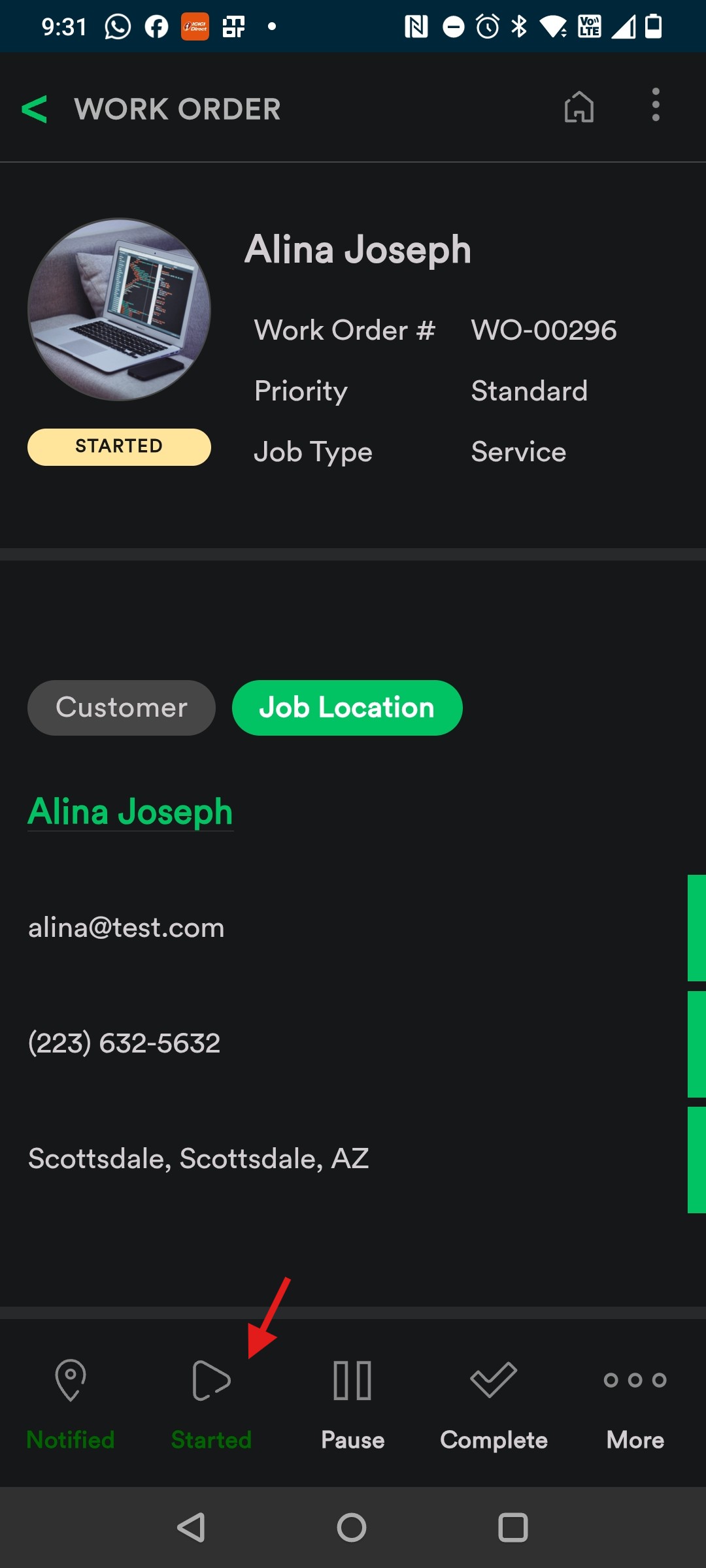
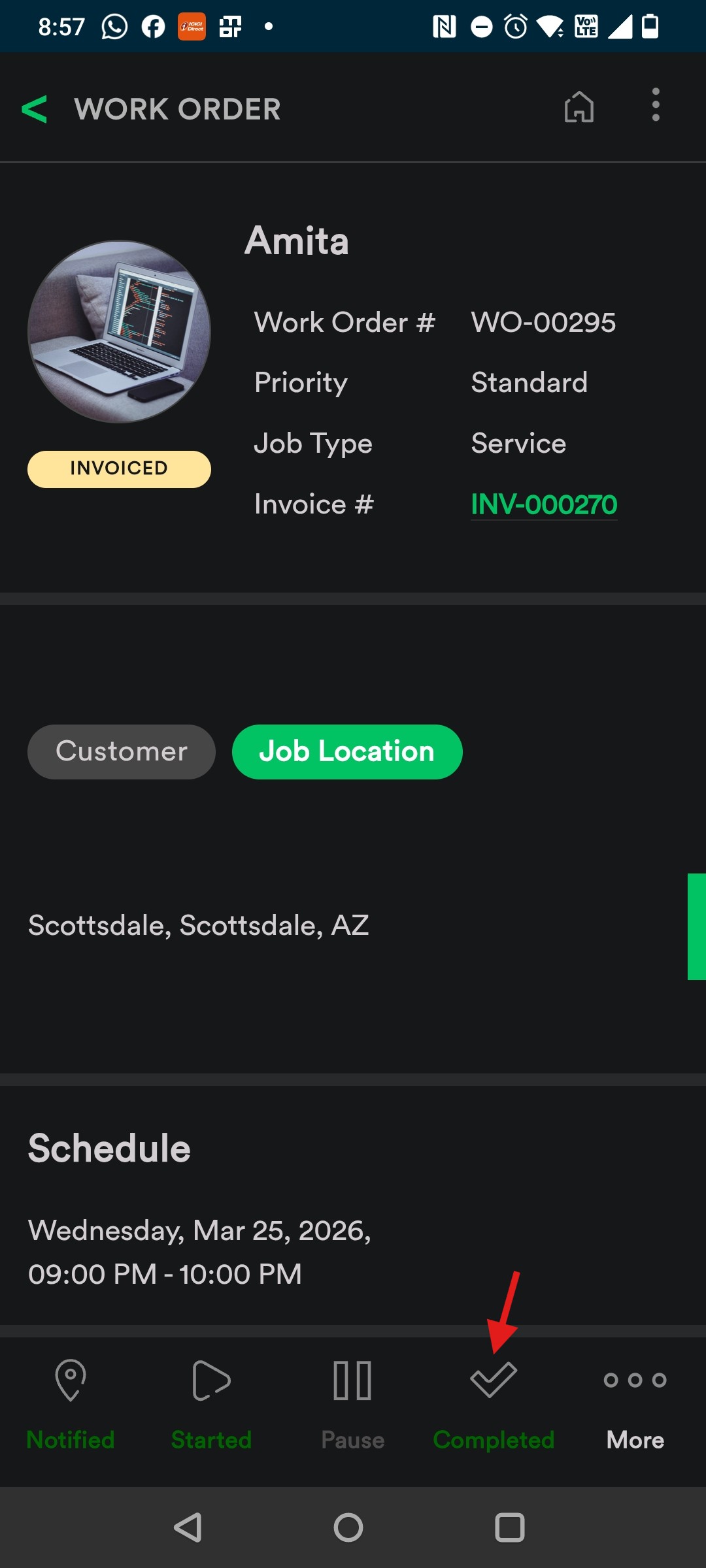
6. On the assigned Work Order screen, tap 'Start' to start the Job. Timer is Clocked-In automatically.
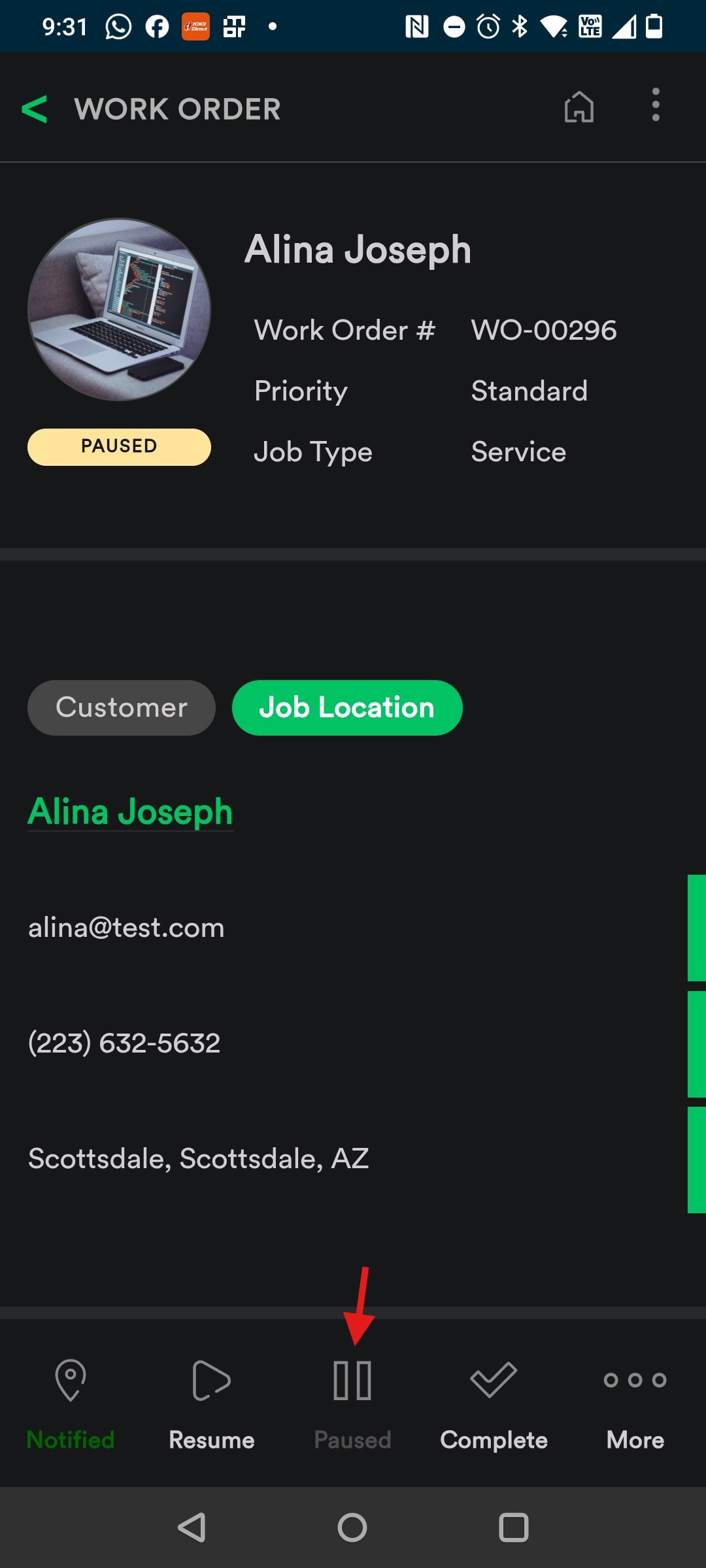
7. When 'Paused', it's Clocked Out automatically.
8. And when 'Resumed' It's Clocked In automatically.
9. Tap 'Complete' when Job is completed. Timer is Clocked Out automatically.
Here is a video showing you how to do this.
That’s Great!
Thank you for your feedback
Sorry! We couldn't be helpful
Thank you for your feedback
Feedback sent
We appreciate your effort and will try to fix the article