Kate AI Estimator estimates jobs in seconds. Just upload a photo or type/record a quick note about the job, and Kate AI Estimator instantly builds a professional estimate for you. It's the fastest way to get accurate prices to your customers and win more work without the headache.
Here is step by step guide to enable this add-on, manage and create an AI Estimate:
Step 1: Login to your Markate Account.
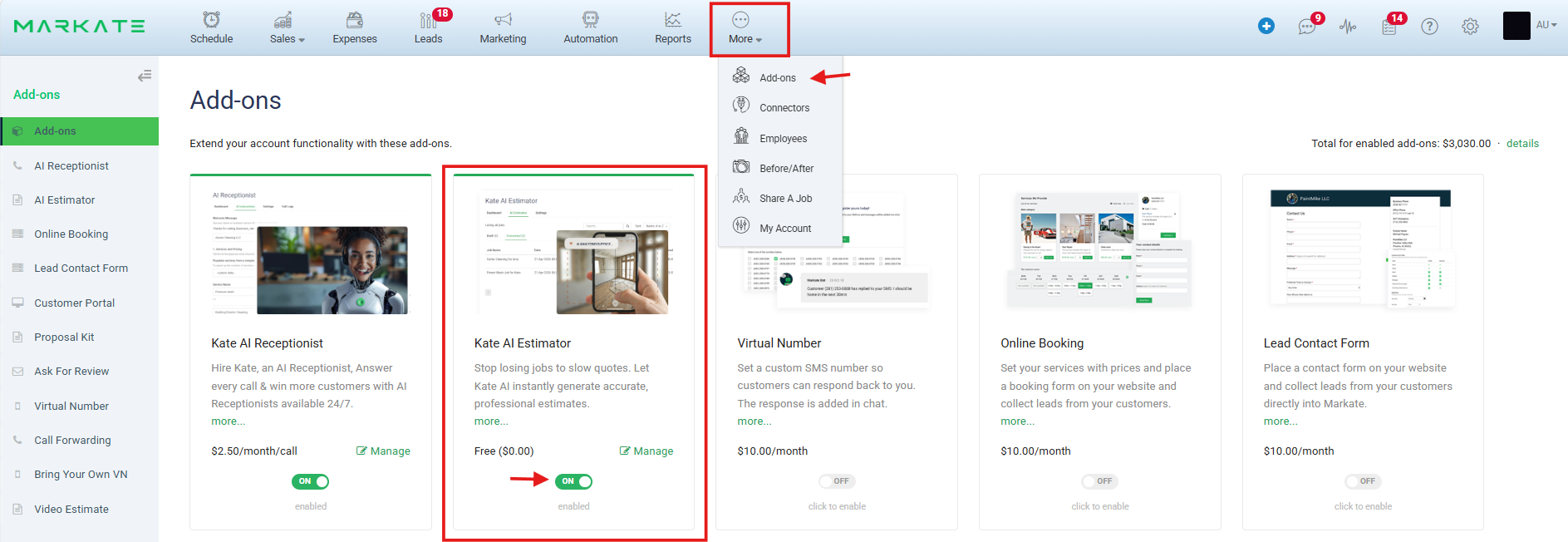
Step 2: Hover over More > click Add-Ons from the look up
Step 3: Look for Kate AI Estimator Add-On
Step 4: Toggle it ON to enable this Add-On
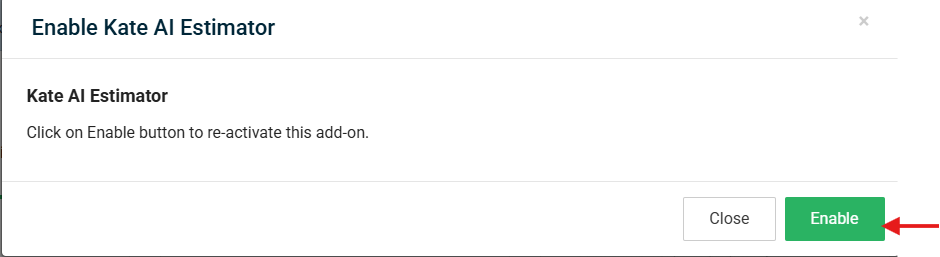
Step 5: A pop up opens. Click 'Enable' to Enable it.
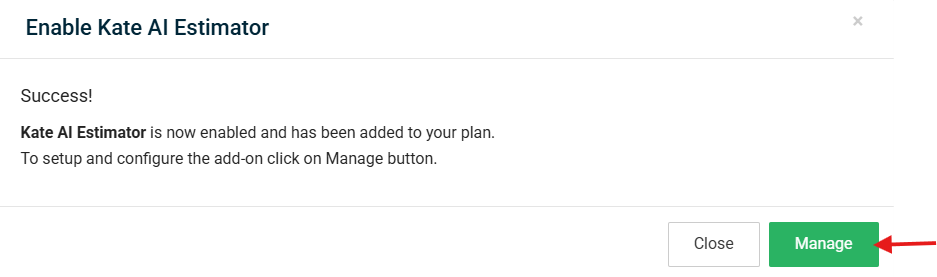
Step 6: On the next pop up, click 'Manage'.
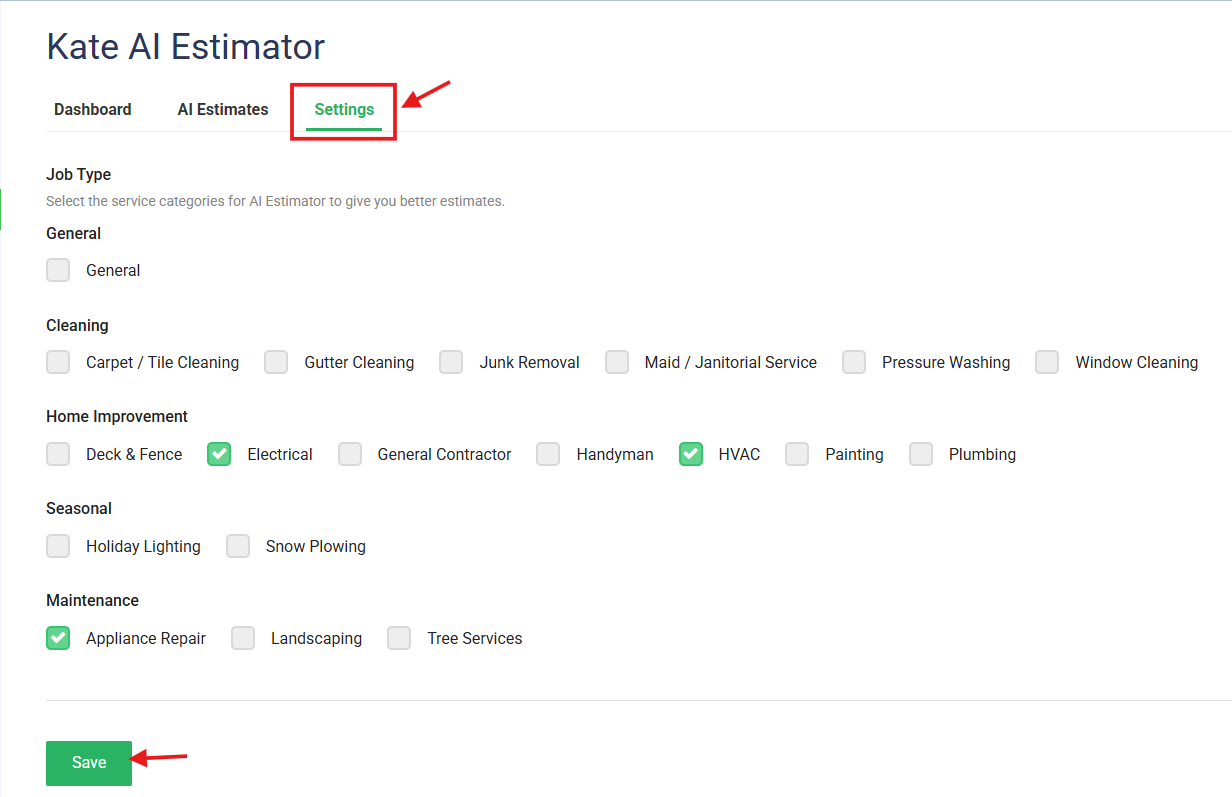
Step 7: Next, go to 'Settings' menu. Here, you can select the Categories as per your Business requirements.
Step 8: Click 'Save'
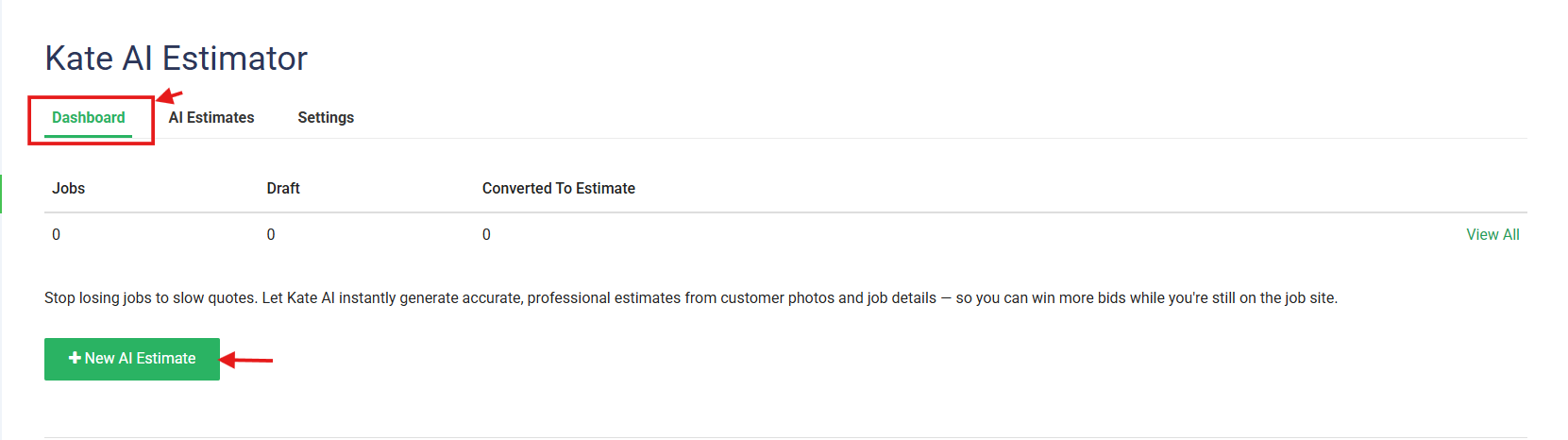
Step 9: Now, navigate to the 'Dashboard' menu.
Step 10: Click '+New AI Estimate' to start creating your AI Estimates.
Note: On the Dashboard, you can view Number of Jobs, Draft Estimates and number of AI Estimates converted to Estimates.
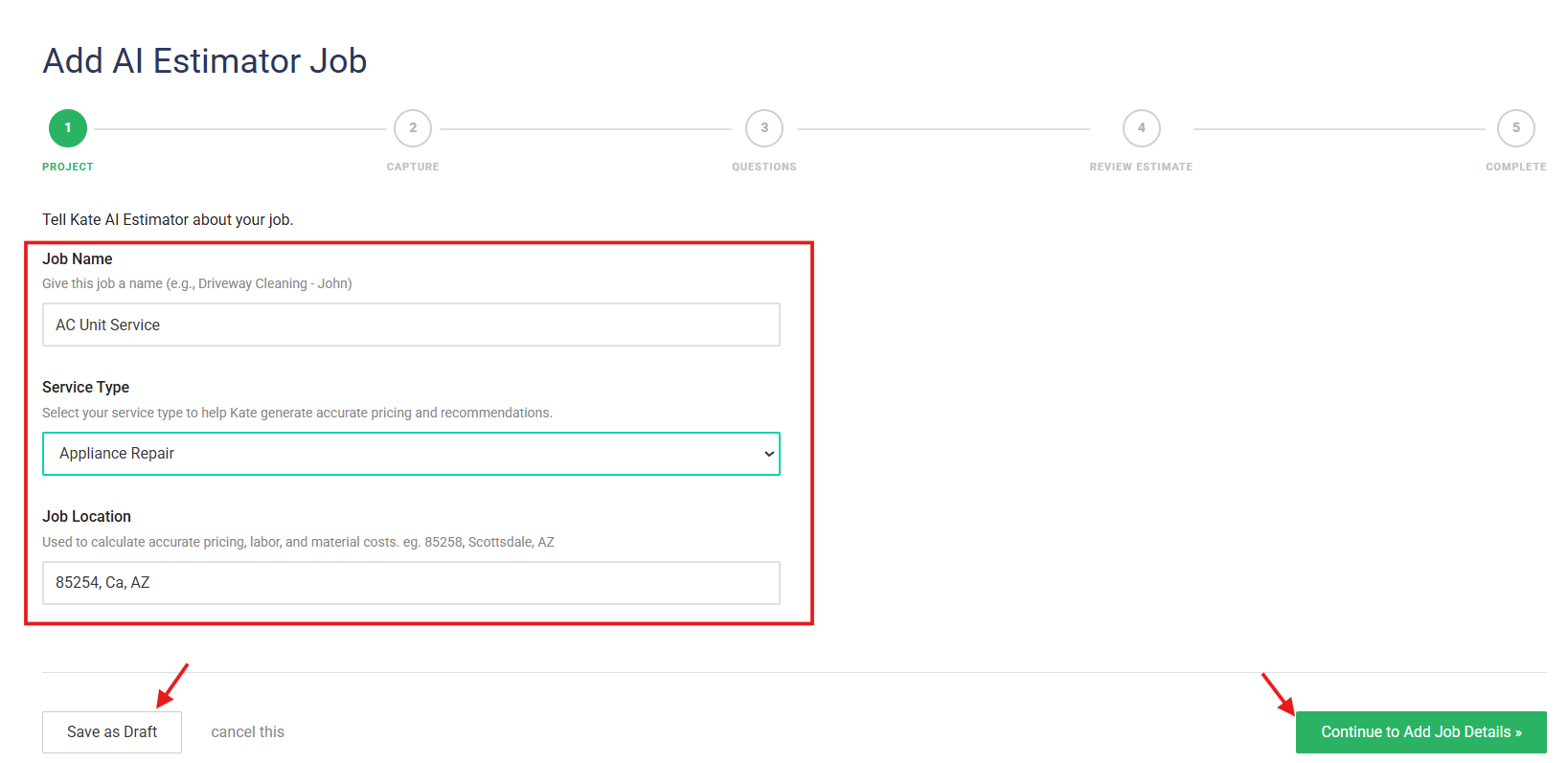
Step 11: As you start with creating AI Estimate, first- tell Kate AI about your Job. Enter 'Job Name', 'Service Type', 'Job Location'.
Step 12: Click 'Save as Draft' or 'Continue to Add Job Details'
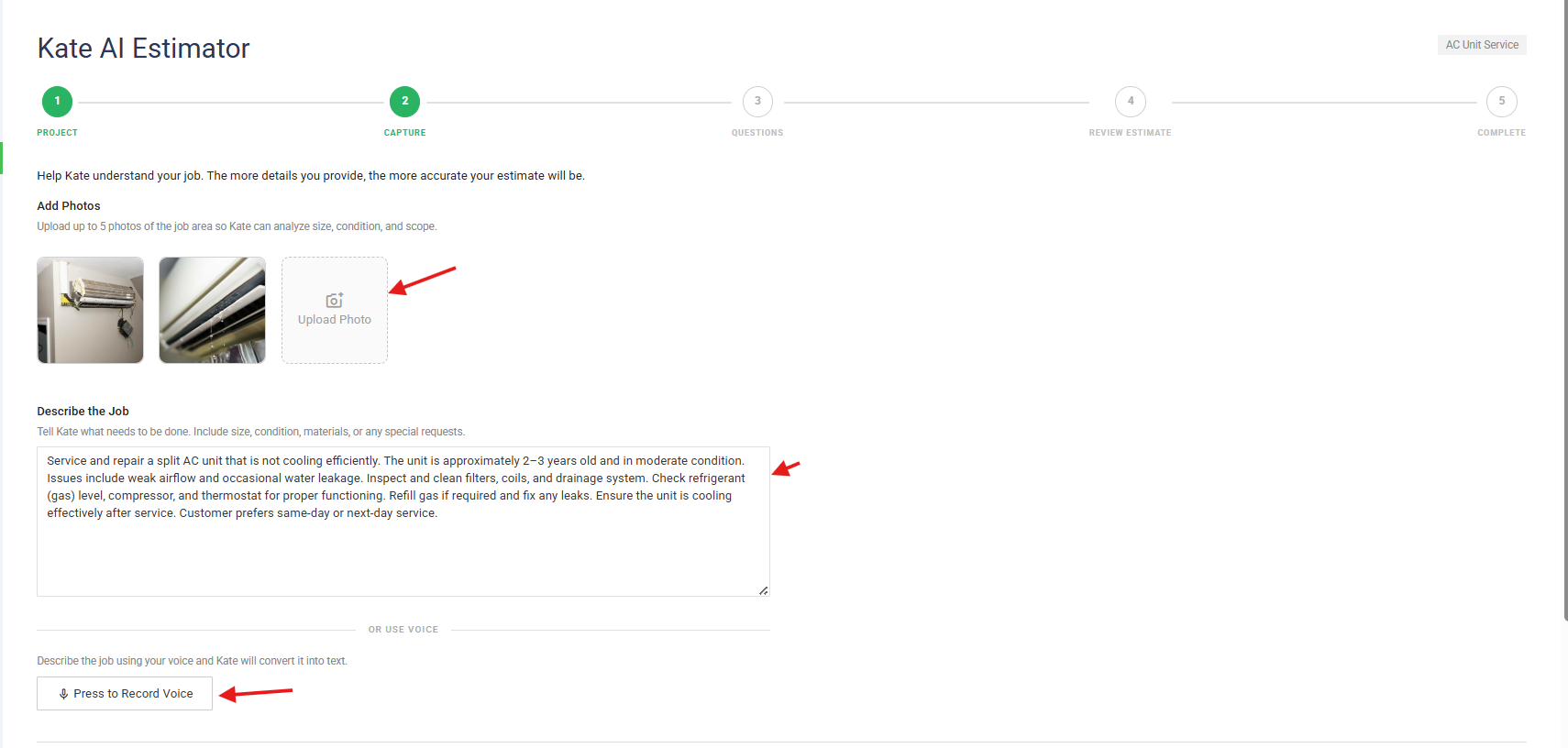
Step 13: Next, you can upload Job Area Pictures for Kate AI to estimate accurately. Also, you can describe the Job either by Typing or Recording your voice. Click 'Press to Record Voice' for recording job description.
Step 14: Click 'Let Kate Analyze This' button at the bottom.

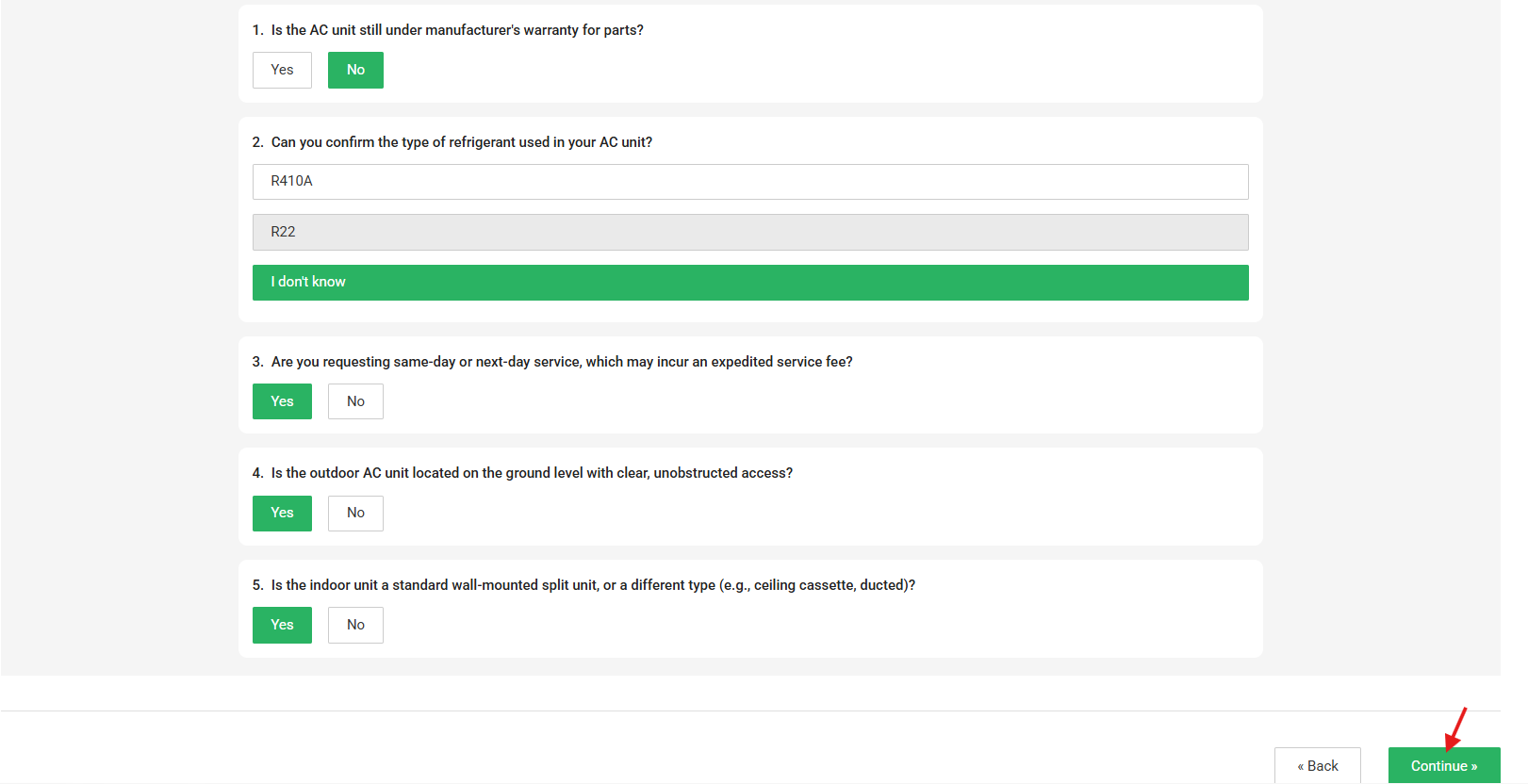
Step 15: Kate takes a few moments to analyze and then asks you a couple of relevant questions. Answer those questions and click 'Continue'.
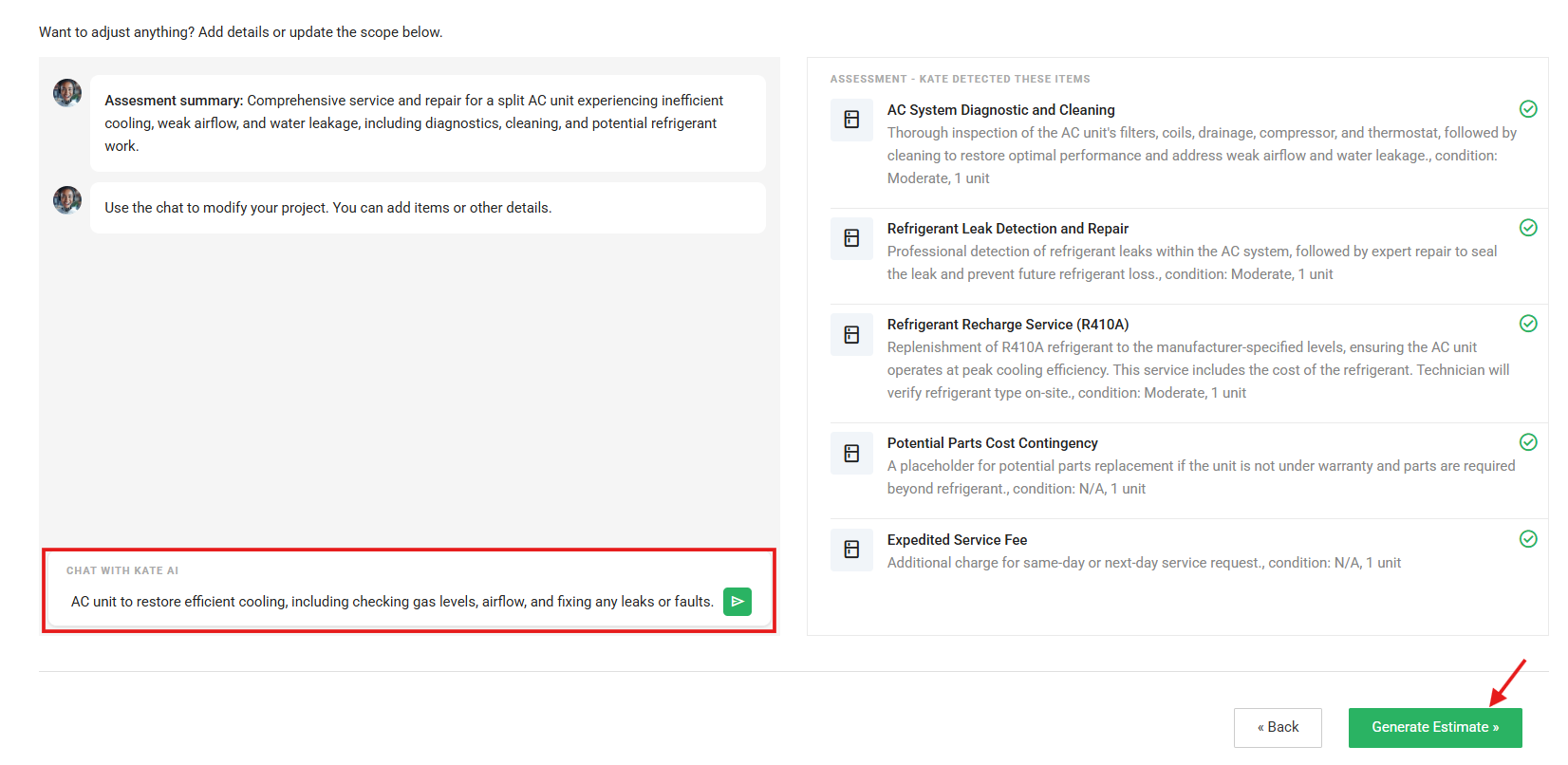
Step 16: Kate AI prepares the Assessment. You can chat with Kate AI to modify, add items or any other details.
Step 17: Click 'Generate Estimate'.
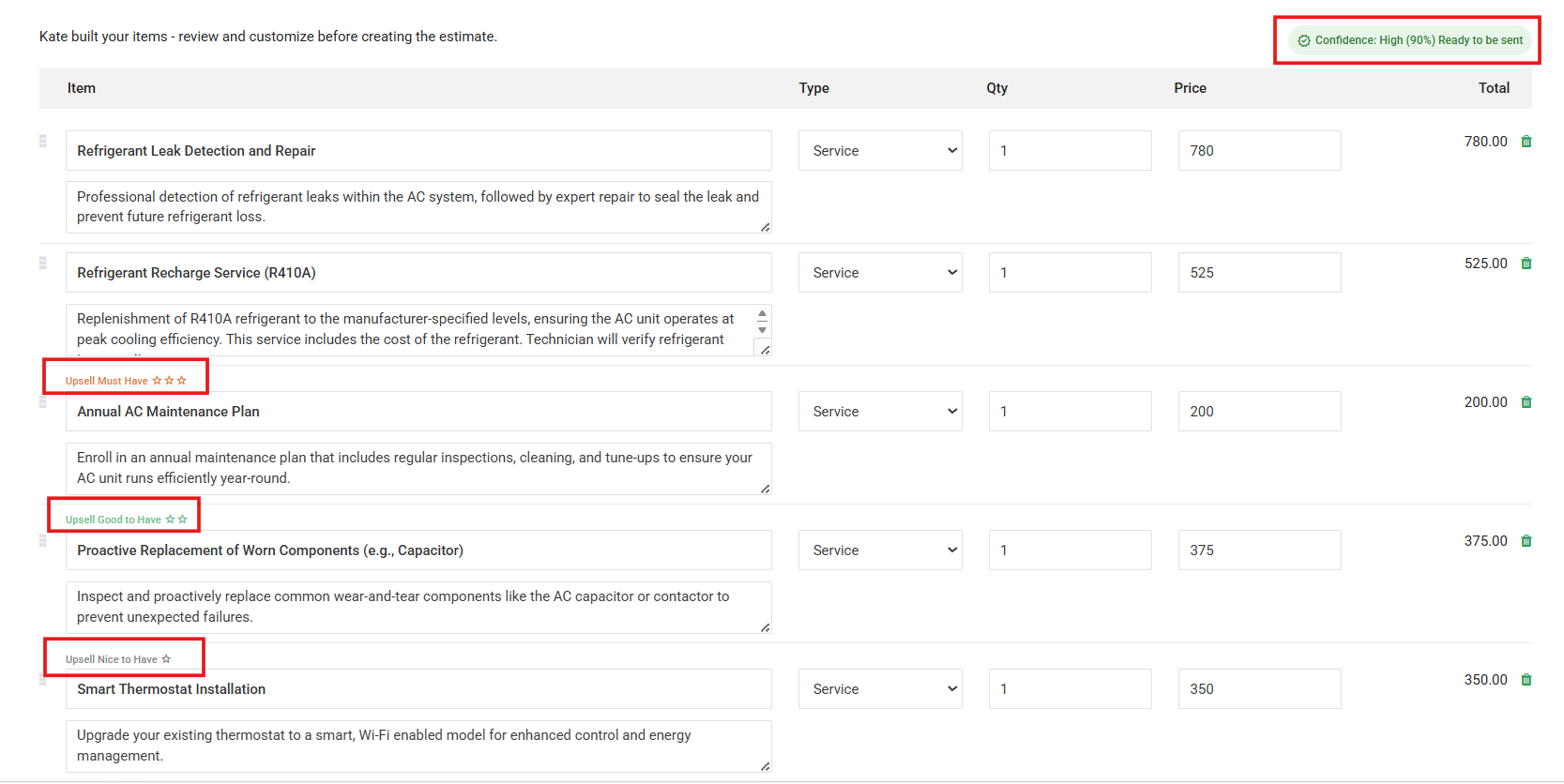
Step 18: Here, Kate AI has built your items. You can edit, add or delete after reviewing them.
Here, you will find Confidence score on top right and Upsell recommendations.
Let's understand what they mean:
Confidence Score
In the top right corner, you will see a Confidence Rating (e.g., "Confidence: High (90%)"). This indicates how certain the AI is that these items accurately reflect the technician's notes or the customer's request. Always perform a final manual check if the confidence score is low.
Upsell Recommendations
To help you grow your revenue, the system automatically suggests relevant add-ons categorized by priority:
Upsell Must Have (***): High-priority items directly related to the current service.
Upsell Good to Have (**): Proactive maintenance items that provide long-term value.
Upsell Nice to Have (*): Optional upgrades, such as smart home integrations.
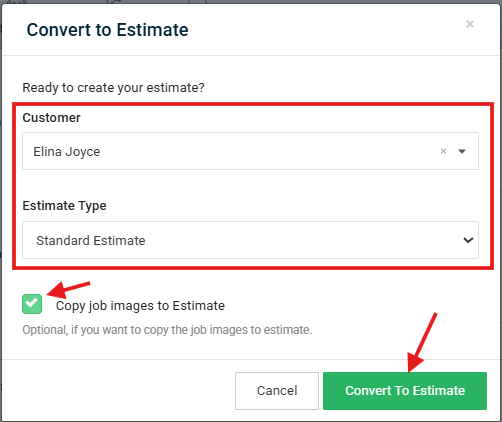
Step 19: Click 'Convert to Estimate' once finalized the items.

Step 20: On the next pop up, select a Customer to whom you want to send the AI Estimate, select the Estimate type (Standard or Options), Mark the checkbox- Copy job images to Estimate. It's optional. Here the pictures you uploaded for Kate AI Estimator will be copied. Click 'Convert to Estimate' button.
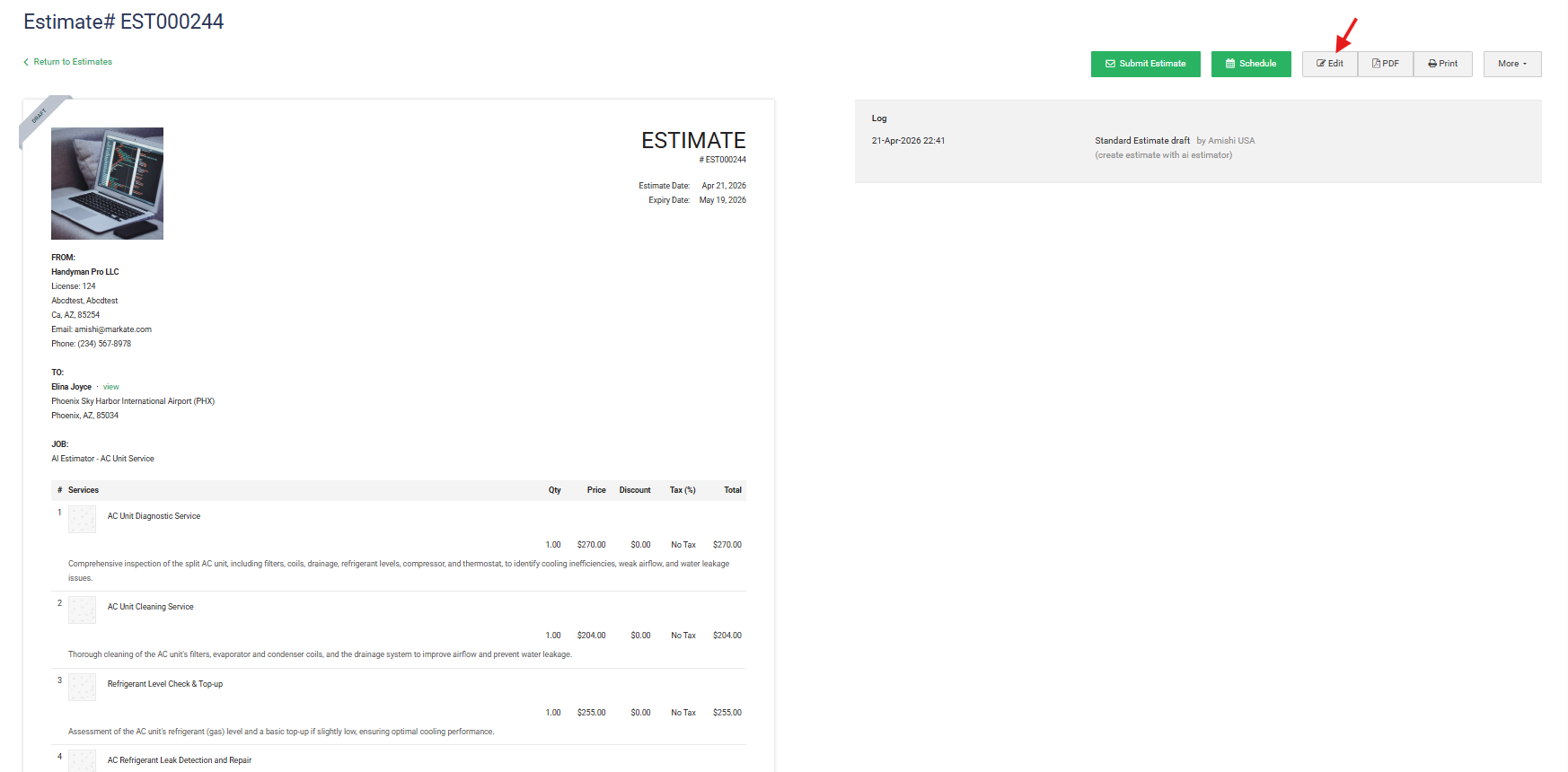
Step 21: The Draft Estimate for the selected Customer is Ready. You can Submit it now or you can still edit it if required.
IMPORTANT
How Kate AI Learns Your Pricing
Kate AI doesn't just guess your prices—it learns exactly how you bill. By analyzing your last 100 saved items and your last 25 estimates, it gets to know your specific rates for labor and materials.
This means every quote it generates is automatically tailored to your business's unique pricing style, ensuring your estimates stay consistent, competitive, and profitable.
Was this article helpful?
That’s Great!
Thank you for your feedback
Sorry! We couldn't be helpful
Thank you for your feedback
Feedback sent
We appreciate your effort and will try to fix the article