Options Estimates allow your customers to choose between different services directly from the proposal you send. This flexibility helps increase your conversion rates by giving customers the power to pick the budget that fits them best.
Here's how to create an Options Estimate:
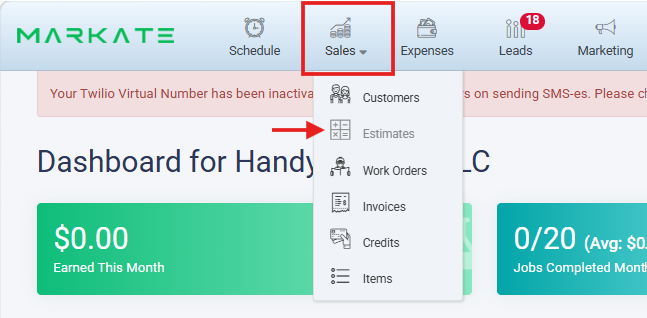
Step 1: Hover over the Sales tab and select Estimates.
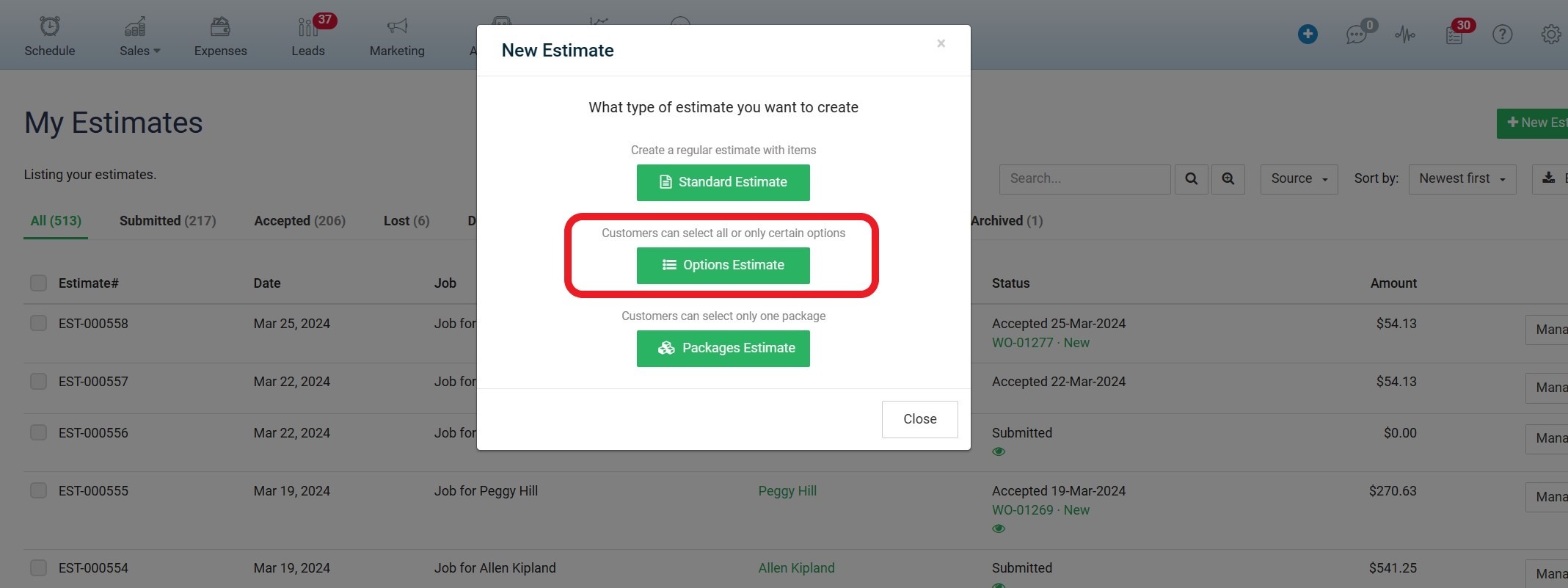
Step 2: From the "My Estimates" dashboard, click the '+ New Estimate' button in the top right corner. And then, click 'Options Estimate' on the New Estimate pop-up.

Step 3: Enter Customer and Job Details. Fill in the primary information for your Options Estimate:
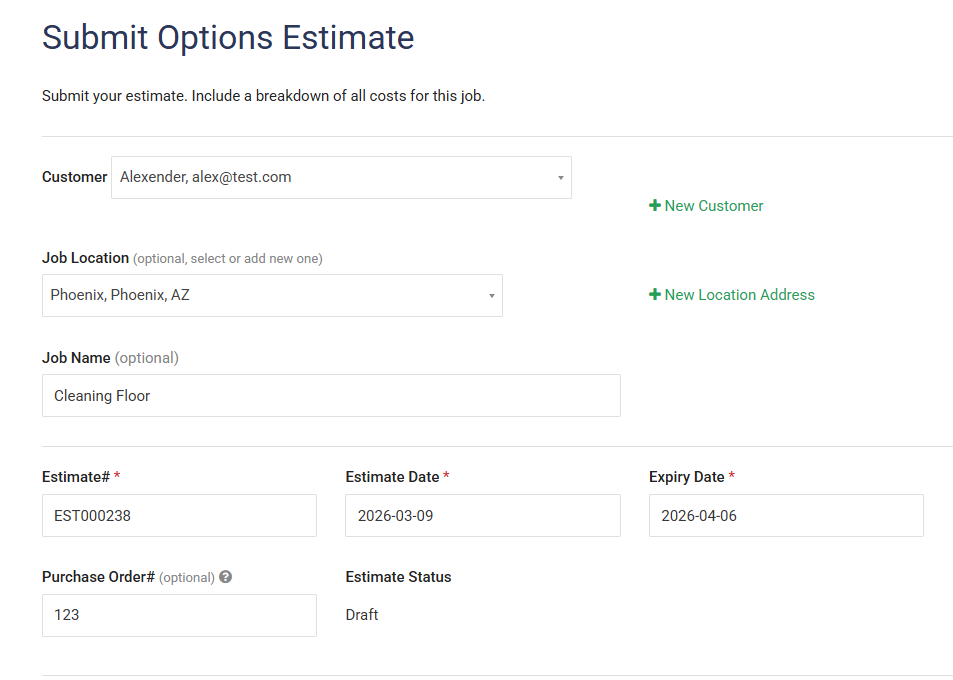
Customer: Select an existing customer or click + New Customer.
Job Name: Give your Options Estimate a descriptive title (e.g., "Cleaning Floor").
Dates: Confirm the Estimate Date and set an Expiry Date.
Step 4: Add Items and Options
This is where you build the "choices" for your customer.
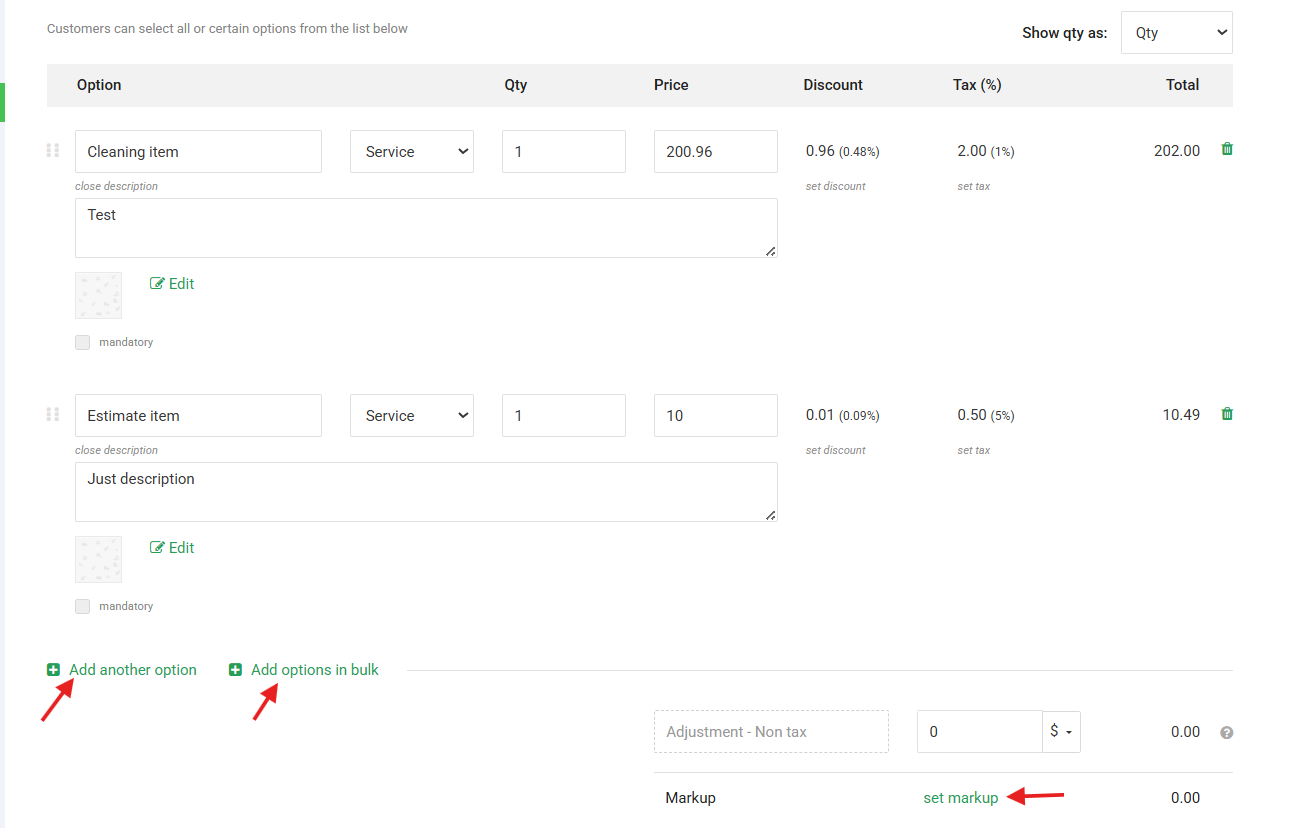
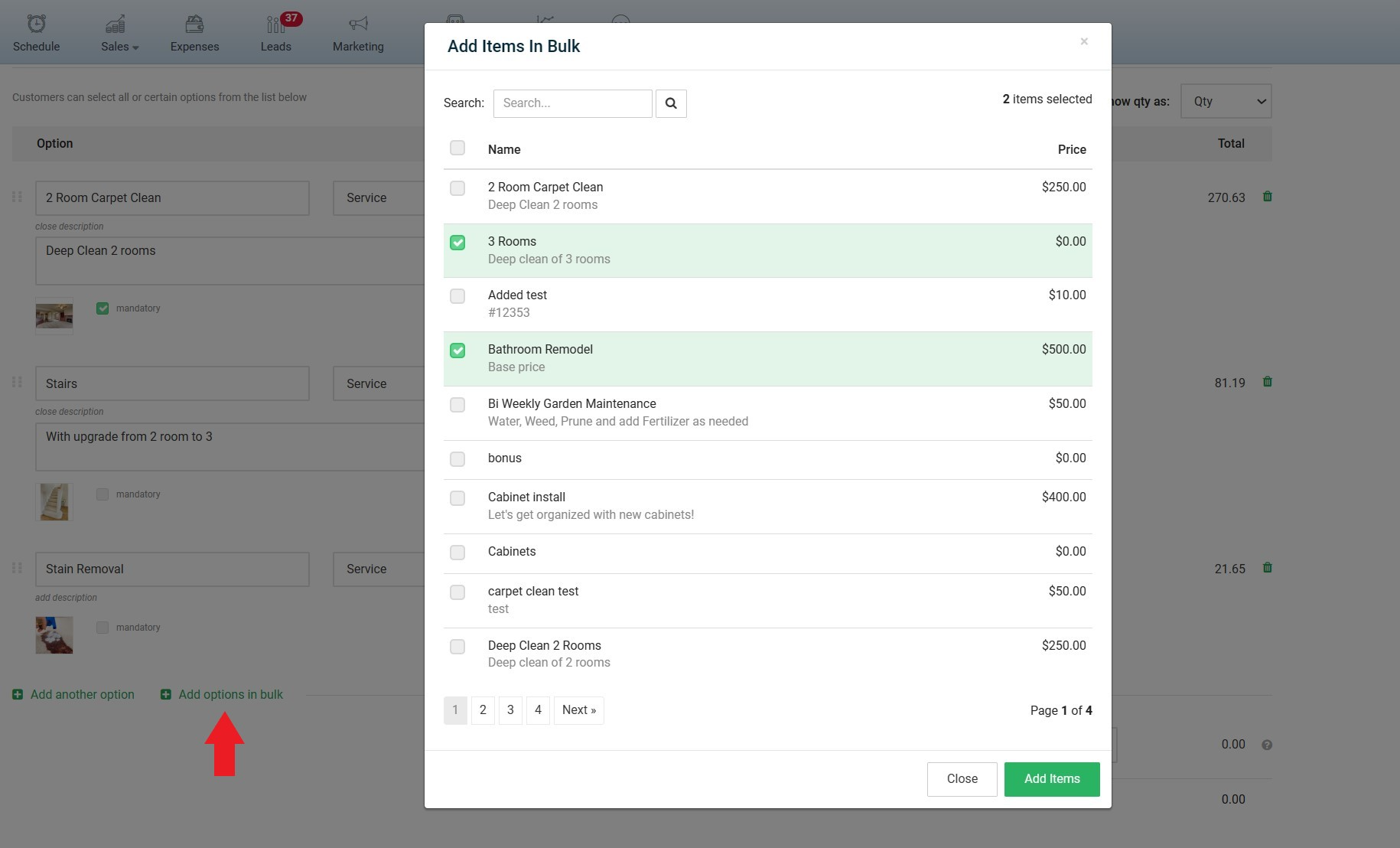
Add Multiple Items: Use + Add another option or +Add options in bulk to list different services. When you choose +Add options in bulk, you can select multiple items in one go as shown in the screenshot above.
Descriptions: Include clear details for each item so the customer knows exactly what they are getting.
Pricing & Tax: Set your unit price and apply any necessary discounts or tax rates.
Step 5: Apply Internal Markups (Optional)
If you need to adjust your profit margins without the customer seeing the math, click set markup.
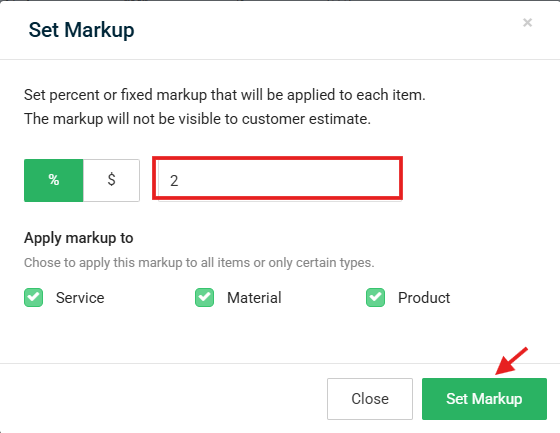
You can apply a percentage (%) or a fixed dollar ($) amount.
Choose to apply it to Service, Material, or Product types.
Note: This markup is for your internal records and will not be visible on the customer's final estimate.
Step 6: Assign Employees and Templates

Internal Instructions: Add notes that won't appear to the customer.
Employee: Assign an Employee/team member.
Proposal Kit Template: Select a professional design template (e.g., "Window Cleaning") to wrap your estimate in a high-quality presentation.
Step 7: Preview and Submit
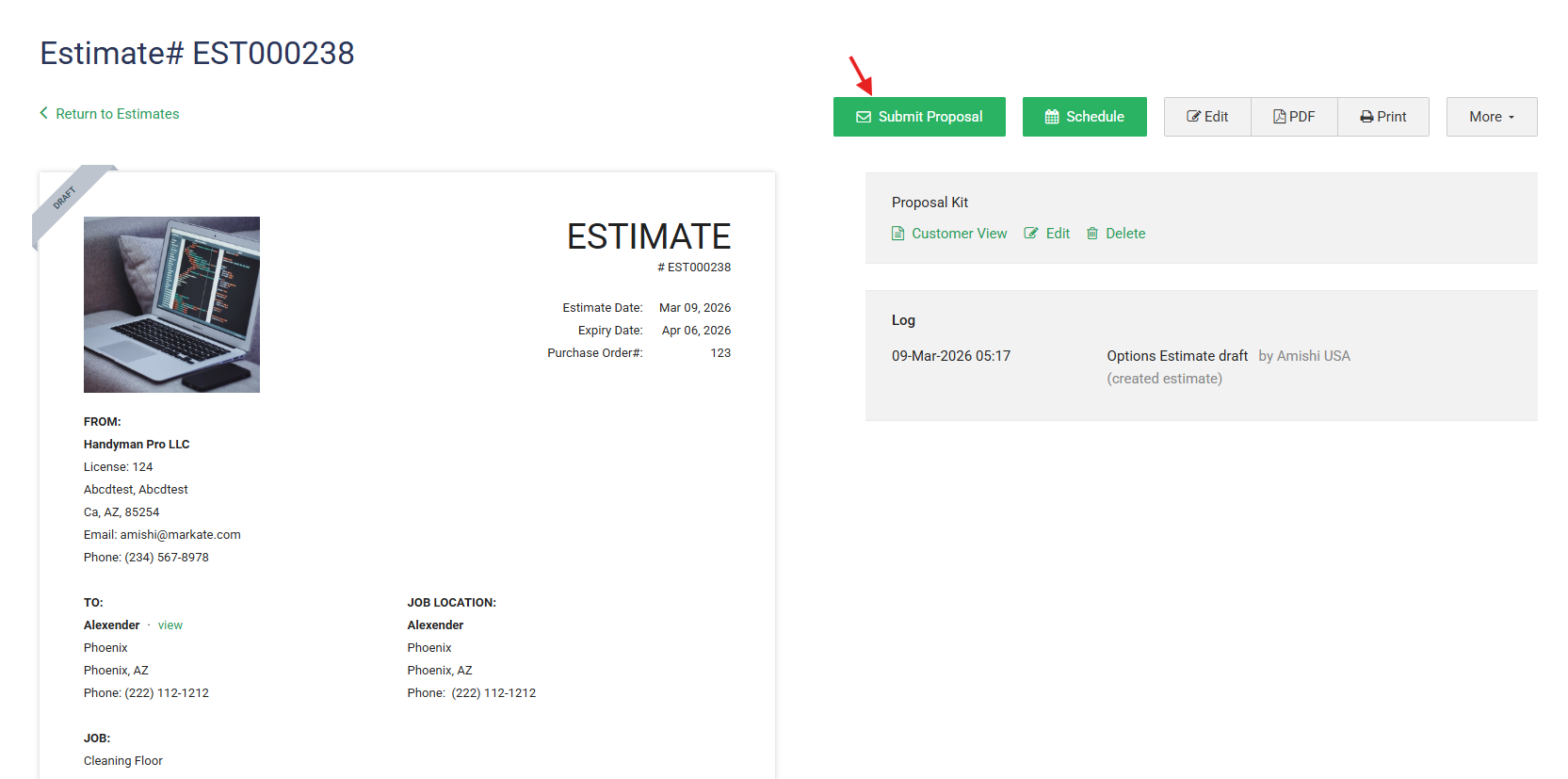
Click the Preview button to see exactly what your customer will receive. If everything looks correct:
Click Submit Proposal at the top of the screen.
The status will change from Draft to Submitted.
The Customer View:
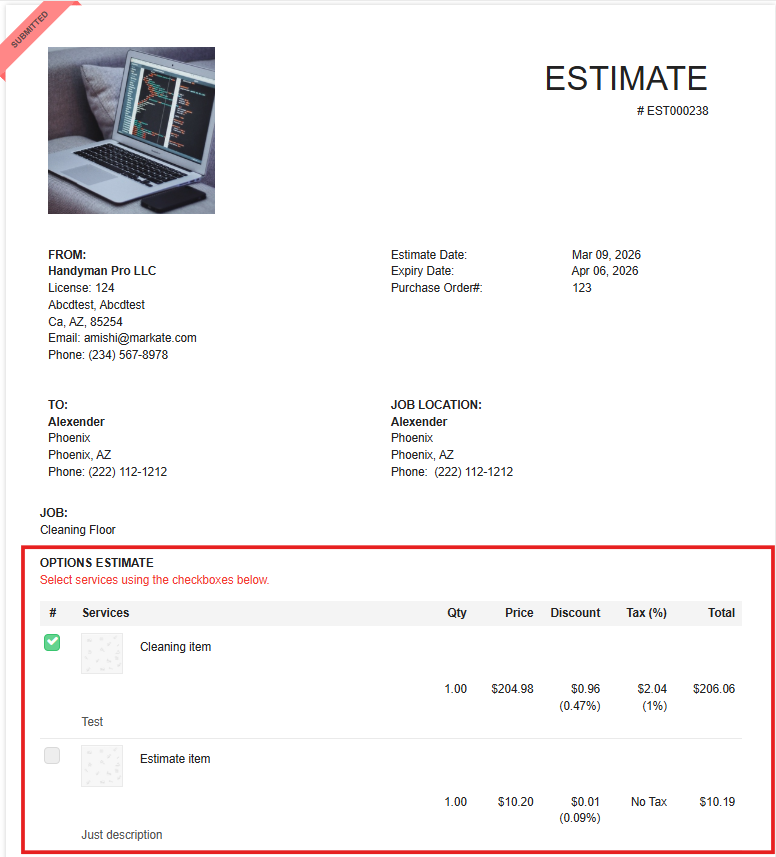
Your customer will receive a Estimate where they can use checkboxes to select the services they want. The total price will automatically update based on their selections, making the approval process seamless and interactive.
NOTE:
Managing Item Requirements & Auto-Selections
1. Setting Mandatory Items:
If a specific service is required for the job to proceed (e.g., a "Service Fee" or "Basic Cleaning"), you can mark it as Mandatory.
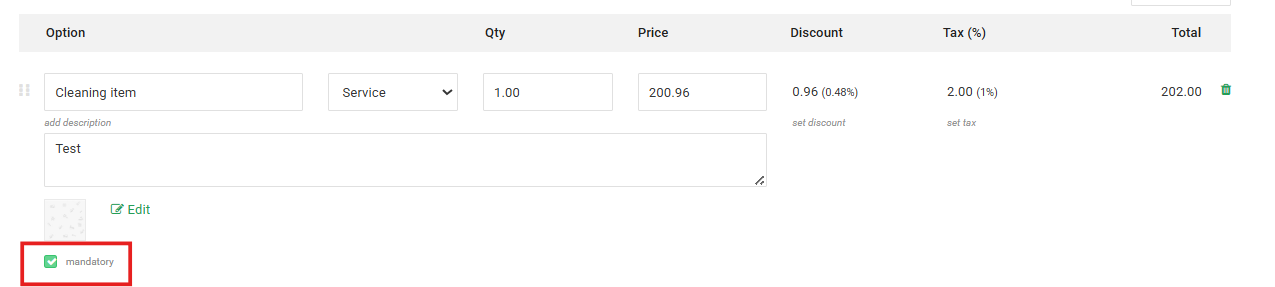
Check the Mandatory checkbox under the item description.
Customer Experience: When the customer views the estimate, this item will be pre-selected and cannot be unselected. They can still add other optional items to their total, but they cannot remove the mandatory one.
2. Configuring Default Selections
You can control which items are pre-checked when a customer first opens the proposal. To adjust this, navigate to Settings > Estimate Settings and scroll down to the Options Estimate.
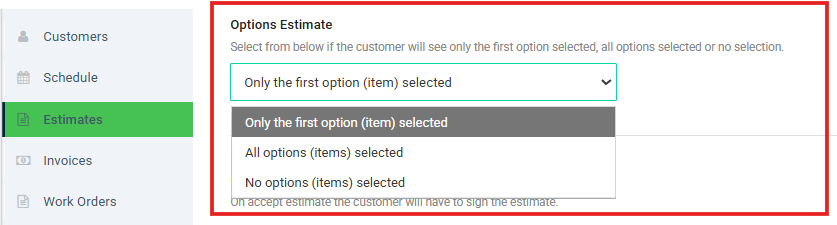
You have three configuration choices:
Only the First Option Selected: Only the very first item on your list will be selected by default (unless other items are marked as Mandatory).
All Options selected: Every item you listed will be pre-selected. The customer would need to manually uncheck the ones they don't want.
No Options selected: The estimate starts at a $0.00 total. The customer must manually pick at least one option to move forward and accept the proposal.
Here is a video showing how to do this.
Was this article helpful?
That’s Great!
Thank you for your feedback
Sorry! We couldn't be helpful
Thank you for your feedback
Feedback sent
We appreciate your effort and will try to fix the article