Upload a photo, type a note, or record a voice message, and Kate AI Estimator instantly creates a professional estimate for your customer. Fast, accurate, and designed to help you estimate jobs and win more business.
Here is step by step guide to create an AI Estimate on the App:
Step 1: launch the Markate App.
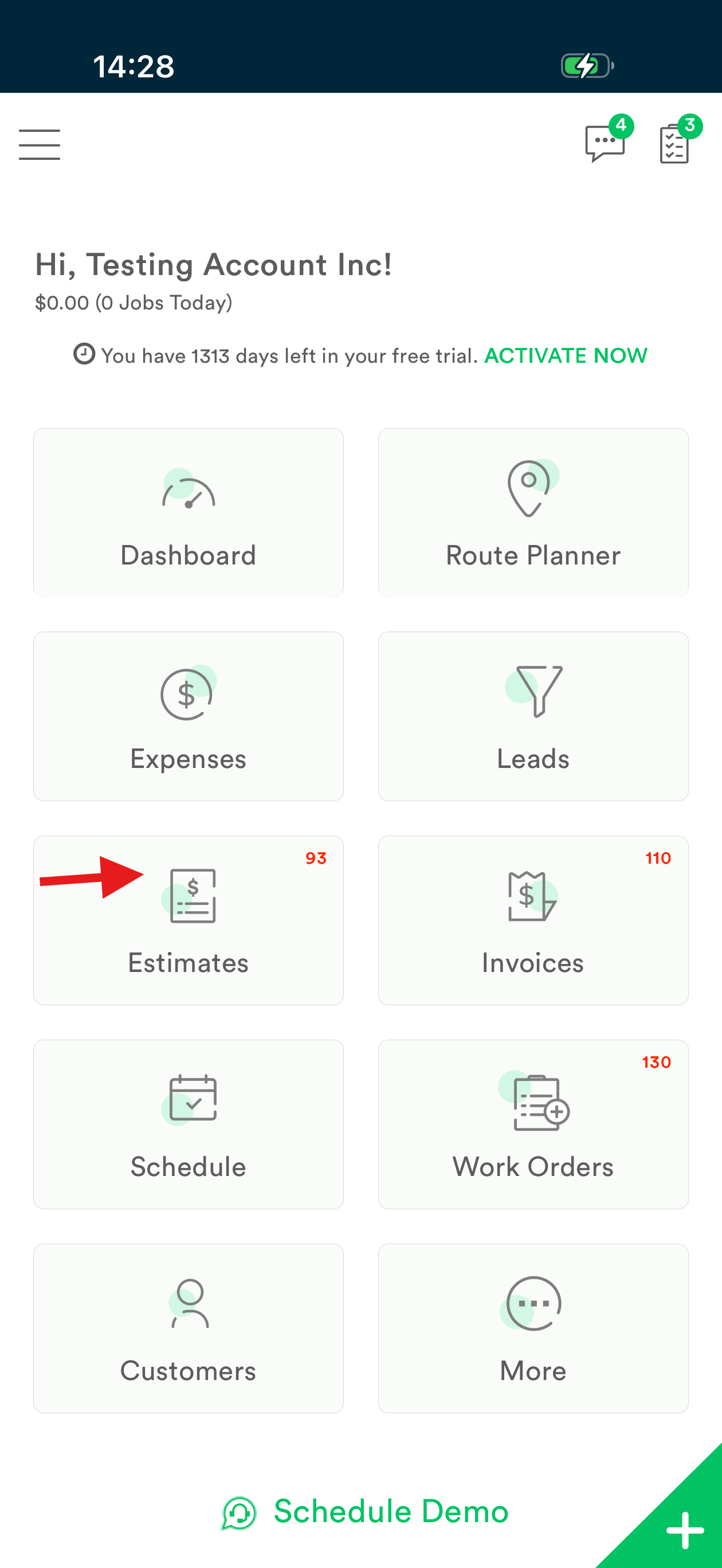
Step 2: Tap 'Estimates' on the homepage.
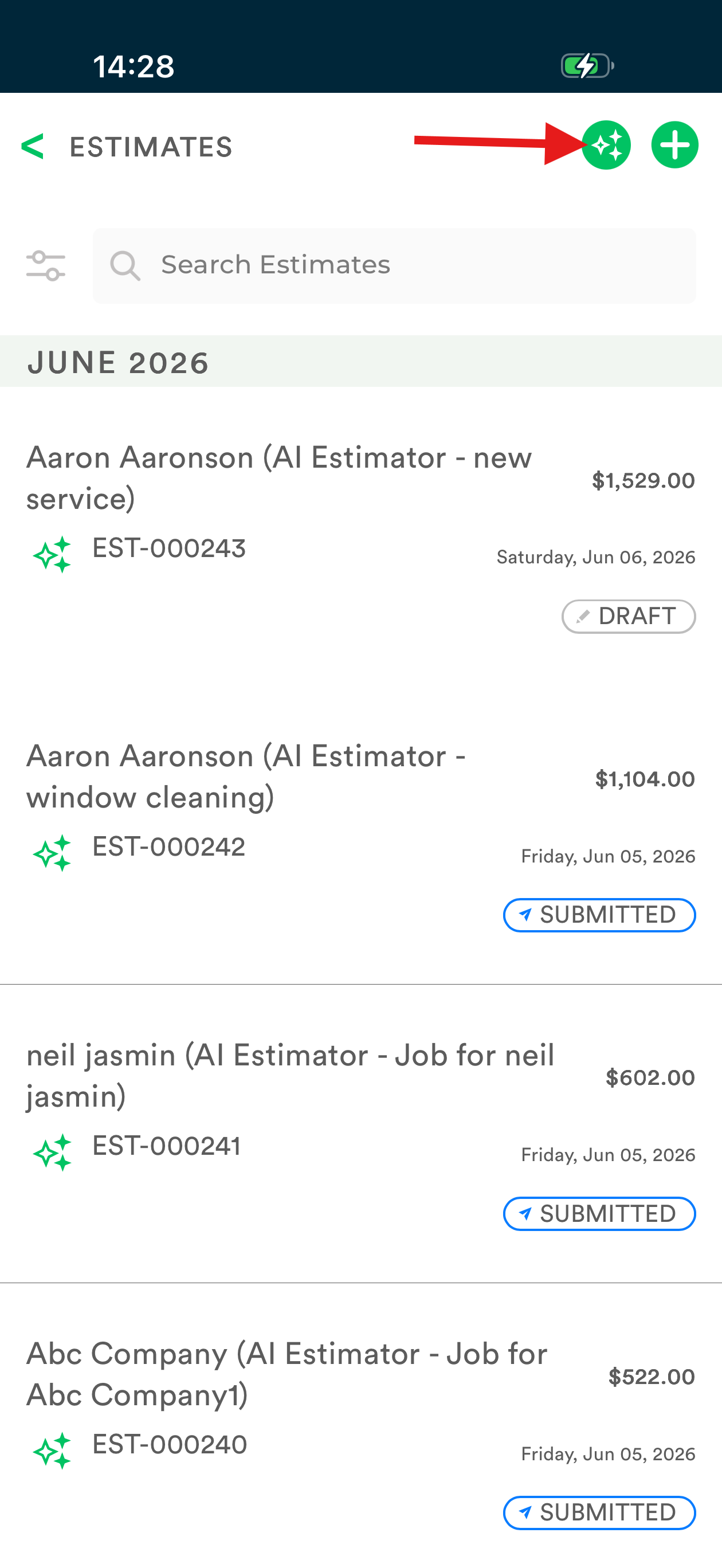
Step 3: Tap 'AI Estimate' star icon on top right.
Note: In Estimates list view, AI Estimates are indicated with Green Star sign.
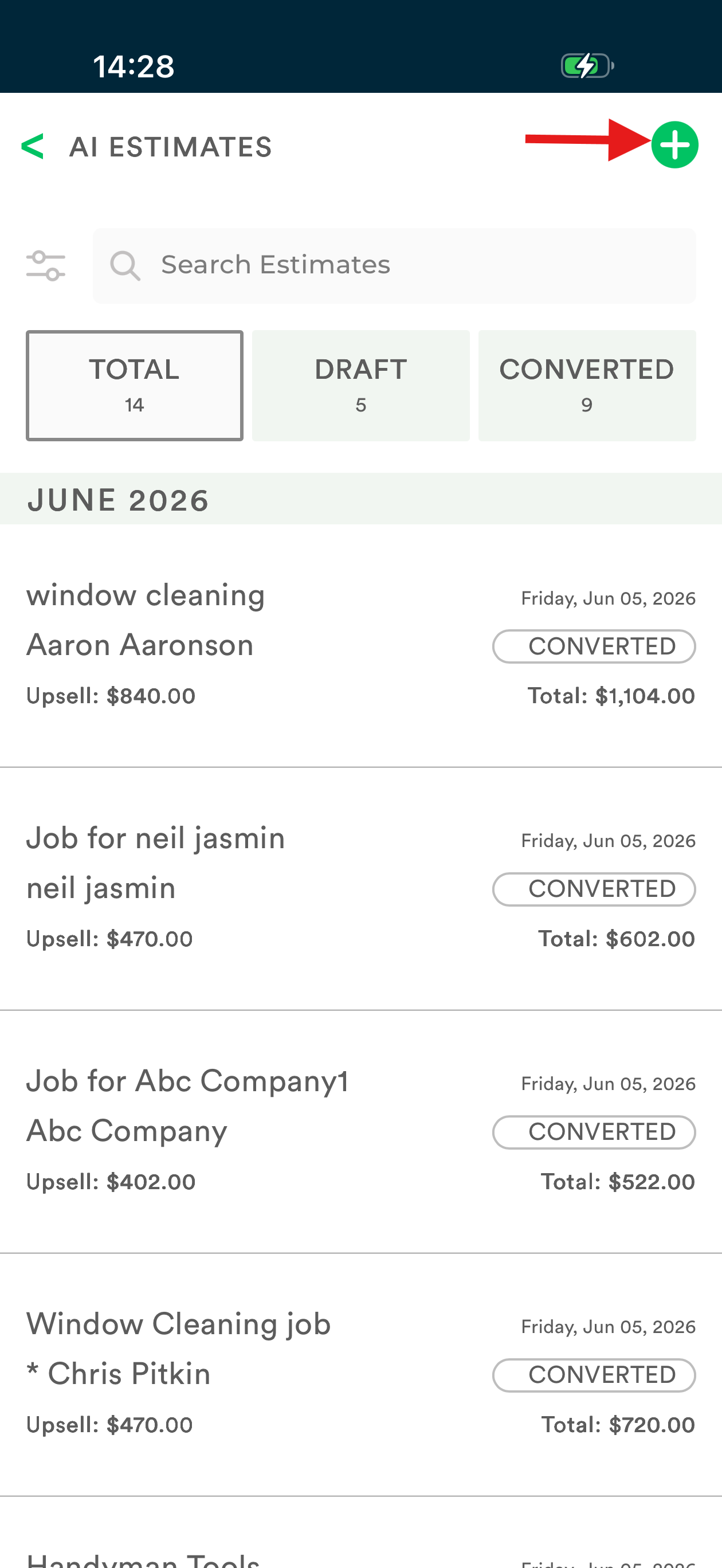
Step 4: It navigates to the AI Estimates screen where simply tap (+) icon to create a new AI Estimate.
Here you can see Total, Draft and Converted tabs which shows the number of Draft AI Estimates and number of AI Estimates which have been finalized or submitted. Total includes both Draft and Converted AI Estimates.
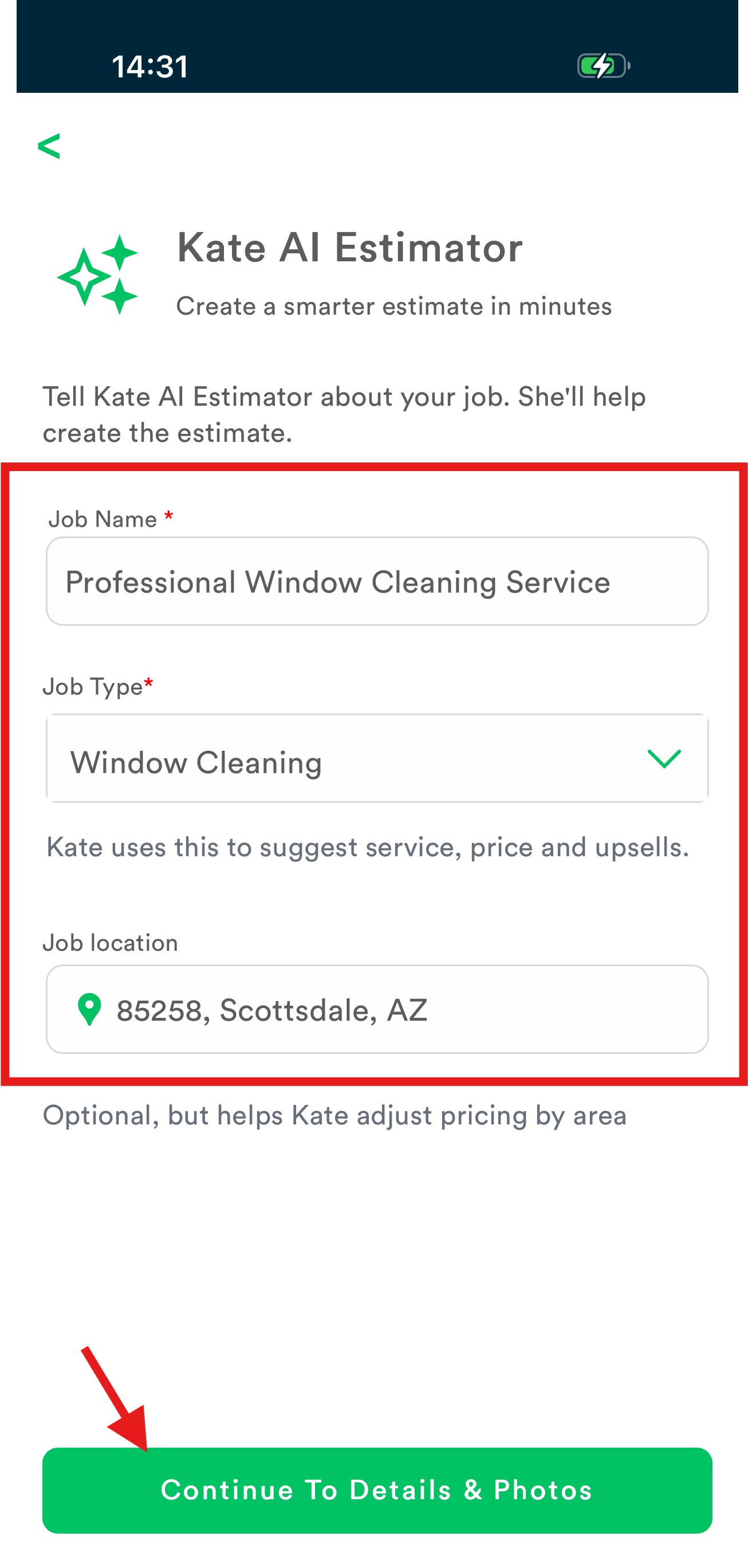
Step 5: Enter Enter 'Job Name', 'Service Type', 'Job Location'.
Step 6: Tap 'Continue to Details and Photos'
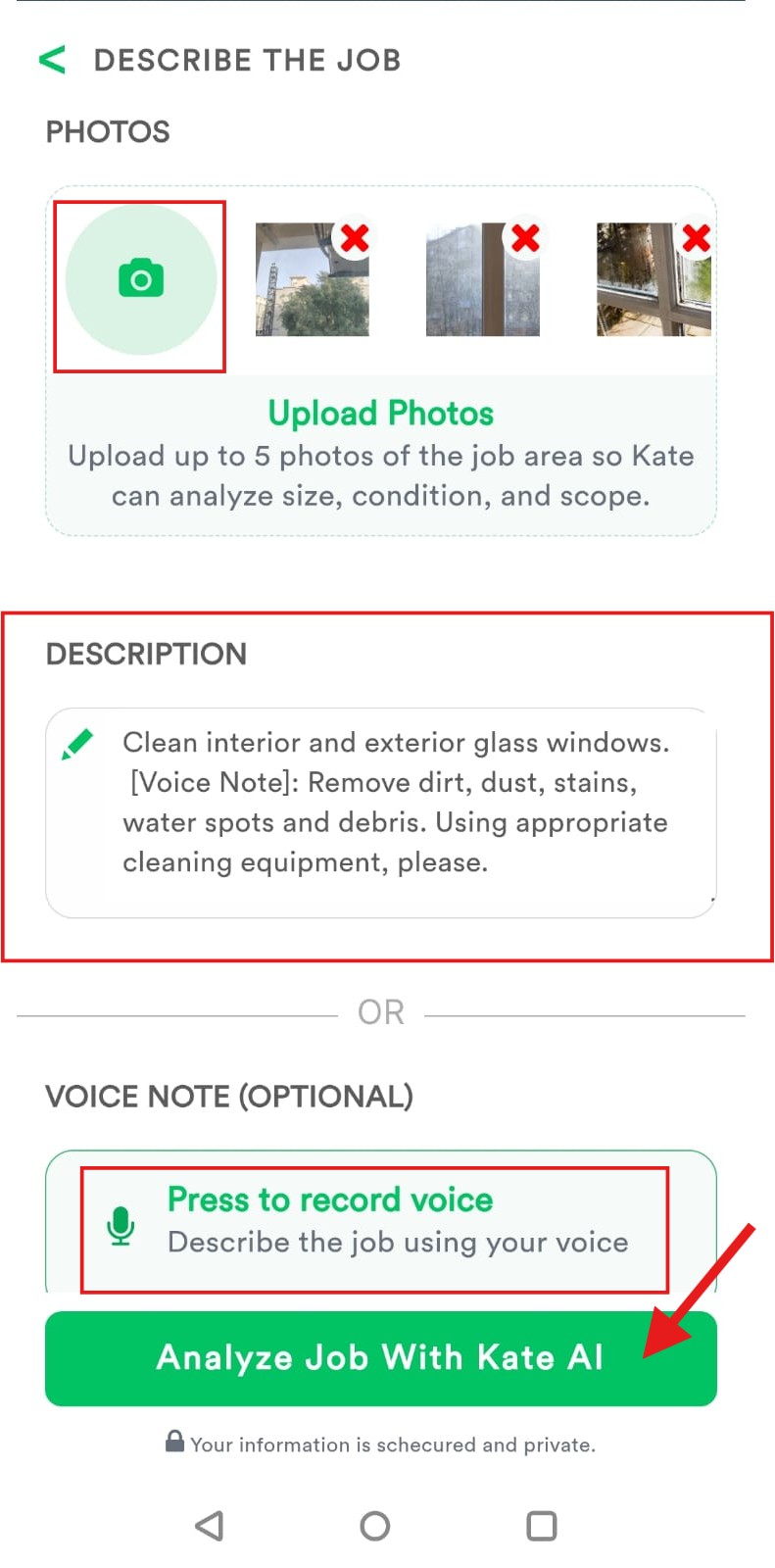
Step 7: Next, you can upload Job Area Pictures for Kate AI to estimate accurately. Also, you can describe the Job either by Typing or Recording your voice. Click 'Press to Record Voice' for recording job description and 'Stop to Record Voice' to submit.
Step 8: Tap the button 'Analyze Job with Kate AI'.
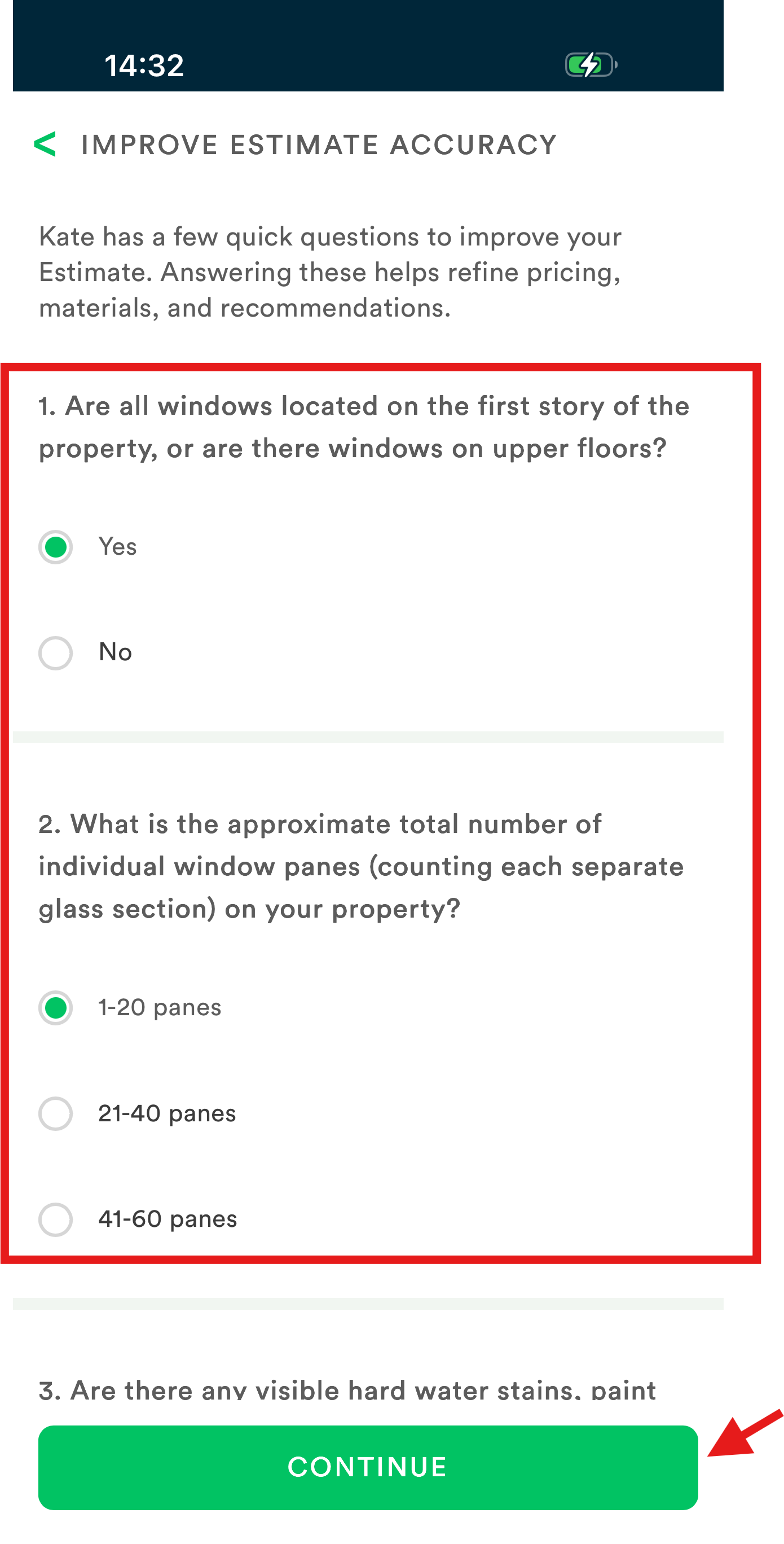
Step 9: Kate takes a few moments to analyze and then asks you a couple of relevant questions. Answer those questions correctly and tap 'Continue'.
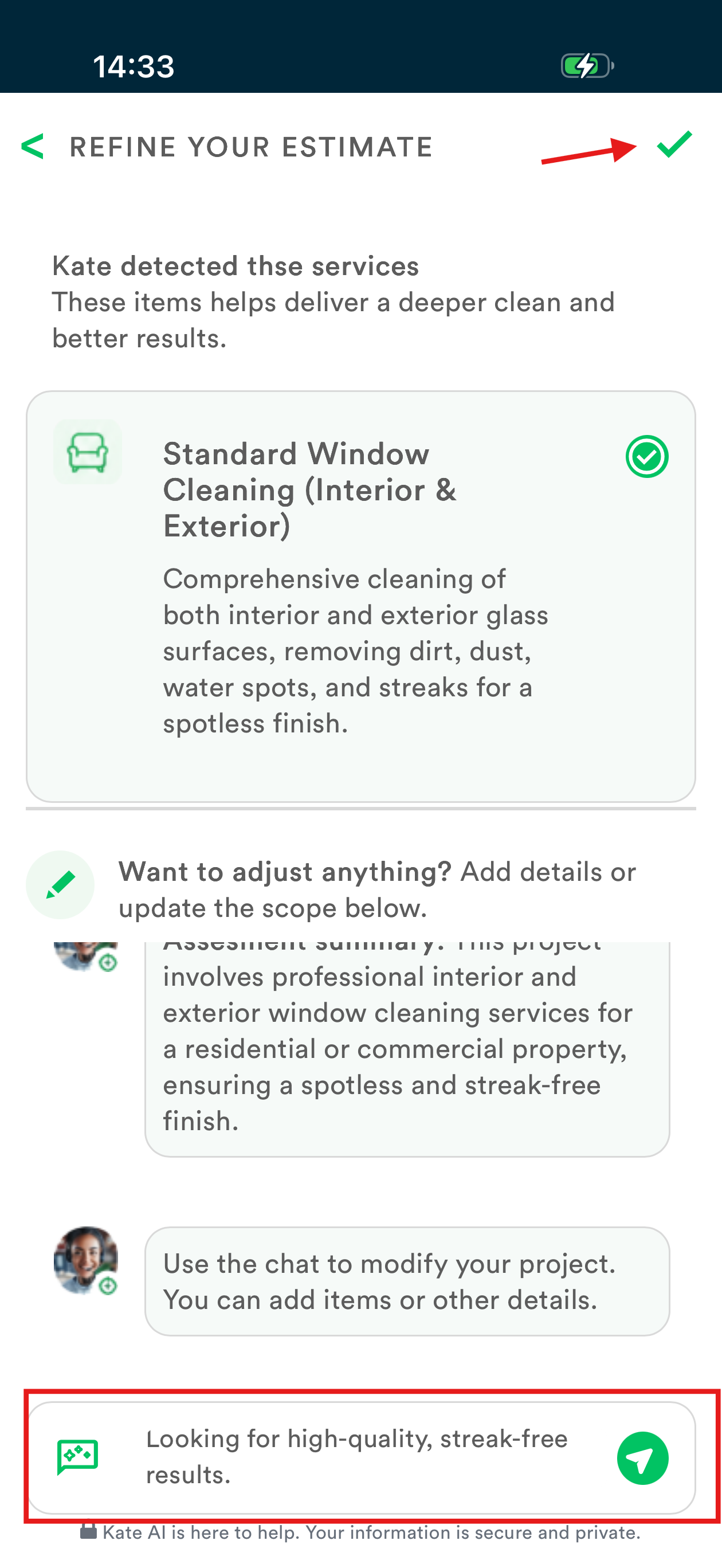
Step 10: Kate AI prepares the Assessment. You can chat with Kate AI to modify, add items or any other details in the chat box.
Step 11: Once done, tap the tick icon on top.
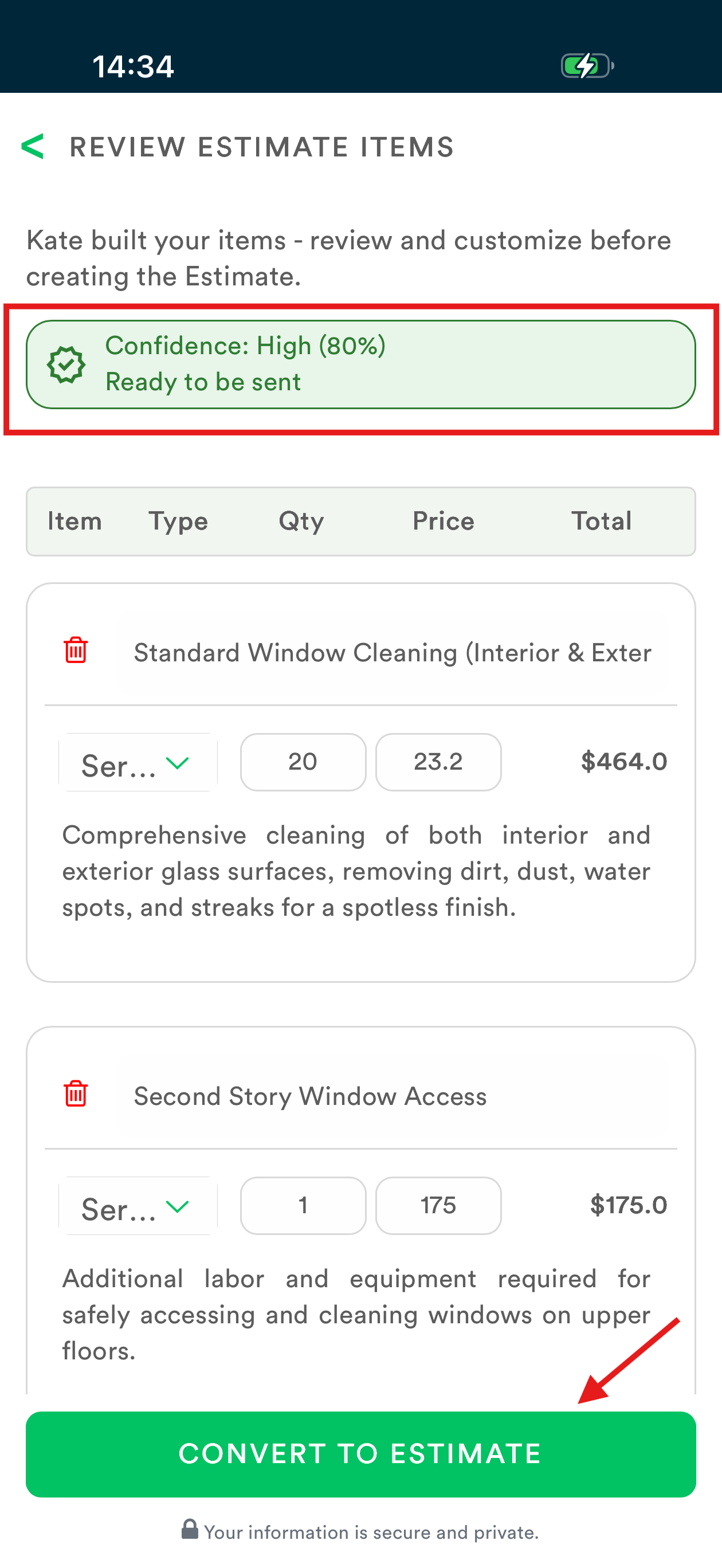
Step 12: Here, Kate AI has built your items. You can edit, add or delete after reviewing them.
Here, you will find Confidence score on top right and Upsell recommendations.
Step 13: Tap 'Convert to Estimate' once finalized the items.
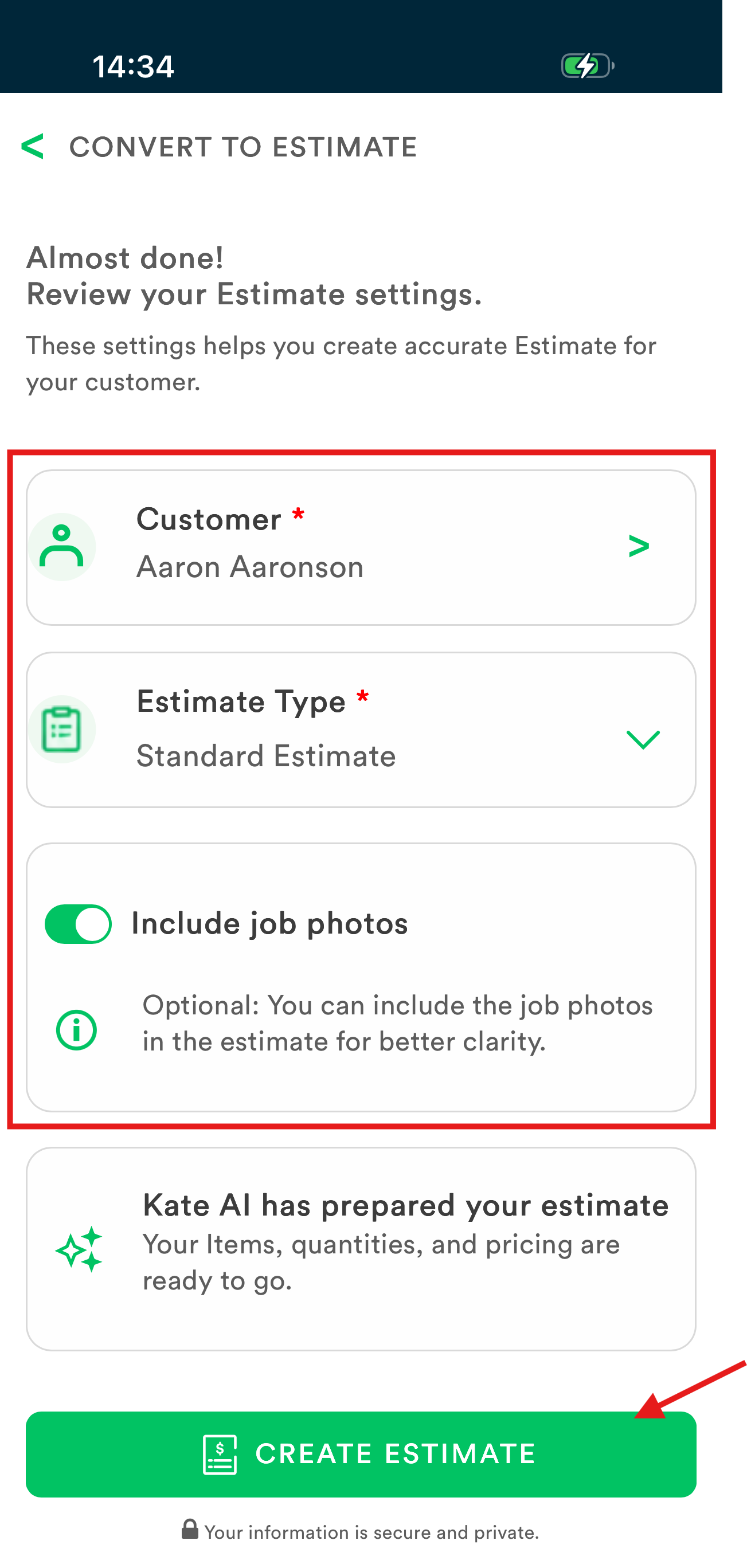
Step 14: On the next pop up, select or add a customer to whom you want to send the AI Estimate, select the Estimate type (Standard or Options), Toggle ON- Include Job Photos. It's optional. Here the pictures you uploaded for Kate AI Estimator will be copied.
Step 15: Tap 'Create Estimate' button.
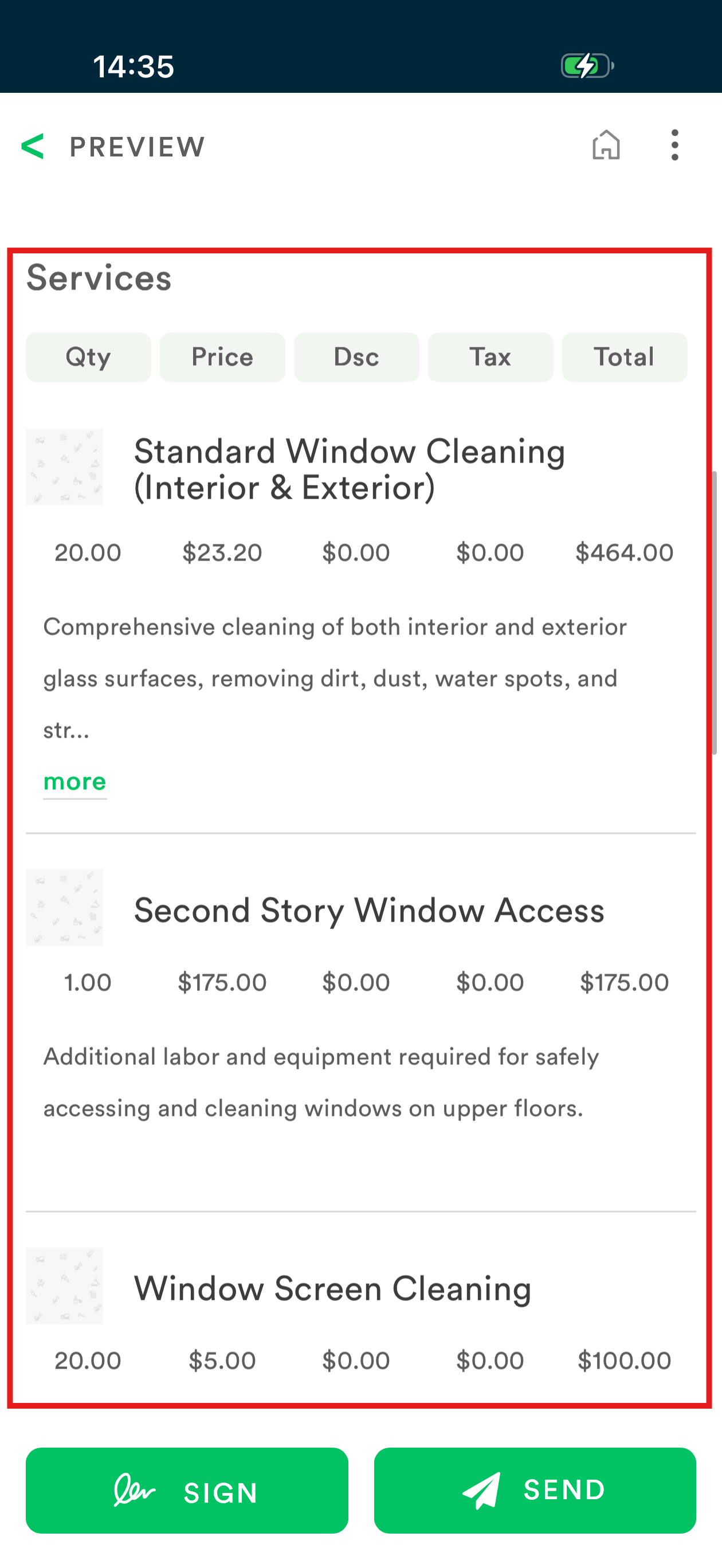
The Draft Estimate for the selected Customer is Ready. You can Send it immediately or you can still edit it if required.
NOTE: Refer Kate AI Estimator : Markate Academy for setup
Was this article helpful?
That’s Great!
Thank you for your feedback
Sorry! We couldn't be helpful
Thank you for your feedback
Feedback sent
We appreciate your effort and will try to fix the article