Postcard marketing is a powerful and affordable way to promote your business. With Postcards On Demand, you can design custom postcards and send them directly to your customers — all from within Markate.
(Available on Desktop Only)
This guide walks you through creating, designing, and purchasing your postcard campaign.
Postcards On Demand allows you to:
Design custom 6x9 jumbo postcards
Send postcards to all customers at once, specific customers or customer groups
Track delivery status and QR code scans
Download a PDF proof before purchase
Pricing starts at $1.10 per postcard (includes printing and postage).
How to Create a Postcard Campaign?
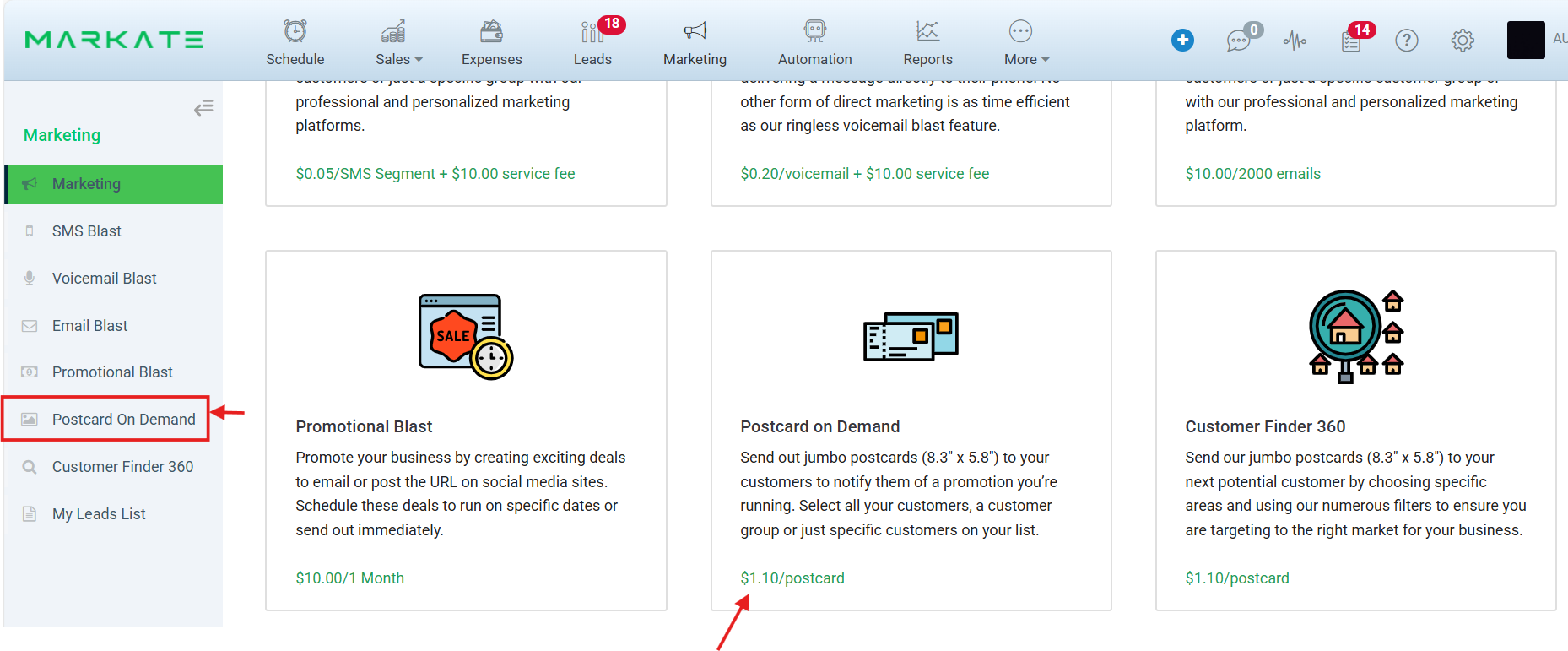
Step 1: Navigate to Postcards On Demand
Go to Marketing from the top menu
Click Postcard On Demand
Click + New Postcard Campaign


Step 2: Enter Campaign Details
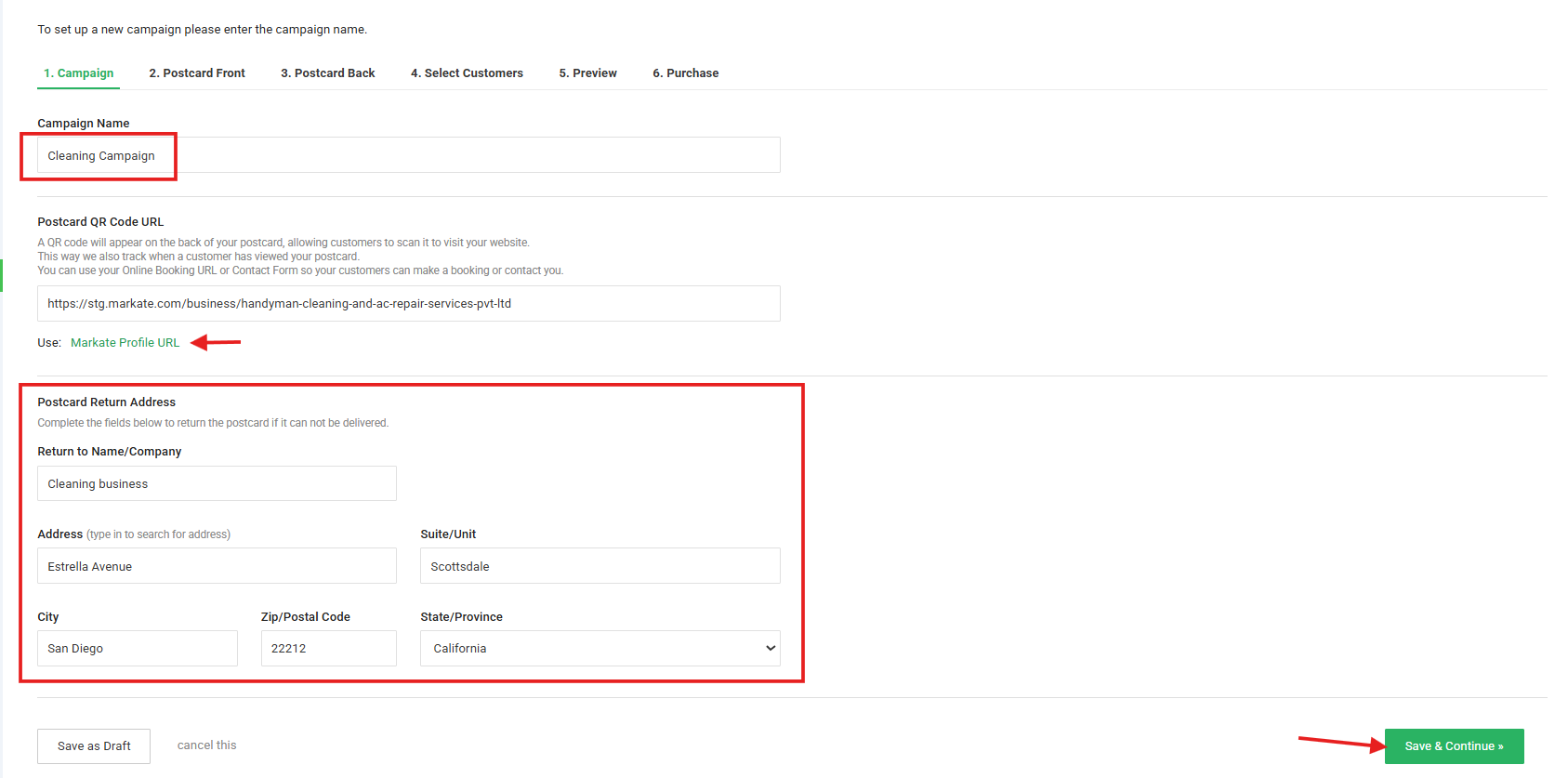
Under the Campaign tab:
1. Campaign Name: Enter a name for your campaign (example: Spring Cleaning Promo)
2. Postcard QR Code URL: Add a link that customers can scan from the back of the postcard.
You can use:
Your Markate Profile URL
Your Online Booking link
A Contact Form
Any custom webpage
3. Return Address: Enter the return mailing address in case the postcard cannot be delivered:
Click Save & Continue.
Step 3: Design the Postcard Front
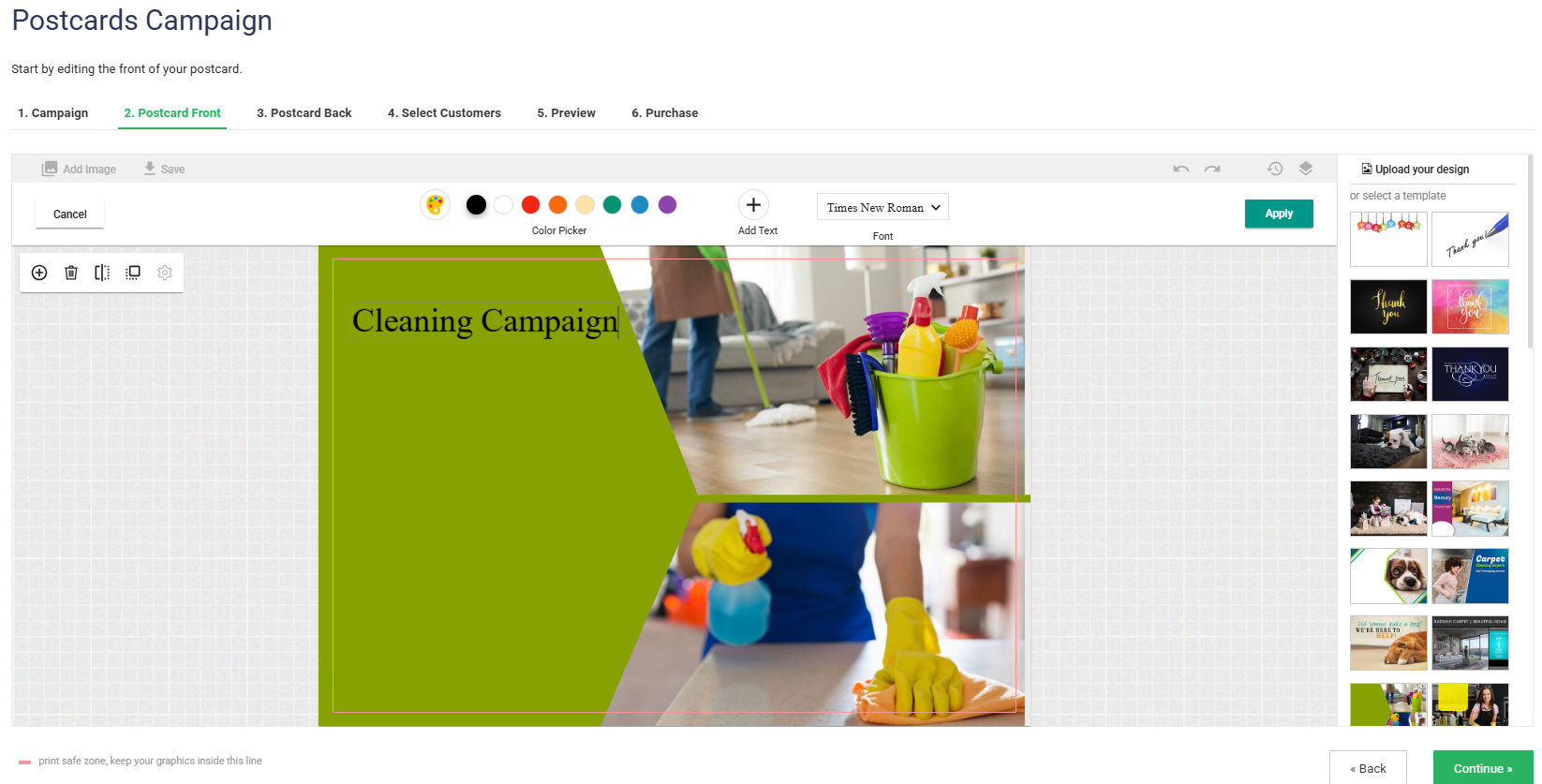
You can:
Upload your own design
Use a template
Add your logo
Customize text
Add images
Adjust colors, background, opacity, and text styles
Keep all important content inside the print safe zone.
Click Continue when finished.
Step 4: Design the Postcard Back
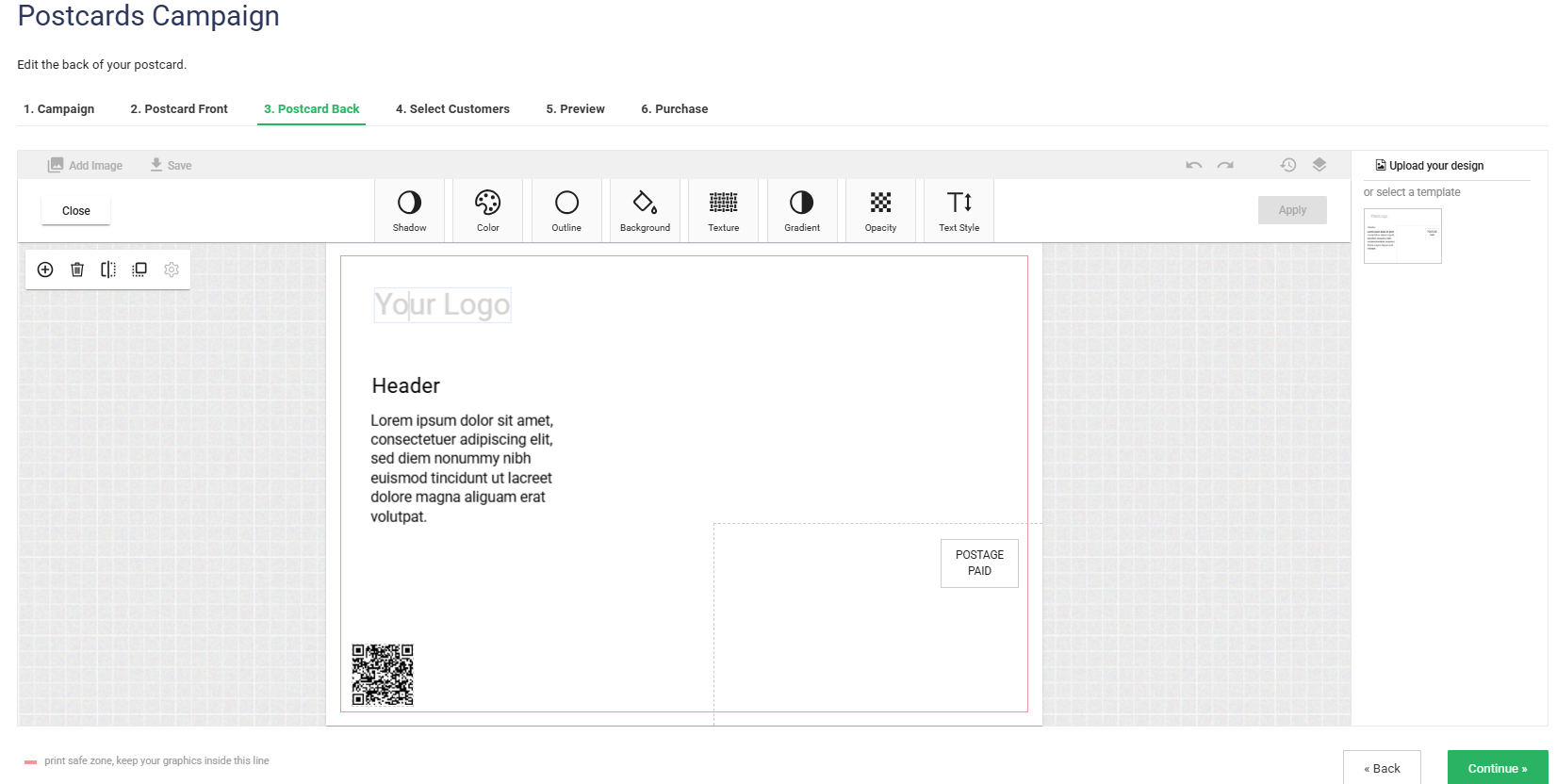
The back side includes:
Your return address
A QR code (if added)
Editable text areas
You can customize layout, text, and branding to match your business.
Click Continue.
Step 5: Select Customers
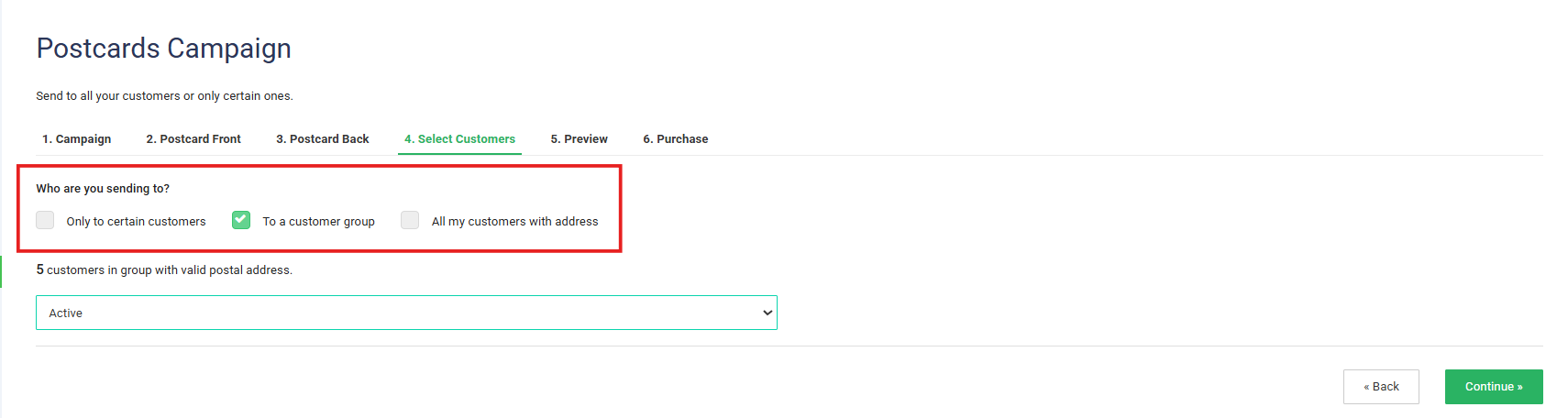
Choose who will receive your postcards:
Only to certain customers
To a customer group
All my customers with address
Only customers with valid mailing addresses will be included.
Click Continue.
Step 6: Preview Your Postcard
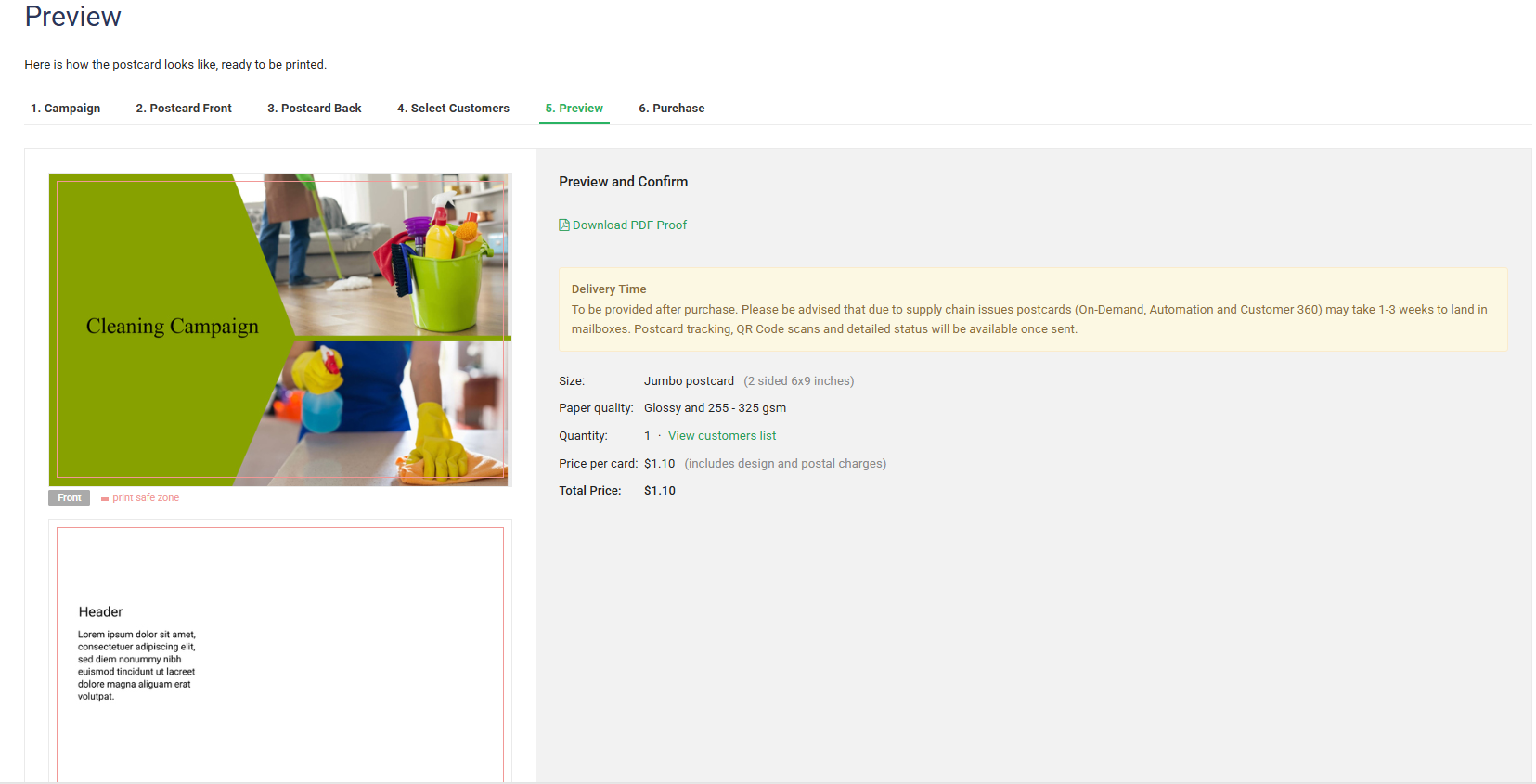
Before purchasing, you can:
View the full postcard preview
Download a PDF proof
Review paper quality and size
Confirm quantity and pricing
Postcard Specifications:
Size: Jumbo 6x9 (2-sided)
Paper: Glossy 255–325 gsm
Once confirmed, click Continue to Purchase.
Step 7: Purchase
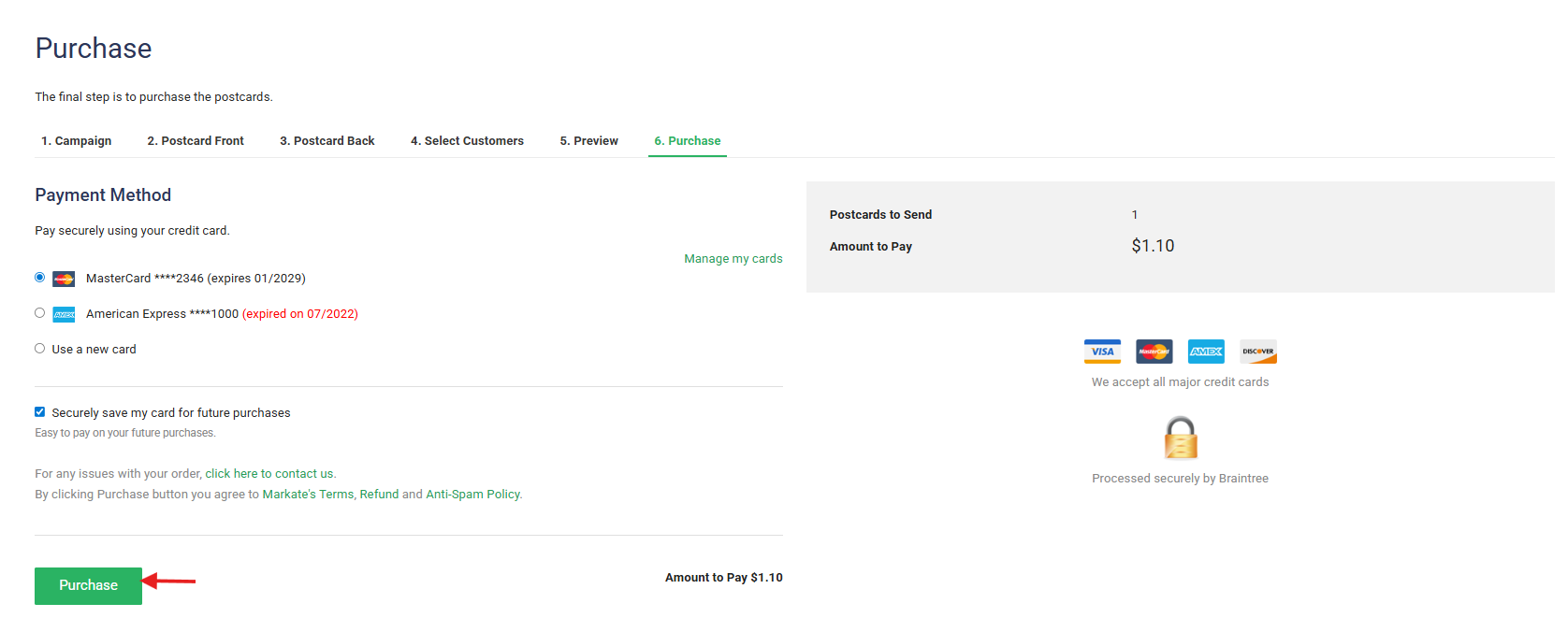
Select your saved credit card or add a new one
Confirm the total amount
Click Purchase
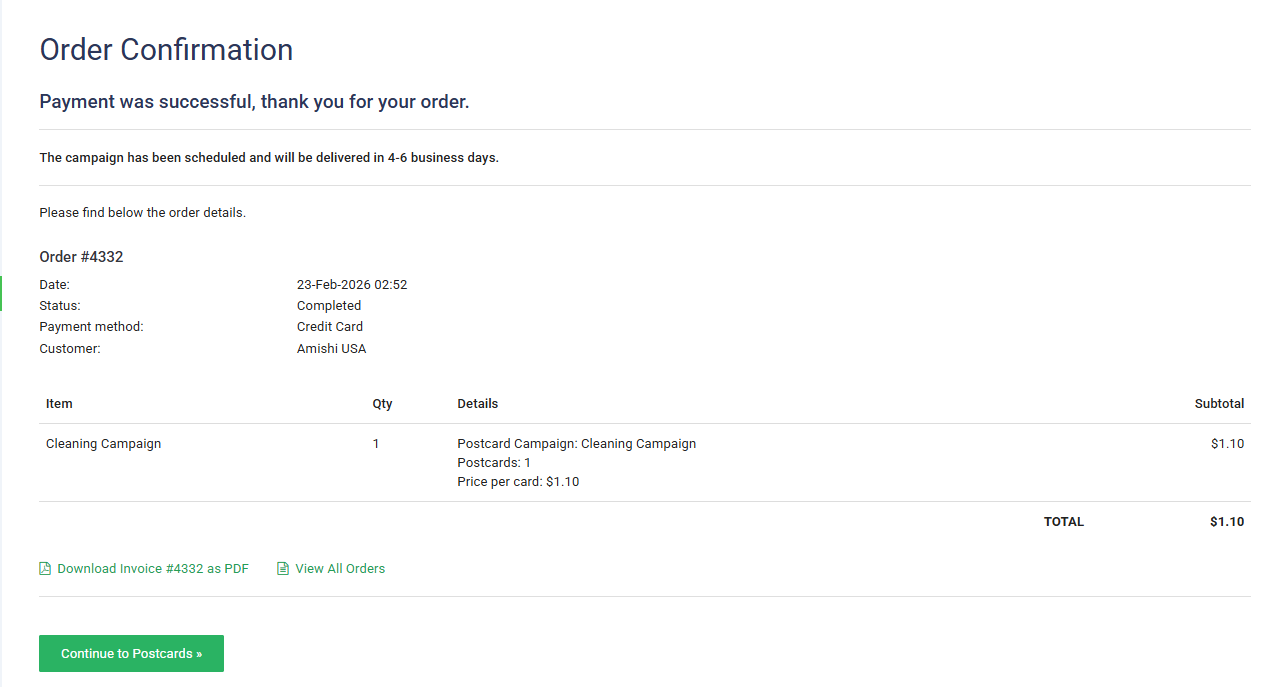
You will receive an order confirmation once payment is successful.
After Purchase

Once your order is placed:
Postcards are scheduled for printing and mailing
Delivery typically takes 1–3 weeks (may vary due to supply chain delays)
You can track status by clicking Orders & Payments
Managing Your Campaign
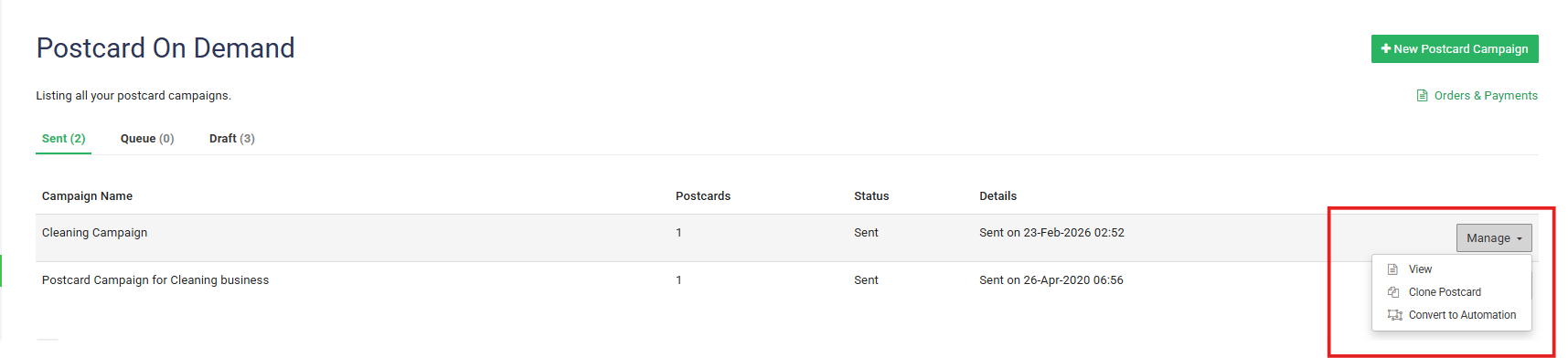
To manage an existing campaign:
Click Manage next to the campaign name
You can:
View campaign details
Clone the postcard
Convert to Automation
Tracking & Insights
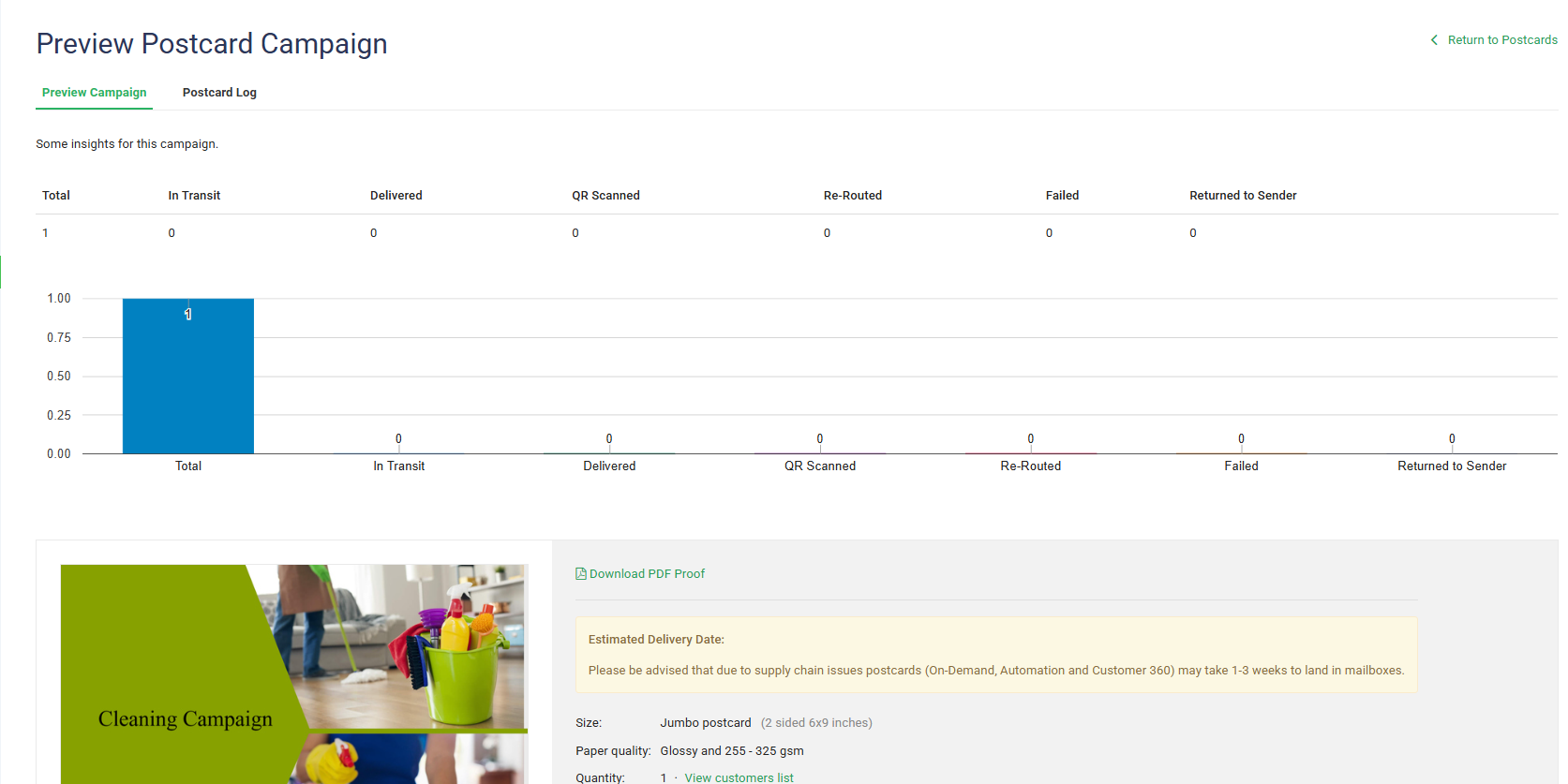
Inside the campaign view, you can track:
Total sent
In Transit
Delivered
QR Code Scans
Re-routed
Failed
Returned to Sender
Here is a video showing how to do this.
Why Use Postcard Marketing?
Postcards allow you to:
Target specific neighborhoods
Reach customers who may not open emails
Promote seasonal services
Increase bookings with QR code scans
Build strong brand recognition
It’s one of the most cost-effective direct mail marketing strategies available.
Was this article helpful?
That’s Great!
Thank you for your feedback
Sorry! We couldn't be helpful
Thank you for your feedback
Feedback sent
We appreciate your effort and will try to fix the article