Postcard Automation allows you to automatically send printed postcards to customers after specific events—such as when a work order is completed or an invoice is paid.
This is a great way to thank customers, request reviews, or remind them about future services.
Follow the steps below to create and design your Postcard Automation.
Step 1:
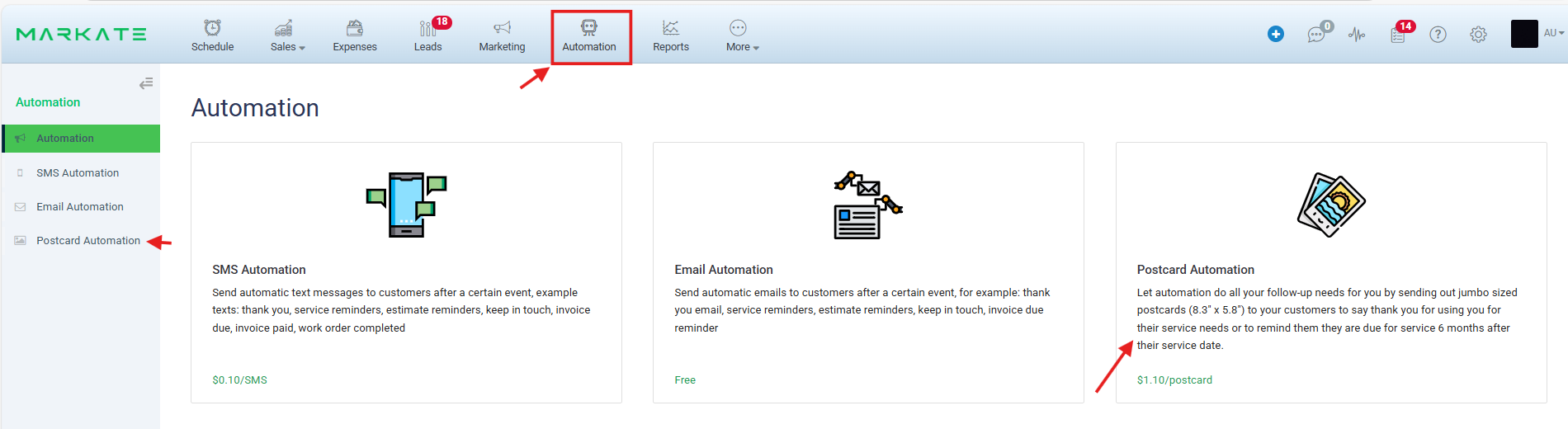

From the top navigation bar, click Automation.
From the left-side menu, select Postcard Automation.
Click + Add Postcard Automation button.
Step 2: Set Rules
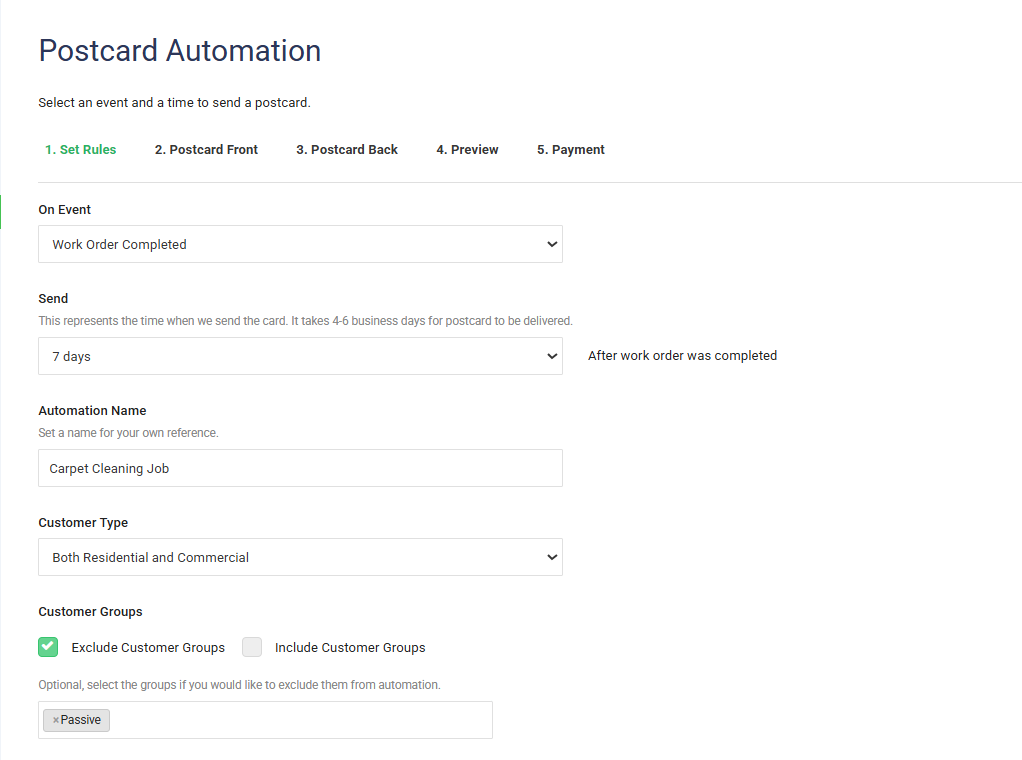
In this step, you’ll define when the postcard should be sent and who should receive it.
1. Choose the Event
Under On Event, select the trigger for your postcard. For example:
Work Order Completed
Invoice Paid
This event determines when the automation begins.
2. Set When to Send
Under Send, choose how many days after the event the postcard should be mailed.
Note: Postcards take approximately 4–6 business days to be delivered after they are sent.
Example:
Select 7 days to send the postcard 7 days after the work order is completed.
3. Name Your Automation
In Automation Name, enter a name for internal reference (e.g., Carpet Cleaning Job Follow-Up).
4. Select Customer Type
Choose which customers this applies to:
Residential
Commercial
Both Residential and Commercial
5. Include or Exclude Customer Groups (Optional)
You can refine your audience by:
Excluding Customer Groups
Including Customer Groups
Example: Exclude a group such as Passive customers if needed.
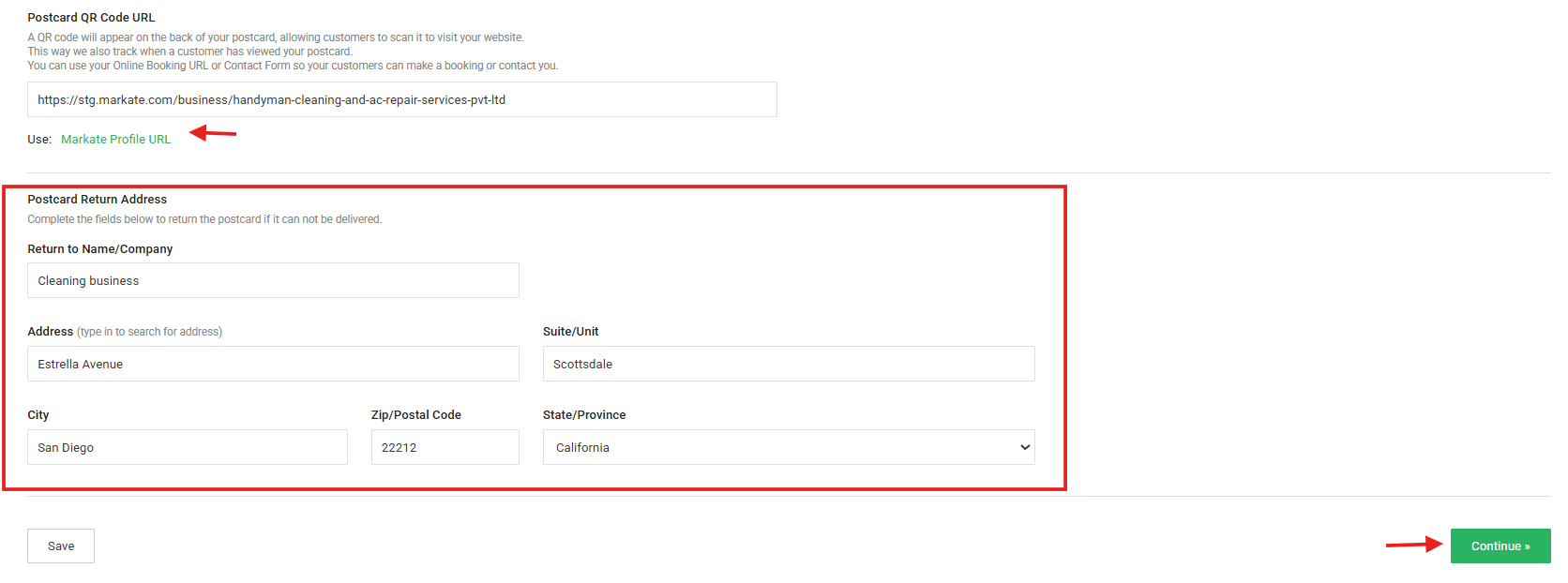
6. Add a Postcard QR Code URL
Enter a URL that customers can scan from the back of the postcard.
You can:
Add your website URL
Use your Markate Profile URL
Add your online booking link
Add your contact form link
This allows customers to quickly book services or contact you.
7. Enter Return Address Information
This ensures undeliverable postcards are returned to you.
Click Continue to move to the design section.
Step 3: Design the Postcard Front
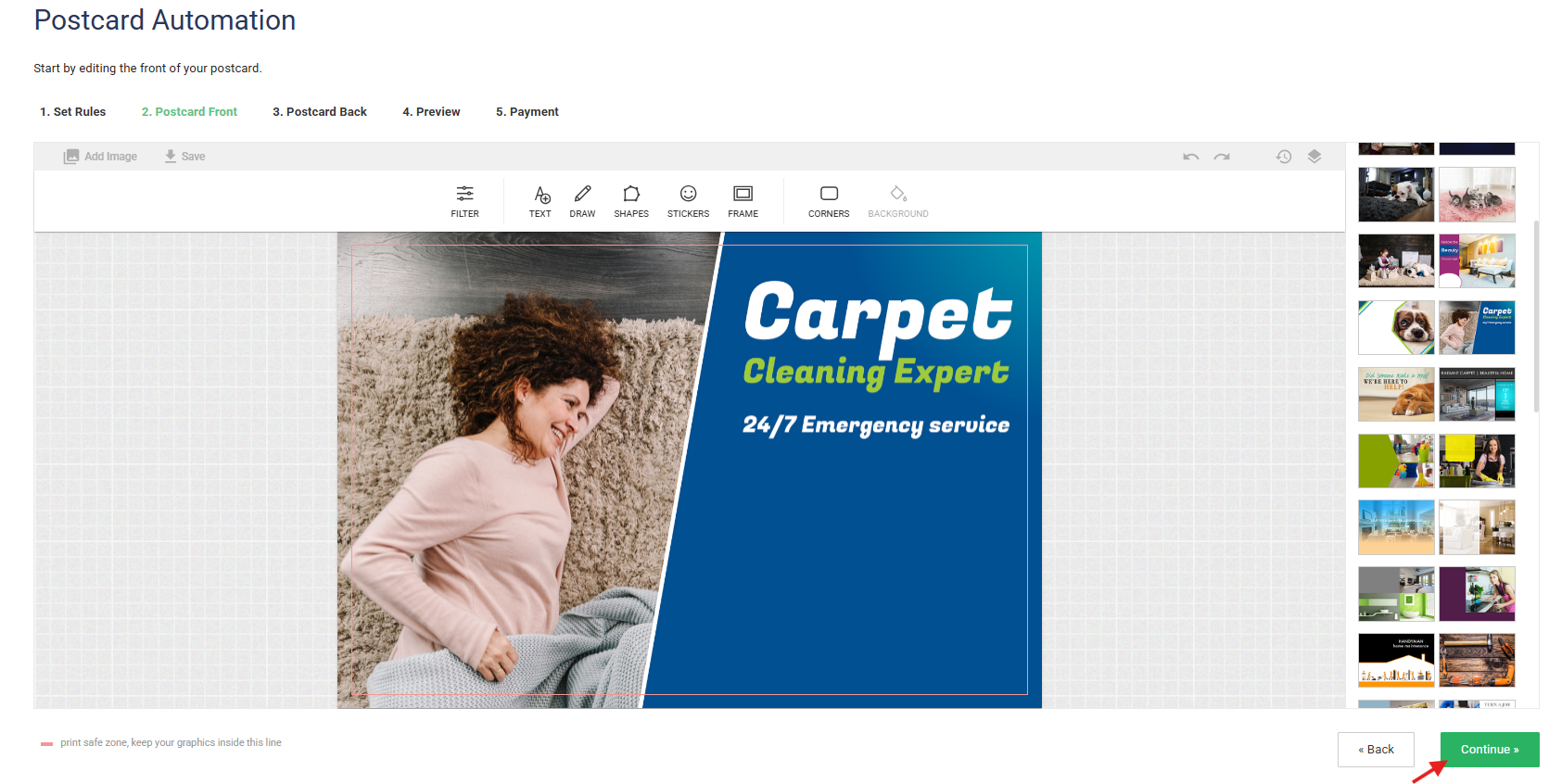
Now you’ll design the front of your postcard.
You can:
Add Image – Upload your own image
Use a template from the right-side panel
Add Text
Insert Shapes
Add Stickers
Use Frames
Adjust Background
Apply Filters
Make sure all important content stays inside the print safe zone (marked area) to avoid trimming during printing.
When finished, click Continue
Step 4: Design the Postcard Back
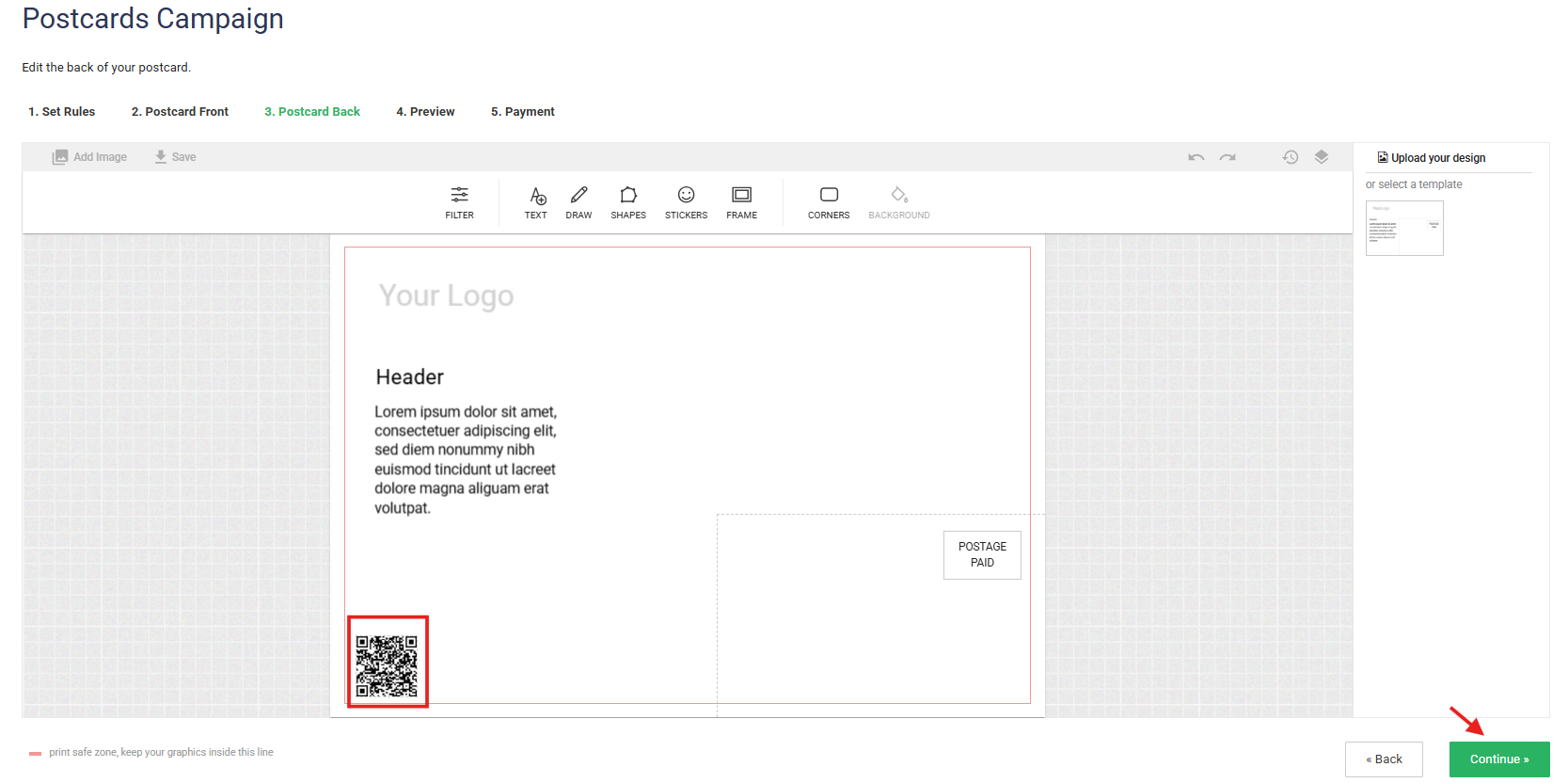
On the back of the postcard, you can:
Add a thank-you message
Include a special offer
Add a call-to-action (e.g., “Book your next cleaning today!”)
Ensure your QR code is properly placed
Review spacing and formatting carefully.
Click Continue when done.
Step 5: Preview Your Postcard
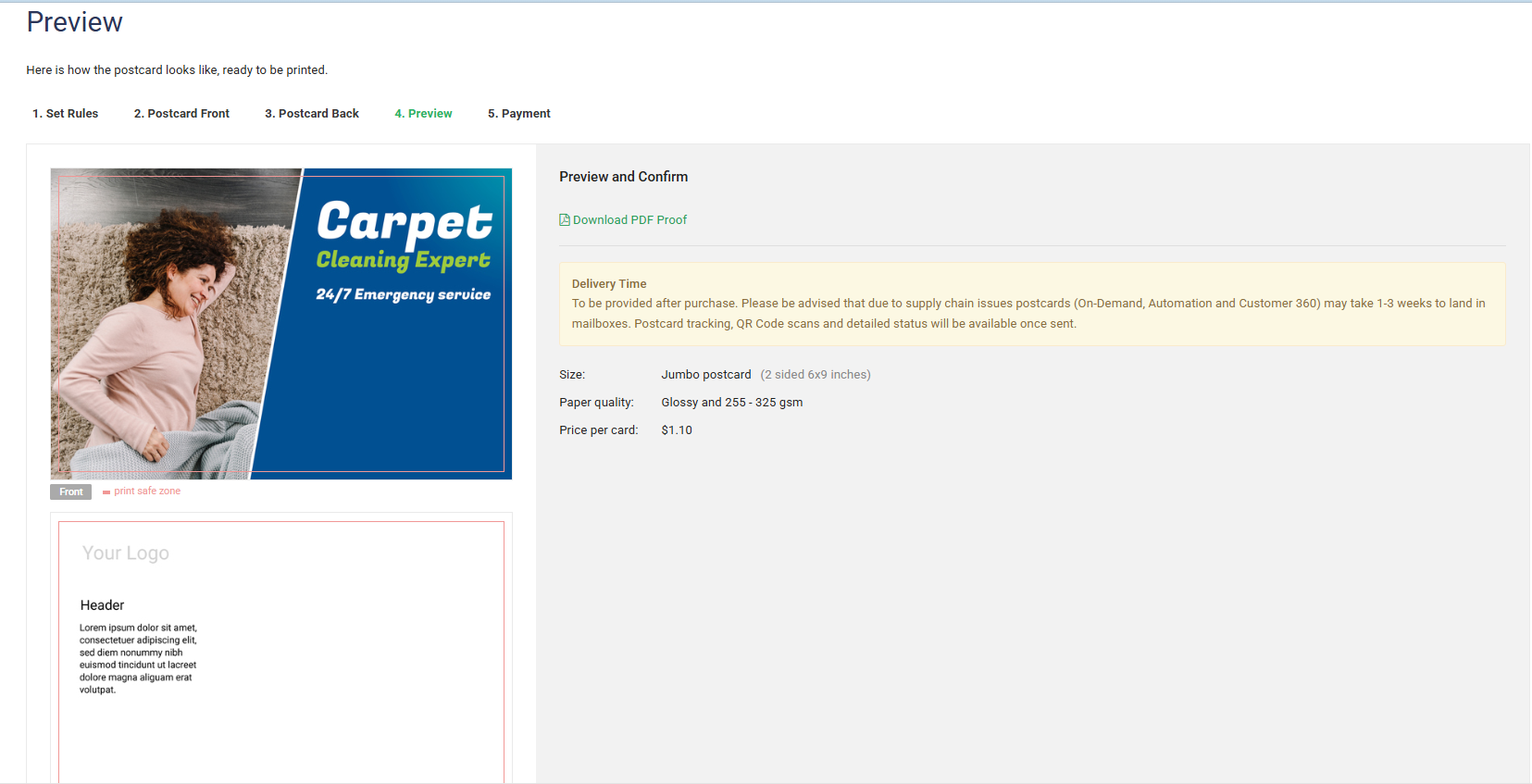
Before finalizing:
Review both the front and back designs
Confirm QR code URL
Verify timing and trigger settings
Make sure everything looks correct.
Step 6: Complete Payment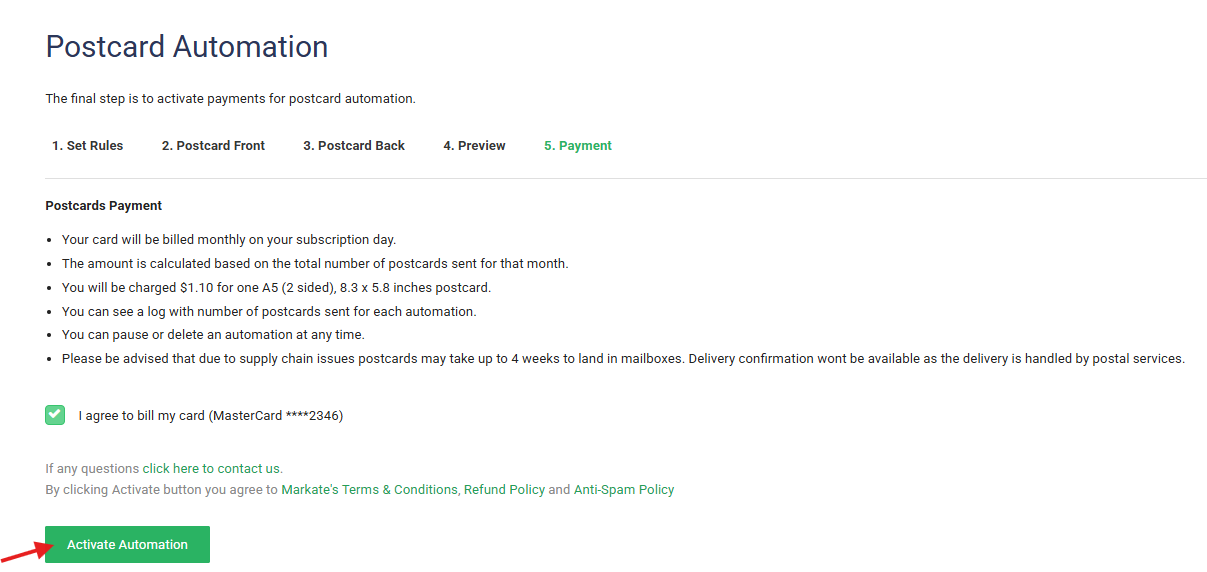
Postcards are charged per card sent.
Once payment details are confirmed:
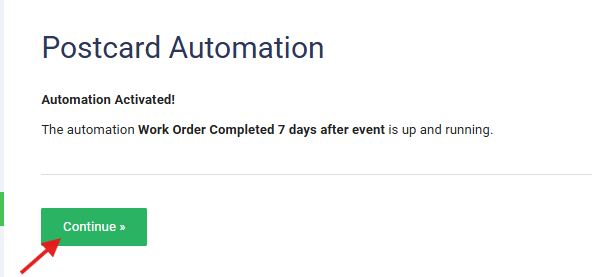
Activate the automation
Your postcard will automatically be sent when the selected event occurs
Managing Your Postcard Automation
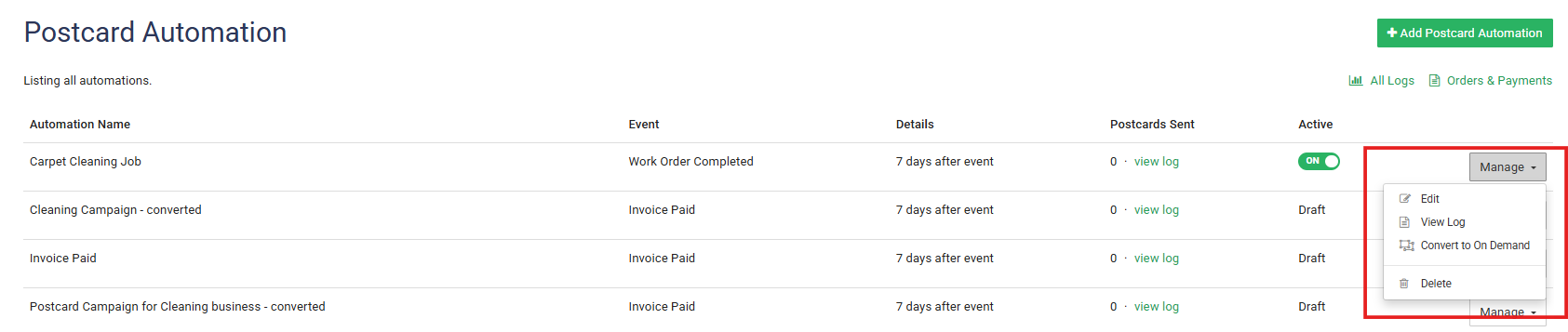
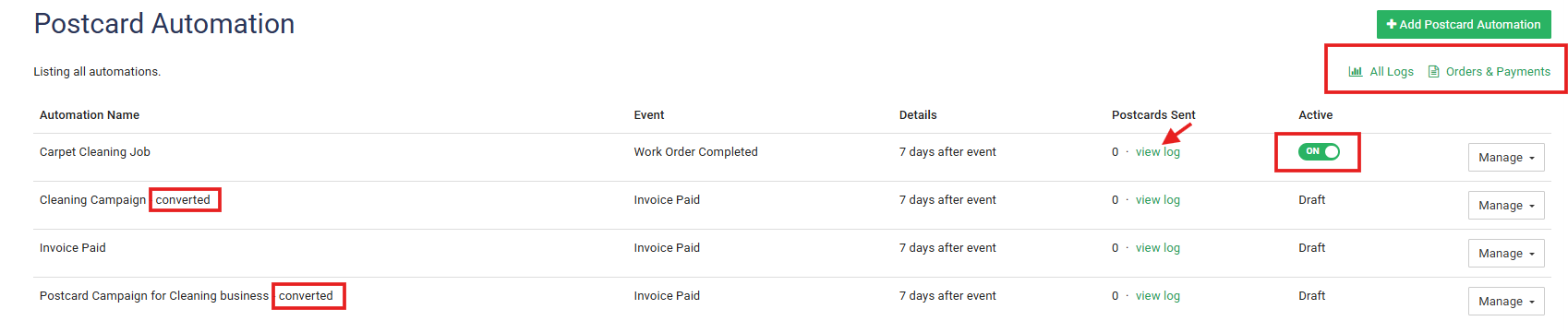
To manage an existing automation:
Go to Automation → Postcard Automation
Use the Manage dropdown to:
Edit
View logs
Convert to Postcard on Demand
View order and payment history under Orders & Payments
Toggle Postcard automation Active to ON or Off to de-activate it.
"Converted" in list shows which ones are converted from Postcard on Demand to Postcard Automation.
Here is a video showing how to do this.
Was this article helpful?
That’s Great!
Thank you for your feedback
Sorry! We couldn't be helpful
Thank you for your feedback
Feedback sent
We appreciate your effort and will try to fix the article