The Scheduling tab allows you to define when Kate AI can book appointments for your customers. Configure available time slots, select booking days, and synchronize availability with your online booking system.
- Log in to your Markate account.
- Go to More > Add-ons > Kate AI Receptionist.
- Click Manage
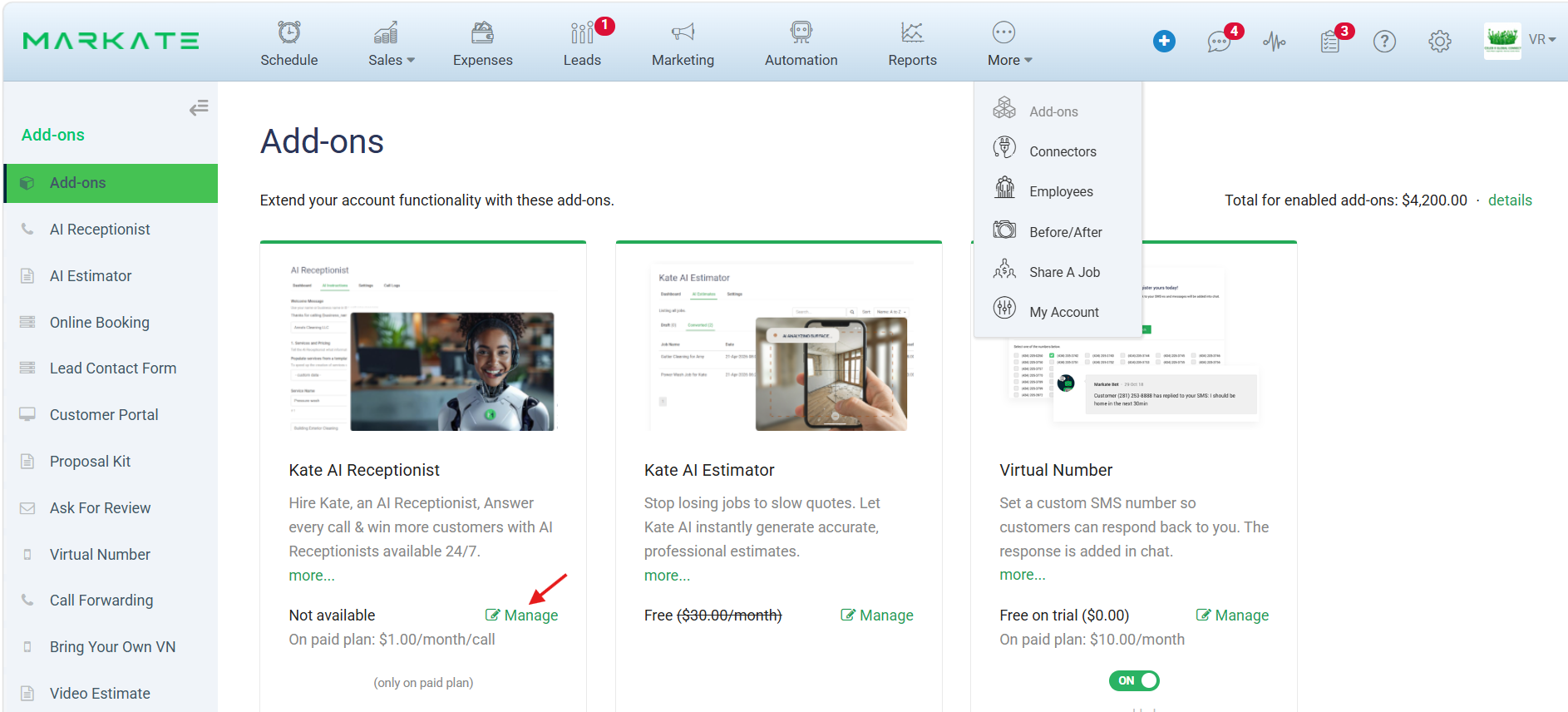
4. Click the Scheduling tab.
5. Under Enable Kate AI Scheduling, check the Enable Scheduling box.
6. Once enabled, Kate AI can schedule appointments based on the availability configured below.
Note: If scheduling is disabled, Kate AI will not book appointments even if time slots are configured.
7. If you are using Markate Online Booking, you can synchronize availability with your booking configuration.
- Click Sync with Online Booking in the top-right corner.
- Wait for the synchronization process to complete.
- Verify that your scheduling availability has been updated.
Tip: Synchronizing helps keep Kate AI availability aligned with your Online Booking settings.


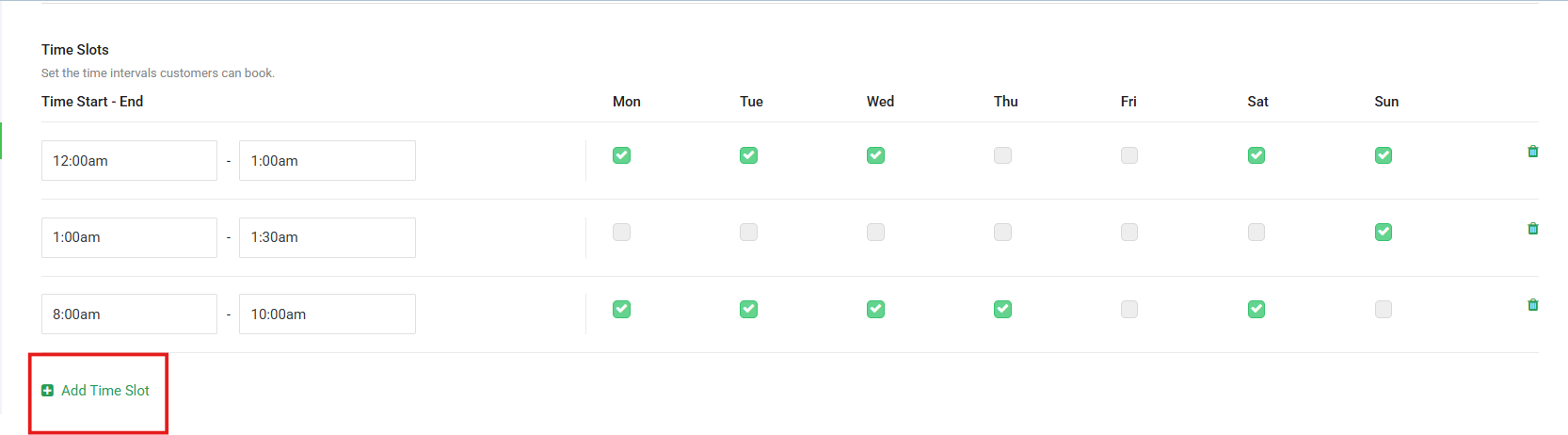
8. Click + Add Time Slot. Time slots determine when customers can book appointments through Kate AI.
9. You can also Edit or Delete the time slot.
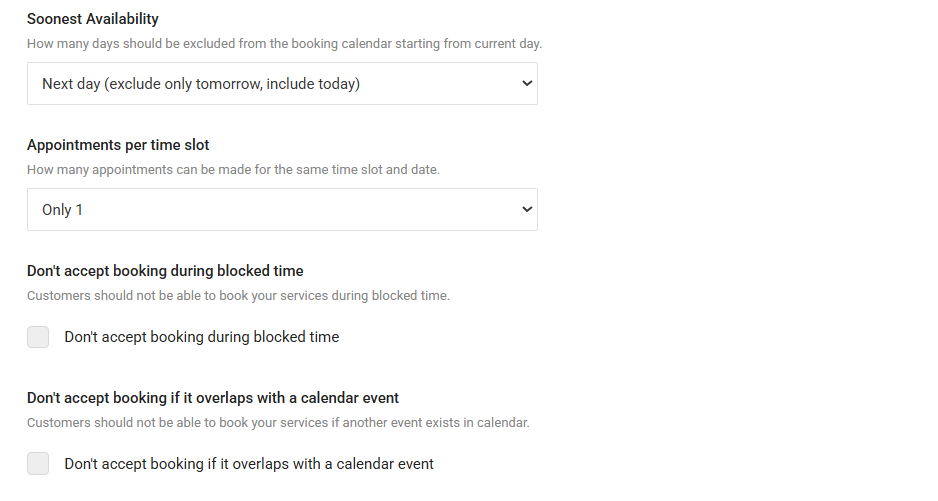
10. Click the "Soonest Availability" dropdown menu to set your preference. For example, selecting "Next day (exclude only tomorrow, include today)" ensures customers cannot book a slot for tomorrow, though they might still book same-day or later future dates depending on your availability.
11. Use the "Appointments per Time Slot " dropdown menu to choose the maximum concurrent bookings allowed. Selecting "Only 1" prevents double-bookings, ensuring a single time slot is closed to other customers once booked.
12. Check the box labeled "Don't accept booking during blocked time" to enforce this restriction. When enabled, any time blocked manually on your calendar will automatically be hidden from your customers' booking view.
13. Check the box labeled "Don't accept booking if it overlaps with a calendar event." Leaving this unchecked allows multiple overlapping events, while checking it protects your schedule from scheduling conflicts when another event already exists on your calendar.
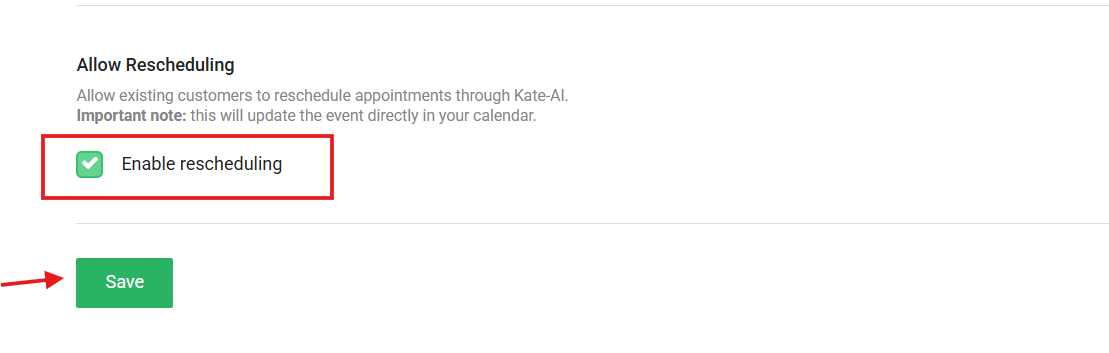
14. Select the Enable rescheduling checkbox.
Note: The Allow Rescheduling setting lets existing customers reschedule their appointments directly through Kate-AI. When enabled, customers can request a new appointment time without needing to contact your business manually.
15. Click Save to apply your changes.
Dispatcher
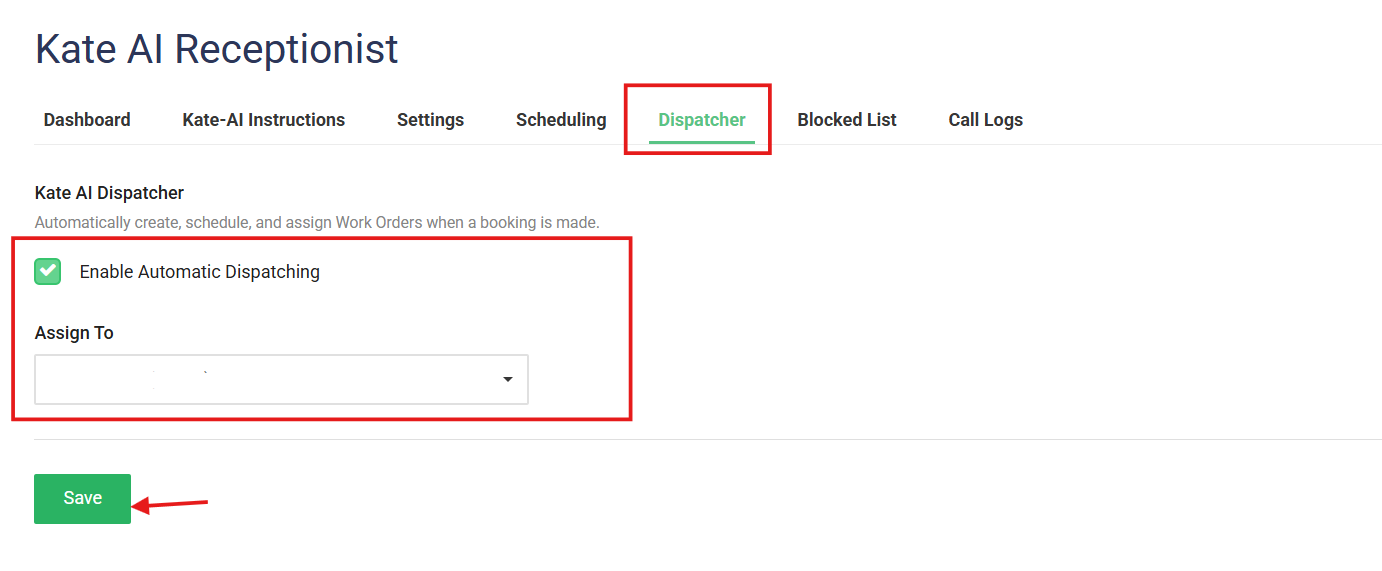
The Dispatcher tab allows Kate-AI to automatically create, schedule, and assign Work Orders whenever a booking is made.
This feature helps automate the dispatching process by ensuring that appointments booked through Kate-AI are immediately converted into Work Orders and assigned to a designated user.
When Enable Automatic Dispatching is enabled, Kate-AI will:
- Create a Work Order when a customer books an appointment.
- Schedule the Work Order based on the appointment details.
- Automatically assign the Work Order to the selected user.
To Configure Automatic Dispatching
- Navigate to Kate-AI Receptionist > Dispatcher.
- Select the Enable Automatic Dispatching checkbox.
- Choose a user from the Assign To dropdown list.
- Click Save.
Was this article helpful?
That’s Great!
Thank you for your feedback
Sorry! We couldn't be helpful
Thank you for your feedback
Feedback sent
We appreciate your effort and will try to fix the article