Lets's learn how to Attach CompanyCam Photos to an Estimate, Work Order, or Invoice:
Before You Start:
Make sure:
The CompanyCam app is installed on your phone.
You are signed in to the correct CompanyCam account.
The estimate, work order, or invoice has already been created.
Option 1: Attach Photos From an Existing CompanyCam Project
Step 1: Open the app and select the estimate, work order, or invoice where you want to attach
Photos from CompanyCam .
Step 2: Scroll to the Bottom
Scroll all the way to the bottom of the page.
Tap the green button: “Attach Photos”
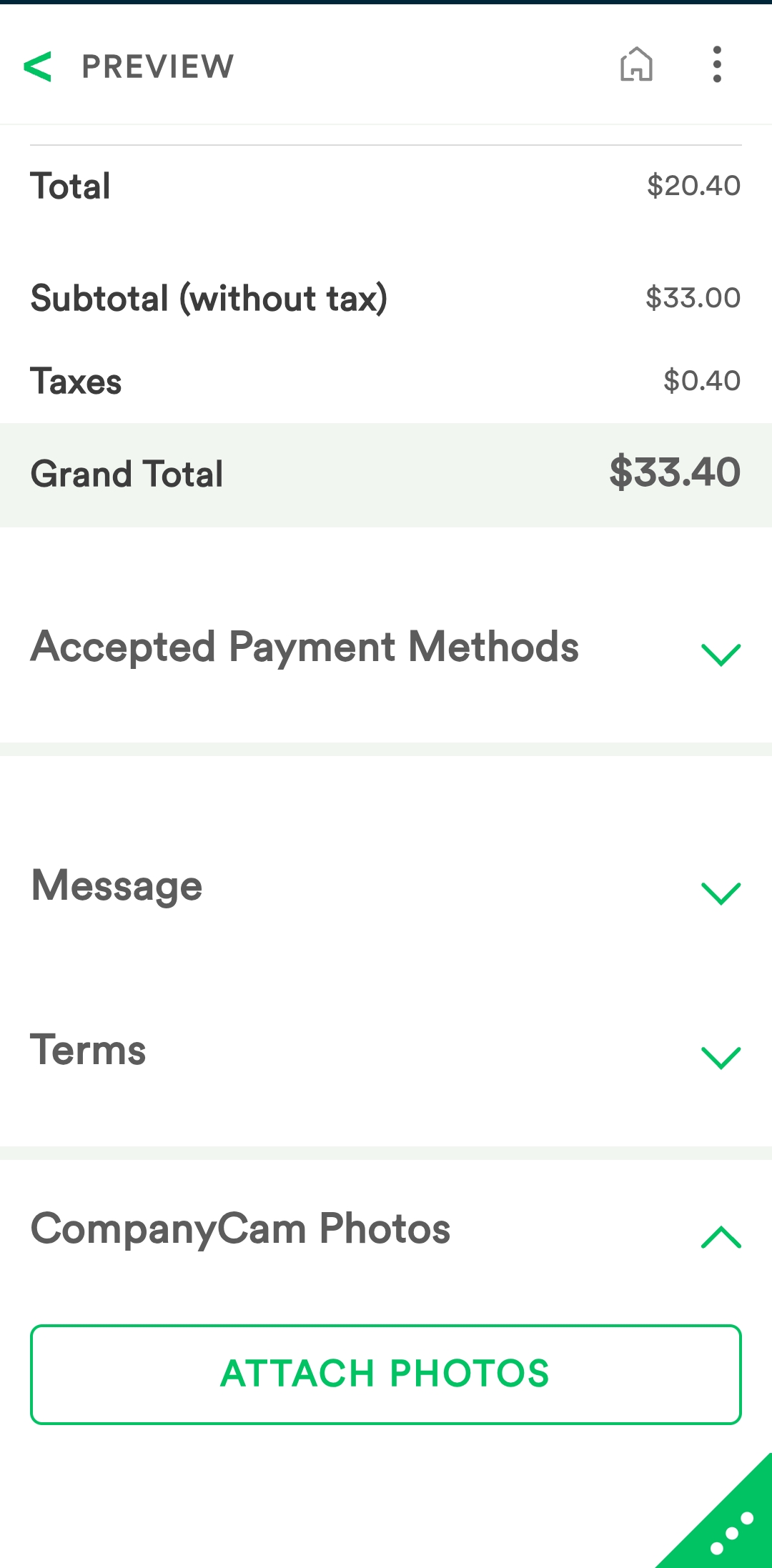
Step 3: Search for a CompanyCam Project
In the search field, press the space bar to load available projects.
Either:
Type the project name to search, or
Select a project from the drop-down list.
Step 4: Add Photos
Select the project.
Choose the photos you want to attach.
Confirm or save the attachment.
Tap 'Manage Photos' to make changes in the selected photos.
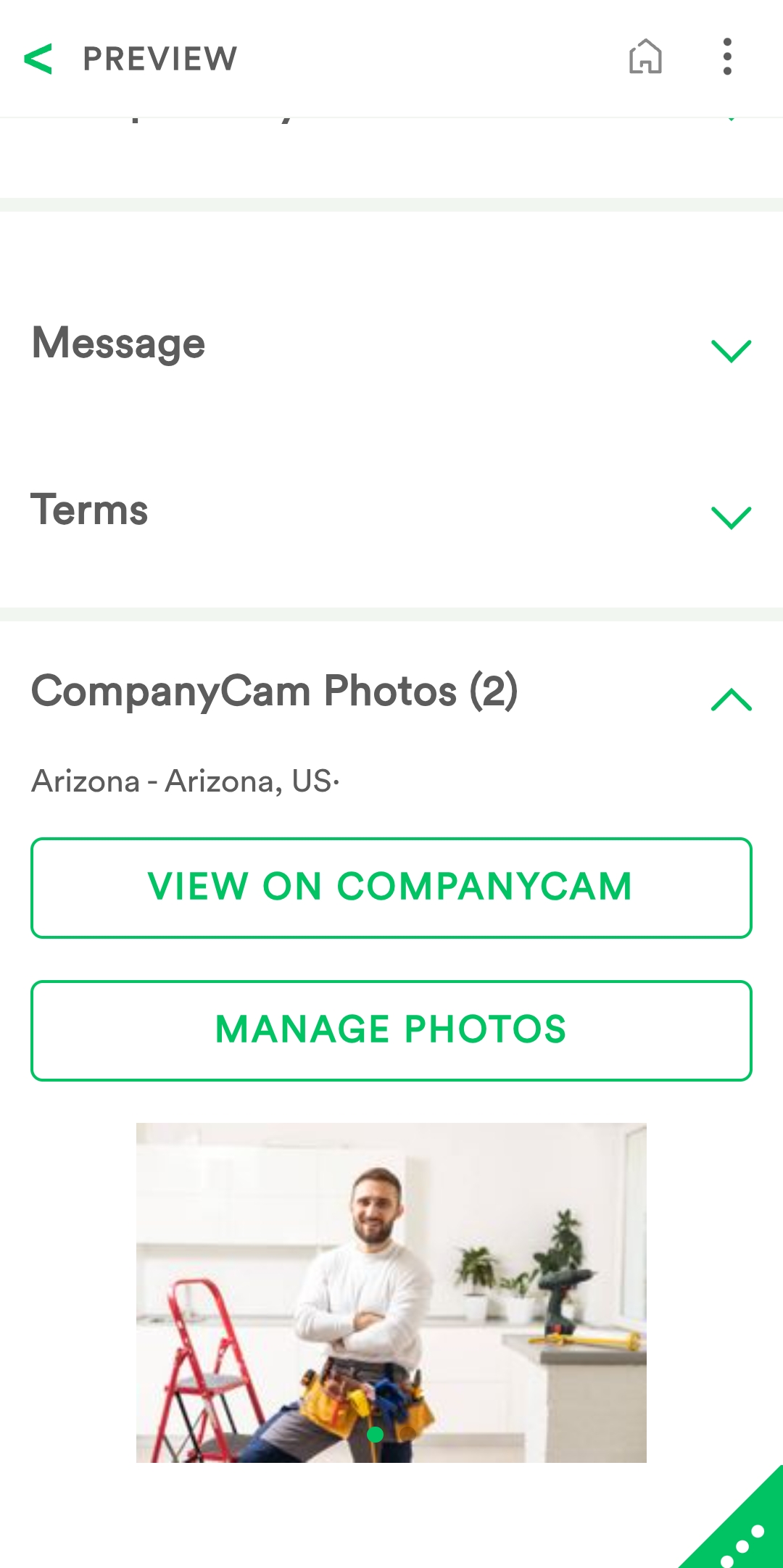
Option 2: Create a New CompanyCam Project and Attach Photos
Step 1: Open “Attach Photos”
Open the estimate, work order, or invoice.
Scroll to the bottom.
Tap: “Attach Photos”
Step 2: Create a New Project
Tap the green (+) button.
Enter the project information and Address.
Tap the checkmark to save the new project.
Step 3: Add Photos in CompanyCam
Open the CompanyCam app.
Open the newly created project.
Add the photos you want to use.
Step 4: Refresh and Attach Photos
Return to the estimate, work order, or invoice.
Tap “Attach Photos” again.
The new project should now appear.
Select the project.
Choose the photos to attach.
Save or confirm the attachment.
Was this article helpful?
That’s Great!
Thank you for your feedback
Sorry! We couldn't be helpful
Thank you for your feedback
Feedback sent
We appreciate your effort and will try to fix the article