Markate allows you to create and manage events from both the Desktop and Mobile App. You can schedule an event for a customer, assign employees, set the date and time, and configure customer reminder notifications.
How to Create an Event on Desktop
Step 1: Navigate to Schedule
From the Markate dashboard, click Schedule in the top navigation menu.
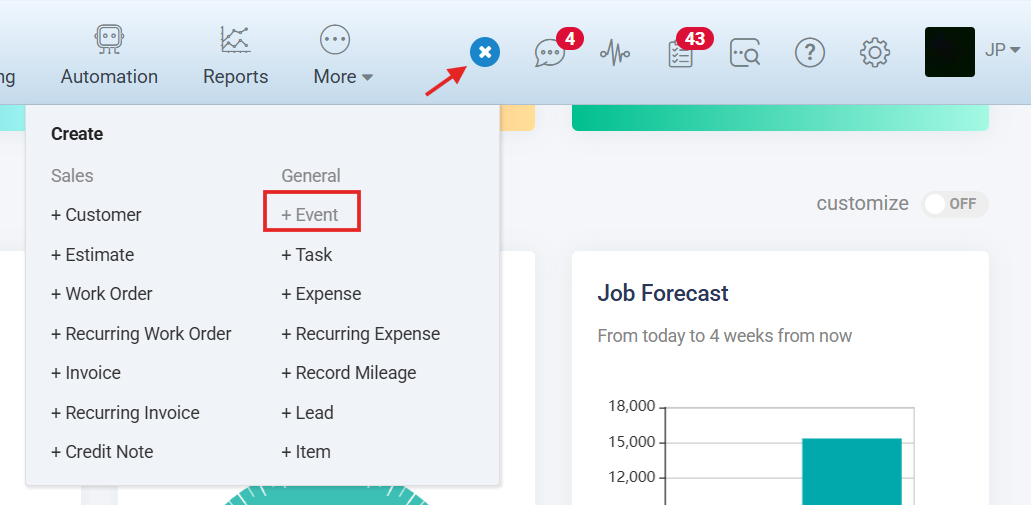
On the Schedule page, click the + Create Event button in the top-right corner.

Alternatively, click the + icon in the top navigation bar and select + Event from the Create menu.
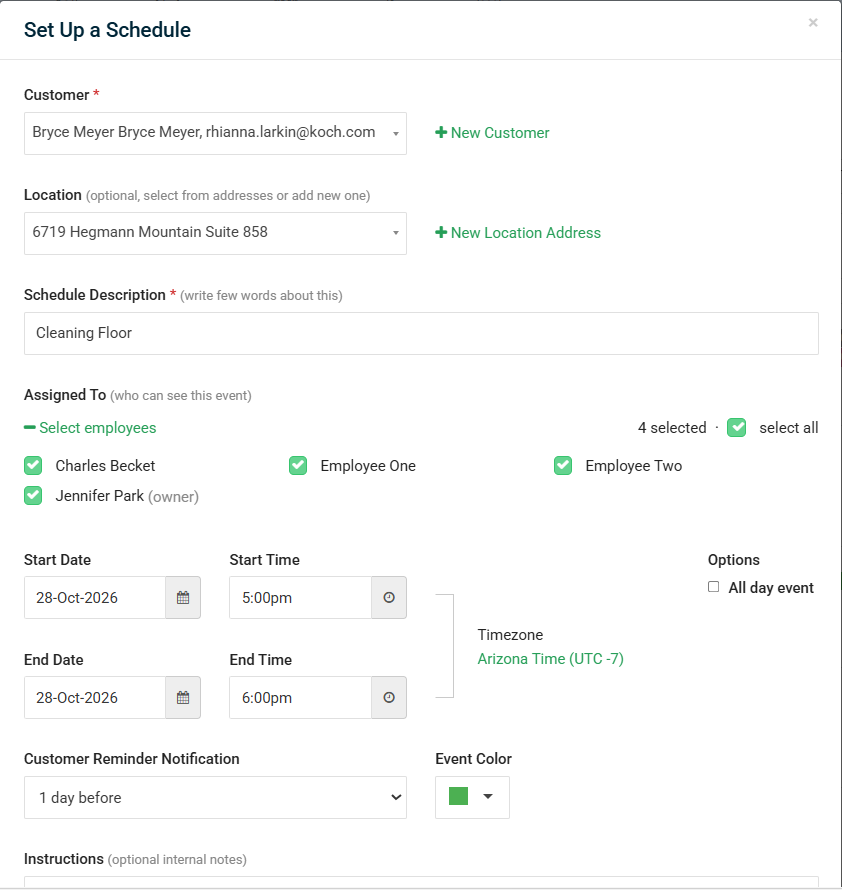
Step 2: In the Set Up a Schedule window, select the customer and location (optional), enter the event description, assign employees, set the start and end dates and times, enable All Day Event if applicable, choose the customer reminder time and event color, and add any necessary instructions.
Review the event details and complete any other applicable fields.
Step 3: Save and Confirm the Event
Save the event using the Confirm option.
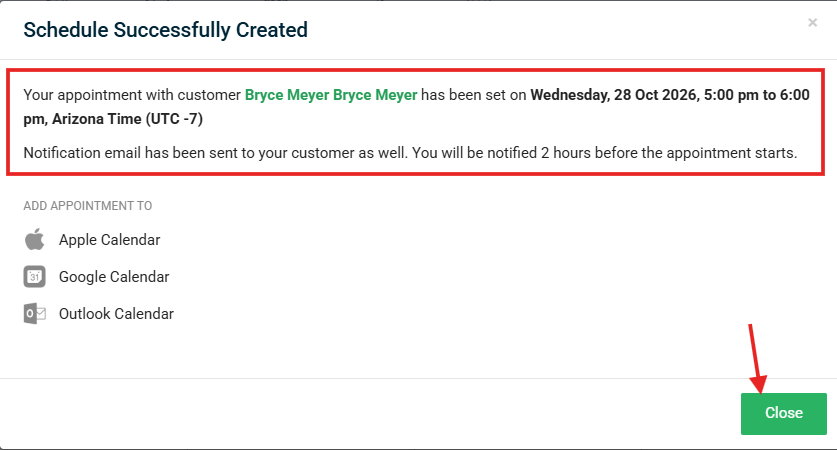
Once the event is created successfully, a confirmation window will appear with the appointment details. The confirmation may also indicate that a notification email has been sent to the customer.
Click Close to exit the confirmation window.
Step 4: View or Edit the Event
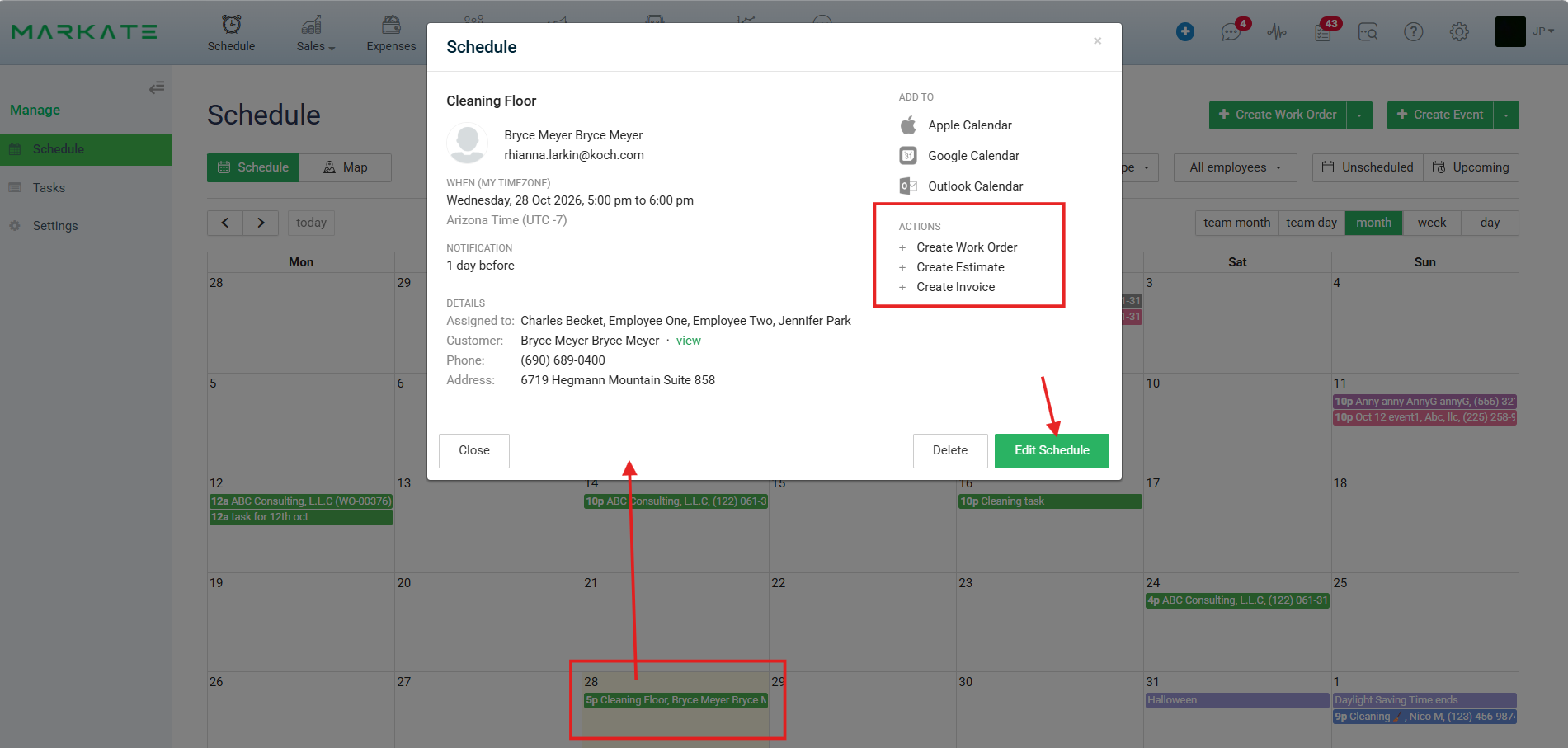
Return to the Schedule calendar to locate your newly created event.
Click the event to open its details. From the event details window, you can review the appointment information and use Edit Schedule to make changes if needed.
You can also access the available actions, such as creating a work order, estimate, or invoice, where applicable.
How to Create an Event on the Mobile App
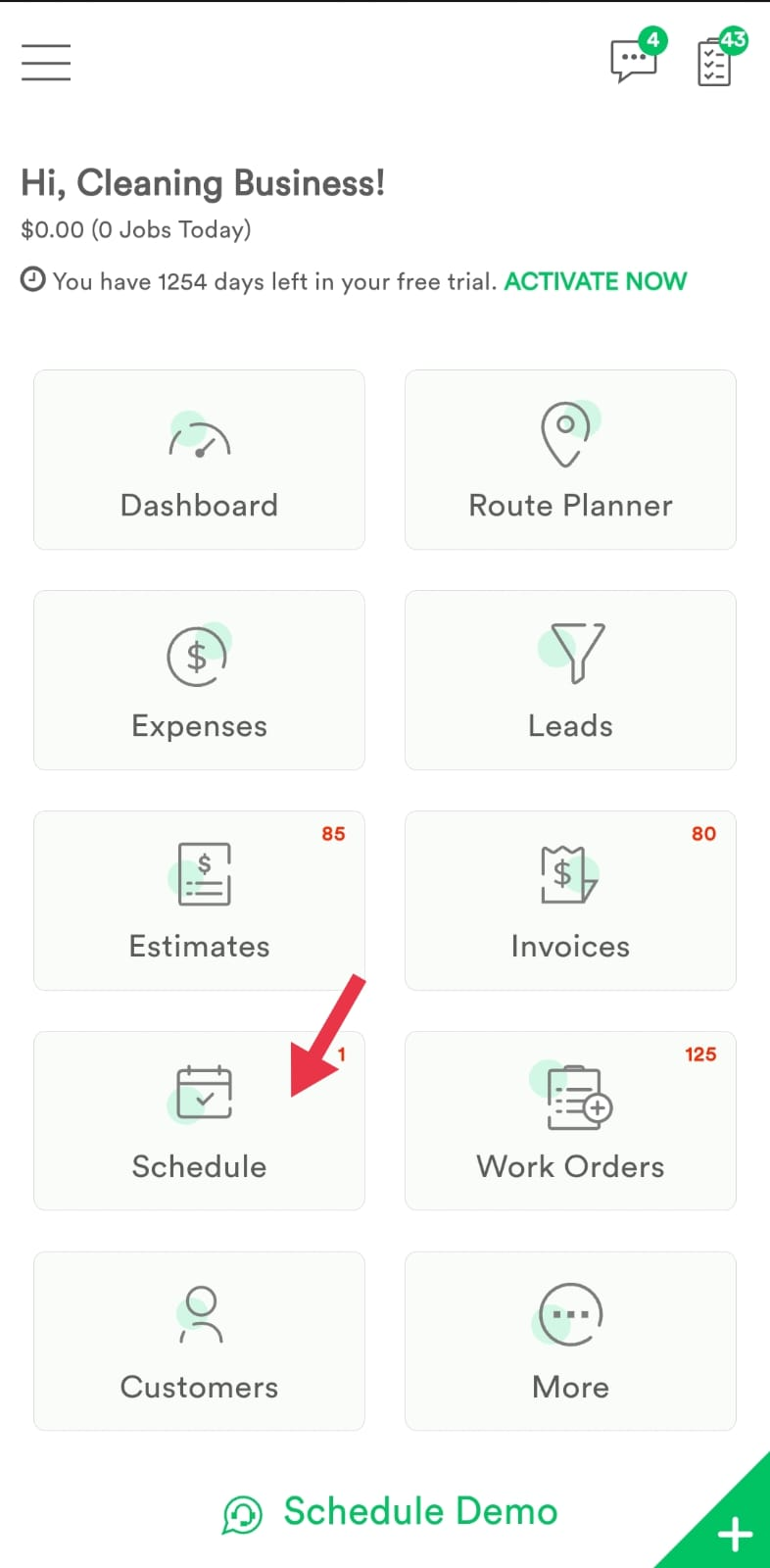
Step 1: On Homepage, Tap Schedule
Log in to the Markate Mobile App.
From the home screen, tap Schedule to open the calendar.
Step 2: Tap the Add (+) Button
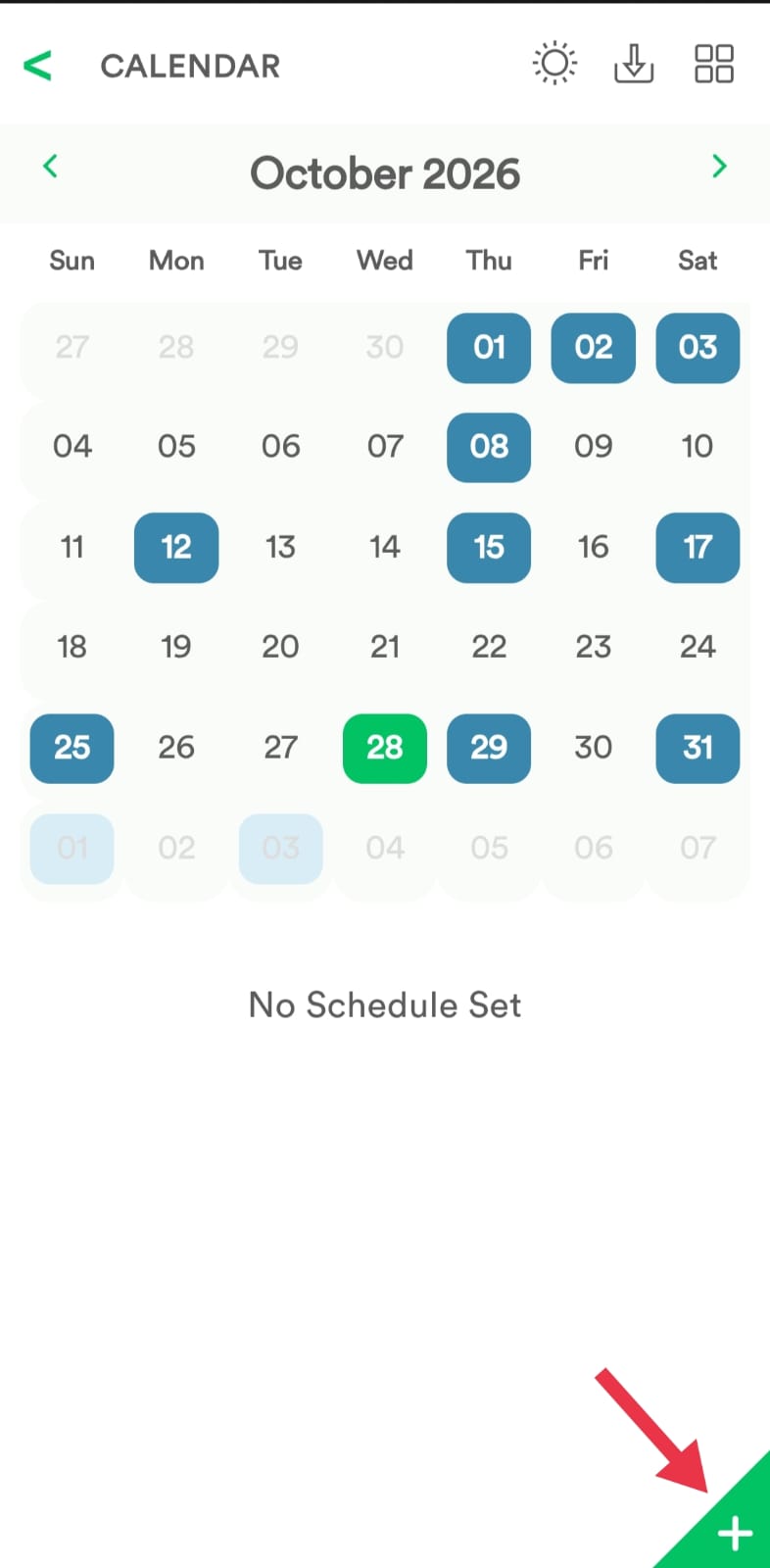
On the Calendar screen, tap the green + button in the bottom-right corner.
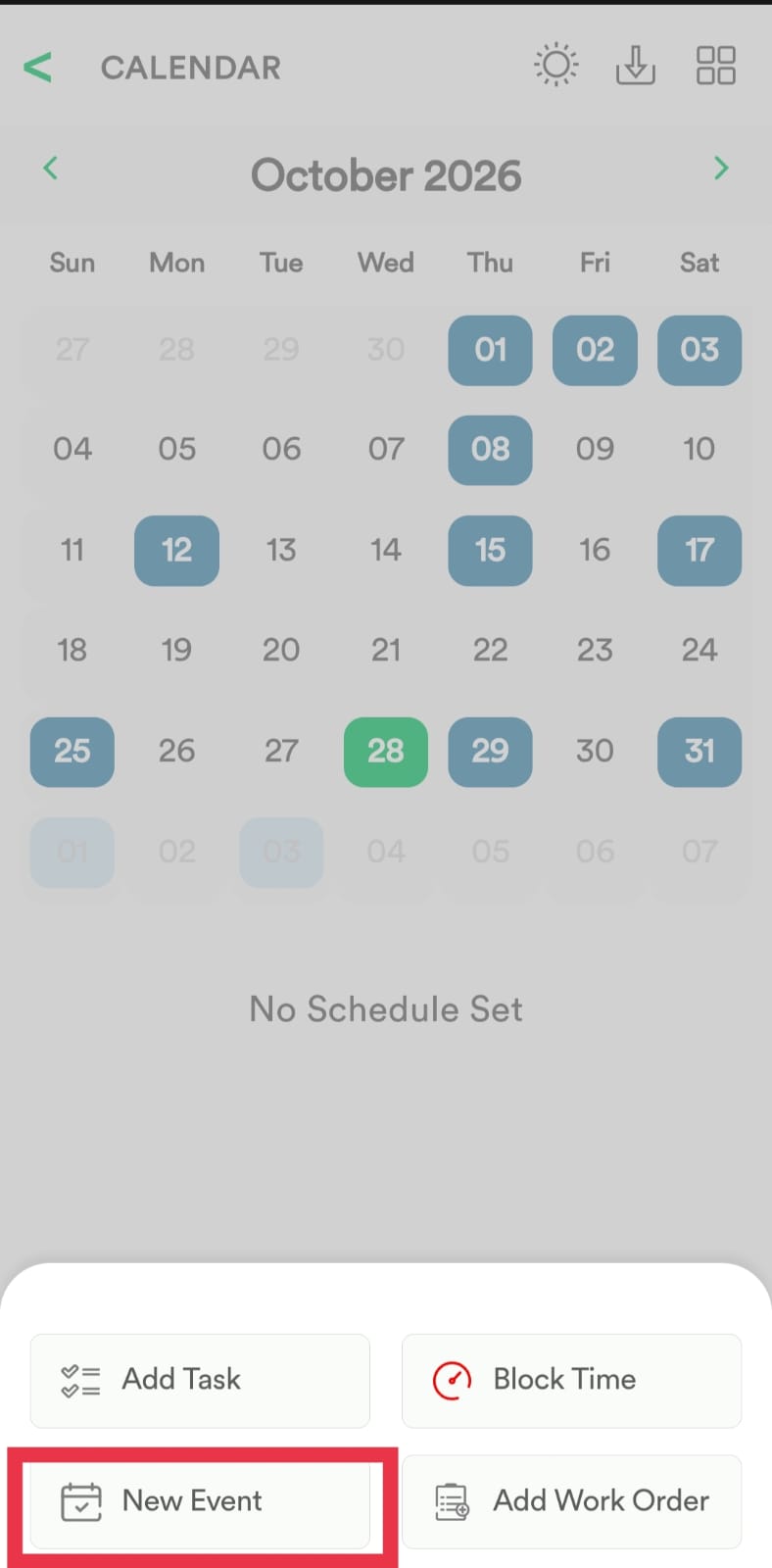
From the menu that appears, select New Event.
Step 3: Enter Event Details
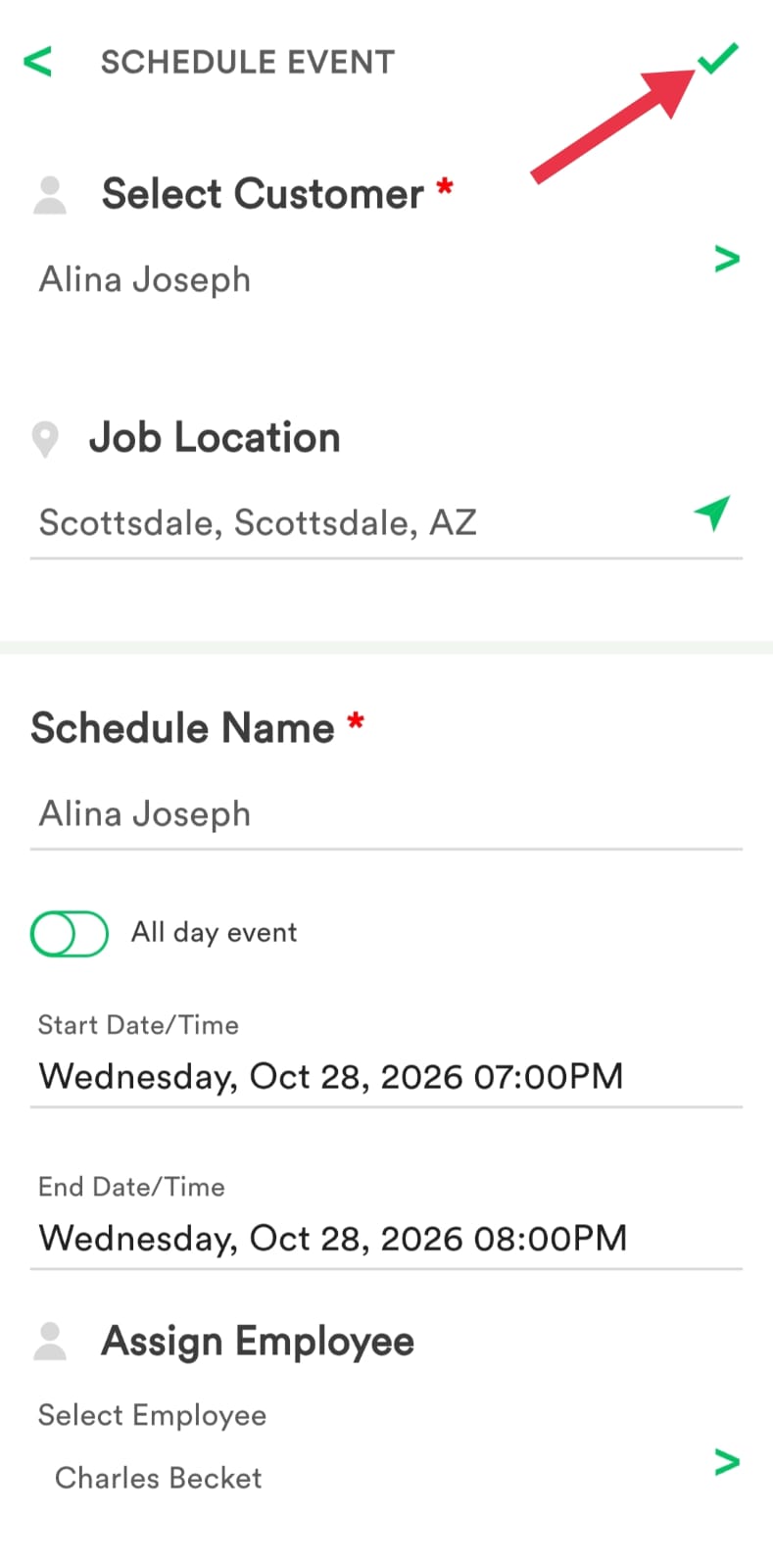
On the Schedule Event screen, select the customer and job location, enter the schedule name, enable All Day Event if needed, set the start and end dates and times, assign an employee, and complete any additional fields as required.
Step 4: Save the Event
Review the customer, location, date, time, and assigned employee.
Tap the checkmark (✓) in the top-right corner to save the event.
Step 5: Verify the Event on the Calendar
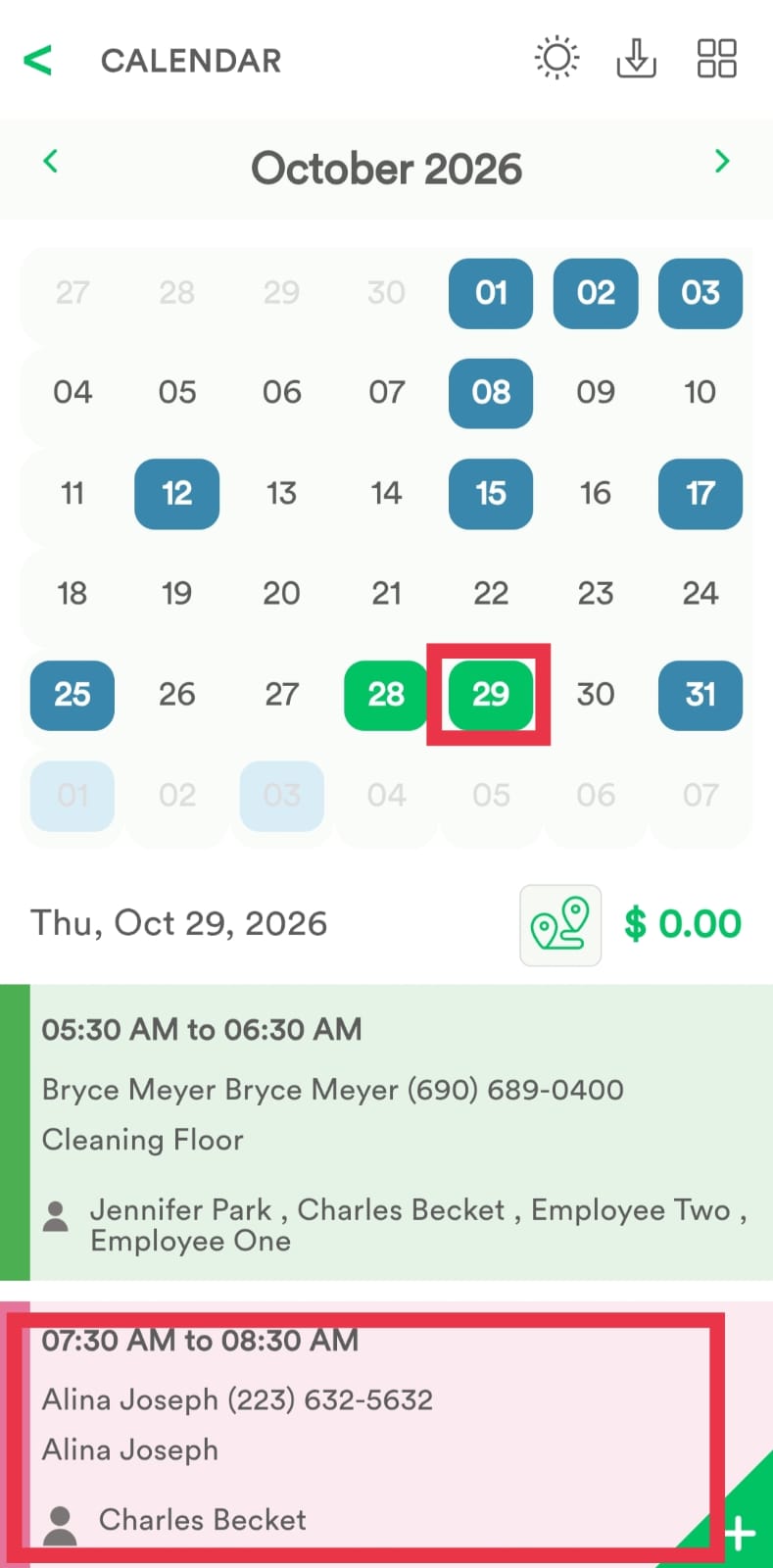
Return to the Calendar screen and navigate to the relevant date.
Your newly created event will appear on the calendar with its scheduled time, customer name, event description, and assigned employee.
Tap the event to view its details.
Step 6: Access Event Details and Actions
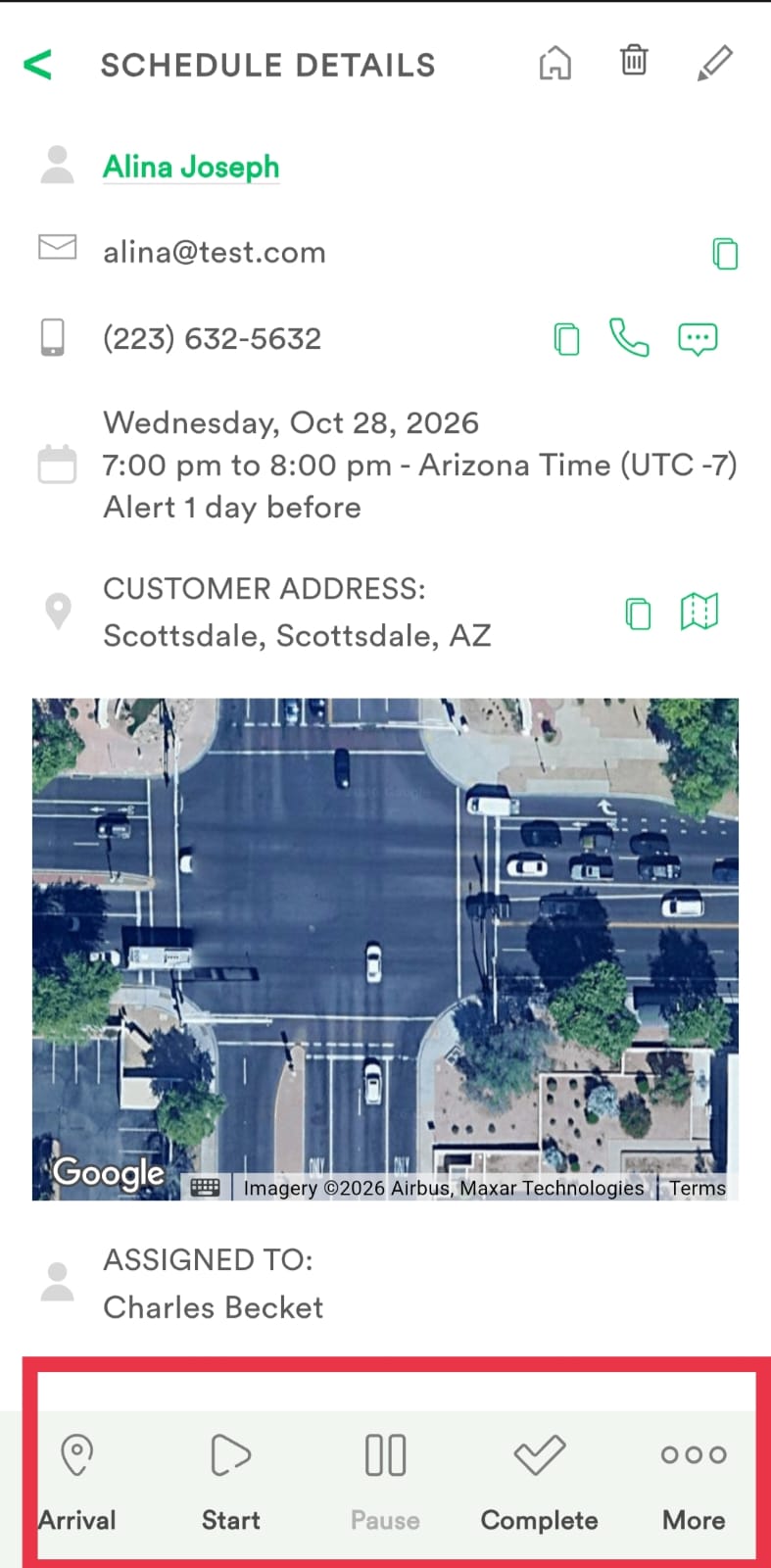
On the Schedule Details screen, you can review the customer's contact information, appointment date and time, reminder settings, address, and assigned employee.
Use the available actions as needed:
- Arrival: Record arrival at the job location.
- Start: Start the job.
- Pause: Pause the job, when applicable.
- Complete: Mark the job as completed, when applicable.
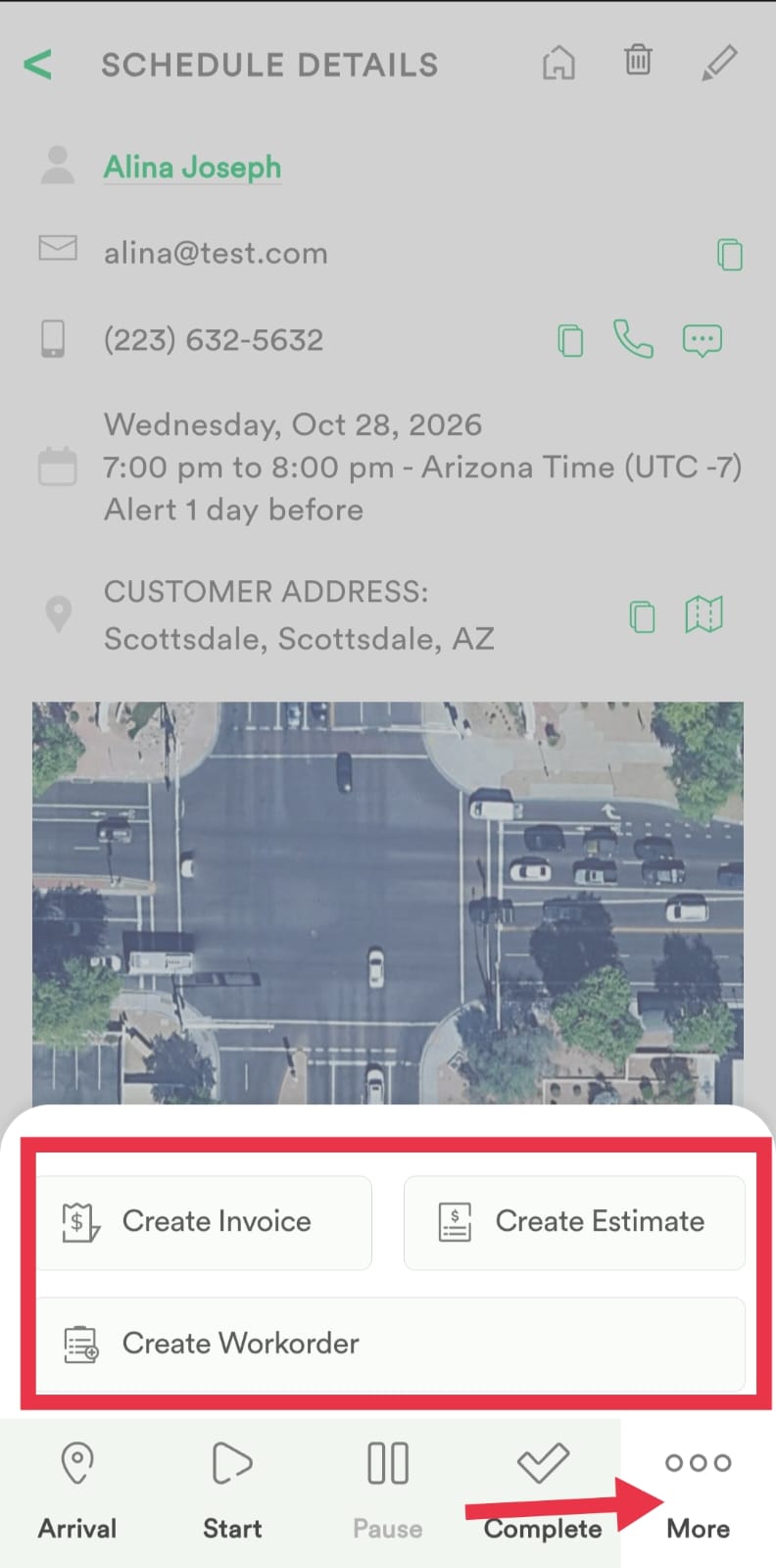
- More: Access additional actions, including creating an invoice, estimate, or work order.
Was this article helpful?
That’s Great!
Thank you for your feedback
Sorry! We couldn't be helpful
Thank you for your feedback
Feedback sent
We appreciate your effort and will try to fix the article