Recurring work orders allow you to automatically schedule jobs that repeat on a regular basis (e.g., weekly cleaning, monthly maintenance, etc.), saving you time and ensuring consistency with your customers.
Here's how to Create a Recurring Work Order on Desktop
Step 1: Start a New Recurring Work Order
You can create a recurring work order in two ways:
Option A: From the Quick Create Menu:

Click the (+) (Plus icon) in the top-right corner and select Recurring Work Order.
Option B: From Sales look up:

1. Hover over Sales
2. Click Work Orders.
3. Select Recurring Work Orders from the left panel.
Step 2: Click + New Recurring Work Order.

Step 3: Enter Customer & Job Location
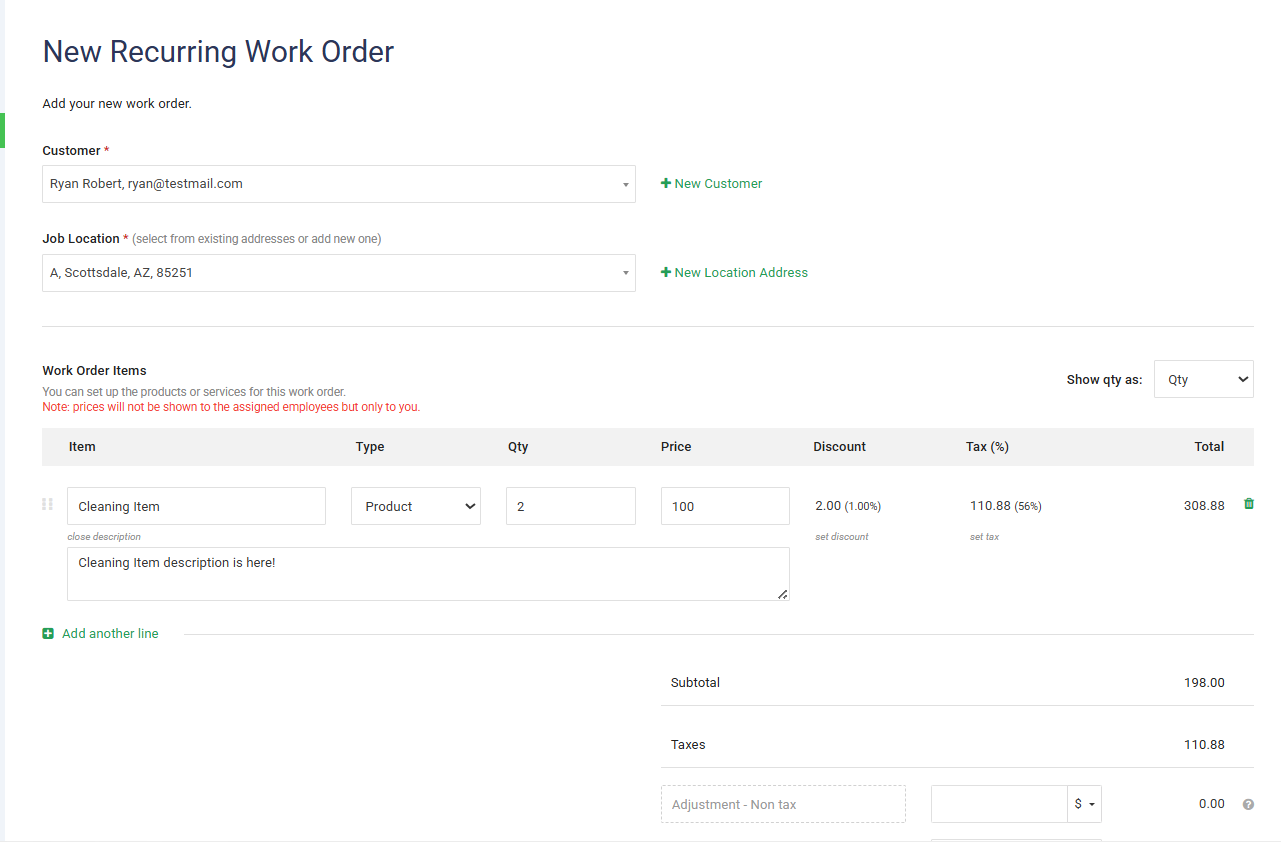
Customer Information
Select an existing customer from the dropdown.
Or click + New Customer to add a new one.
Job Location
Choose an existing address.
Or click + New Location Address to add a new location.
Add Work Order Items
Step 4: Assign & Schedule the Job
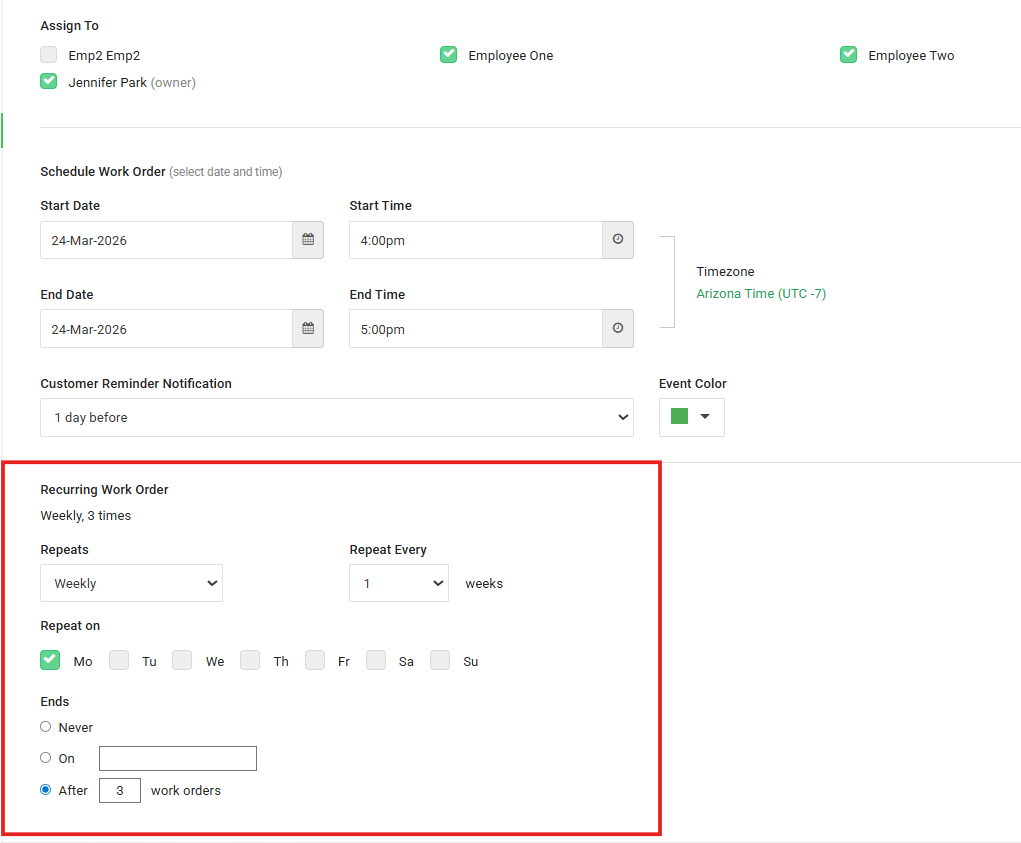
Assign Employees
Select one or more employees to assign the job.
Schedule Details
Set: Start Date & Time, End Date & Time
Customer Reminder
Choose when the customer should receive a reminder notification (e.g., 1 day before).
Step 5: Set Recurring Rules
In the Recurring Work Order section:
Repeats
Choose how often the job repeats (e.g., Weekly, Monthly).
Repeat Every
Define the interval (e.g., every 1 week).
Repeat On
Select specific days of the week (e.g., Monday, Wednesday).
Ends
Choose when the recurrence should stop:
Never – continues indefinitely
On – ends on a specific date
After – ends after a set number of work orders
Example
Repeats: Weekly
Repeat Every: 1 week
Repeat On: Monday
Ends: After 3 work orders
This will create 3 scheduled work orders, one each week on Monday.
Step 6: Fill in other required fields:
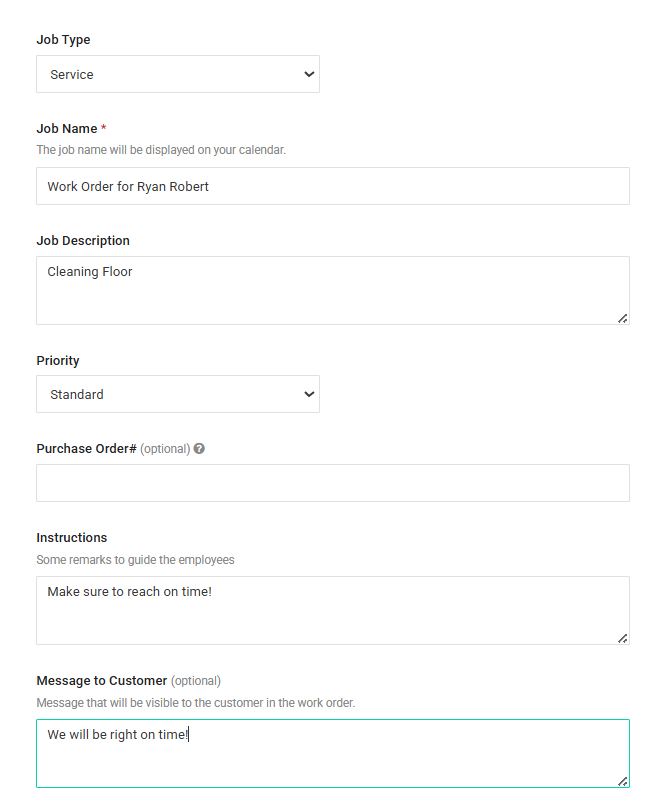
Step 7: Save the Recurring Work Order
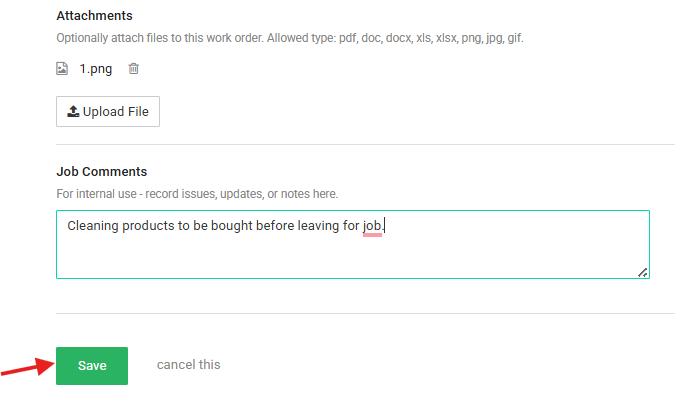
Add Attachments and Comments
Use the Attachments section to upload files (e.g., product lists, images, or documents).
Add internal notes in Job Comments
Click Save to confirm.
Step 8: Review all details on the Preview page:
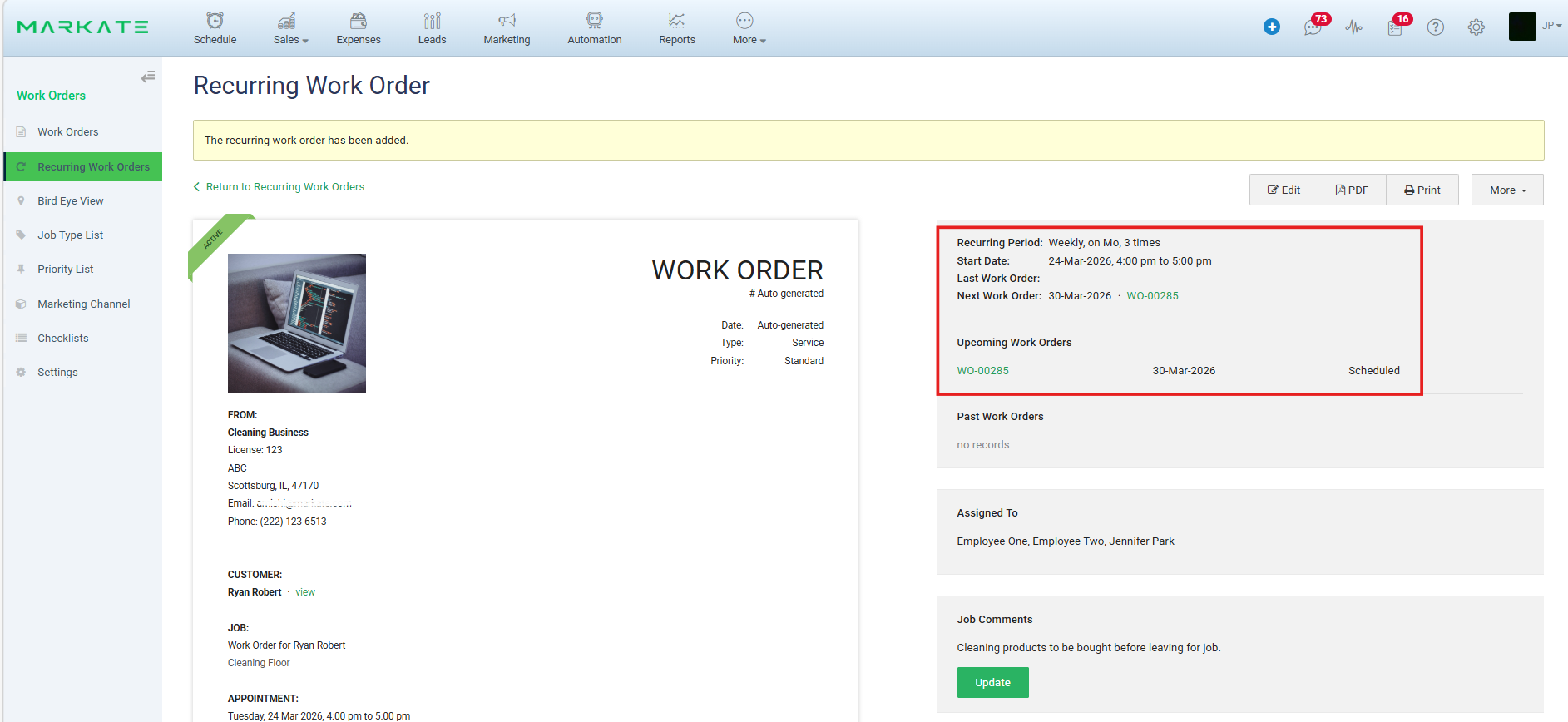
Step 9: Managing Recurring Work Orders
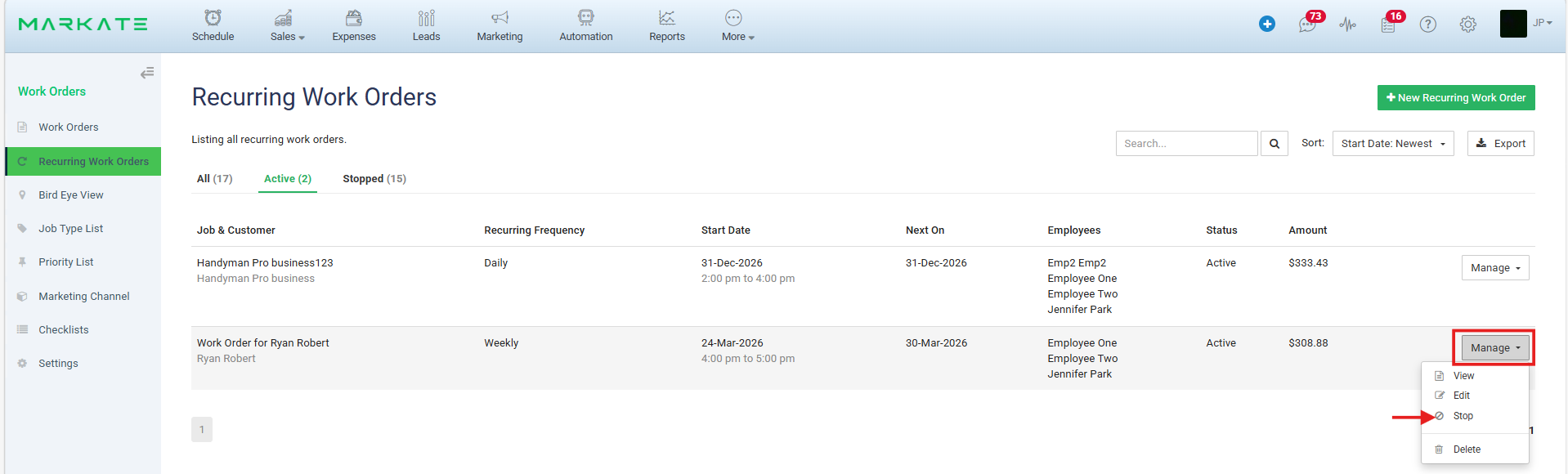
Navigate to Sales > Work Orders > Recurring Work Orders.
View, edit, or stop existing recurring schedules.
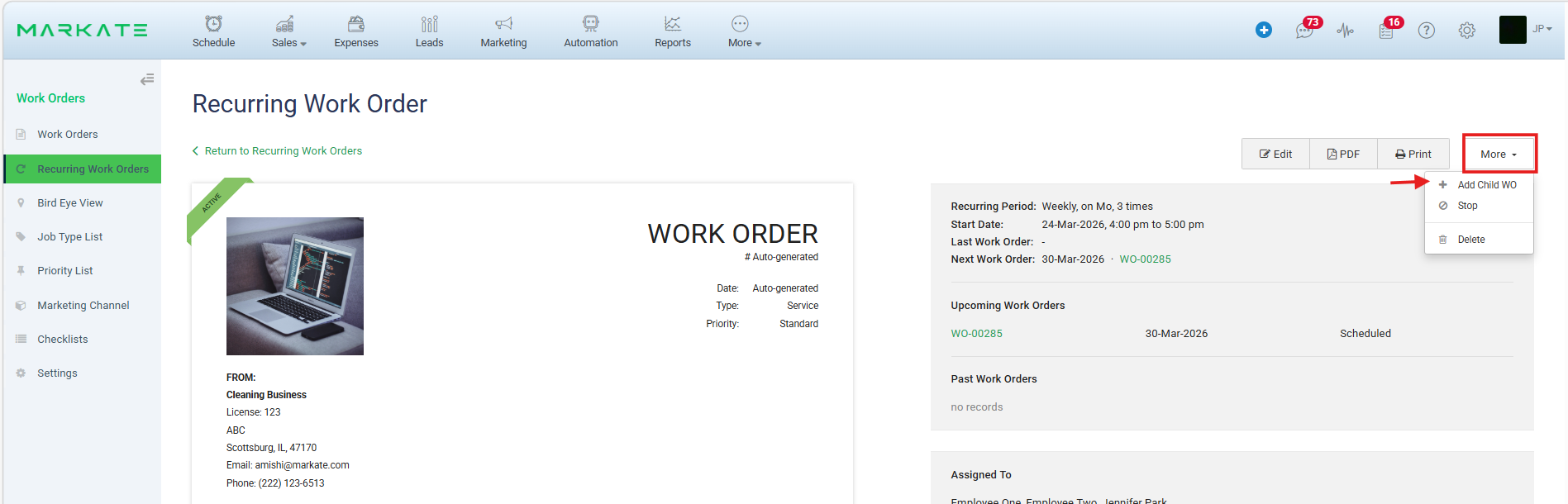
Step 10: You can also add a Child Work Order from the Recurring Work Order by clicking More on the Preview page and click Add Child WO.
--------------------------------------------------------------------------------------------------------------------------------------
Here's how to Create a Recurring Work Order on App
Step 1: Navigate to Work Orders
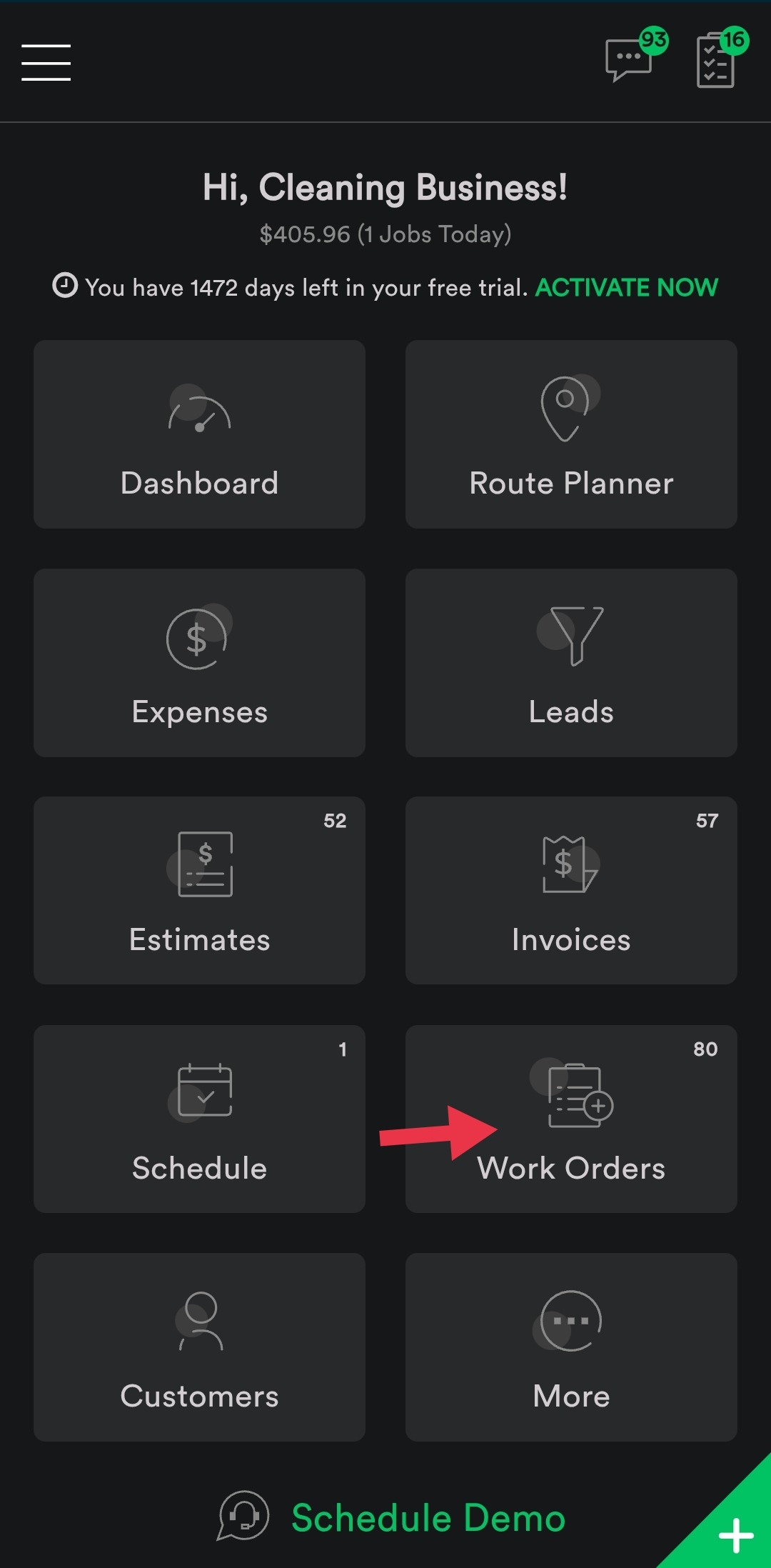
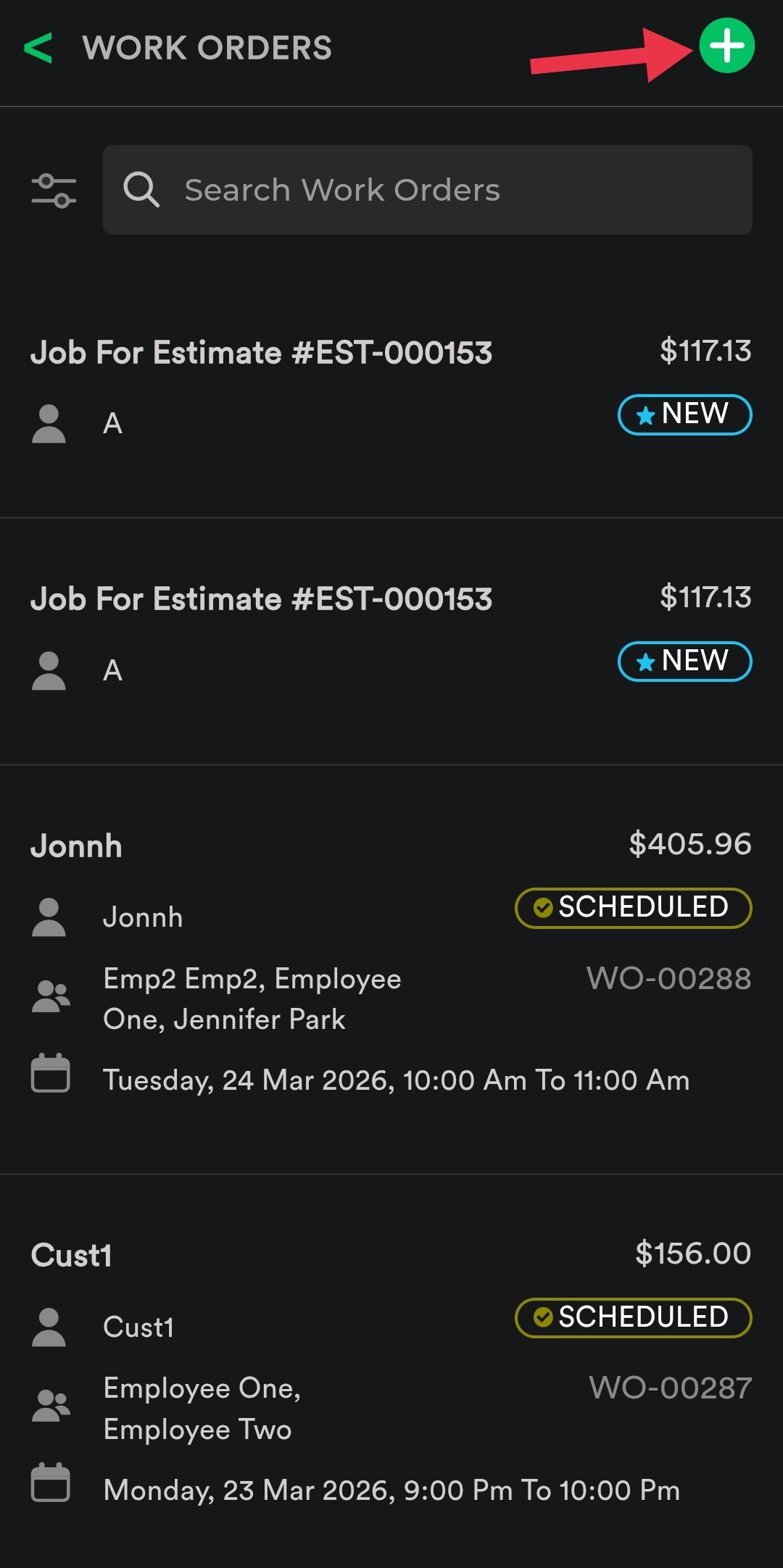
- From the App Homepage, tap Work Orders
- Tap the (+) icon in the top-right corner
Step 2: Enter Workorder Details such as- Customer details, Items and all the required details. and
Save the Work Order by tapping the Tick icon in the top-right corner.
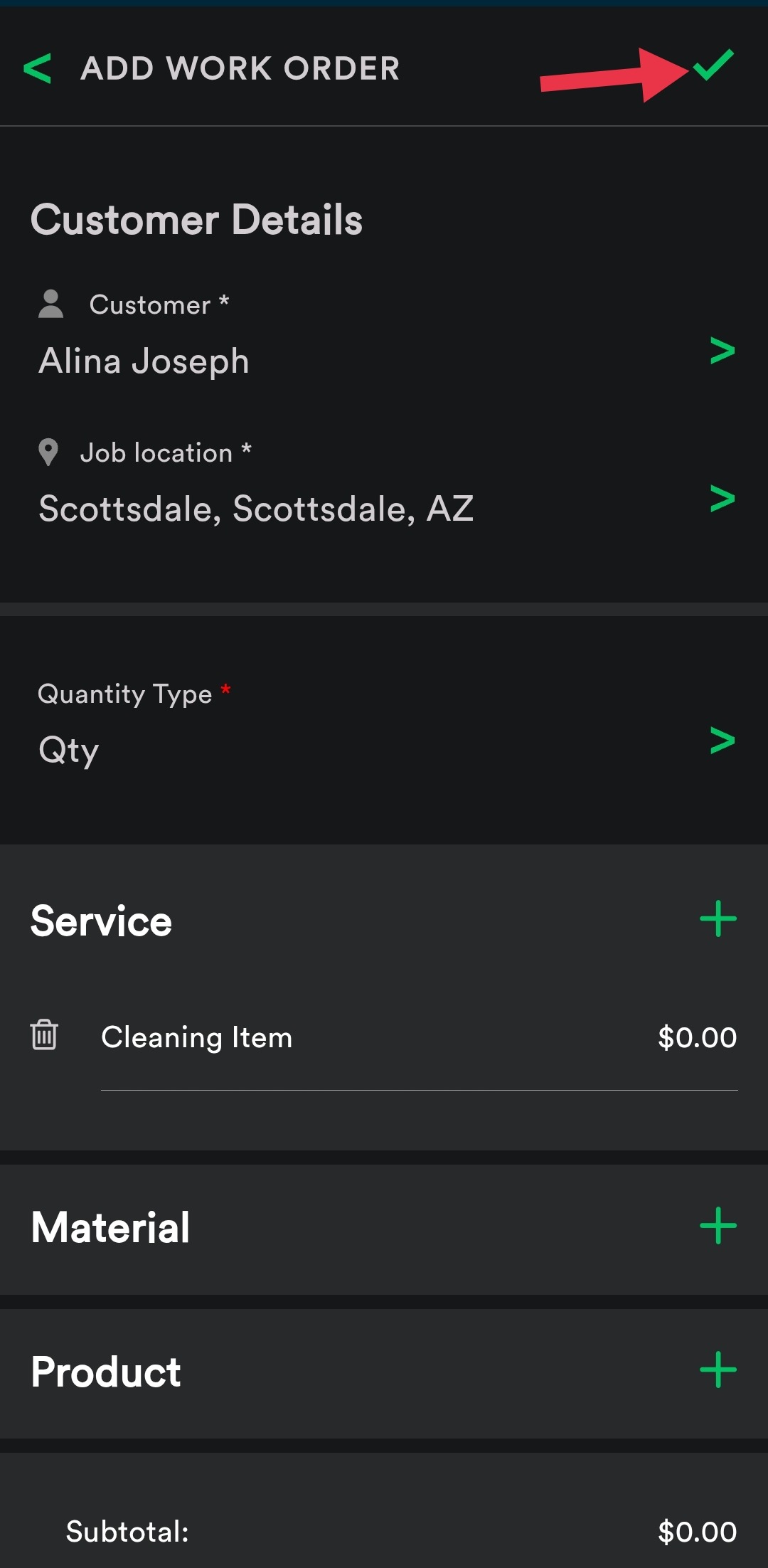
Step 3: Schedule & Assign
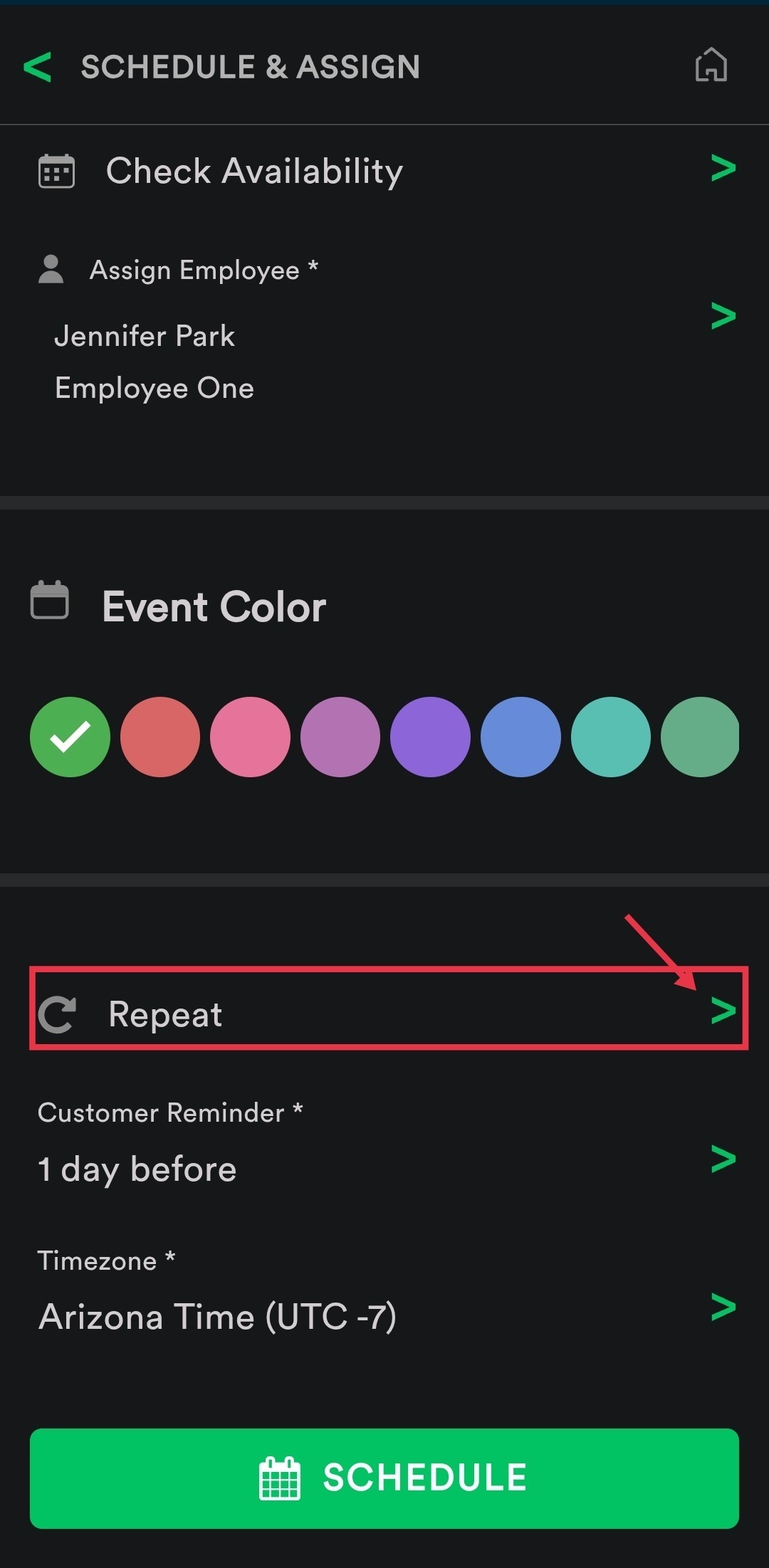
After saving, you’ll be taken to the Schedule & Assign screen:
- Assign one or more employees
- Select an Event Color (optional)
- Scroll down and tap Repeat
Step 4: Set Repeat Schedule:

- Choose one of the following options: Daily, Weekly or Monthly as per Work Order requirement.
Step 5: Set Repeat Interval on the Repeat Every screen:
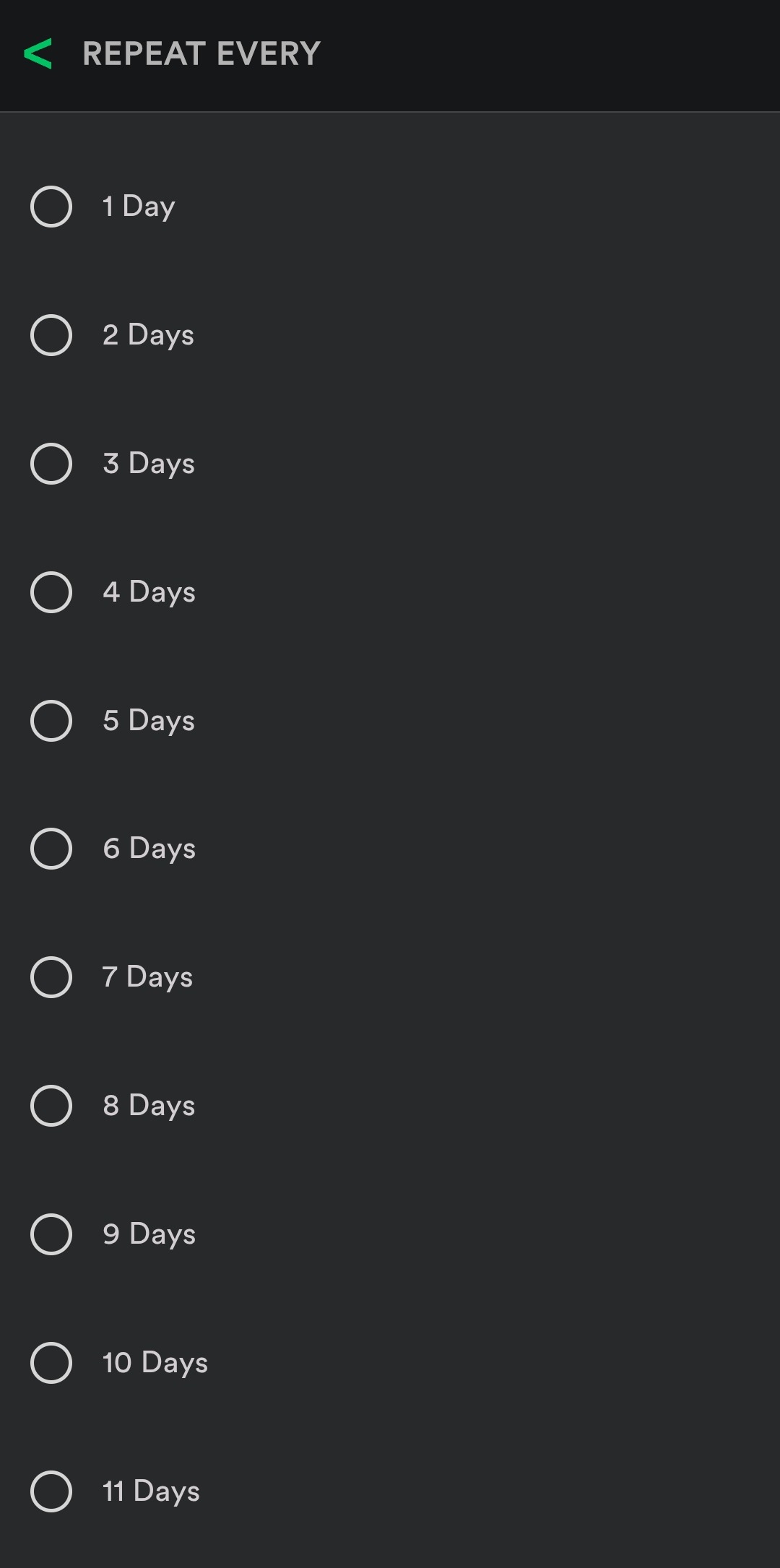
Choose the interval (e.g., every 1 day, 7 days, 10 days)
Tap the option that matches your work order requirement
Step 6: Configure Recurrence End
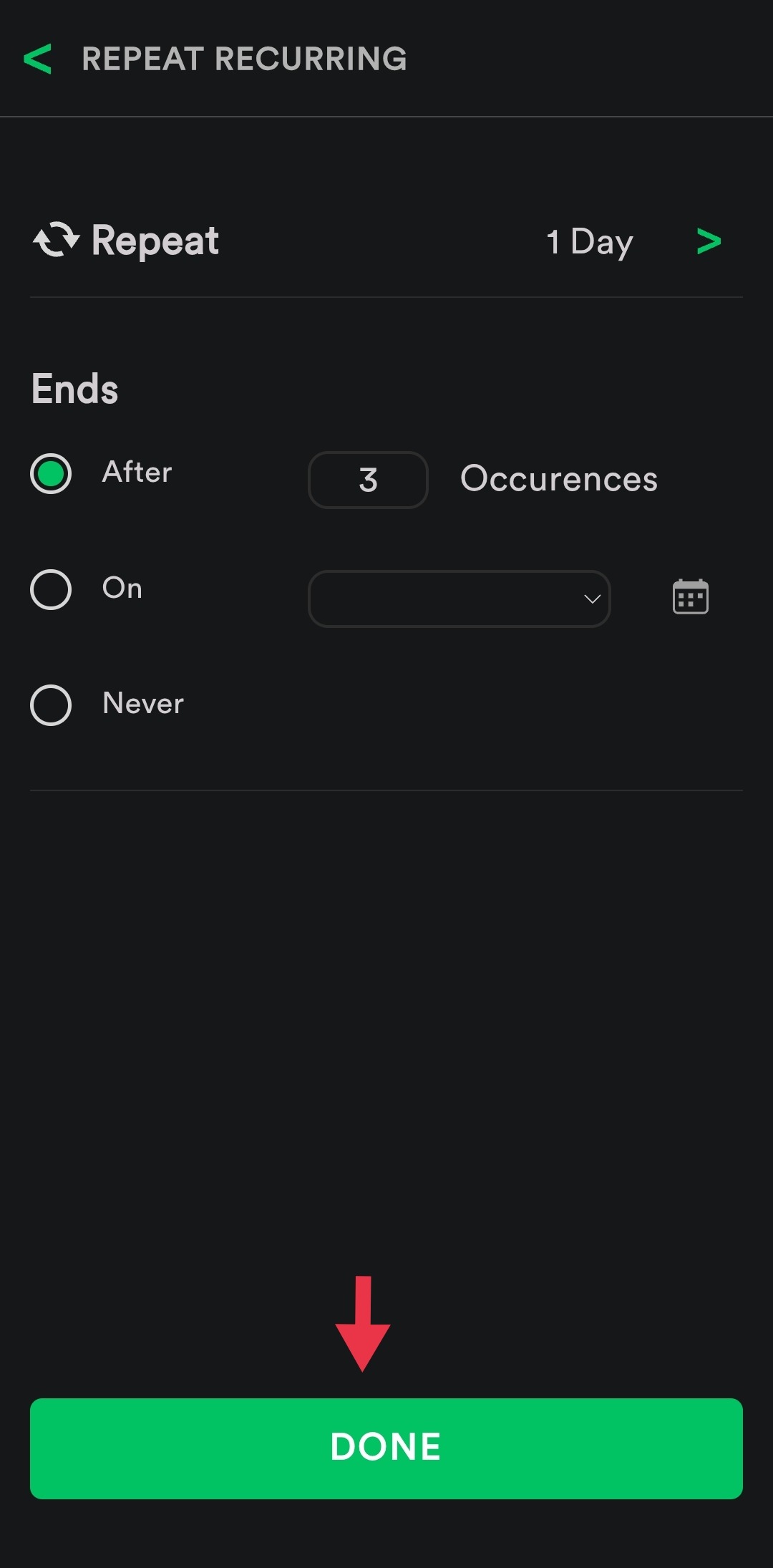
On the Repeat Recurring screen:
Select how the recurrence ends:
After a set number of occurrences (e.g., 3 times)
On a specific date (using the date picker)
Never (continues indefinitely)
Tap Done to confirm
Step 9: Finalize & Confirm
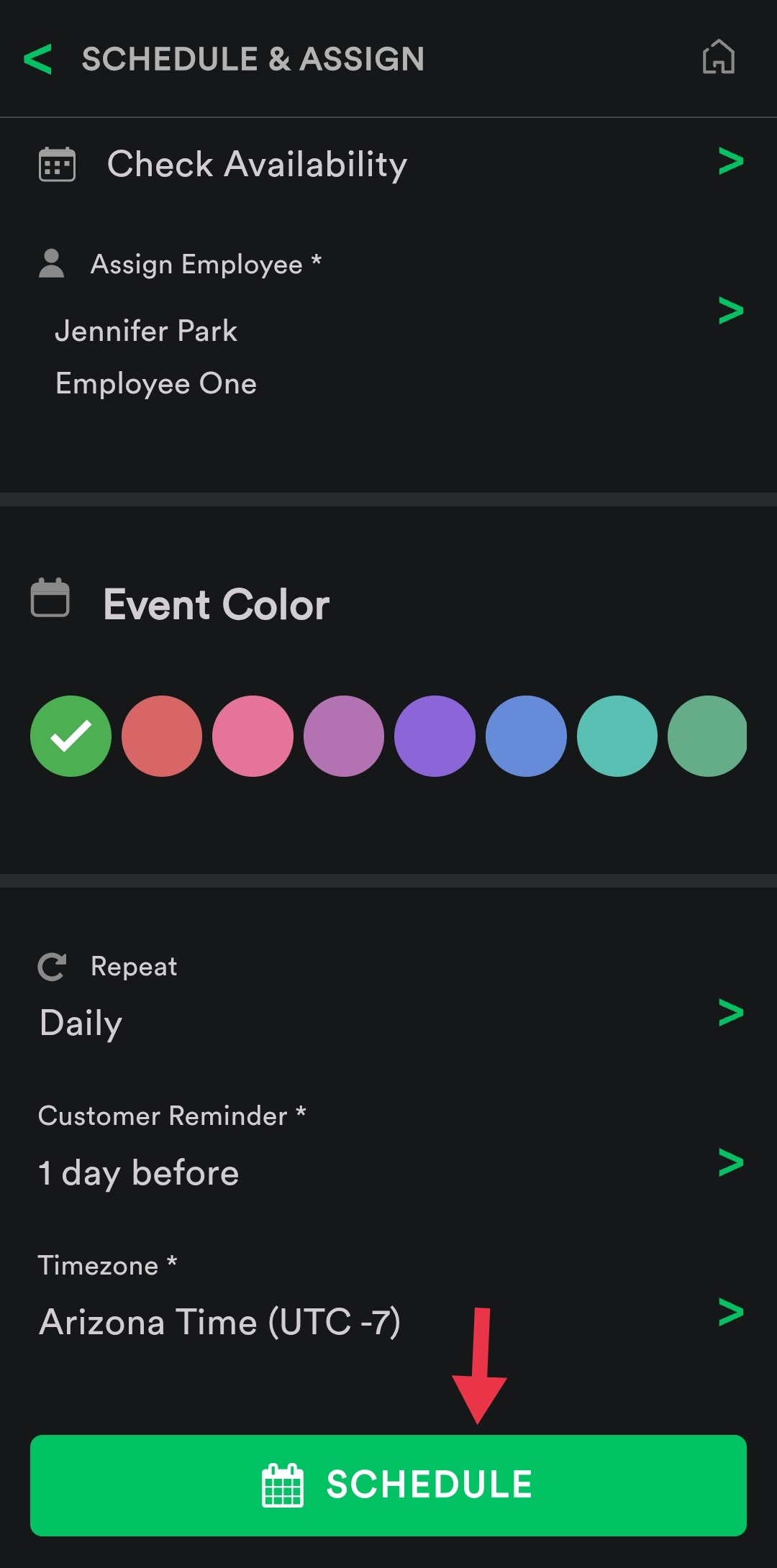
Review all details (employees, recurrence, customer reminder, time zone)
Tap Schedule to confirm
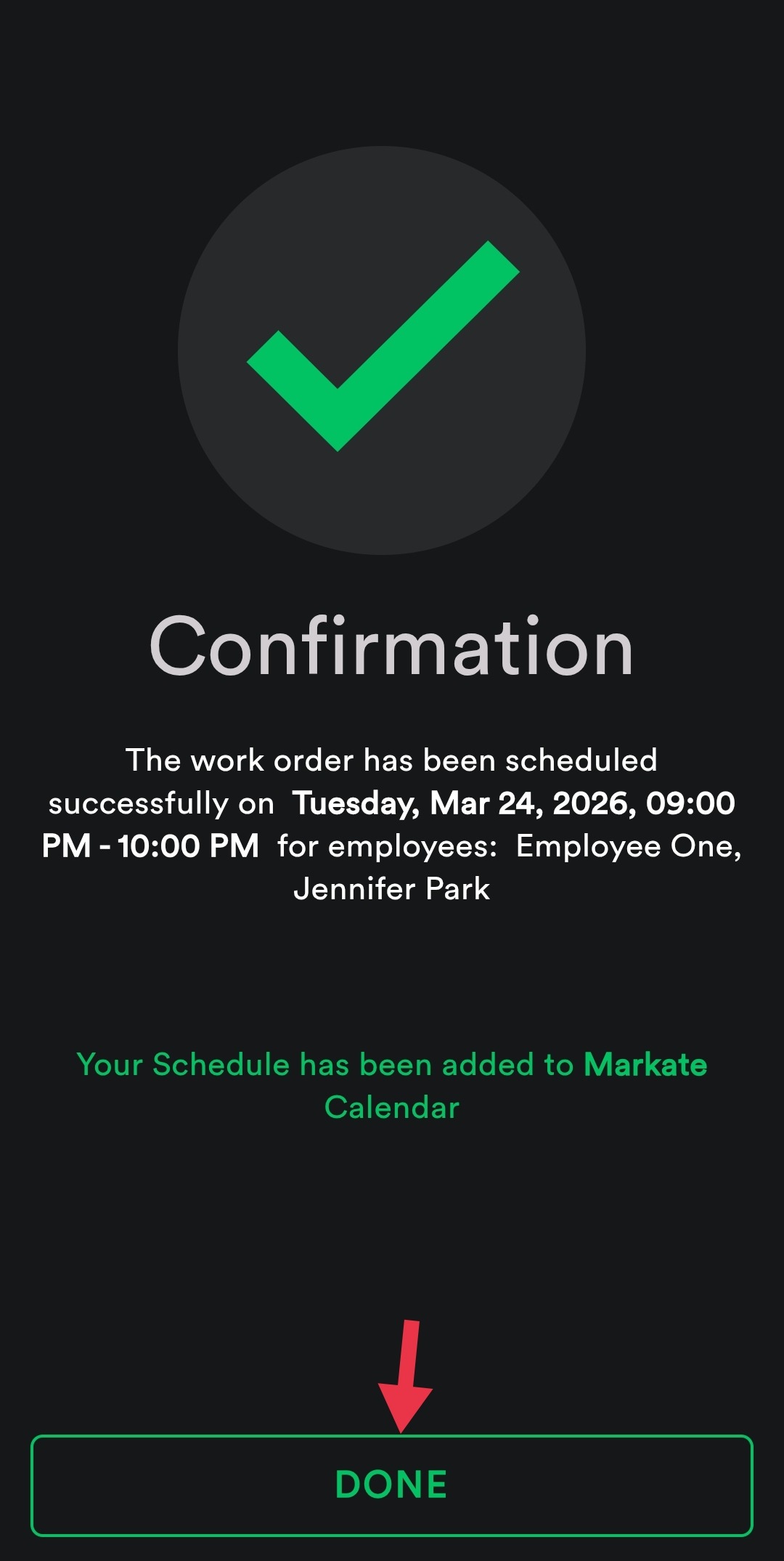
A confirmation screen will display with scheduled date, time, and assigned employees
Step 9: View only Recurring Work Orders:
From the Work Orders list, Filter by type - Recurring
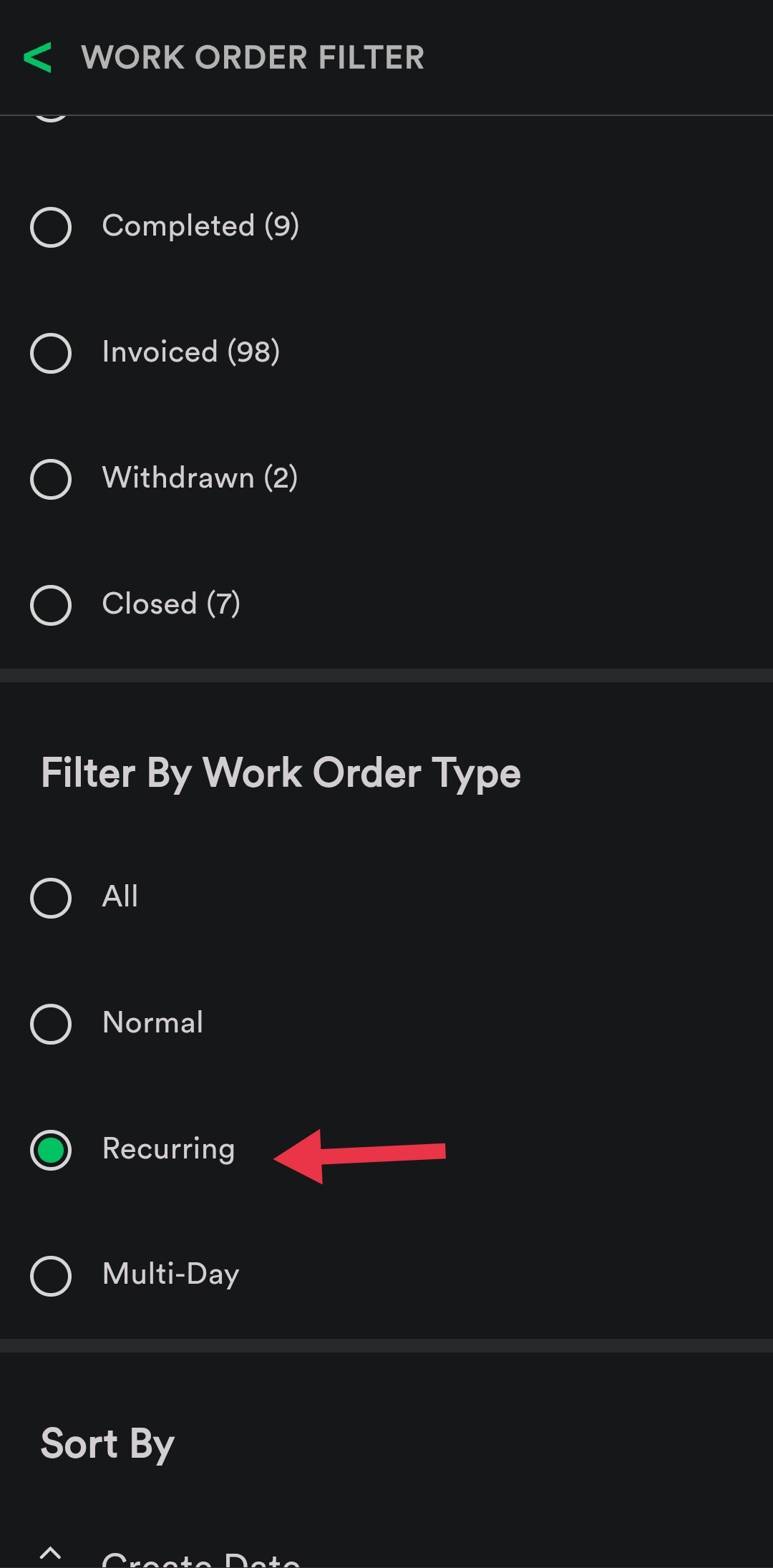
Here is a video showing how to do this.
Was this article helpful?
That’s Great!
Thank you for your feedback
Sorry! We couldn't be helpful
Thank you for your feedback
Feedback sent
We appreciate your effort and will try to fix the article