Follow these steps to sync your Markate schedule with your iCloud Calendar on an iPhone or iPad.
Step 1: Make Sure iCloud Calendar is Enabled
Open Settings on your iPhone.
Tap [Your Name] at the top of the screen.
Tap iCloud.
Turn Calendars ON.
This allows your iPhone to sync calendar events with iCloud Calendar.
OR
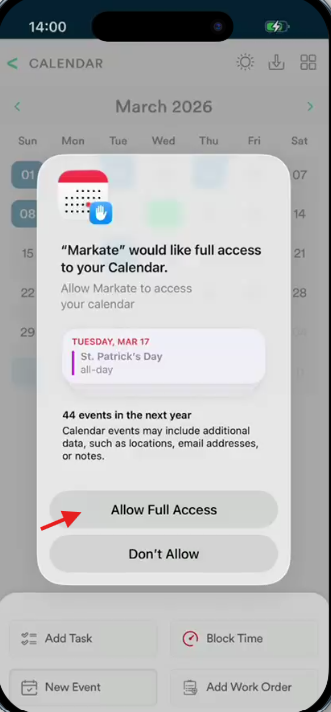
While scheduling an event/WO in Markate app, it asks for Full access to your Calendar.
Tap - Allow Full Access.
Step 2: Enable iCloud Calendar Sync in the Markate App
Open the Markate App.
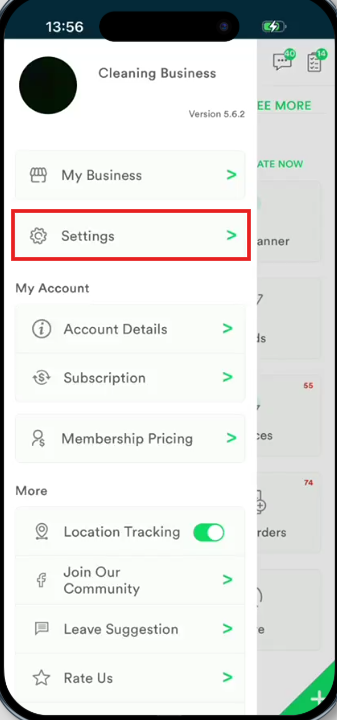
Go to left slider.
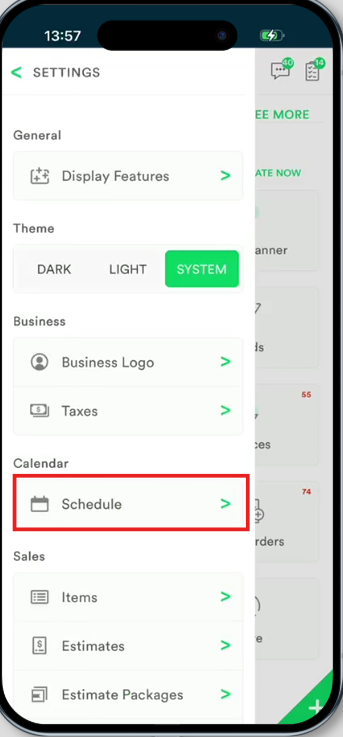
Tap the Settings.
Tap Schedule
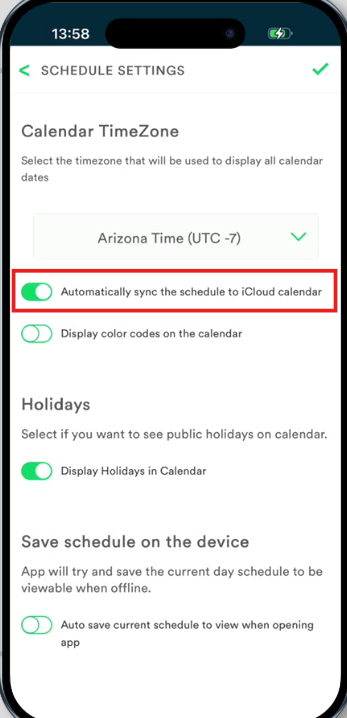
Enable Automatically Sync Schedule to iCloud Calendar.
Tap the ✓ Tick on top right to save.
Your Markate appointments will now appear in your iCloud Calendar.
Below are the screenshots for reference:
What Happens After Syncing
Markate jobs and appointments will automatically appear in your iPhone Calendar.
Changes made in Markate will update the calendar automatically.
How Google Calendar works on iPhone
If a user wants their calendar events to go to Google Calendar:
Open Settings on the iPhone.
Tap Calendar.
Tap Accounts.
Tap Add Account.
Select Google.
Sign in with the Google account.
Turn Calendars ON.
After this:
The Google calendar appears inside the Apple Calendar app.
Apps that create events in the default iOS calendar can save them to that Google calendar.
NOTE: If you want Markate events to appear in Google Calendar, add your Google account to your iPhone and set it as your Default Calendar. Any events created by app that sync with your iPhone calendar can then appear in Google Calendar.
Was this article helpful?
That’s Great!
Thank you for your feedback
Sorry! We couldn't be helpful
Thank you for your feedback
Feedback sent
We appreciate your effort and will try to fix the article