Create a Task on Desktop
Login to your Markate account.
Click Schedule > Tasks > +Add Task

Enter Task details and click Save to just Save the current task, Save and New to Save the current one and immediately open the same screen to create another task.

Once you click Save, a pop up appears where you have the option to click on any calendar to add the task to your calendar. Click Close.

Once task has been saved, you can see it under the Active tab if it’s Active or under Completed tab if you have marked it as Completed.

Here are some shortcuts to create Tasks
You can have a quick view of all the tasks. Simply click on the Tasks icon on top right as shown in the below screenshot. You can also Add Task, mark it Active/Completed or delete the task from there.

You can also add Task from Schedule page. Click Create Event > Add Task.

You can also click on any date in the Markate Calendar and Add Task as shown in the below screenshot.

Create a task on App
Step 1: Log in to the Markate App
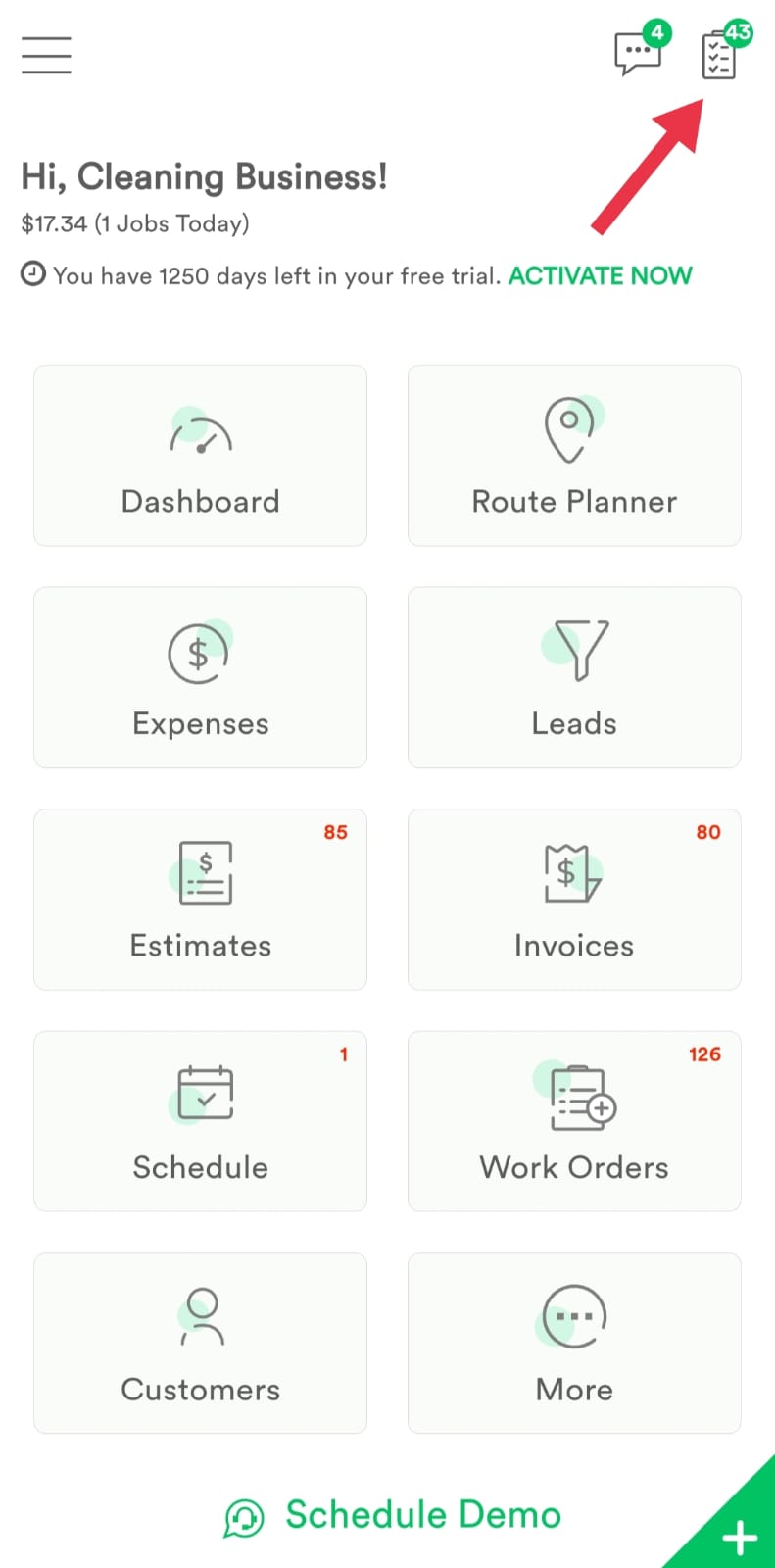
Step 2: Tap Schedule from the app menu. On the Schedule screen, tap the + (Plus) button in the top-right corner.

Step 3: This will open the screen to create a new task. Tap Tick icon once filled in all details.
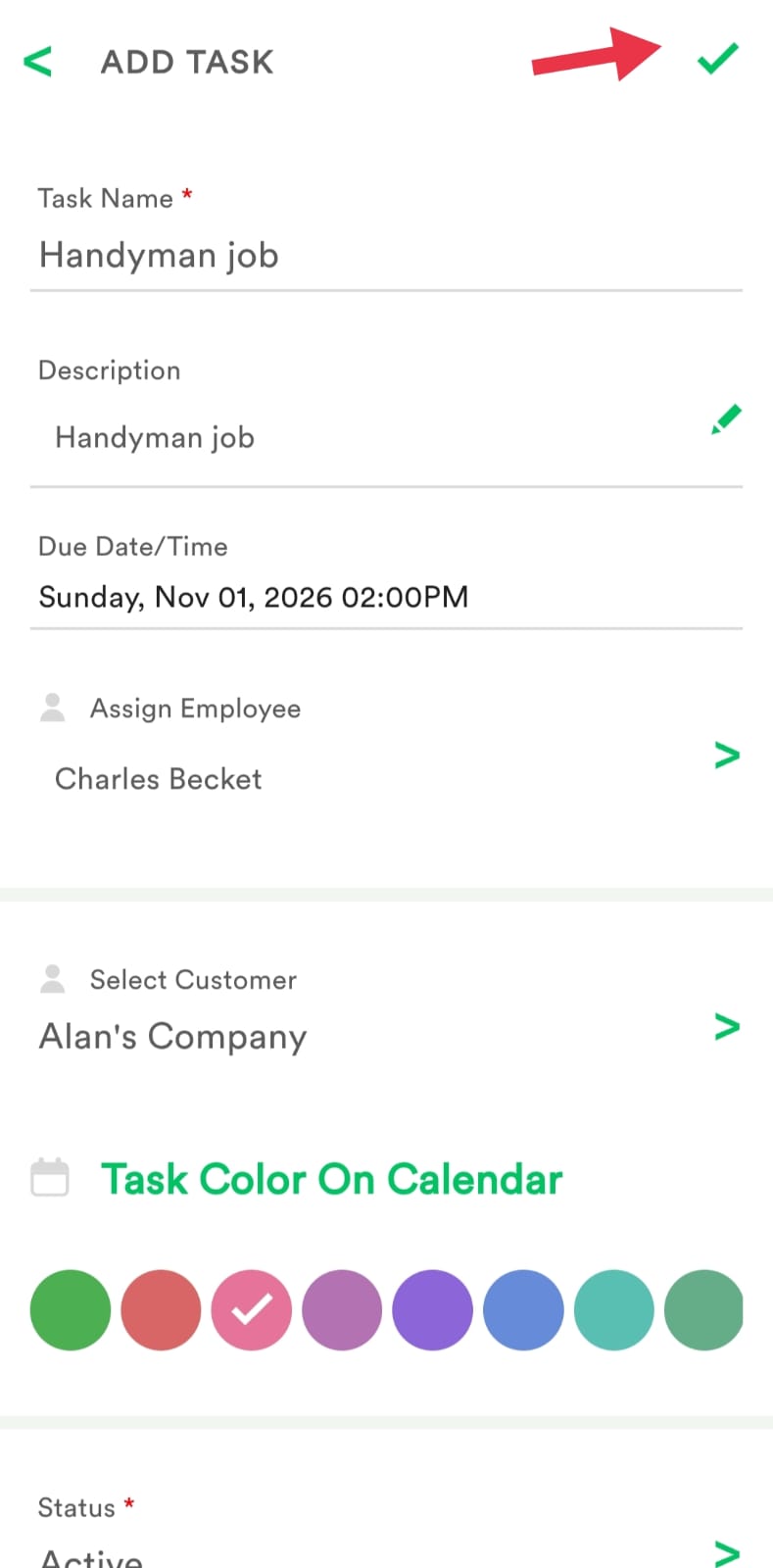
Step 4: Your task will be saved successfully under the Tasks list.
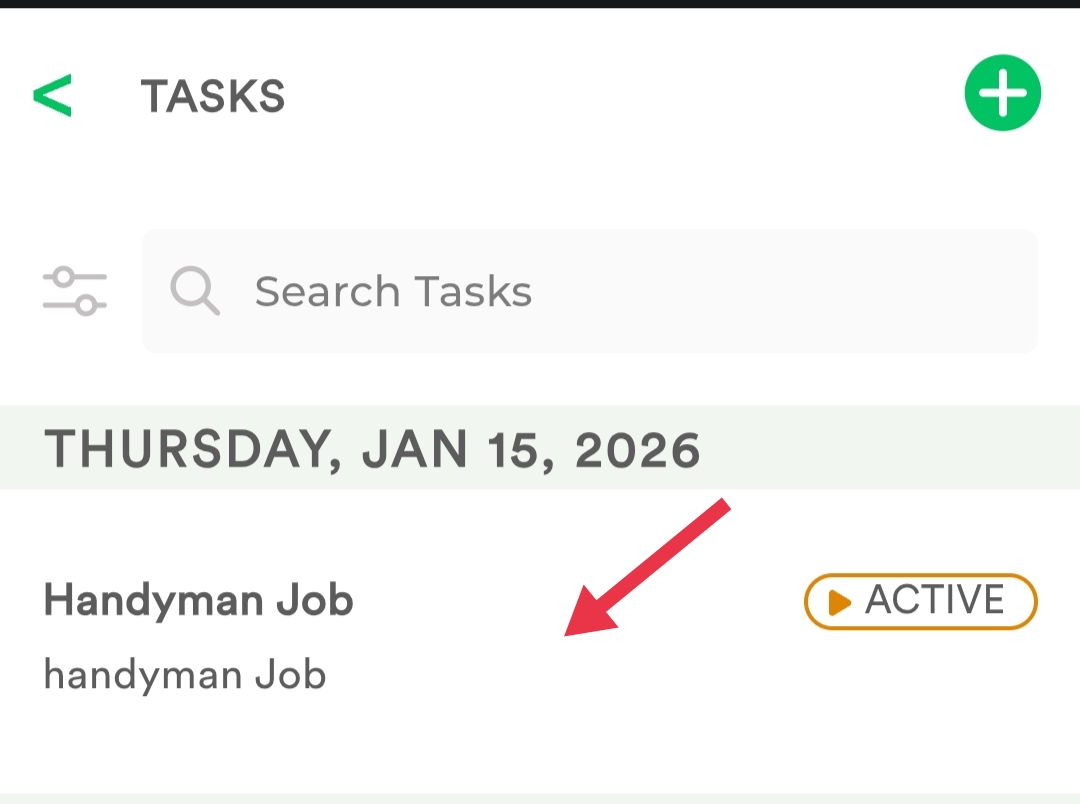
Step 5: View Your Task
Go back to the Schedule section to view your created task.
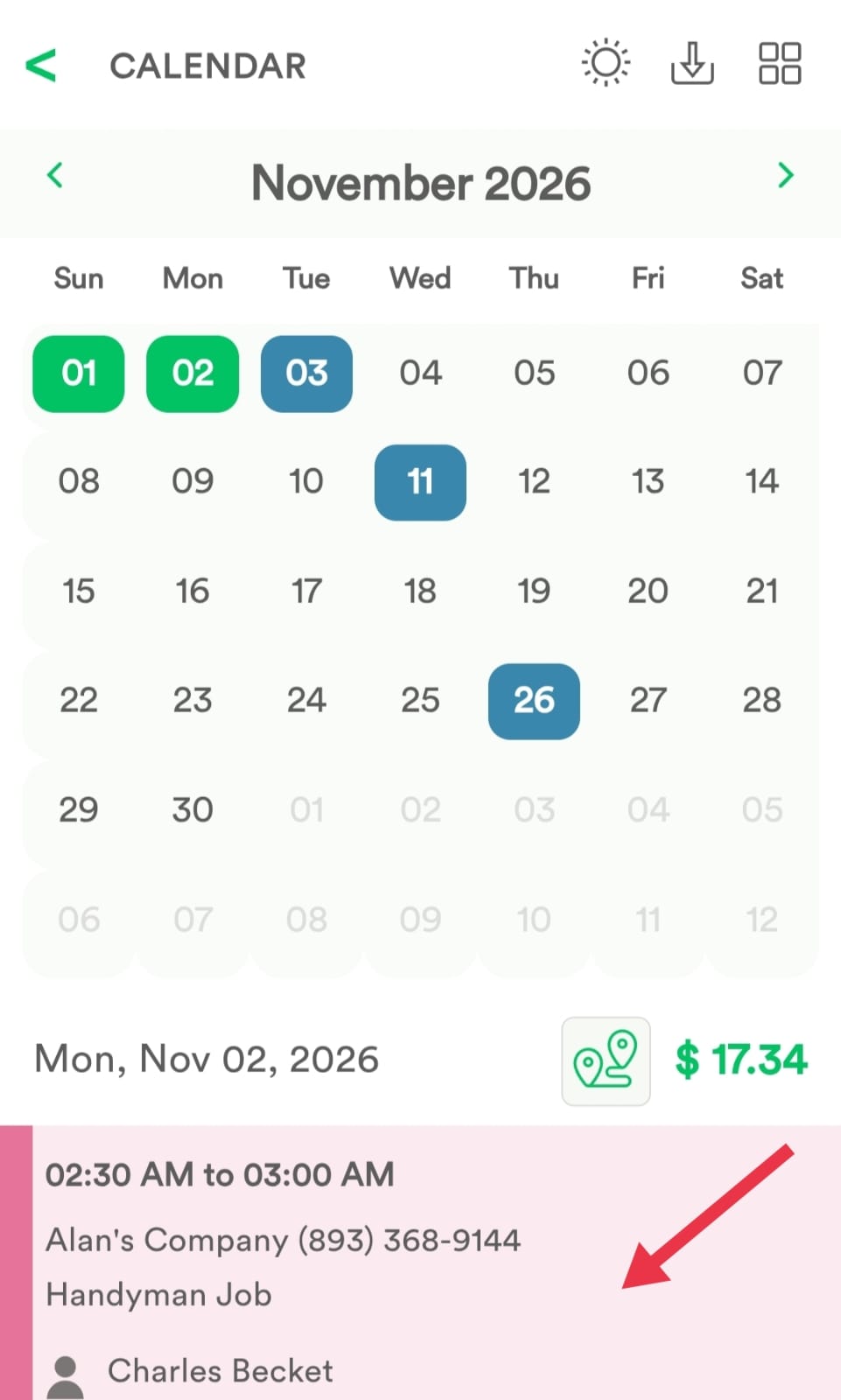
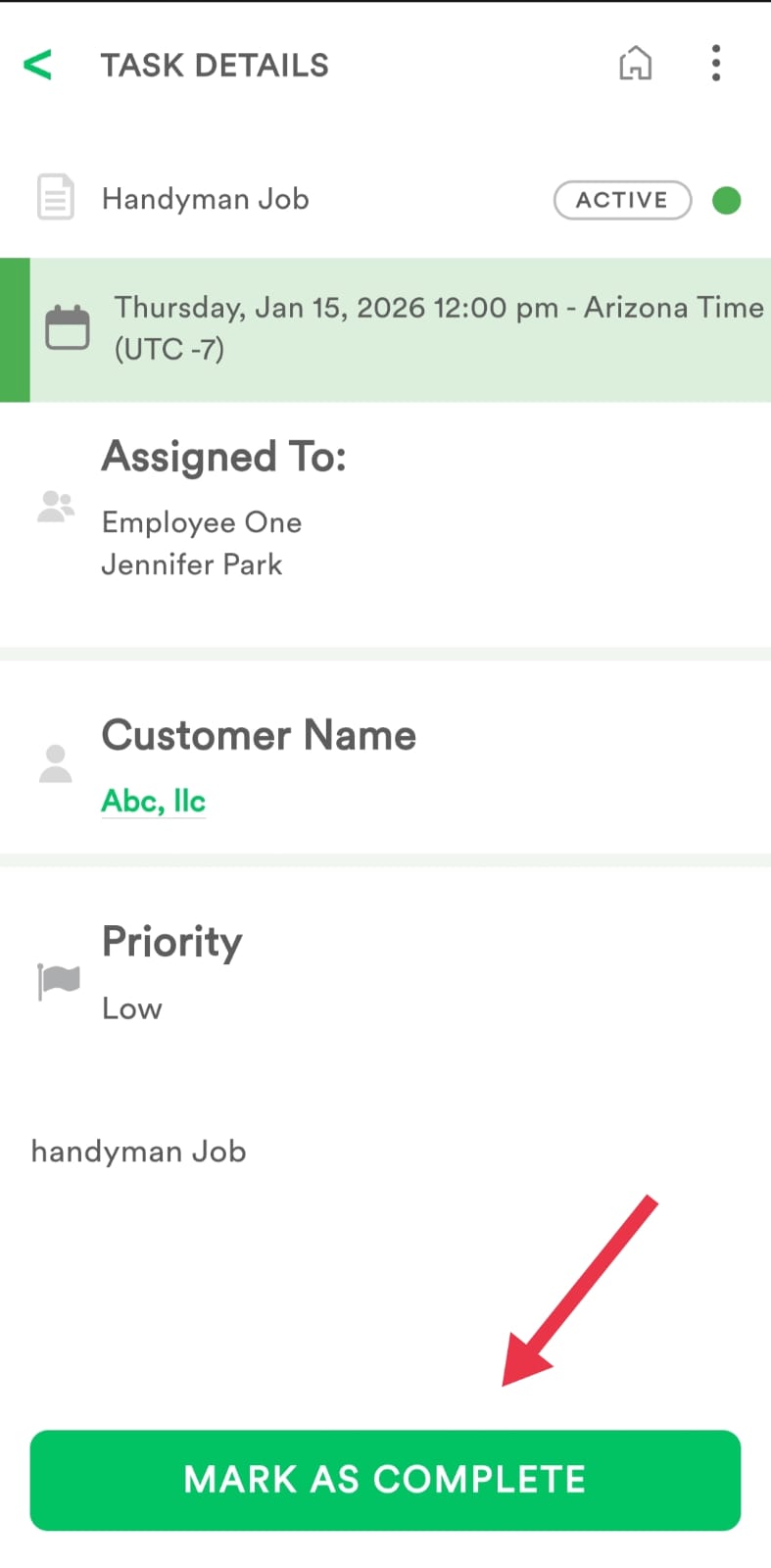
Step 6: You can access your task and mark it as Complete once the task has been completed by Employee(s).
Here is a video showing you how to do this.
Was this article helpful?
That’s Great!
Thank you for your feedback
Sorry! We couldn't be helpful
Thank you for your feedback
Feedback sent
We appreciate your effort and will try to fix the article